Free online 3D viewer
Open GLB, glTF, FBX, OBJ, STL, STEP, IGES, Rhino, 3MF, PLY, DAE and 3DS files right here — or drop a zip with the model and its textures together. Orbit it, switch to wireframe, hover a part to read its name, measure a gap and check the triangle count. The file never leaves your computer: it’s read in the browser, and anything that needs converting is converted there too. When it’s ready, Share sends it to your client for feedback.
Not sure what your client would see? Open a sample review
What you can do with it
Everything you need to check a model, in the browser
The toolbar on the left of the viewer has the tools you’d otherwise open a 3D program for. They work the moment your file opens.
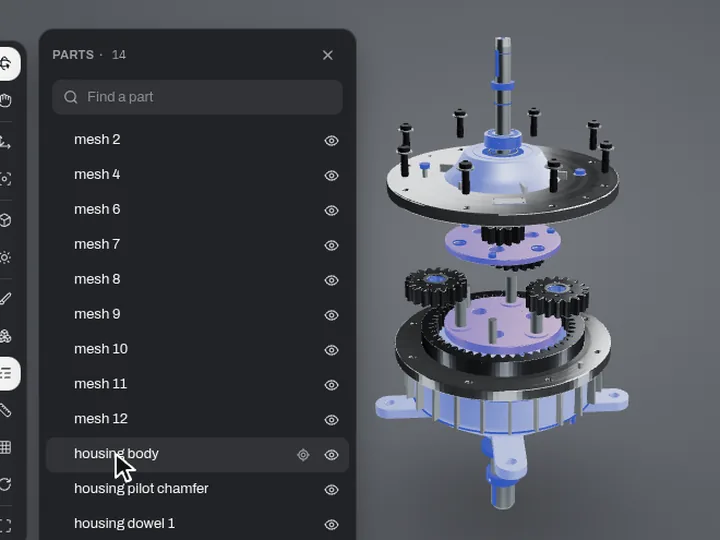
Parts listP
Every part by the name it has in the file. Search, hide one, or show it on its own.
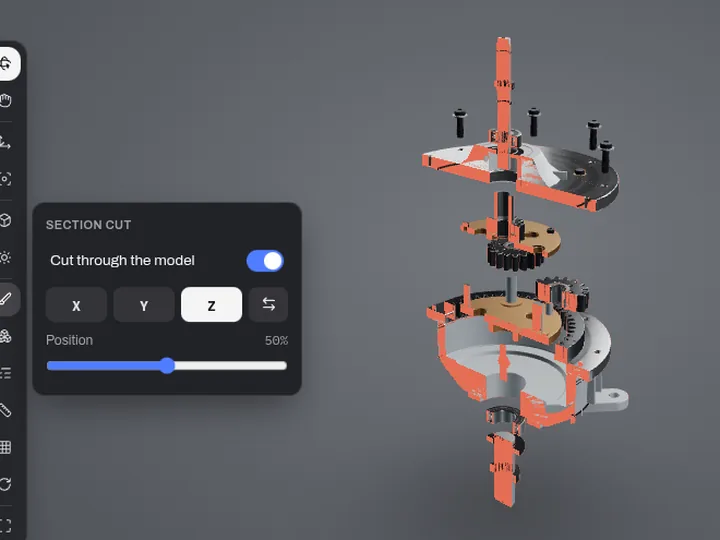
Section cutS
Cut through the model along X, Y or Z to check what's inside a housing.
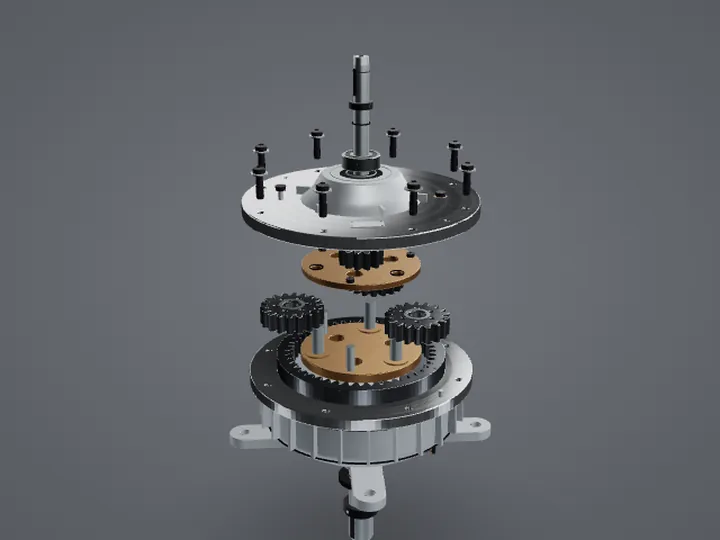
Exploded viewE
Spread the parts apart, from the centre or along one axis, to see how it goes together.
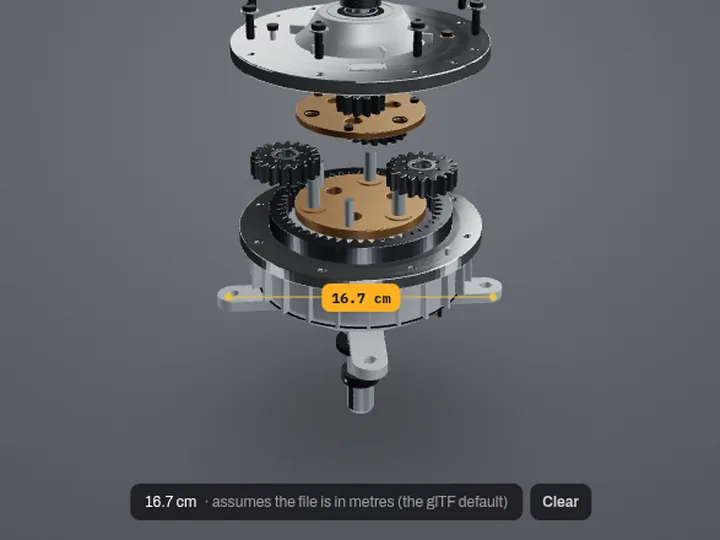
MeasureM
Click two points for the distance between them, at the model's real size.
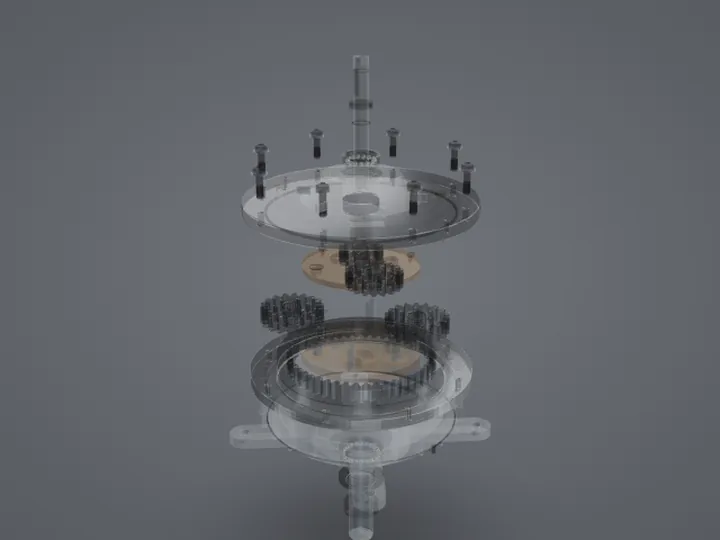
X-ray, wireframe, clayX
See through the outer parts, check the mesh, or look at the shape without colours.
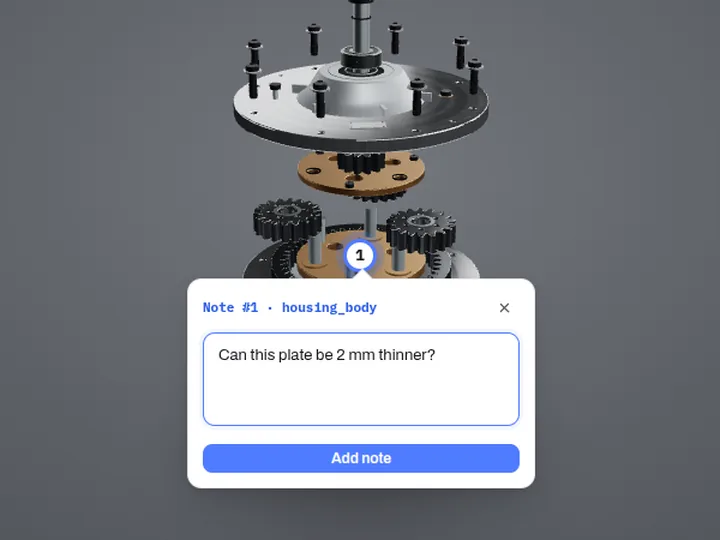
Pin a note
Click a spot and type. The note keeps the angle you were looking from.
Send it on
Need someone else to look at it? They don’t need any 3D software either
- 1
Open it here
Drop the 3D file on the viewer above.
- 2
Pin your questions on it
Click the part you mean and type: “Is this wall thick enough?”
- 3
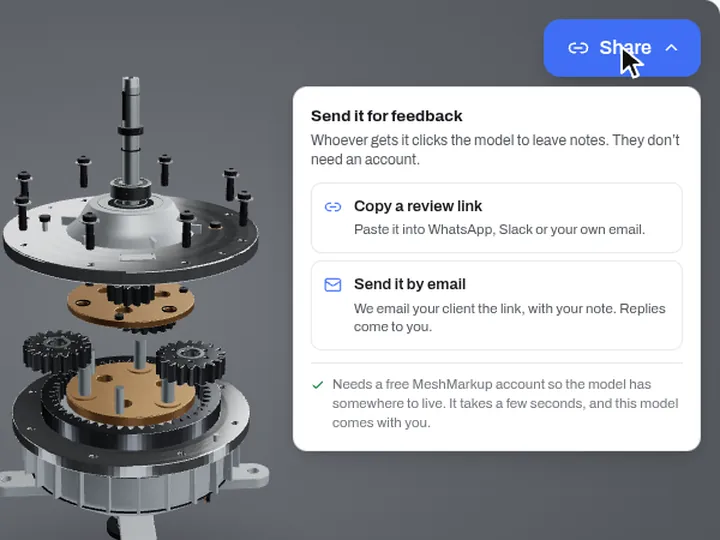
Click Share
Copy a review link, or we email it for you. Sharing needs a free account, and your model and notes come with you.
- 4
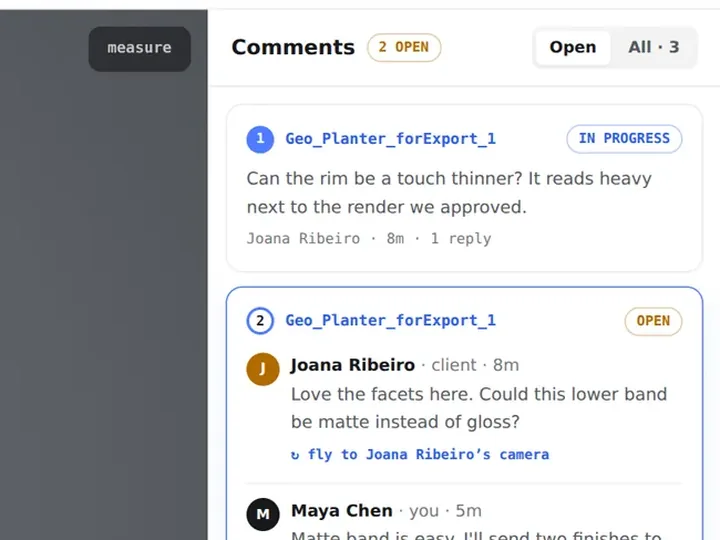
They answer on the model
Your client or supplier opens the link in any browser, with no account, and clicks the spot to reply. You get an email.
- See a sample review →Start free
Who uses it
Made for people who send models to clients
3D artists and modellers
Check a model before delivery, then send it to the client as a link instead of a stack of screenshots.
WireframeNotes3D print services
Open what a customer sent, check its size and shape, and send back what needs changing before printing.
MeasureNotesGame, AR and e-commerce teams
Review assets for polygon count, textures and scale, and pin what needs fixing on the asset itself.
Triangle countParts listProduct and freelance designers
Send each round to the client as a link, collect every comment in one place, and get a clear sign-off.
Review linksVersions
What’s free
The viewer is free. A free account lets you send it
| Feature | Viewer, no account | Free account |
|---|---|---|
| Open STEP, IGES, Rhino, STL, OBJ, FBX, GLB and more | ✓ | ✓ |
| Parts list, section cut, exploded view, measure, X-ray | ✓ | ✓ |
| Pin notes on the model for yourself | ✓ | ✓ |
| Send a review link, and the client replies with no account | – | ✓ |
| Keep your models and every note in one place | – | 3 new every 30 days |
| Email when the client opens the link or leaves a note | – | ✓ |
| Versions, compare and client sign-off | – | On paid plans |
No install, no account
Works in Chrome, Edge, Safari and Firefox, on Windows, Mac and Linux.
Your file stays private
Most files are read in your browser. Very large CAD files are converted on our server and deleted straight after.
Real size and parts
Assemblies keep part names, colours and real-world dimensions.
Up to 1 GB
Big assemblies open too. A cut-off STEP file opens with the part that's there.
Questions
Viewing 3D models online, and sending them for feedback
How do I send a 3D model to a client for feedback?
Open the model in the viewer above, click Share in the top-right corner, and choose Copy a review link or Send it by email. You'll create a free MeshMarkup account on the way (it takes a few seconds), and the model you have open comes with you.
Your client gets one link. It opens the actual 3D model in their browser, not a render or a screenshot, and they click the exact spot they want to talk about to leave a note. Each note remembers the camera angle it was written from, so when you open it you see precisely what they saw. No more "the bit on the left, near the top".
You can also do this from inside MeshMarkup: upload the model, open it, and use Share to make a link or email it. Every link records whether it has been opened.
Does my client need an account or any software to see the model?
No. A review link opens in any modern browser on a computer, tablet or phone. Your client types their name once so you know who said what, and that's it: no sign-up, no password, no plugin, no download. They never count as a seat on your plan.
How do I use the 3D viewer?
Drop a file onto the box above, or click it to choose one. The model opens straight away, framed to fit. Then:
- Rotate: drag with the left mouse button (one finger on a touchscreen)
- Pan: drag with the right mouse button (two fingers on a touchscreen)
- Zoom: scroll the mouse wheel, or pinch
- Jump to a standard view: press 1 for isometric, 2 front, 3 side, 4 top
- Wireframe: press W to see the mesh topology over the surface
- Grid: press G to show a floor grid for scale and orientation
- Part names: hover over any part to read its name from the file (press N to switch names off and on)
- Measure: click measure, then click two points on the model
Nothing you do here changes the file. Click Open another to load a different model.
Which 3D file formats can I open?
GLB and glTF open directly. These also open by converting them in your browser first, with nothing sent anywhere:
- FBX (Autodesk)
- OBJ, with its MTL materials when zipped together
- STL (3D printing and CAD)
- STEP / STP and IGES / IGS (CAD: SolidWorks, Fusion, Inventor, CATIA, Onshape, FreeCAD)
- 3DM (Rhino)
- 3MF (3D printing)
- PLY (scans and point-based meshes)
- DAE (Collada)
- 3DS (legacy 3ds Max)
You can also drop a .zip containing a model with its textures (for example an OBJ with its .mtl and image files, or a .gltf with its .bin), and they're put back together.
Native files from Blender (.blend), 3ds Max (.max), Maya (.ma/.mb), Cinema 4D (.c4d) and SketchUp (.skp) can't be read outside their own programs. Export to GLB, FBX or OBJ first — if you drop one in, the viewer tells you which menu to use.
Can I view STEP files online, or files from SolidWorks, Fusion or Inventor?
Yes, STEP (.step, .stp) and IGES (.iges, .igs) open here. The exact CAD surfaces are turned into a mesh in your browser with OpenCascade, the open-source CAD kernel. Assemblies keep their part names and colours, and the model comes in at its real size, so measurements read true.
SolidWorks (.sldprt, .sldasm), Inventor (.ipt, .iam), Fusion (.f3d) and CATIA files are closed formats that only their own programs can read, so save or export them as STEP first. In SolidWorks that's File → Save As → STEP, and it keeps the assembly.
Very large assemblies can take several seconds to convert and need a fair amount of memory. A desktop browser is the better place for those.
Is my file uploaded or stored anywhere?
Not by the viewer. The file is read directly in your browser, and any conversion (FBX, STEP, Rhino and the rest) happens on your own computer too. Nothing is sent to a server, so nothing is stored and there's nothing to delete afterwards. That's why it's safe to use for a client's unreleased product.
The model is only uploaded if you choose to share it, and then only to your own MeshMarkup account, where it's private. Review links are unlisted, are never indexed by search engines, and can be switched off at any time.
How can I check the polygon or triangle count of a 3D model?
Open it here and look under the viewer: it shows the file size and the number of triangles, meshes, materials and nodes in the model. Press W for wireframe to see where the density is — useful before sending a model to a game engine, a web configurator or an AR app, where the triangle budget matters.
How do I measure distances on a 3D model?
Click measure (top of the viewer), then click two points on the surface. The straight-line distance between them is shown on the model. Click clear to start again.
Distances assume the file is in metres, which is the glTF standard. STEP and IGES files are converted to metres for you, so they read correctly. STL and OBJ files carry no units and are often modelled in millimetres, so a 40 mm part may read as 40 m. The proportions are right; only the unit is off.
Why does my model look grey, or have no textures?
Usually because the textures are separate files the viewer hasn't been given. OBJ, FBX, DAE and .gltf files often point to images next to them. Zip the model together with its texture folder (and the .mtl, for an OBJ) and drop the zip in — or export a GLB, which carries everything in one file.
Some formats have no materials at all: STL and most PLY files are geometry only, so they show in a neutral grey. STEP files keep the colours set in CAD, but not rendering materials.
How do I export a GLB from Blender, 3ds Max, Maya, Cinema 4D or SketchUp?
GLB is the most reliable format to share, because the model, materials and textures travel in one file:
- Blender: File → Export → glTF 2.0, with Format set to glTF Binary (.glb)
- 3ds Max: the Babylon.js exporter or the built-in glTF exporter (2023 and later)
- Maya: File → Export All → glTF Binary, with the Babylon or Maya glTF exporter
- Cinema 4D: File → Export → glTF (.glb)
- SketchUp: File → Export → 3D Model → glTF, or export as FBX or OBJ
- Any CAD package: save as STEP, which opens here directly
Is there a file size limit? Does it work on a phone?
The viewer itself has no fixed limit: because the file stays on your computer, the limit is your device's memory. Models of a few hundred megabytes open fine on a desktop. On a phone or tablet it works the same way with touch controls, but very heavy models are better opened on a computer.
When you share a model through MeshMarkup, your plan's storage applies. The free plan includes 50 MB, enough for most models sent for review.
Is the 3D viewer really free?
Yes. The viewer is free with no account, no watermark and no limit on how many files you open.
Sharing a model for feedback needs a free MeshMarkup account. The free plan covers one project and three new models every 30 days, and paid plans have no limit on new models, and add version history with side-by-side comparison, client sign-off and a team. You only pay if you outgrow it.
What happens when my client asks for changes?
Mark each note as you fix it, then upload the new version to the same model. Notes still open move across to the new version with their replies, and nothing said about the old one is lost. Share the new version with a fresh link, and you can overlay the two versions so your client sees exactly what moved. (Several versions per model come with the paid plans; the free plan keeps one.)
Get feedback on the model, not on a screenshot
One link, no sign-up for your client, and every note pinned to the spot it’s about.