How to export a GLB from Blender (for client review)
Export a GLB from Blender 4.x with the right glTF 2.0 settings, so your client sees the model with its materials, textures and true size in the browser.
To export from Blender for client review, save a GLB: choose , set Format to glTF Binary (.glb), tick Apply Modifiers, and click Export glTF 2.0. The GLB holds the geometry, materials and textures in one file, and MeshMarkup opens it as it is, with no conversion.
The rest of this guide covers the settings that matter, how to keep the file small, and what to do when textures or scale come out wrong.
Best format: GLB
GLB is the binary form of glTF 2.0, the format MeshMarkup's viewer reads natively. It's the best choice from Blender because:
- One file. Meshes, materials and images are packed together, so nothing goes missing on the way to your client.
- Real size. Blender's default unit is the metre and glTF is in metres, so measurements in MeshMarkup match your scene.
- No conversion. A GLB uploads exactly as you exported it.
Don't send the .blend file. MeshMarkup can't open it, and if you drop one it tells you to export a glTF instead.
Export the GLB step by step
Tidy what you're sending
Hide or delete helper objects, reference images and high-poly sources you don't want the client to see. Apply the scale of your objects with so nothing exports at an odd size.
Open the glTF exporter
Choose . The file browser opens with the export settings in the panel on the right.
Pick the binary format
Set . The other options, glTF Separate and glTF Embedded, produce a
.gltffile that is easier to lose parts of.Choose what to include
Under , tick Selected Objects to send only what you've selected, or Visible Objects to send everything that's showing. Leave cameras and lights off unless you need them.
Set transform, mesh and material options
Leave ticked. Under , tick Apply Modifiers, UVs and Normals. Under , set Materials to Export and Images to Automatic (or JPEG to keep the file smaller).
Export and check the size
Name the file and click Export glTF 2.0. Look at the file size before you upload: the Free plan has 50 MB of storage in total, so a lean review file goes further.
Recommended settings
| Setting | Choose | Why |
|---|---|---|
| Format | glTF Binary (.glb) | One self-contained file |
| Include | Selected Objects or Visible Objects | Leaves out helpers and hidden parts |
| Transform | +Y Up (on) | glTF is Y-up; the model stands the right way |
| Apply Modifiers | On | Subdivision, mirror and booleans are baked into the mesh |
| UVs, Normals | On | Needed for textures and smooth shading |
| Materials | Export | Keeps colours and image textures |
| Images | Automatic or JPEG | JPEG makes large textures much smaller |
| Compression (Draco) | Optional | Shrinks heavy meshes; MeshMarkup reads Draco GLBs |
Units and scale
One Blender unit is one metre by default, and glTF is in metres, so a 2 m sofa in Blender measures 2 m in MeshMarkup. If your scene uses a different Unit Scale in , or objects have unapplied scale, the model can come in too big or too small. Apply scale () and keep Unit Scale at 1.0 for export. If the size still looks wrong, see wrong size or scale.
Textures and materials
The glTF exporter only understands the Principled BSDF shader with Image Texture nodes plugged into its inputs (Base Color, Metallic, Roughness, Normal, Emission, Alpha). Anything else doesn't export as you see it in Blender:
- Procedural textures (Noise, Voronoi, Musgrave, node groups) export as a flat colour. Bake them to image textures first with Cycles' Bake panel, then connect the baked images to the Principled BSDF.
- Mix Shader setups and non-Principled shaders are simplified or dropped. Bake them down too.
- Keep textures at 2K (2048 px) or below for review. A 4K texture set can add tens of megabytes on its own.
Common problems
- The model is grey or untextured. The material isn't a Principled BSDF with image textures, or the images were procedural. Bake to images and export again. See model looks grey.
- Parts look faceted or too smooth. Normals was off, or the mesh needs Shade Auto Smooth before export. Tick Normals and re-export.
- A mirrored or subdivided part is missing half its shape. Apply Modifiers was off. Tick it and export again.
- The file is too big to upload. Decimate, lower subdivision levels, set Images to JPEG, or tick Compression. More in reduce file size.
- The model is lying on its back. +Y Up was unticked. Tick it and re-export.
Upload and send it
Check the export
Open the GLB in the free viewer at /viewer to confirm the textures and triangle count before your client sees it.
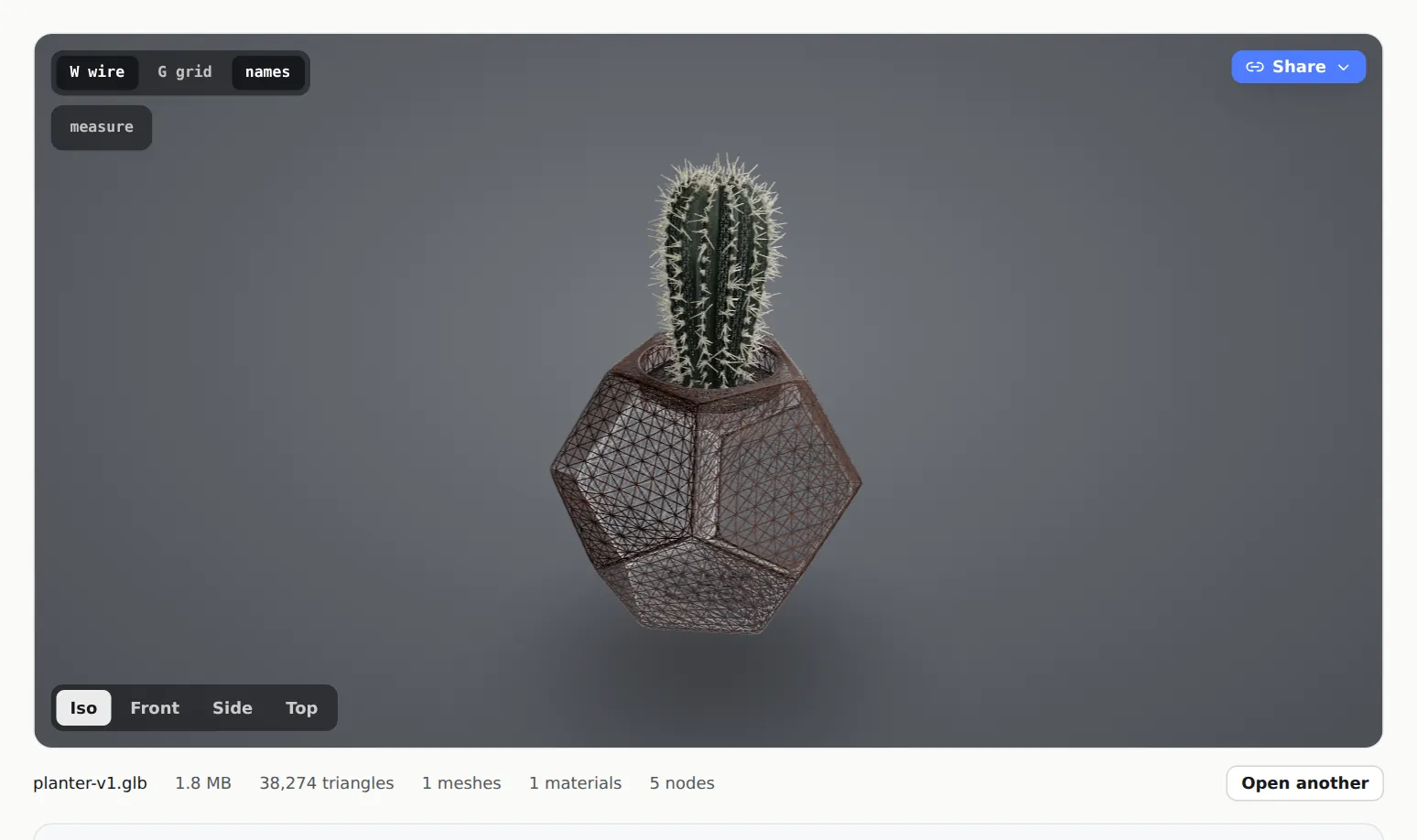
The free viewer shows triangle and material counts Upload it and share a review link
Drop the GLB on Models, then click Share for review. The full walkthrough is in how to send a 3D model to a client for feedback.
Was this guide helpful?
Related guides
Get feedback on the model, not on a screenshot
Upload a model, send one link, and your client clicks the exact spot. Free to start — no card.