How to reduce 3D model file size for sharing
Make a heavy 3D model small enough to share and quick to open in a browser, by cutting hidden parts, reducing triangles, shrinking textures and using Draco.
To make a 3D model smaller for sharing, remove the parts nobody will see, reduce the triangle count, shrink the textures to 2K, and export a GLB with Draco compression switched on. Together these often take a file from hundreds of megabytes to tens, and the smaller file also opens faster on your client's laptop or phone.
A client review doesn't need production detail. They need to see the shape, the colours and the spot they want to comment on, and every megabyte you remove is one less they wait for.
Find out what's making it heavy
Before cutting anything, look at what's in the file. Drop it on the free viewer: it opens in your browser without uploading, and shows the file size and the number of triangles, meshes, materials and nodes underneath. Press W for wireframe to see where the density is.
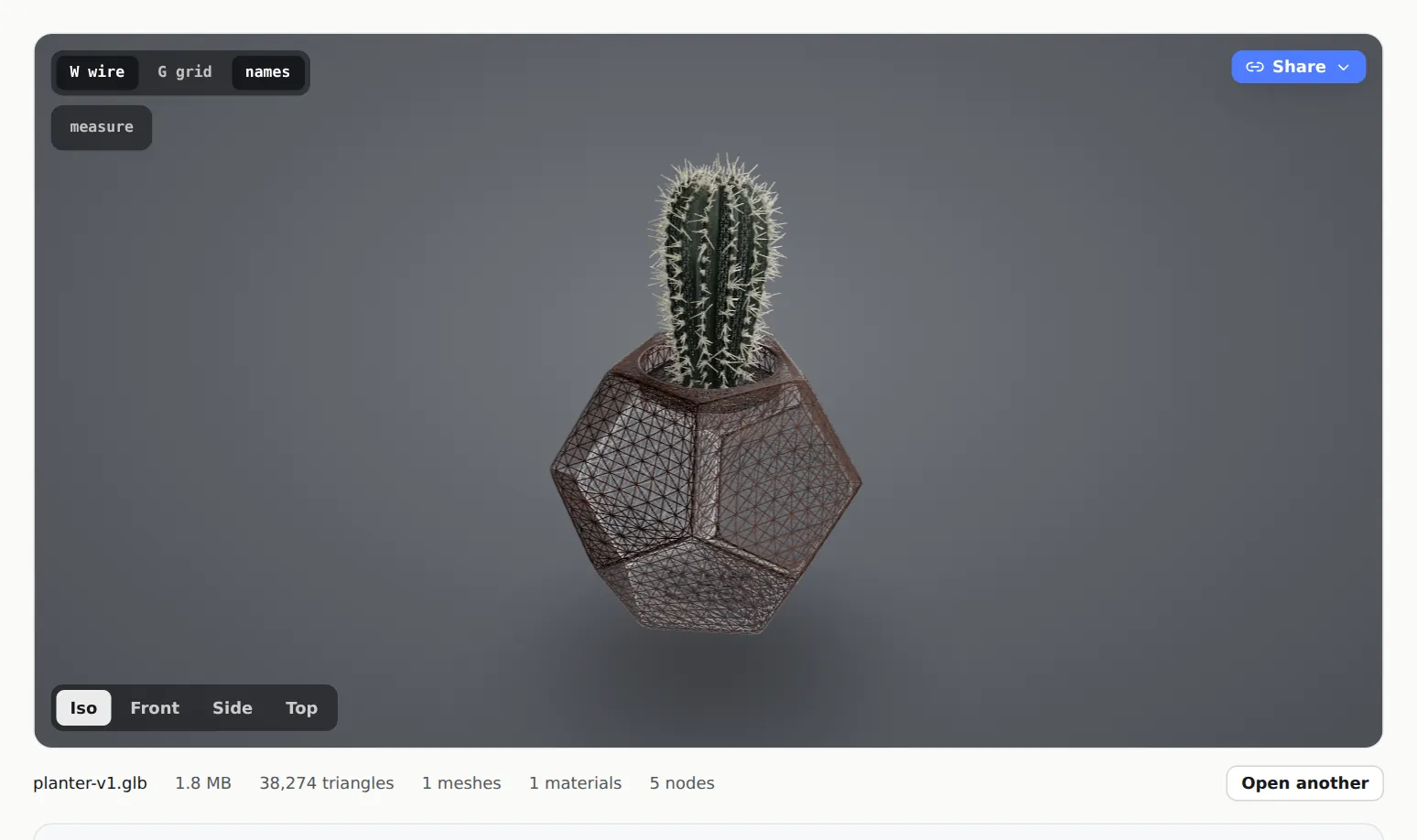
Most heavy files are heavy for one of three reasons:
- Too many triangles, often from a high subdivision level, a sculpt, a scan, or CAD tessellated very finely.
- Big textures. Every 4K or 8K map costs far more than the geometry around it, and PBR materials usually have four or five maps each.
- Things you can't see: internal parts, fixings, duplicate copies, hidden layers.
There's more on reading the numbers in checking polygon count and wireframe.
Make the file smaller, step by step
Remove what nobody will see
Delete internal components, screws, hidden layers, construction geometry, cameras and lights you don't need. In CAD assemblies, internal parts are often half the triangle count. Most exporters also have an Export selected only option (called Limit to > Selected Objects in Blender), which is a quick way to leave everything else behind.
Reduce the triangle count
In Blender, add a Decimate modifier (), lower the Ratio while watching the silhouette, then apply it. Lower the subdivision level on anything that doesn't need it. For CAD, export at a coarser mesh resolution; in Onshape, set Resolution to Coarse or Medium when you export.
Shrink the textures to 2K
A 2048 × 2048 texture is plenty for a review on a screen. Resize 4K and 8K maps in any image editor and save them as JPG for colour maps (PNG only where you need transparency). Where two materials use the same image, point them at one copy.
Export a GLB with Draco compression
Draco compresses the geometry inside a GLB, often to a fraction of its size, and MeshMarkup opens Draco-compressed GLBs directly. See the settings for your app below.
Check it again before sharing
Open the new file in the free viewer and compare the size and triangle count. Turn it round and zoom in on anything your client cares about. If an edge has gone faceted, ease off the decimation there.
Draco settings in common apps
| App | Where to switch it on |
|---|---|
| Blender | , format glTF Binary (.glb), then tick Compression in the export options (under Data in recent versions) |
| Rhino | Export as .glb, then tick Use Draco compression in the glTF export options. Draco compression Level goes from 1 to 10 |
| KeyShot | Export as GLB and tick Compress using Draco. Texture resolution in dpi controls how sharp the baked textures are, and lowering it makes the file smaller |
| Onshape | Export the Part Studio or Assembly as GLTF/GLB and tick Compress. Pair it with a Coarse or Medium resolution |
For more detail on each exporter, see the guides for Blender, Rhino, KeyShot and Onshape.
How much storage each plan has
Storage is counted on what MeshMarkup actually stores: the GLB, after any conversion. An FBX or STEP file is converted to GLB in your browser before upload, so the stored size can be quite different from the file you started with.
| Plan | Storage |
|---|---|
| Free | 50 MB |
| Solo | 20 GB |
| Studio | 200 GB |
| Pipeline | 2 TB |
Every version of every model counts, including archived ones. On paid plans, archiving a model frees one of your active-model slots but not its storage; deleting a model frees both. On Free, deleting frees storage, but neither archiving nor deleting gives back one of your 3 new models every 30 days. Settings → Usage shows how full you are and lists the models taking the most space under What's taking the space. If an upload won't fit, the upload stops and Your storage is full appears with the plans that have room. See plans and billing for everything else each plan includes.
What makes a model slow in a browser
File size decides how long the download takes. Once it's downloaded, other things decide how smoothly it turns:
- Triangle count. A laptop copes with a lot more than a phone. If most of your clients will open the link on a phone, aim lower.
- Number of meshes and materials. Hundreds of separate small parts, each with its own material, cost more than the same triangles in fewer pieces. Joining parts that share a material helps.
- Texture size in memory. A compressed JPG may be small on disk but takes its full size in graphics memory once it's open. Several 8K maps can be too much for a phone.
- Large CAD files. STEP, IGES and Rhino files are turned into triangles in the browser as they're uploaded, and a big assembly can take several seconds and a fair amount of memory. Do that on a desktop, not a phone.
Your client only ever downloads the GLB, never your original file, so a lighter export helps both of you.
Was this guide helpful?
Related guides
Get feedback on the model, not on a screenshot
Upload a model, send one link, and your client clicks the exact spot. Free to start — no card.