Review link not working, or the model shows a black screen
What to check when a client can't open a MeshMarkup review link, or the model loads as a black or empty screen, from expired links to graphics settings.
When a review link doesn't open, it's usually one of three things: the link has expired or been switched off, the address was cut short on its way to your client, or their browser can't show 3D graphics. The first two show a Link not available page; the third shows a black or empty stage where the model should be. Each has a quick fix, below.
If your client sees a sign-in page instead of the model, they've been sent the wrong address; see They're asked to sign in below.
"Link not available"
Your client sees Link not available, Link not found or expired, and Ask whoever sent it for a fresh link. That page appears when:
- The link has expired. Links made with an expiry of 7 days or 30 days stop working after that. Links made with No expiry keep working.
- The link was switched off, with Switch this link off in the Share menu.
- The model was deleted. Deleting a model removes its review links with it.
- The address is incomplete (see the next section).
To check, open the model and click Share. Under Out there now you'll see each live link with how often it's been opened and, if it has one, when it expires. A link that isn't listed there is no longer live.
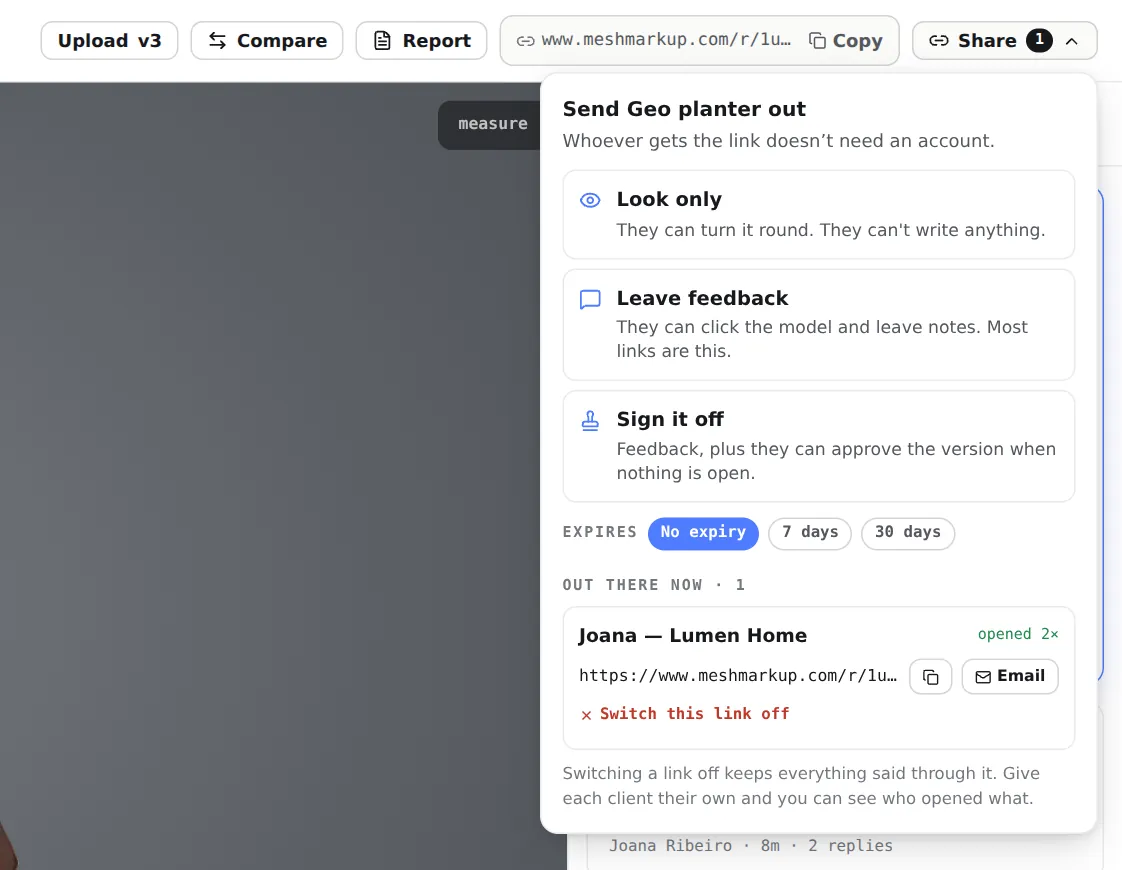
The fix is the same in every case: create a new link and send that. Switching a link off never deletes anything said through it, so the notes your client already left stay on the model. More in share links and permissions.
The whole address has to arrive
A review link ends in a long random code, and every character matters. Links break when:
- an email client wraps the address over two lines and only the first line is clickable;
- someone copies it by hand, or copies it from a message preview that shortened it with "…";
- a chat app or a document turns part of it into formatting.
Ask your client to paste the link they have back to you, and compare it with the one in the Share menu. The Copy button next to each link copies the full address. To avoid the problem entirely, click Email next to the link and let MeshMarkup send it; see emailing a review link.
They're asked to sign in
Clients never need an account. If yours sees a sign-in page, you've sent them the address from your own browser bar (a /models/... address, which is your private workspace) instead of the review link. Send the link from the Share menu instead.
Black screen or empty stage
MeshMarkup draws the model with WebGL, the 3D graphics built into every modern browser. If the browser has it switched off or can't reach the graphics card, the page loads but the model area stays black or empty, or shows This model wouldn't open.
Ask your client to try these, in order:
Turn on hardware acceleration
In Chrome, open and switch on Use graphics acceleration when available, then relaunch. In Edge it's , same setting. In Firefox, open , untick Use recommended performance settings, and tick Use hardware acceleration when available.
Update the browser
A current version of Chrome, Edge, Firefox or Safari all work, on a computer, tablet or phone.
Try another browser or device
If the link opens on their phone but not their work laptop, the laptop's browser or graphics driver is the problem, not the link.
Reload the page
The model file behind a review link is fetched with a short-lived signed address. If the page has been sitting open for hours, reload it before turning the model round.
The site get.webgl.org shows a spinning cube when WebGL works. If the cube doesn't appear, the browser needs fixing before any 3D link will open.
Corporate laptops and remote desktops
Some company setups block or weaken 3D graphics:
- Remote desktops and virtual machines (Citrix, VMware, Remote Desktop) often have no graphics card, so WebGL is off. Opening the link on the local computer or a phone usually works.
- Locked-down browsers may have hardware acceleration turned off by policy. Your client's IT team can allow it, or they can use another device.
- Strict firewalls occasionally block parts of a page. If the rest of MeshMarkup loads but the model never does, try the same link on a mobile connection.
None of this needs your client to install anything. If their company can't allow it, a phone on mobile data is usually the quickest way round.
"This model wouldn't open"
This message appears in the viewer when the browser downloaded the file but couldn't read it. The line underneath gives the reason, and a reminder: A .gltf usually needs its .bin and textures alongside it — zip them together, or export a .glb.
It points to a problem with the file rather than the link, so you'll see it too when you open the model yourself. Common causes:
- a model exported with an option the browser can't read, or a file that was cut short during export;
- a .gltf whose geometry lives in a separate
.binfile that wasn't included (see model looks grey); - a model so heavy that the device runs out of memory, which is more likely on phones (see reducing file size).
Re-export a GLB from the original scene and upload it as a new version. If the message stays, email the file to hello@meshmarkup.com.
Slow to load
Loading model… that lasts a long time is almost always file size meeting a slow connection. Your client downloads the whole model before it appears. A 200 MB GLB on hotel Wi-Fi takes a while; the same model at 20 MB is quick. See how to reduce file size.
Was this guide helpful?
Related guides
Get feedback on the model, not on a screenshot
Upload a model, send one link, and your client clicks the exact spot. Free to start — no card.