Review links and permissions
Create MeshMarkup review links that let a client look only, leave feedback or sign off, set them to expire, see who opened them and switch a link off.
A review link opens one version of a model in your client's browser, with no account needed. When you create it, you choose what the person can do: Look only, Leave feedback or Sign it off. You can make it expire after 7 or 30 days or never. A model can have as many links as you like, each showing how often it's been opened, and you can switch any one off without touching the others.
Create a review link
Open the model
Go to Models and click the model's card. Pick the version you want reviewed with the v1, v2 buttons at the top if there's more than one.
Open the Share menu
Click the blue Share for review button in the top-right corner of the viewer. Once a link exists the button reads Share, with the number of live links beside it.
Ask for feedback by a date (optional)
Ask for feedback by is filled in with three working days from today. Add your client's email under Their email and MeshMarkup reminds them until they answer. See feedback-by dates and reminders.
Choose the expiry first
Under the three link types, pick No expiry, 7 days or 30 days. The choice applies to the next link you create.
Click the kind of link
Click Look only, Leave feedback or Sign it off. The link is created and copied straight away, and the menu shows Link created and copied with the address.
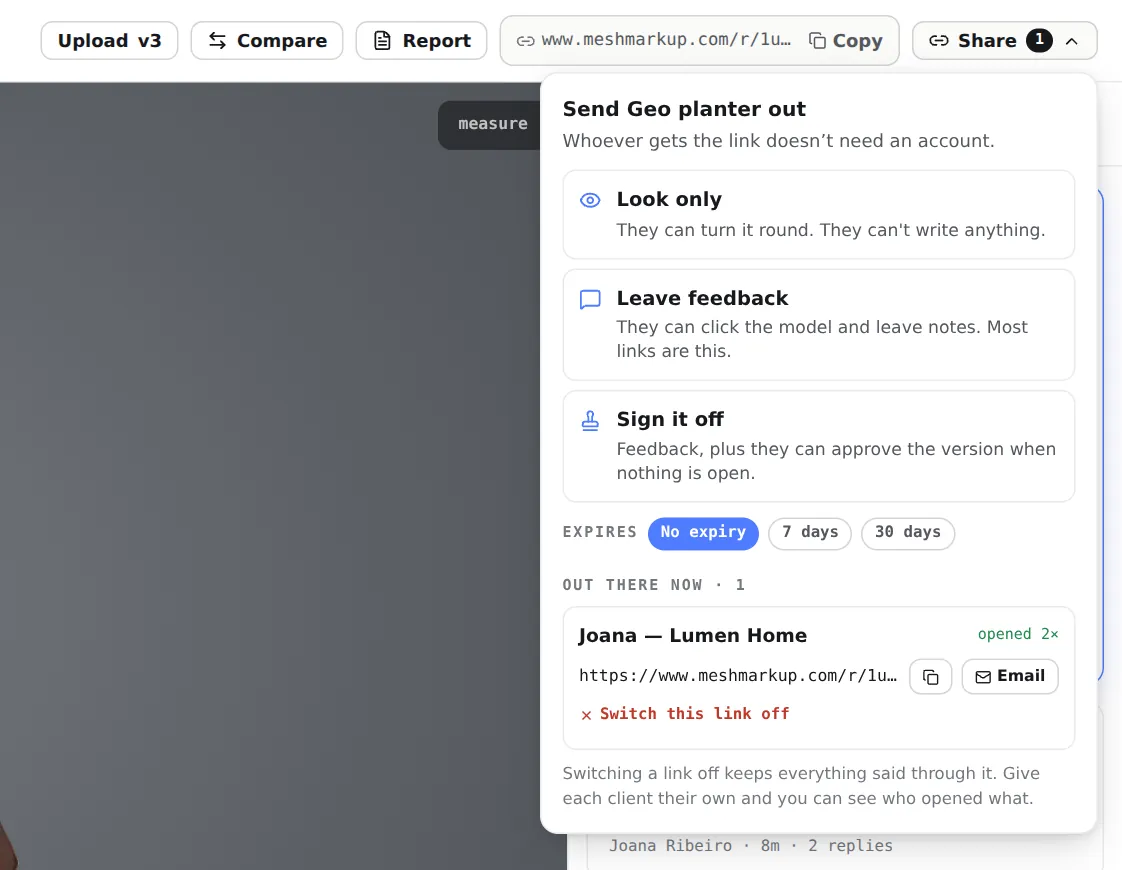
The Share menu: three kinds of link, expiry, and the links already out there Send it
Paste it wherever you talk to your client, or click Email next to the link to send it from MeshMarkup. See email a review link.
The three kinds of link
| Link | What the person can do | Listed as |
|---|---|---|
| Look only | Turn the model round, zoom and measure. They can't write anything. | View-only link |
| Leave feedback | Pin notes on the model and reply to notes | Client link |
| Sign it off | Everything above, plus approve the version when no notes are open | Sign-off link |
Leave feedback is the right choice for almost every review. Look only suits showing progress when you don't want notes yet; the client sees a View only tag and no note box.
Sign it off needs the Solo plan or above. On Free it shows a lock and a SOLO tag, and clicking it explains the upgrade. See client sign-off.
Links that are out there
Under Out there now, the Share menu lists the working links on the version you're looking at. Expired links drop off the list. For each one you see:
- Its name: Client link, View-only link or Sign-off link.
- not opened yet, or opened 3×. A visit counts once each time the page is loaded, not every few seconds while it stays open.
- expires and the date, if it has an expiry.
- The address, with a copy button, and Email.
- Switch this link off.
A link made before MeshMarkup could show links again reads Created before links could be shown again, so we can't display it. It still works for whoever has it. To send it to someone new, create a fresh link.
Several links on one model
Every link on a version belongs to the same review round, so all the feedback on that version is in one place, whichever link it came through. That also means everyone with a link to that version sees the same client-visible notes, including other people's. Separate links separate access, not conversations. If two clients mustn't see each other's comments, give them different models.
The whole round, with every link, how often it was opened and who took part, is on the Review rounds page. + New link there adds another Leave feedback link to the round.
The model's card menu on the Models page also has Copy review link. It copies the model's live Leave feedback link, and only makes a new one (with no expiry) if there isn't one yet. The Review rounds page has a Copy button on every link too, and asks before you revoke one.
When you're done with a round, Close round on the Review rounds page ends it. Its links still open, so the client can look back at the model, but they no longer accept notes or sign-off.
Expiry
An expired link stops opening. Your client sees Link not available and Ask whoever sent it for a fresh link. Notes they left stay on the model.
You set the expiry when you create the link and can't change it afterwards. To give someone more time, create a new link and send that.
Switching a link off
Click Switch this link off under the link in the Share menu, or Revoke on the Review rounds page. You're asked to confirm, then it happens at once and the link stops working for everyone who has it. It can't be switched back on.
Links and new versions
A link opens the version it was made for. When you upload v2, links to v1 keep showing v1, and the notes still open on v1 move across to v2 with their replies. Create a new link on v2 and send that. To show the client what changed, see versions and comparing.
For one link that always opens the latest version of every model in a project, use a project link.
Was this guide helpful?
Related guides
Get feedback on the model, not on a screenshot
Upload a model, send one link, and your client clicks the exact spot. Free to start — no card.