Share a whole project with one review link
Send a client one MeshMarkup link that opens every model in a project, so they can review a whole collection or job without a separate link per model.
To send a client several models at once, share the whole project. On the Projects page, click Share the project next to the project, choose Look only, Leave feedback or Sign it off, and the link is created and copied. Your client opens one page listing every model in the project, clicks each one to review it, and comes back to the list, with no account and no separate link for each model.
Share a project
Open Projects
Click Projects in the sidebar. Each project is listed with its models underneath.
Open the project's Share menu
Click Share the project on the project's row. Once a link exists, the button reads Share, with the number of links beside it. The menu says One link for every model in it. They don't need an account.
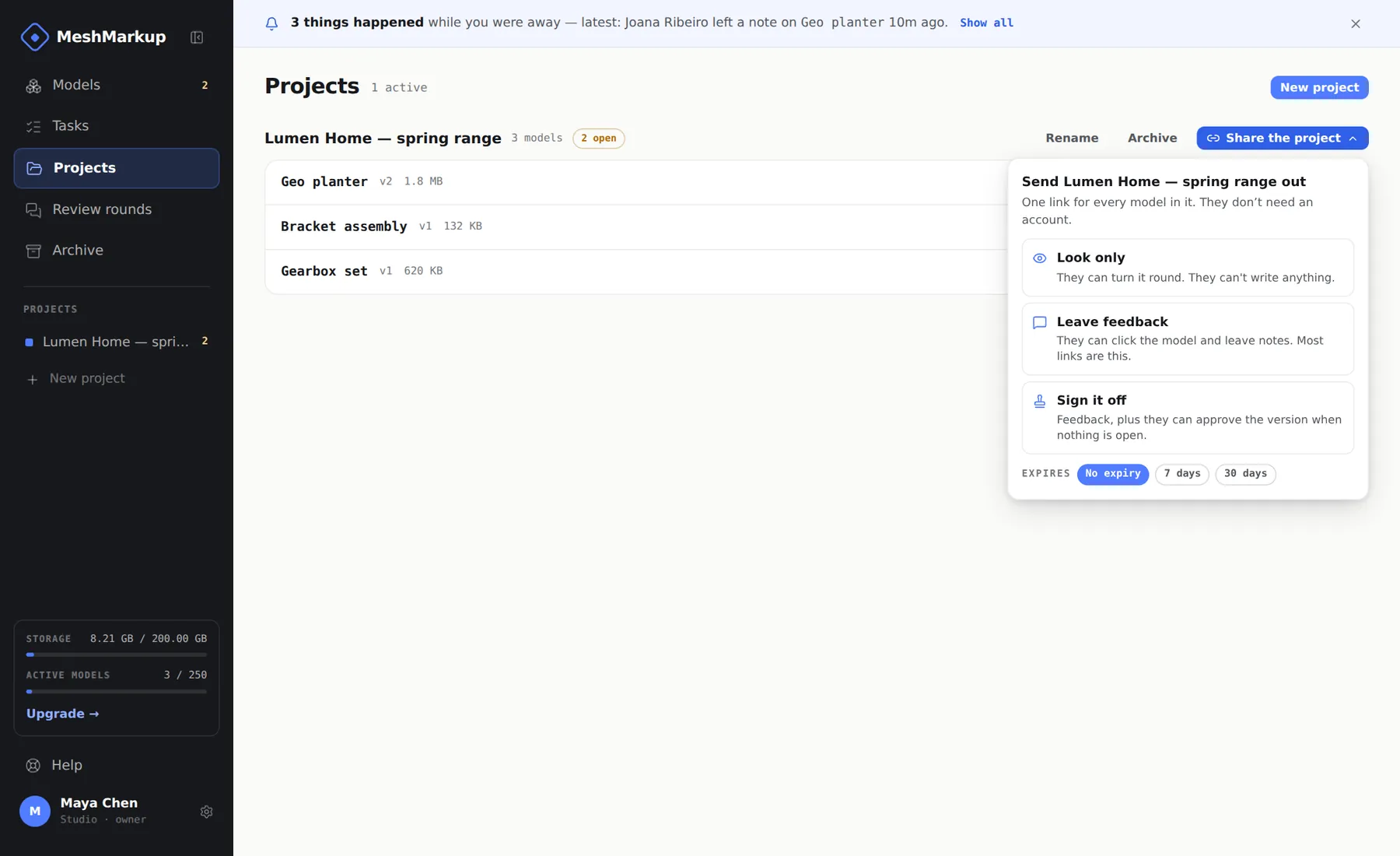
One link for the whole project Choose the expiry
Pick No expiry, 7 days or 30 days before creating the link.
Choose what the client can do
Click Look only, Leave feedback or Sign it off. The link is created and copied, and the menu shows Link created and copied.
Send it
Paste it into your own email or chat. Email next to the link opens your own email app with a message already written. Project links aren't sent from MeshMarkup the way model links are.
Sign it off needs the Solo plan or above. On Free it isn't offered here, and the menu says Sign-off links come with the Solo plan and up.
What your client sees
The link opens a page with your studio's name (Shared by), the project's name and a line such as 4 models to look over. 3 still need you. The models are sorted into three columns, from the client's point of view:
| Column | Which models |
|---|---|
| Not looked at yet | Nobody has said anything about these yet |
| You've left feedback | Notes have been left, and it's waiting on the studio or on sign-off |
| Signed off | Approved, nothing more to do |
Each model shows its preview, its version, and a line like 3 notes · 1 still open, all answered or Open it and leave your first note.
Clicking a model opens the same review screen as a single-model link: turn it round, click to pin a note, reply, and on a sign-off link, approve it. A button at the top leads back to the project page, where the counts are brought up to date. See what your client sees for that screen.
Which models and versions it shows
- Every active model in the project that has a file. Models you add to the project later appear on the same link, so you don't need to send a new one.
- The latest version of each model. When you upload v3, the project link shows v3 from then on. This is the main difference from a model link, which stays on the version it was made for.
- Not archived models. Archiving a model takes it off the project page.
Notes left through a project link land on the model in the usual way, in the same review round as notes left through that model's own links, so everything about one version is in one place. You answer them on the model page and on Tasks as normal. Internal notes stay hidden here too.
Managing project links
Each project link is listed under Out there now in the project's Share menu, with its name (Client link, View-only link or Sign-off link), its opens count, its expiry date if it has one, a copy button, Email and Switch this link off.
- Opens. A project link counts an open each time the project page loads, including when your client comes back to it from a model. It runs higher than a model link's count, so read it as "they've been in", not as a number of visits.
- Switching it off takes effect at once and can't be undone. The client sees This link isn't working and Ask whoever sent it for a fresh one. Their notes stay on the models. To let them back in, create a new link.
- Expiry can't be changed after the link is made. Create a new link to give more time.
Project link or model link?
| Use a project link when | Use a model link when |
|---|---|
| The client is reviewing a set: a collection, a range, every part of a job | You want feedback on one model |
| You'll add more models as the job goes on | You want the link to stay on one version |
| You want one link to send and keep | You want MeshMarkup to email it for you |
You can use both. A model can be in a project that's been shared and have its own links too; all the notes end up in the same place. For the single-model options, see review link permissions.
Was this guide helpful?
Related guides
Get feedback on the model, not on a screenshot
Upload a model, send one link, and your client clicks the exact spot. Free to start — no card.