Working with notes, replies and statuses
How to read client notes pinned to a 3D model, reply, @mention teammates, keep internal notes private, set statuses and track everything on the Tasks page.
Every note a client leaves is a numbered pin on the model, with a thread underneath it in the Comments panel. Click a note and the camera flies to the view the client had when they wrote it. From there you can reply, name a teammate with @, add an internal note the client never sees, and set the note to OPEN, IN PROGRESS, RESOLVED or WON'T FIX. Every note waiting on you, across all your models, is also on the Tasks page.
Pins and the Comments panel
Open a model and its notes appear two ways: as numbered pins on the model, and as cards in the Comments panel on the right. The panel's header shows how many are open, such as 3 OPEN.
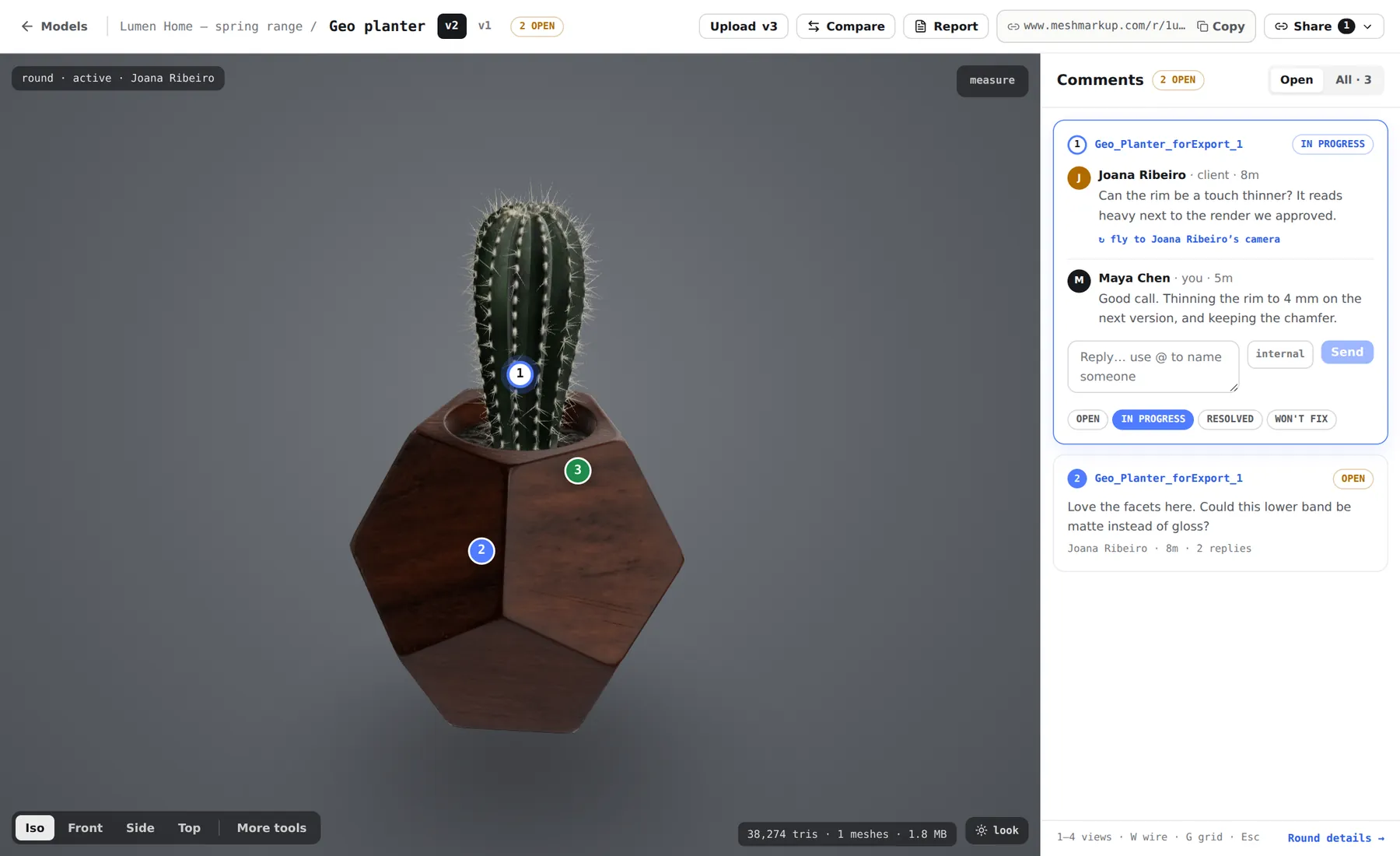
Each card shows:
- The number, matching the pin on the model.
- The part the note was pinned to, taken from the part names in your file, or model if the part has no name.
- The status, such as OPEN or RESOLVED.
- since v1 (or another number) if the note was still open when you uploaded a newer version and moved across with its replies.
The Open tab shows notes that are open or in progress. All shows every note on the version, resolved and won't-fix included. Clicking a pin on the model always brings up its note, switching to All if it's resolved.
Notes are left by the people who open your review links. Your model page is for reading and answering them. To pin a note yourself, open one of your own Leave feedback links in another tab.
The camera flies to the note
Click a note card or a pin and the view moves to the exact angle and distance the client was looking from, so you see the problem as they saw it. If you turn the model and want to go back, click ↻ fly to name's camera under the client's first message.
On a phone, the model page shows one pane at a time, switched with Model and Notes at the top. Show it on the model, under a selected note, takes you back to the model at that note's view.
Replying
Select the note
Click its card or its pin. The whole thread opens, oldest first.
Type your reply
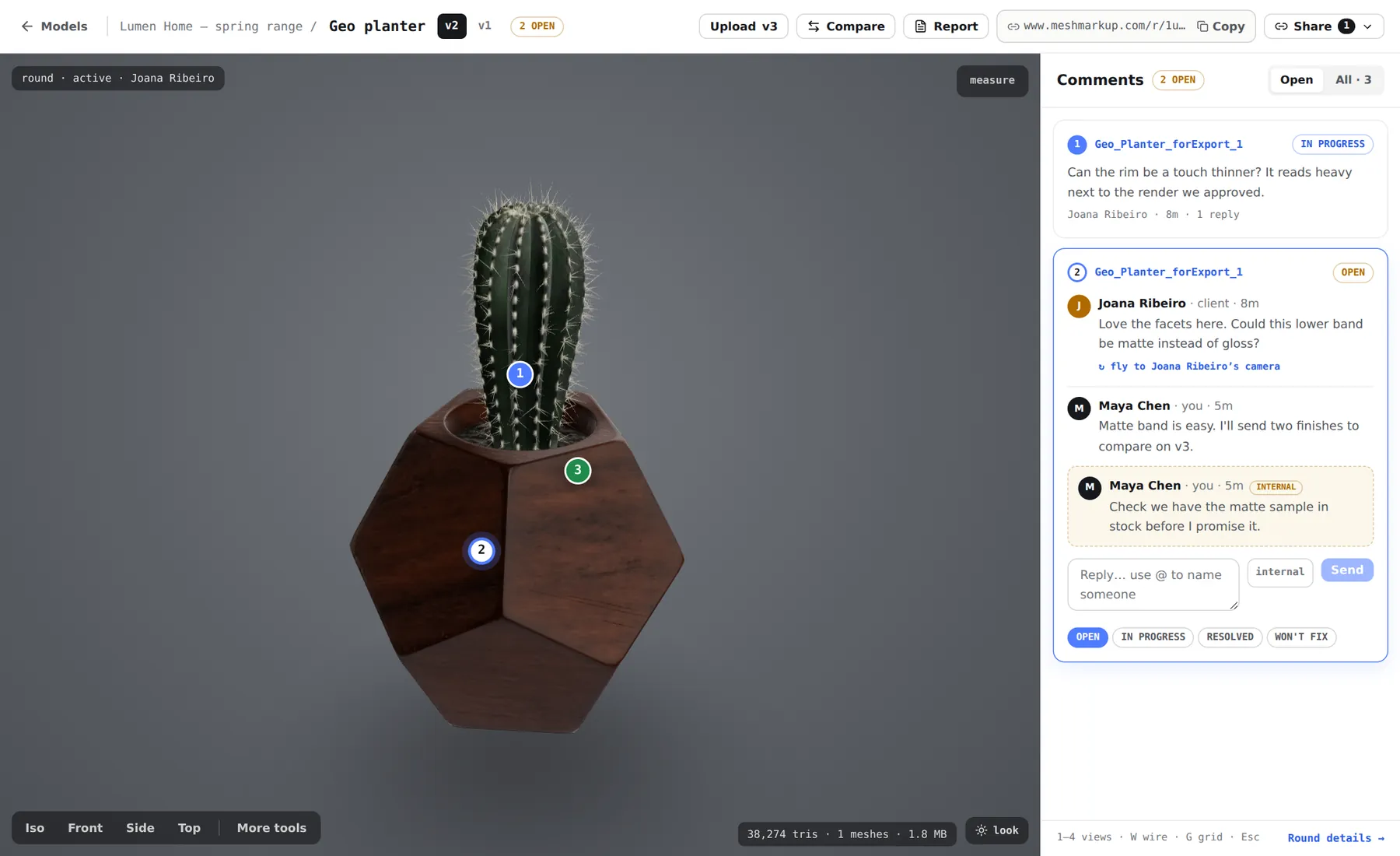
Use the box that reads Reply… use @ to name someone. Enter starts a new line; Ctrl+Enter (Cmd+Enter on a Mac) sends.
Send it
Click Send. Your client sees it on their link, marked as from the modeler. If they left an email address, they're emailed too.
@mentions
Type @ and a list appears of the people you can name: your teammates, and the reviewers who have taken part on this version. Pick one with the arrow keys and Enter, or click. The person you name gets an email, and on the Tasks page the note counts towards their mentions you filter. Clients can use @ too, to name you or another reviewer.
To invite teammates, see invite your team. Extra seats come with Studio and Pipeline.
Internal notes
Click internal next to the reply box before sending, and the reply stays inside your studio. It shows with a dashed outline and an INTERNAL tag.
- Your client never sees it: not on their link, not in their emails and not in the round report.
- It doesn't email reviewers. If you @mention a teammate in an internal note, they're still told; a reviewer named in one is left out.
- internal switches itself off after you send, so your next reply goes to the client unless you click it again.
Statuses
The four buttons under a selected note set its status:
| Status | Meaning | What the client sees |
|---|---|---|
| OPEN | New, not dealt with yet | No label |
| IN PROGRESS | You're on it | Working on it |
| RESOLVED | Fixed | Fixed |
| WON'T FIX | Decided against, and closed | No label |
Open and in-progress notes count as open everywhere: in the Open tab, the open counts on your models, and for client sign-off, which is blocked until every note is resolved or marked won't fix. They're also the notes that move onto a new version when you upload one.
Tell the client why when you mark something won't fix. A short reply before you change the status saves a round of "what happened to my note?".
The Tasks page
Tasks collects every note across every model, so eight models in review is one page rather than eight.
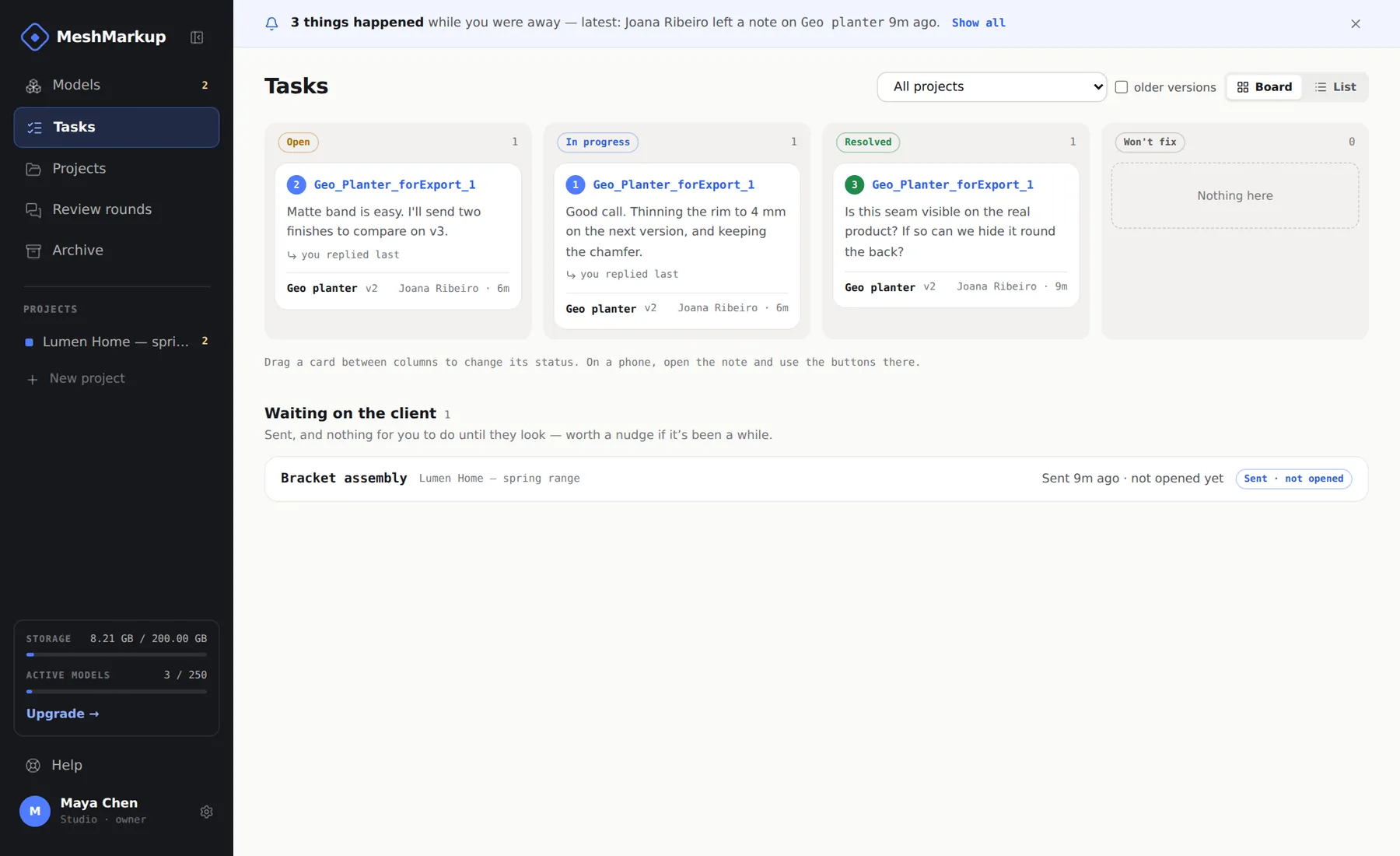
- Board has four columns: Open, In progress, Resolved and Won't fix. Drag a card to another column to change its status. On a phone, open the note and use the buttons there instead.
- List groups the notes by model.
- A waiting on you tag marks notes where the client spoke last. The waiting on you chip at the top filters to just those, and mentions you filters to notes that named you.
- The project menu narrows the page to one project. older versions includes notes on versions that have since been replaced.
- Clicking a card opens the model at that note's view.
Below the notes, Waiting on the client lists models you've sent that nobody has come back on yet, so you know whom to nudge.
Email notifications
When a client leaves a note or replies, you get an email. Notes that arrive close together are gathered into one message rather than one per comment, so a client leaving six notes sends you one email. Nothing is sent for your own actions, and internal notes don't email anyone except teammates you @mention.
Turn these emails off or on under Email notifications in Settings, with Tell me when feedback arrives. Every email also has a link to stop them. On Solo and above you can post feedback into a Slack channel (or another chat app) as well; see notifications, email and Slack.
Was this guide helpful?
Related guides
Get feedback on the model, not on a screenshot
Upload a model, send one link, and your client clicks the exact spot. Free to start — no card.