How to invite your team to MeshMarkup
Invite teammates to your MeshMarkup studio from Settings → Team, choose Member or Admin, and see how seats work on each plan. Clients never use a seat.
To invite someone to your studio, open Settings → Team, type their email under Invite someone, choose Member or Admin, and click Send invite. They get an email with a link that lasts 14 days, sign in, and join your studio. Each person in your studio uses a seat: Free and Solo include 1, Studio 5, and Pipeline unlimited. Your clients never use a seat, however many of them review.
Seats: who needs one and who doesn't
A seat is for someone in your studio: the people who upload models and reply to notes. Reviewers (your clients, their colleagues, anyone you send a review link to) don't have accounts and never use a seat.
| Plan | Seats |
|---|---|
| Free | 1 |
| Solo | 1 |
| Studio | 5 |
| Pipeline | Unlimited |
With one seat, the one seat is you, so inviting teammates starts on Studio. Settings → Team shows how many are used, for example 3 of 5 seats on Studio. A pending invitation holds a seat until it's accepted, cancelled or expired.
Invite someone
Open Settings → Team
Click your name at the bottom of the sidebar to open Settings, then the Team tab (or go straight to /settings/team). You need to be the owner or an admin to see the invite form.
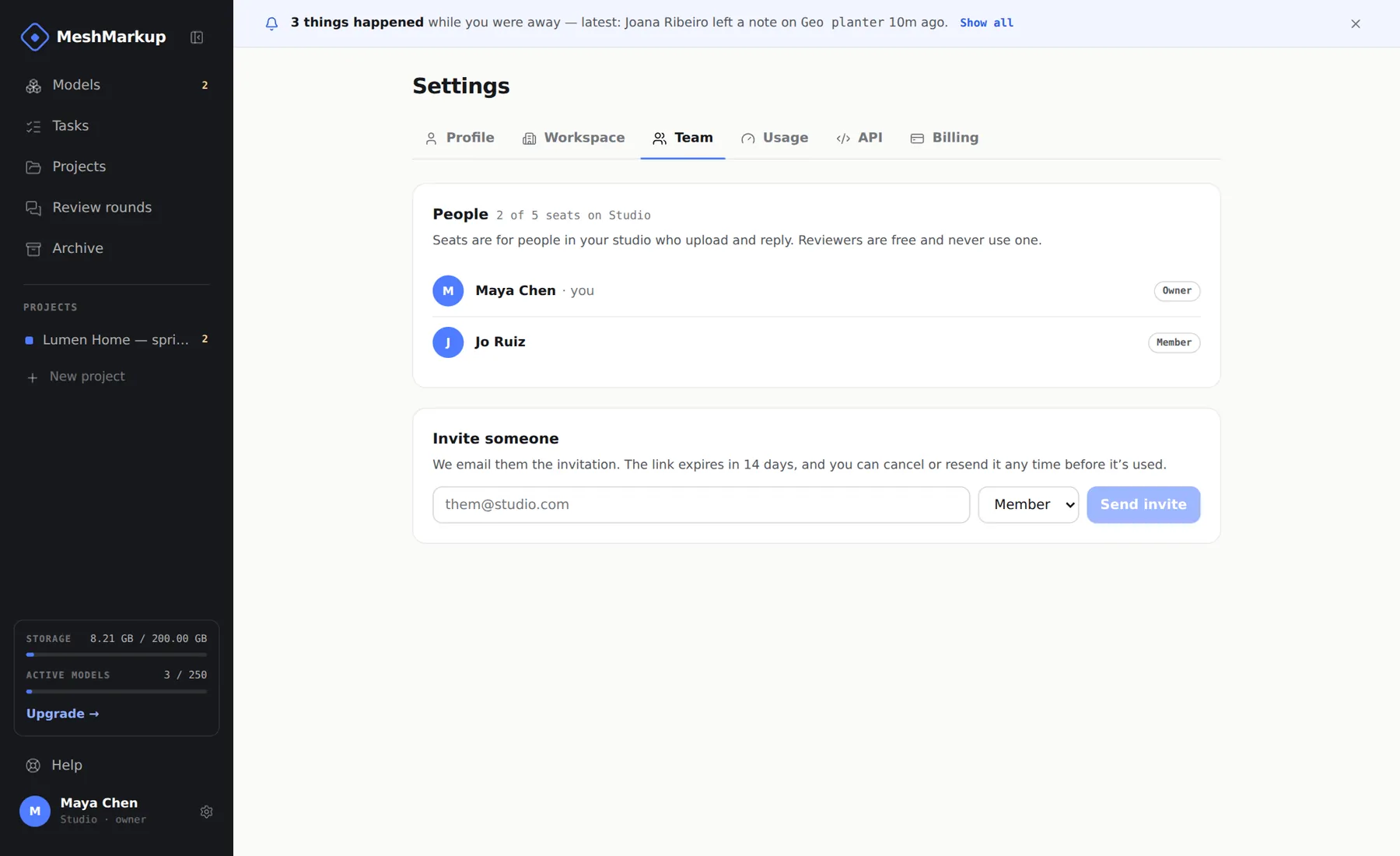
People in the studio, and the invite form below Type their email and choose a role
Under Invite someone, enter their work email and pick Member or Admin from the list next to it. See the roles below if you're unsure; Member is right for most people.
Click Send invite
MeshMarkup emails them the invitation. The same link appears on the page with a Copy button, in case you'd rather send it on Slack or WhatsApp yourself. They appear under People as invited.
They open the link and sign in
The link asks them to sign in or create an account, with Google or an emailed code, then shows Joining the studio… and adds them with the role you chose. They must sign in with the address you invited: an invitation opened in a different account says who it was sent to and offers Sign in with another account. See sign-in and email problems if their email doesn't arrive.
They land in your studio
After joining, the app opens your studio, not the empty one every new account gets. Anyone in more than one studio has a studio switcher at the top of the sidebar to move between them.
If every seat is taken, the Send invite button is disabled and the page says Every seat on Solo is taken (or whichever plan you're on), with a link to add more. See plans and billing.
Roles: owner, admin and member
Every studio has three roles.
| Role | What they can do |
|---|---|
| Owner | Everything, and the only one who can change the plan, pay, and manage the subscription. The person who created the studio is its owner |
| Admin | Upload, review and reply, plus: invite people and resend or cancel invitations, rename the workspace, connect Slack and other integrations, and create API keys and webhooks |
| Member | Upload models, share them for review, reply to notes and resolve them |
You choose Member or Admin when you invite someone; the owner role isn't offered in an invitation. If you're a member, the Invite someone form doesn't appear, and the workspace name under Settings → Workspace is read-only, and so are the connections under Settings → Integrations.
Pending invitations
Each unaccepted invitation is listed under People with its email address and two actions:
- Resend sends a fresh email with a new link, valid for another 14 days. The old link stops working, which is what you want if the first email went to the wrong place.
- Cancel withdraws the invitation and frees the seat.
If an invitation link has expired, the person sees This invite has expired; a used one says This invite was already used. In both cases, Resend from your side gives them a working link. An expired invitation is marked expired — resend on the Team page and no longer holds a seat; cancel any you no longer need.
Removing someone or changing their role
There isn't a button for either yet. To remove someone from your studio or change their role, email hello@meshmarkup.com from the owner's address and say who and what, and we'll do it.
Someone can also leave on their own by deleting their account under Settings → Profile. If they're not an owner of your studio, deleting their account removes them from it and leaves the studio's models and notes where they are. Their comments stay in the history, without their name. See privacy, security and deleting your account.
Clients and reviewers
Clients don't need to be invited to the team, and shouldn't be. Send them a review link from the model's Share menu instead: they open it in any browser, type their name, and leave notes. They see only what you share with them, never the rest of your studio, and never your internal notes. See sending a model to a client for feedback.
Your teammates get the same feedback emails you do when a client leaves notes, unless they switch them off in their own Settings → Profile. See notifications by email and Slack.
Was this guide helpful?
Related guides
Get feedback on the model, not on a screenshot
Upload a model, send one link, and your client clicks the exact spot. Free to start — no card.