Sign-in and email problems
How to sign in to MeshMarkup with Google, an emailed code or an optional password, what to do inside Instagram or Facebook, and where to look when an email doesn't arrive.
You sign in with Continue with Google, or by typing your email and using the link or the 6-digit code we send you. If you'd rather not wait for an email, you can add a password too (it's optional). If sign-in fails, it's almost always because you're inside another app's built-in browser (Instagram, Facebook, TikTok), or because the email opened in a different browser from the one you started in. In both cases, typing the code from the email on the sign-in page gets you in.
Your clients never need to sign in. A review link opens without an account; only you and your team do.
How sign-in works
The sign-in page, Sign in or create an account, does both jobs: if there's no account for your address yet, one is made on the spot.
- Continue with Google takes you to Google to pick an account and brings you straight back. Your name and picture come across from Google.
- Email me a sign-in link sends an email with a Sign me in button and a 6-digit code. Click the button, or type the code into Code from the email on the sign-in page and click Sign in.
The first email to a new address is titled Confirm your MeshMarkup address; after that it's Your MeshMarkup sign-in link. A sign-in link works once and lasts one hour; the confirmation email for a new account lasts 24 hours. Settings → Profile shows which address you sign in with.
Sign in with a password (optional)
A password is an extra way in: the email link, the code and Google keep working whether you set one or not.
Choose one
A new account's Home page has Choose a password (optional) as the last step of Get started: click Choose a password, or Skip. You can add or change it any time in Settings → Profile, under Signing in: click Add a password (or Change password).
Make it strong enough
It needs at least 8 characters. A bar under the box fills as it gets stronger and says Too easy to guess, Okay, Good or Strong. Common passwords (such as password123) and ones built from your email or name count as too easy, and can't be saved. A few unrelated words together make a strong one that's easy to remember.
Sign in with it
On the sign-in page, click Sign in with password under the email box, type your email and password, and click Sign in.
Forgot it? Click Forgot password? above the password box. We send the usual sign-in email: click its link or type its code, and once you're in, set a new password in Settings → Profile.
Wrong email or password means the password doesn't match, or that address has no password yet. Use the email link instead.
Signing in inside Instagram, Facebook or TikTok
If you tapped an ad or a link inside Instagram, Facebook, Messenger, Threads, TikTok, Snapchat, LinkedIn, Pinterest, LINE or WeChat, you're in that app's built-in browser, not Safari or Chrome. Google doesn't allow sign-in there: it refuses with an error such as 403: disallowed_useragent.
MeshMarkup notices this and changes the page. You'll see You're in Instagram's browser (or whichever app it is) and the button becomes Email me a code.
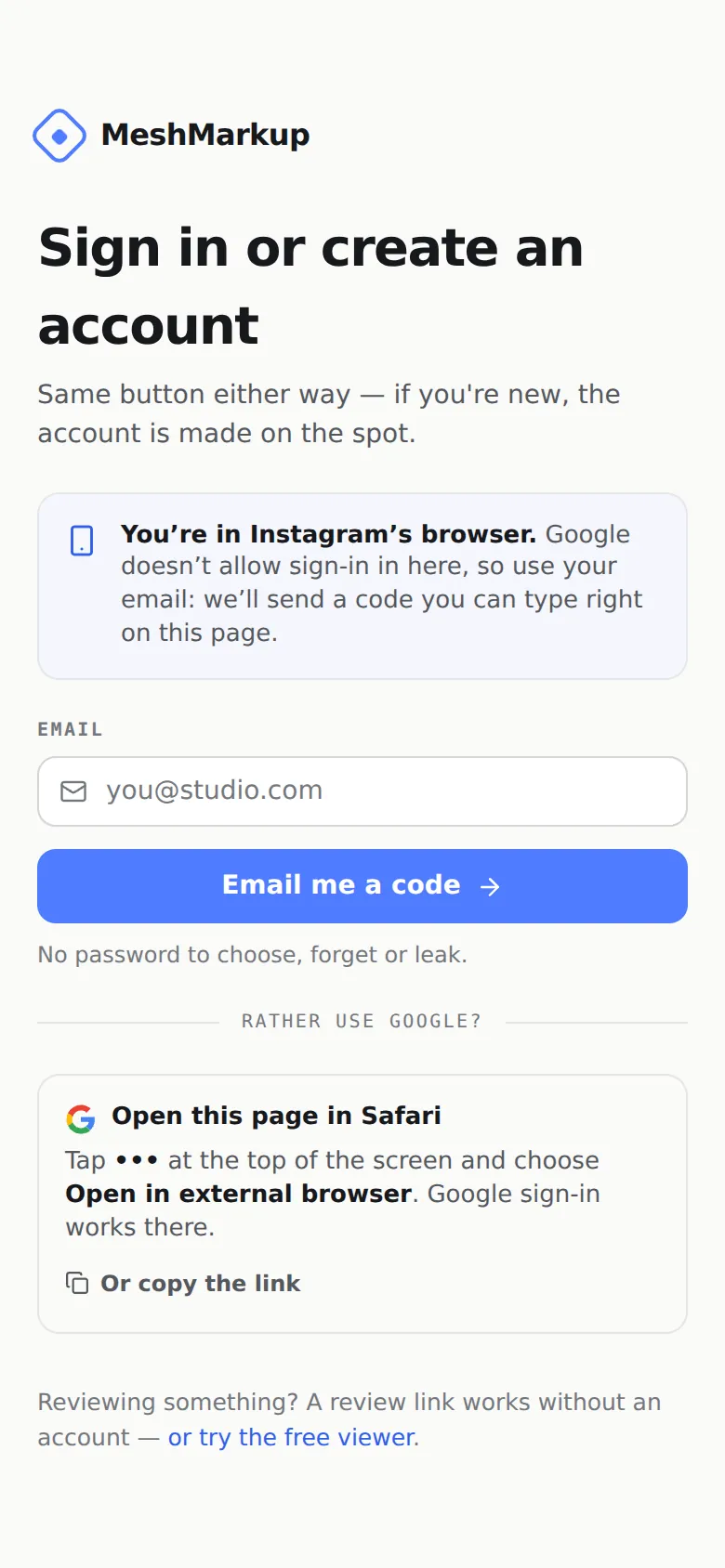
Type your email and tap Email me a code
Stay on this page. Don't close the app.
Open the email in your mail app
Switch to Mail or Gmail and find Your MeshMarkup sign-in link (or Confirm your MeshMarkup address the first time).
Type the 6-digit code
Switch back to the app, type the code into Code from the email, and tap Sign in. You're signed in right there.
Don't tap the Sign me in button in the email. It opens Safari or Chrome and signs you in there, while the page you started on stays signed out.
If you'd rather use Google
Under rather use Google? the page offers a way out of the app's browser:
- On Android, tap Open in Chrome to use Google. The same page opens in Chrome, where Google sign-in works.
- On iPhone, tap ••• at the top of the screen and choose Open in external browser (the wording varies a little by app). Or tap Or copy the link and paste it into Safari.
The link opened in a different browser
The Sign me in button in the email signs you in wherever it opens. If your email app opens links in a different browser from the one you started in, you'll be signed in there instead. The fix is simple: go back to the browser you started in and type the code from the same email.
If you see That link didn't work — it may have expired, or it opened in a different browser from the one you asked in, the link is used up or more than an hour old. Click send it again under the code box, or go back to the sign-in page, and use the newest email.
A code that's wrong or old shows That code isn't right, or it has expired. If you asked for more than one email, use the code from the newest.
The email didn't arrive
If a sign-in email hasn't arrived after a few minutes:
Check spam, junk and "Promotions"
Search your mailbox for MeshMarkup. If you find it in spam, mark it as not spam so the next one lands in your inbox.
Check the address
A typo in the address is the most common cause. The Check your email screen shows exactly where we sent it.
Ask about quarantine on work email
Company mail filters sometimes hold messages with sign-in links for review, and some click every link to scan it, which can use up a one-time link before you do. Ask your IT team to release it or allow mail from MeshMarkup, or type the code instead of clicking the button.
Send it again
Click send it again under the code box. Use the newest email when it arrives.
Still nothing after ten minutes? Email hello@meshmarkup.com from the address you're trying to sign in with.
Notification and invitation emails
Other emails come from MeshMarkup too, and the same spam and quarantine checks apply:
- Feedback notifications, when a client leaves notes or approves a version. They're grouped, so a client leaving six notes sends one email, and they arrive shortly after the burst ends rather than instantly. You can switch them off under Settings → Profile. See notifications by email and Slack.
- Team invitations, when someone invites you to their studio. The link lasts 14 days. See inviting your team.
- Review links sent from the Share menu's Email form go to your client, and their replies come back to you.
Every notification email has a Stop these emails link at the bottom that works with one click, without signing in.
Was this guide helpful?
Related guides
Get feedback on the model, not on a screenshot
Upload a model, send one link, and your client clicks the exact spot. Free to start — no card.