Why a 3D model is the wrong size or scale, and how to fix it
A model that measures 1000 times too big or small is a units mix-up. See which formats keep their units, and how to export at real size from your 3D app.
A model that measures 1000 times too big (or 100, or about 39) is a units mix-up, not a broken file. MeshMarkup works in metres, the unit glTF is defined in. STEP, IGES, FBX, Rhino, 3MF and DAE files record their units, and MeshMarkup converts them to real size for you. OBJ, STL, PLY and 3DS files store bare numbers with no unit, so a part modelled in millimetres arrives as if those numbers were metres.
For looking and commenting, the size doesn't matter at all: the viewer always frames the whole model, however big or small. It only matters when you or your client measure something.
Does the size actually matter for your review?
Every model opens framed to fit the screen, so a 40 mm clip and a 40 m building look the same size on arrival. Turning, zooming, pinning notes and comparing versions all work the same whatever the scale.
The scale shows up in one place: the measure tool. It reports distances assuming the file is in metres, and says so in the readout (assumes the file is in metres (the glTF default)). A millimetre STL of a 40 mm part measures 40 m. The proportions are right; only the unit is off.
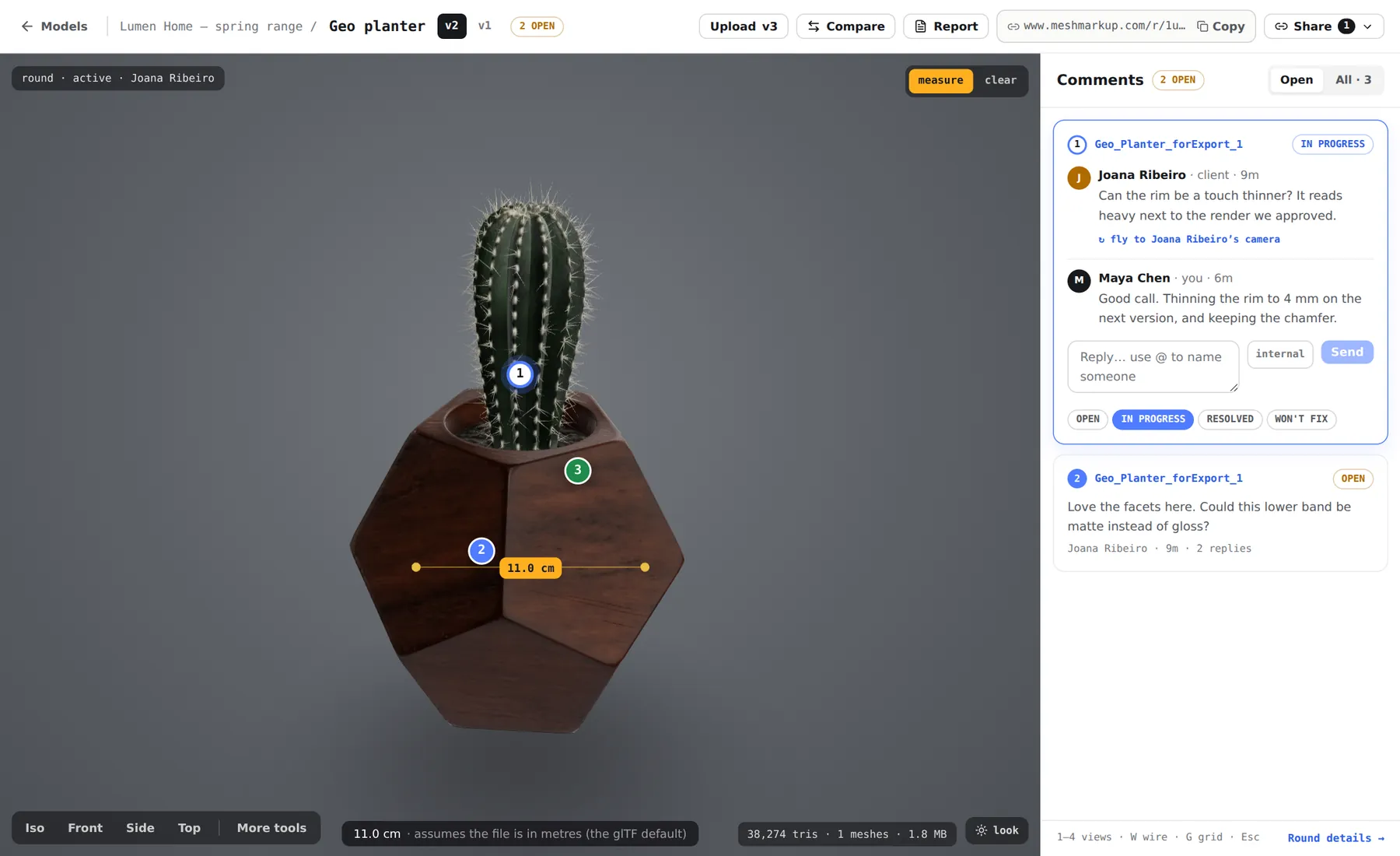
So if nobody is going to measure, you can leave it. If your client will check dimensions, fix the units before you share. See measuring a 3D model.
What MeshMarkup does with each format
| Format | Units in the file? | What MeshMarkup does |
|---|---|---|
| GLB / glTF | Metres, by definition | Used as is |
| STEP / IGES | Yes | Converted to metres, so parts come in at real size |
| FBX | Yes (a scale factor, often centimetres) | Converted to metres |
| Rhino .3dm | Yes (the model's unit system) | Converted to metres |
| DAE | Yes | Converted to metres |
| 3MF | Yes (millimetres unless it says otherwise) | Converted to metres |
| OBJ, STL, PLY, 3DS | No, or not applied | Numbers read as metres |
Two things follow from that table. If you're coming from CAD, sending STEP is the easiest way to get real size, since there's nothing to set. And a GLB is only right if the exporter wrote metres, which most do when the scene's units are set properly.
Export at real size from your app
Blender
Blender's default Metric units with a Unit Scale of 1.0 () means one Blender unit is one metre, which is exactly what a GLB expects. If you've changed the Unit Scale to model in millimetres, check the export with the measure tool before sharing. See exporting a GLB from Blender.
3ds Max
FBX records the scene's units and MeshMarkup converts them, so an FBX export arrives at real size whatever your system units are. For glTF exporters, check the result with the measure tool. See exporting from 3ds Max.
Maya
Maya works in centimetres by default. An FBX carries that, so it arrives at real size. For a GLB, make sure the exporter converts centimetres to metres (or scale by 0.01 on export), then check. See exporting from Maya.
Cinema 4D
Also centimetres by default. As with Maya, FBX carries the unit; for a GLB, check the exporter's scale option and measure the result. See exporting from Cinema 4D.
SketchUp
SketchUp works internally in inches. Its FBX and glTF exports carry units; for an OBJ, open the export Options and set Units to Meters. See exporting from SketchUp.
Revit
Revit works in feet. Export an FBX, which records its units for MeshMarkup to convert, and check the result with the measure tool. See exporting from Revit.
Fusion, SolidWorks, Inventor and other CAD
Export STEP and there's nothing to set: STEP carries its units and arrives at real size. If you must send a mesh (STL or OBJ), set the export's unit to Meter in Fusion, or the equivalent in your CAD package. See exporting from Fusion.
Whatever the app, the check is the same: upload, click Measure, click two points whose distance you know, and compare.
If you only have the file
Sometimes you get an STL or OBJ from someone else and can't re-export it. You have three options:
- Leave it. For a visual review, a model at the wrong scale looks exactly the same. Tell your client that measurements read in metres are really millimetres (or whatever the source unit was).
- Convert it in a free tool. Import it into Blender at its real unit, scale it (0.001 for millimetres), and export a GLB.
- Ask for STEP. If it came from a CAD user, a STEP file carries its units and saves everyone the arithmetic. See opening STEP files online.
| Measure tool says | Model was probably built in | Real size |
|---|---|---|
| 40 m | millimetres | 40 mm |
| 40 m | centimetres | 40 cm |
| 40 m | inches | 40 in (about 1 m) |
Checking scale before your client does
Open the model and click Measure before you create the review link. If the readout matches a dimension you know, you're done. If it's off by a round factor (1000, 100, 25.4, 12), it's the units. If it's off by something odd, the model itself may have been scaled in the scene, and it's worth checking with whoever built it.
When you re-export at the right size, upload the file as a new version of the same model (Solo and above) so the notes stay with it. See versions and comparing.
Was this guide helpful?
Related guides
Get feedback on the model, not on a screenshot
Upload a model, send one link, and your client clicks the exact spot. Free to start — no card.