How to export a GLB from SketchUp (for client review)
Export a SketchUp model as a GLB with the built-in glTF exporter in SketchUp 2024 and later, or as a DAE, so your client can review it in the browser.
To export from SketchUp 2024 or later for client review, choose and set the file type to **GLTF Binary File (.glb). The GLB carries your geometry, materials and textures in one file, and MeshMarkup opens it as it is. In older versions of SketchUp, export a COLLADA (.dae)* file instead, which MeshMarkup converts for you.
Best format: GLB
SketchUp desktop added glTF import and export in SketchUp 2024.0. GLB is the format MeshMarkup's viewer reads natively, so:
- Nothing is converted. The file uploads exactly as you exported it.
- Textures come along. Materials and their images are packed into the one file.
- It's in metres. glTF is always in metres, so the exporter has to convert from SketchUp's internal inches; check the size once after upload.
For SketchUp 2023 and earlier, COLLADA (.dae) is the next best choice. MeshMarkup converts DAE to GLB in your browser as it uploads. Zip the .dae together with the texture folder SketchUp creates beside it, then upload the zip.
Don't send the .skp file. MeshMarkup can't open it, and dropping one shows a message asking you to export instead.
Export a GLB step by step
Purge and tidy the model
Open and click Purge Unused to remove unused components and materials. Hide tags (layers) you don't want the client to see, such as site context or entourage; hidden geometry isn't needed in the review.
Fix reversed faces
Turn on . Any face showing the blue-grey back colour is reversed. Right-click it and choose Reverse Faces, or use Orient Faces on a group of faces. Reversed faces can render dark or disappear in a browser viewer.
Open the exporter
Choose . In the save dialog, set the format to **GLTF Binary File (.glb)*.
Export
Name the file and click Export. Check the file size: the Free plan has 50 MB of storage in total.
Older SketchUp: export a DAE
Choose COLLADA
Choose and set the format to **COLLADA File (.dae)*.
Check the options
Click Options and make sure Export Texture Maps and Triangulate All Faces are on. Turn off Export Two-Sided Faces unless you need it.
Zip it with the textures
SketchUp saves a folder of images next to the
.dae. Zip the.daeand that folder together, and upload the zip.
SketchUp for Web and SketchUp Free
The free web version of SketchUp is limited: it can't export GLB, and reports suggest it can't export OBJ or FBX either. Use SketchUp desktop if you have it. On a paid web plan, a DAE or OBJ export works with MeshMarkup; zip it with its textures before uploading.
Units and scale
SketchUp works in inches internally, whatever units you display in . The glTF exporter should write metres, and a DAE records its unit. Either way, measure something you know after uploading, such as a door or a wall height, to confirm. If the size is wrong, see wrong size or scale.
Textures and materials
- Colour and image materials export as they appear in SketchUp.
- Materials painted on groups or components (rather than on faces inside them) export, but if a surface comes through in the default colour, paint the faces directly.
- Large photo textures make the file heavy. Resize big images before applying them, or replace them with smaller versions for the review file. 2K (2048 px) is plenty.
- Render-engine materials (V-Ray, Enscape, Twinmotion) aren't part of SketchUp's own materials and don't export. What you see in SketchUp's own viewport is roughly what the client will see.
Common problems
- Some faces are black or missing. They're reversed. Turn on Monochrome, fix the back faces with Reverse Faces, and export again.
- The GLB option isn't in the list. You're on SketchUp 2023 or earlier, or on the free web version. Export a DAE on desktop, or upgrade.
- The DAE uploads with no textures. The texture folder wasn't included. Zip the
.daewith its folder. See model looks grey. - The file is huge. Purge unused items, hide detailed entourage (trees, people, cars), and lower the resolution of photo textures. See reduce file size.
- The model is at the wrong size. Check a known dimension in MeshMarkup and see wrong size or scale.
Upload and send it
Upload the GLB or zip
Drop it on Models. A DAE or zip is converted to GLB in your browser first.
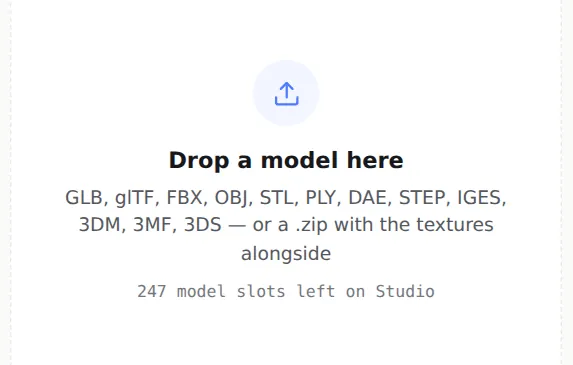
Drop the file here Share it for review
Open the model, check it, and click Share for review. The full walkthrough is in how to send a 3D model to a client for feedback.
Was this guide helpful?
Related guides
Get feedback on the model, not on a screenshot
Upload a model, send one link, and your client clicks the exact spot. Free to start — no card.