How to export a GLB from Cinema 4D (for client review)
Export a Cinema 4D scene as a GLB with the built-in glTF exporter, with baked textures and the right scale, so your client can review it in any browser.
To export from Cinema 4D for client review, save a GLB with the built-in glTF exporter: choose , set File Format to GLB (Binary), keep Materials and Textures on, and export. MeshMarkup opens the GLB as it is, with no conversion.
Best format: GLB
Cinema 4D has shipped a glTF exporter since release S22, and GLB is the format MeshMarkup's viewer reads natively.
- One file. Geometry, materials and textures are packed together.
- Nothing to convert. It uploads exactly as you exported it.
- Metres. glTF is in metres, which is what MeshMarkup's measure tool uses, as long as you set the scale correctly (see below).
Don't send the .c4d file. MeshMarkup can't open it, and dropping one shows a message asking you to export a glTF instead.
Export a GLB step by step
Make the scene editable
Generators, deformers and cloners are usually exported as their current state, but it's safer to make a copy of the scene and use on anything complex. Delete what the client shouldn't see.
Bake procedural and render-engine materials
The exporter carries standard materials with image textures. Redshift, Octane and procedural shaders need baking to images first (see "Textures and materials").
Open the exporter
Choose . The label varies slightly between versions; look for glTF in the Export submenu.
Choose the options
Set File Format to GLB (Binary). Leave Materials, Textures, Normals and UVs on. Tick Resize Textures and pick 2048 if your textures are larger. Set Scale so that the model comes out in metres (see "Units and scale").
Export and check the size
Click OK and save. Check the file size: the Free plan has 50 MB of storage in total.
You can set these as defaults in , so every export uses them.
Recommended settings
| Setting | Choose | Why |
|---|---|---|
| File Format | GLB (Binary) | One self-contained file |
| Scale | So that 100 cm = 1 m (see below) | glTF and MeshMarkup use metres |
| Materials, Textures | On | Keeps colours and image maps |
| Resize Textures | On, 2048 | Keeps the file small for review |
| Normals, UVs | On | Smooth shading and textures |
| Double Sided | On only for thin, single-sided surfaces | Leaves, fabric, glass panes |
| Flip Z | Leave at default; change only if the model is mirrored | Axis conventions differ |
Units and scale
Cinema 4D works in centimetres by default, while glTF is in metres. Depending on your version and settings, a model can come out at the right size or 100 times too big. After uploading, measure something you know with MeshMarkup's measure tool.
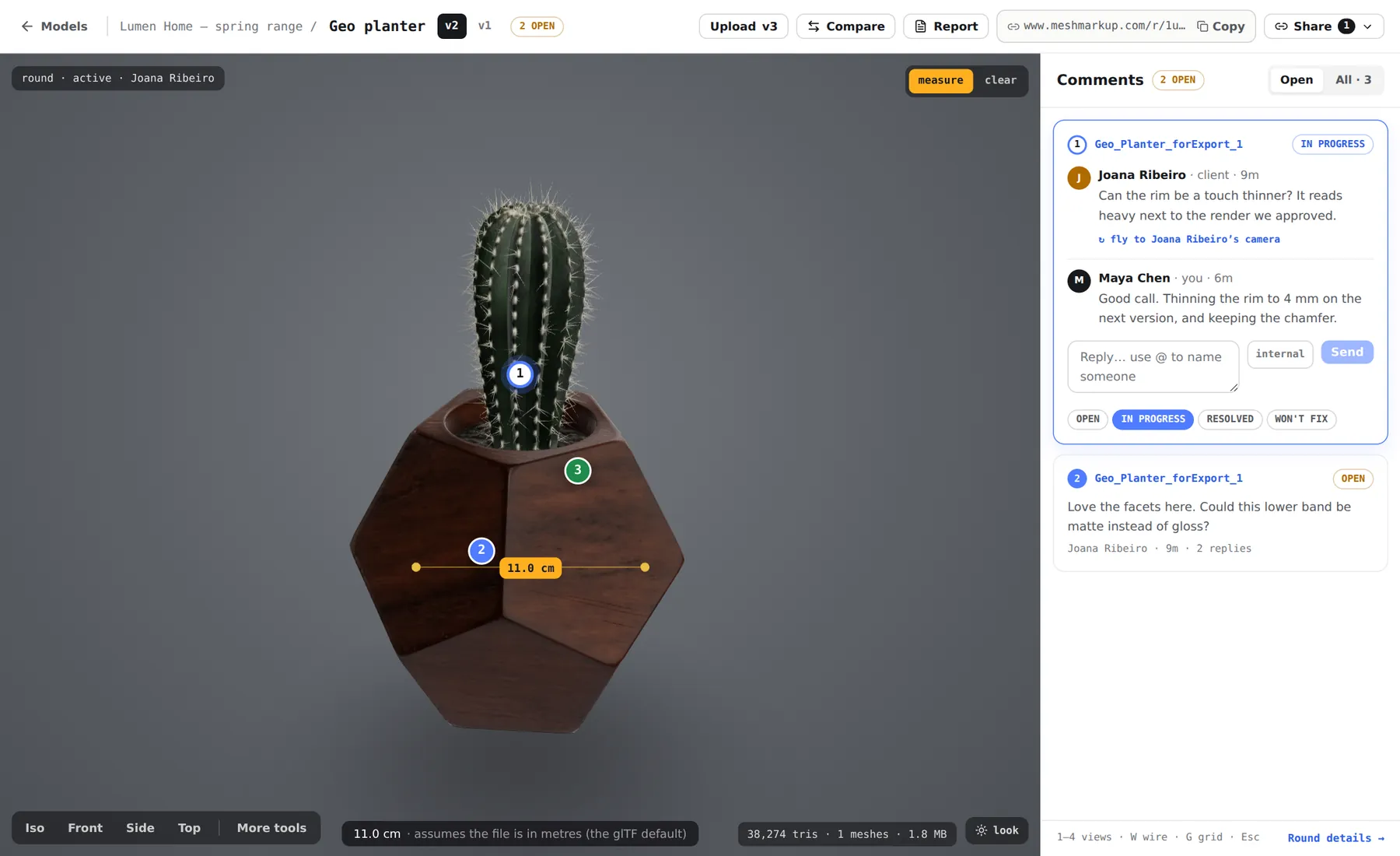
If a 2 m object measures 200 m, set the exporter's Scale so that 100 cm becomes 1 m (a factor of 0.01) and export again. If it measures 2 cm, the scale was applied twice; set it back to 1. More in wrong size or scale.
Textures and materials
glTF understands physically based materials made of image textures: base colour, roughness, metalness, normal, emission and opacity.
- Standard materials with image textures in Color, Reflectance, Normal and Alpha channels translate best.
- Procedural shaders (Noise, Gradient, Layer, Fresnel) don't export as they look. Bake them with a Bake Texture tag (one of the render tags in the Object Manager's Tags menu) and use the baked images.
- Redshift, Octane and other render-engine materials don't translate. Bake them, or rebuild the look with standard materials for the review file.
- Use Resize Textures to cap textures at 2K. A 4K PBR set can be larger than the model itself.
Common problems
- The model is grey or white. The materials were procedural or render-engine specific. Bake to images and export again. See model looks grey.
- It's 100 times too big (or too small). The centimetre-to-metre scale wasn't set, or was applied twice. Adjust Scale and re-export.
- Cloners or generators are missing. Convert them with Current State to Object on a copy of the scene and export that.
- The model looks mirrored. Toggle Flip Z and export again.
- The file is too big. Turn on Resize Textures, lower subdivision levels, or use the Polygon Reduction generator on a copy. See reduce file size.
Upload and send it
Share it for review
Open the model, measure one dimension to confirm the scale, then click Share for review. The full walkthrough is in how to send a 3D model to a client for feedback.
Was this guide helpful?
Related guides
Get feedback on the model, not on a screenshot
Upload a model, send one link, and your client clicks the exact spot. Free to start — no card.