How to open a STEP file online without CAD software
Open STEP (.step, .stp) and IGES files in your browser for free, with assembly part names, colours and real-world size. No CAD licence, no upload, no install.
To open a STEP file online without CAD software, drop the .step or .stp file onto MeshMarkup's free viewer. It's converted into a 3D model inside your browser by OpenCascade, the open-source CAD kernel, and opens with its part names, colours and real-world size. IGES files (.iges, .igs) work the same way. Nothing is uploaded, and you don't need an account or a CAD licence.
Open a STEP or IGES file
Go to the free viewer
Open /viewer in Chrome, Edge, Firefox or Safari. A desktop browser is best for large assemblies.
Drop the file on the box
Or click the box and choose it. .step, .stp, .iges and .igs are all accepted, and so is a .zip containing one of them.
Wait while it converts
The box shows Converting… while OpenCascade turns the exact CAD surfaces into triangles on your computer. A single part takes a moment; a big assembly can take several seconds. The converter itself is only loaded when you open a CAD file.
Inspect the model
It opens framed to fit. Drag to turn it, scroll to zoom, and use the Camera views button on the left toolbar (or keys 1 to 4) for the Isometric, Front, Side and Top views.
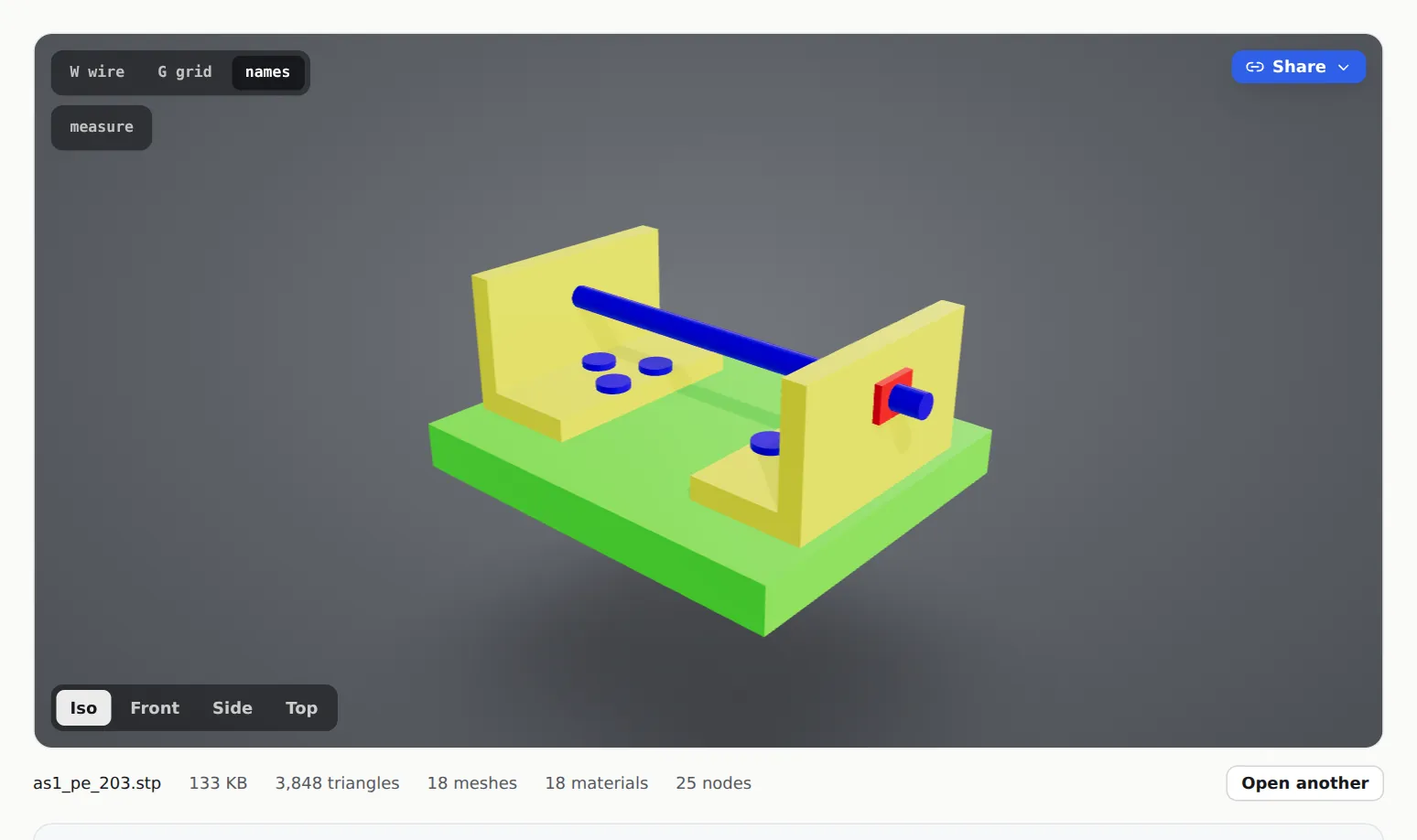
A STEP assembly in the free viewer, with its CAD colours
What comes through from the CAD file
- The assembly tree. Sub-assemblies and parts come through as a hierarchy, so part names survive. Turn on Part names on hover in the Display mode menu (or press N), then hover a part to read its name.
- Colours. Colours set on parts, and on individual faces, are kept. Parts with no colour show in a neutral light grey.
- Real size. OpenCascade is asked for metres, so a part modelled in millimetres comes in at its true size and the measure tool reads correctly: a 40 mm hole measures 4.0 cm.
- Smooth curves at any scale. The level of detail is set relative to each part's size, so a screw and a car body both come out smooth without the file turning into millions of triangles.
What doesn't come through: rendering materials and textures (CAD colours are shown with a plain satin finish), sketches, dimensions and PMI, and anything that isn't a solid or surface. If a file has no solid or surface geometry at all, the viewer says "That STEP file has no solid or surface geometry we could read."
Under the stage you'll see the triangle, mesh, material and node counts, which tells you how heavy the model will be for web or AR. Press W to see the tessellation in wireframe. See check the polygon count.
Big assemblies
The conversion runs in your browser, so the limit is your computer's memory rather than a file size cap. Some tips for large files:
- Use a desktop browser. Phones and tablets can open small STEP files, but a big assembly needs a fair amount of memory.
- Close other heavy tabs if the conversion is slow or the tab runs out of memory.
- Simplify before exporting. Leaving out fasteners, internal parts and purchased components you don't need to show makes the file faster to open and lighter to share.
- If it says "The CAD converter couldn't start", check your connection and try again: the converter is downloaded the first time it's needed.
Exporting STEP from your CAD program
Native CAD files are closed formats that only their own programs can read. If you drop one in, the viewer tells you what to do:
| Program | Native file | How to get a STEP |
|---|---|---|
| SolidWorks | .sldprt, .sldasm | — keeps the assembly |
| Inventor | .ipt, .iam | |
| Fusion | .f3d | |
| CATIA | .CATPart, .CATProduct | |
| Other CAD | .prt | Save or export as STEP |
Step-by-step guides with the right settings for each: SolidWorks, Fusion, and Inventor, Onshape and FreeCAD. Rhino users don't need STEP at all: MeshMarkup opens .3dm files directly, see export from Rhino.
Send the STEP model to a client
Most clients don't have CAD software, and sending a STEP file usually ends with "I can't open this". Instead:
Click Share, the blue button in the top-right corner of the free viewer.
Choose Copy a review link or Send it by email. You'll create a free MeshMarkup account on the way, and the model comes with you.
Send the link. Your client opens the model in their browser and clicks the exact spot they want to talk about to leave a note. They don't need an account.
You can also upload the STEP file straight to Models in the app. Either way, the conversion happens in your browser before anything is sent: MeshMarkup stores the converted 3D model, not your STEP file, so your client can view the geometry but never downloads the CAD data.
More on the whole process in send a 3D model to a client for feedback. If the model is the wrong size or looks grey, see wrong size or scale and model looks grey.
Was this guide helpful?
Related guides
Get feedback on the model, not on a screenshot
Upload a model, send one link, and your client clicks the exact spot. Free to start — no card.