How to measure distances on a 3D model online
Click measure, then two points on the model, to read the straight-line distance. Works in the free viewer and the app. Here's which file formats come in at real size.
To measure a 3D model online, open it in MeshMarkup (or in the free viewer, no account needed), click Measure on the toolbar down the left edge of the viewer (or press M), then click two points on the model. The straight-line distance appears on the model, in millimetres, centimetres or metres. Distances are right when the file is in metres, which is true for GLB and glTF, and for STEP, IGES, FBX and Rhino files, which MeshMarkup converts to metres for you.
Measure between two points
Open the model
In the app, open the model from Models. In the free viewer, drop the file onto the page. Your client can measure on a review link too.
Click Measure
It's the ruler button on the dark toolbar down the left edge of the stage, in the app, on review links and in the free viewer. Press M for the same thing. The button stays highlighted while measuring, and the pointer changes to a crosshair.
Click the first point
A prompt at the bottom centre of the stage says "Click the first point". Click anywhere on the model's surface.
Click the second point
An amber line joins the two points and a label at its middle shows the distance. The prompt at the bottom repeats it, with a reminder that it "assumes the file is in metres (the glTF default)".
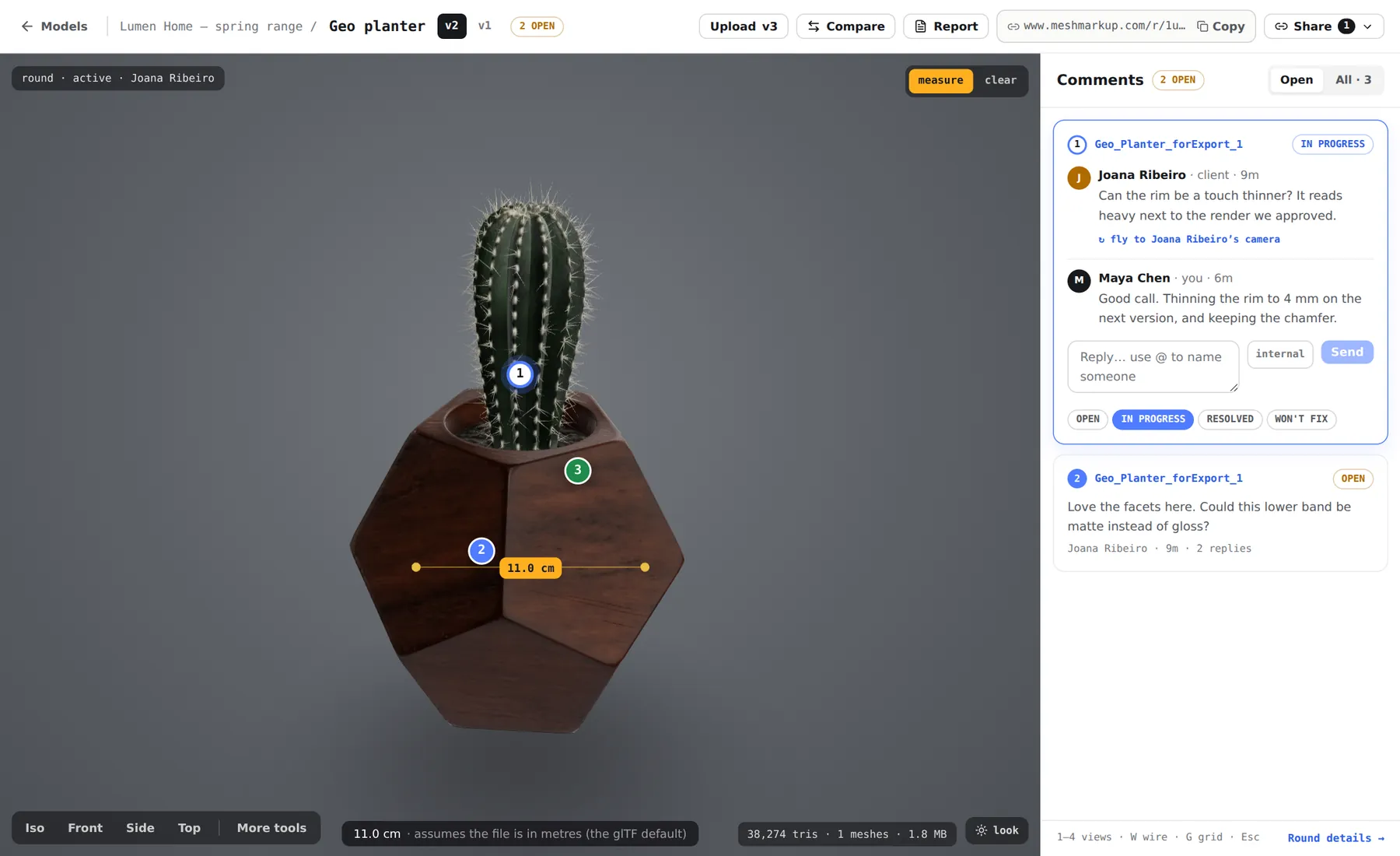
A measurement: the amber line and its label stay on the model as you orbit Measure again or clear
Click a third point to start a new measurement from there. Click Clear, next to the prompt, to remove the line, or click Measure again to leave measuring mode.
While measuring, you can still orbit, pan and zoom as normal. Only a click on the model drops a point, and clicks don't create notes until you leave measuring mode.
How the distance is shown
The distance is the straight line between the two points, not the path along the surface. It's written in the unit that reads most easily:
| Distance | Shown as |
|---|---|
| Under 1 cm | millimetres, one decimal (e.g. 4.2 mm) |
| 1 cm to 1 m | centimetres, one decimal (e.g. 38.5 cm) |
| 1 m and over | metres, three decimals (e.g. 2.140 m) |
The line draws over the model, so it stays visible when a part of the model is in front of it. Both points have to be on the model: you can't measure to empty space or to the floor grid.
Which formats come in at real size
The measure tool treats one unit in the model as one metre, which is the glTF standard. Whether that's right depends on the file:
| Format | Real size? | Why |
|---|---|---|
| GLB, glTF | Yes | Metres by definition |
| STEP, IGES | Yes | OpenCascade is asked for metres when it converts the file |
| FBX | Yes | The unit stored in the file is applied, so a centimetre file from Maya or 3ds Max isn't 100 times too big |
| Rhino (.3dm) | Yes | The model's unit system is read and converted to metres |
| DAE | Usually | The unit stored in the file is applied when it has one |
| OBJ, STL, PLY | Not always | These formats carry no unit. The numbers are read as metres |
| 3MF | Yes | Converted to metres from the unit in the file |
| 3DS | Not always | MeshMarkup doesn't rescale it, so treat it like STL |
So a 40 mm bracket exported as an STL in millimetres reads 40.000 m. The proportions are right; only the unit is off by a factor of 1,000. Read it as millimetres and the number is correct.
Get correct numbers from an unscaled file
- Re-export in metres. Most 3D apps have a unit or scale setting on export. Exporting GLB from Blender, for instance, uses metres by default.
- Use a format that carries units. From CAD, send STEP rather than STL. From Rhino, upload the .3dm itself. See which format to use.
- Check against a known dimension. Measure something you know, like an overall length or a hole diameter. If it's off by exactly 1,000 or 100, the file is in millimetres or centimetres.
If the model is far too big or small on screen as well, see wrong size or scale.
Measuring in the free viewer, the app and on review links
The measure tool works the same in all three places, on every plan:
- Free viewer at /viewer: measure any file without an account. Nothing is uploaded. See view a 3D model online.
- Your model page in the app: measure while you read notes. When you're comparing versions, the ghost of the old version is ignored, so points always land on the version you're looking at. See versions and comparing.
- Review links: your client can measure too, which saves the "is that 20 or 25 mm?" email. Their measurements aren't saved or sent to you, so ask them to put the number in their note.
Tips for accurate points
- Zoom in before you click. The point lands exactly where the ray from your cursor hits the surface. On a small feature, zooming in makes it much easier to hit an edge or a corner.
- Use the standard views. The Front, Side and Top views in the Camera views menu on the left toolbar (or keys 2 to 4) line the camera up square to the model, which helps when you're measuring along one axis.
- Turn on the wireframe (Wireframe in the Display mode menu, or press W) to see the mesh's vertices and edges when you need to click a specific corner. See check the polygon count.
- Remember it's the mesh. CAD files are converted into triangles, so a measurement across a curved surface can differ from the CAD dimension by a tiny amount. For review, it's accurate enough to settle an argument; for manufacturing, use your CAD software.
Was this guide helpful?
Related guides
Get feedback on the model, not on a screenshot
Upload a model, send one link, and your client clicks the exact spot. Free to start — no card.