How to upload a new version and compare it with the last one
Upload v2 onto the same model, carry open notes across with their replies, and lay the old version over the new one as a ghost to see exactly what moved.
When your client asks for changes, upload the revised file onto the same model with Upload v2. Notes that are still open or in progress are copied onto the new version with their replies, and every earlier version stays in the model's history with its own notes. Click Compare and the previous version is drawn as a translucent blue ghost behind the new one, so you can see at a glance what moved.
Keeping every round on one model, rather than uploading "chair_v2" as a new model, is what makes this work: the history, the carried notes and the comparison all hang off the model. For the whole revision cycle, including renders, naming and which link to send at each stage, see how to manage 3D design revisions.
Upload a new version
Open the model
Go to Models and click the model's card. The version tabs (v1, v2 and so on) sit next to its name at the top of the page.
Click Upload v2
The button always shows the next number: Upload v2, Upload v3. On a phone it just says Upload. Pick the file. It can be in any format MeshMarkup opens; anything that isn't GLB is converted to GLB in your browser first, exactly like the first upload.
Wait for the preview
The bar under the header goes through Converting to GLB… (if needed), Uploading v2, Saving… and Making preview…. When it's done, the page switches to the new version.
Check the carried notes
If anything was still open, a banner says how many notes were copied across, for example "3 unresolved notes were copied onto this version, with their replies." The previous version keeps the originals as its record. Each one has a since v1 tag so you know it's an old issue, not a new one. Click Dismiss to hide the banner.
What happens to the notes
Only notes marked OPEN or IN PROGRESS move to the new version. RESOLVED and WON'T FIX notes stay where they were settled, because that's the record of what the old version was agreed against.
A carried note keeps:
- its position on the model and the camera angle it was written from,
- the whole conversation, including internal notes, with the original authors and times,
- its status, OPEN or IN PROGRESS.
The pin stays where the client originally pointed. If you moved or reshaped that part in v2, the pin may now float slightly off the surface or sit on the wrong face. That's deliberate: "this is where they were pointing" is still the most useful anchor. Check each one, reply, and set the status.
Notes are carried from the version immediately before the new one. The previous version still shows its own notes exactly as they were, so switching back to v1 shows the round as it happened.
Look back through the history
Click any version tab to open that version. Hovering a tab shows the file size and the date it was uploaded. Each version keeps its own notes, replies and round report, so you can always answer "what did they say about the first draft?"
Every version counts towards your storage, including old ones. There isn't a way to delete a single old version; deleting the model removes all of them. See archive and delete models.
Compare two versions with the ghost overlay
Open the version you want to look at
Usually the newest. Its tab is highlighted.
Click Compare
The Compare button appears once a model has two or more versions. The menu reads "Show underneath v2" and lists every other version with its size. Pick one.
Read the overlay
The other version is drawn as a flat, translucent blue shape behind the live model. A small legend at the top of the stage shows now in white and the older version in blue. Anywhere blue shows through is where the geometry changed.
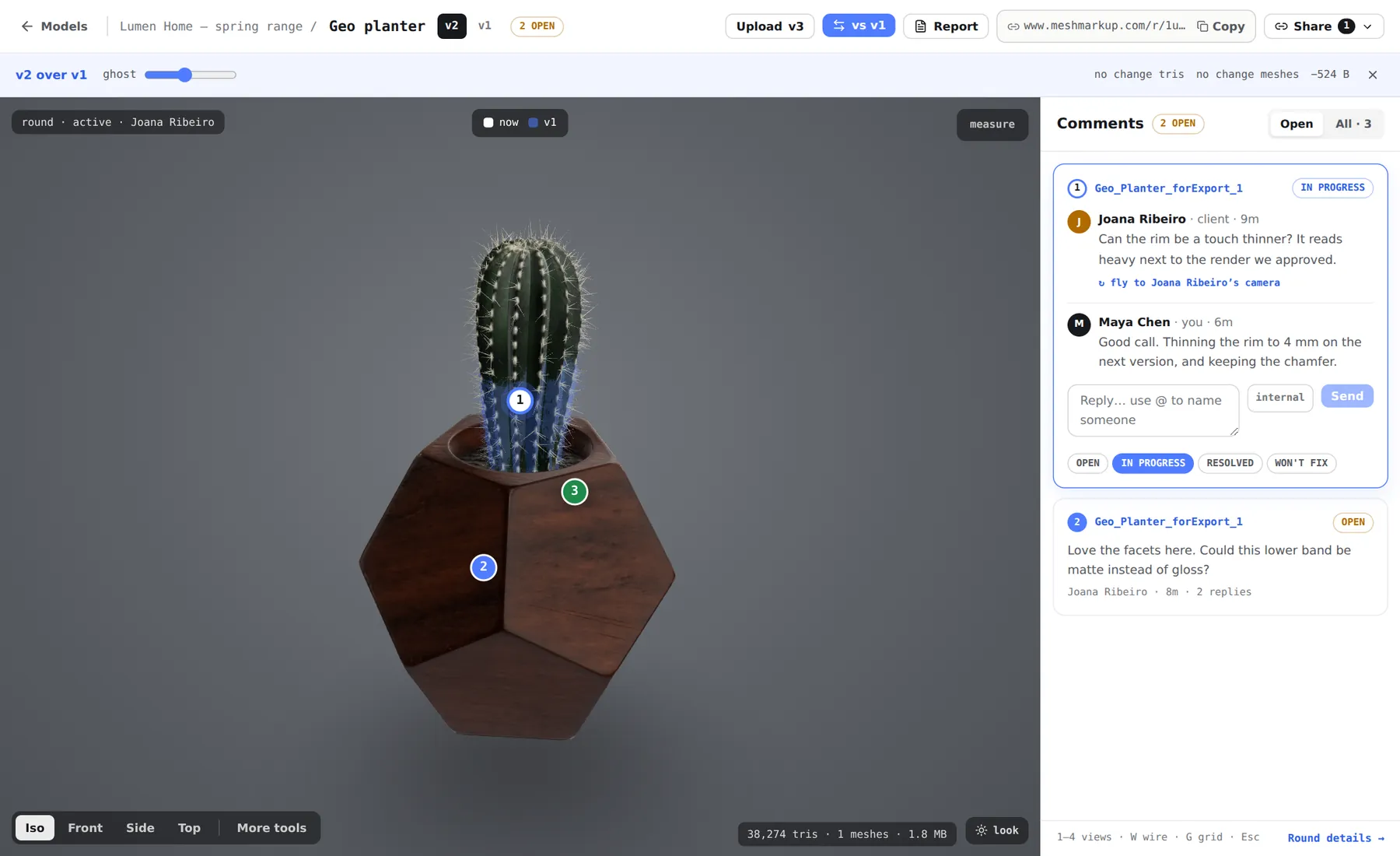
v2 over v1: the blue ghost shows where the old geometry was Adjust the ghost
In the strip under the header, drag the ghost slider to make the old version fainter or stronger (from 5% to 70% opacity). Tick v1 notes to show the old version's notes as hollow, dashed markers, so you can see whether each thing the client raised was dealt with in the place they meant.
Stop comparing
Click the × at the right end of the strip, or open the Compare menu and choose Stop comparing.
The strip also shows what changed in numbers: the difference in triangles, meshes and file size between the two versions (or "no change" and "same size"). That's a quick check that a "small tweak" didn't double the polygon count.
Send the new version to your client
A review link belongs to the version it was made for, so links you sent for v1 keep showing v1. To get feedback on v2, open v2 and click Share for review to make a fresh link, then copy it or email it. Copy review link on the model's card on the Models page also makes a link for the newest version. More in share links and permissions.
Your client sees the new version with its carried notes. The ghost overlay is a studio tool on your model page; the client's link shows only the version you shared. If you want them to see what moved, walk them through it on a call or send a screenshot of the comparison.
When the last round is clean, a Sign it off link lets the client approve the version (Solo plan and up). See client sign-off.
Plan limits
| Plan | Versions per model |
|---|---|
| Free | 1 |
| Solo, Studio, Pipeline | Unlimited |
On the Free plan the upload button carries a SOLO badge once the model has its one version, and clicking it explains that round two needs a paid plan. Because Free keeps one version, there's nothing to compare against and no earlier version for notes to carry from. Solo and above keep every version. See plans and billing.
Was this guide helpful?
Related guides
Get feedback on the model, not on a screenshot
Upload a model, send one link, and your client clicks the exact spot. Free to start — no card.