How to archive, restore and delete models
Archive a finished model to keep its history and free an active slot on paid plans, restore it from the Archive page, or delete it for good to free storage.
When a job is finished, archive the model rather than deleting it. Archiving takes it off your Models page and, on paid plans, stops it counting towards your plan's active models, but keeps every version, note and reply, and you can restore it from the Archive page at any time. Deleting removes the model, all its versions, notes and files for good, and it's the only way to free the storage the model uses, on every plan. On Free, neither archiving nor deleting gives you back one of your 3 new models: each counts for 30 days from the day it was added.
Archive or delete?
| Archive | Delete | |
|---|---|---|
| Removed from the Models page | Yes | Yes |
| Counts towards active models (paid plans) | No | No |
| Gives back a Free new-model allowance | No | No |
| Counts towards storage | Yes | No |
| Versions, notes and replies | Kept | Gone |
| Can be undone | Yes, with Restore | No |
In short: on a paid plan, archive to make room for more active models; on any plan, delete to make room in storage.
Archive a model
Open the model's menu
Click the menu button on the model's card (or on its row, in the list view).
Choose Archive
The model disappears from the Models page straight away and is listed on the Archive page. There's no confirmation, because nothing is lost.
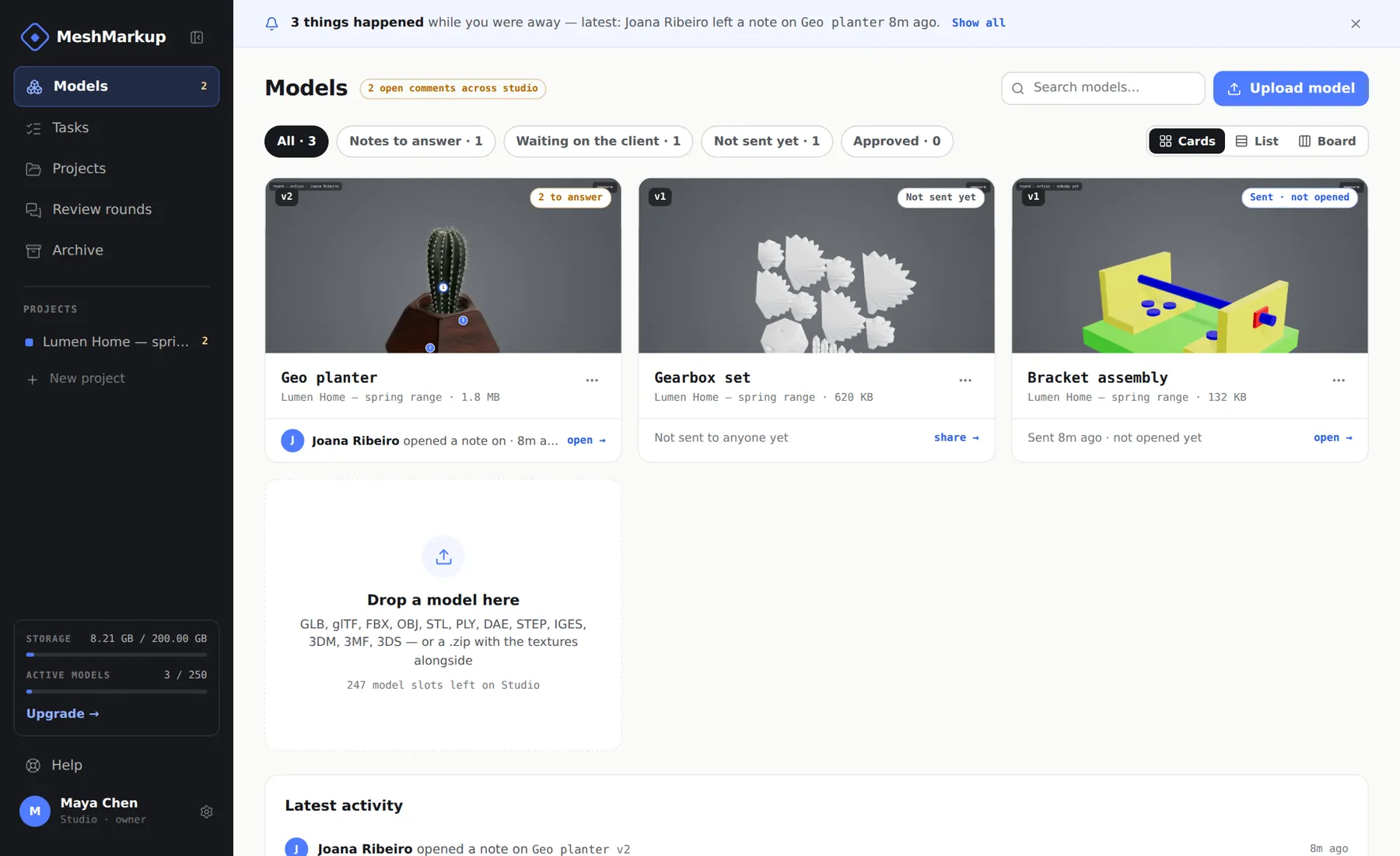
You can archive a whole project the same way: on the Projects page, click Archive on the project.
Find and restore archived models
Open the Archive page
Click Archive in the sidebar. The page says what archiving does: "Archived work keeps its comments and history, and stops counting as an active model. Review links to it keep working. Archived models still count towards your storage: delete the ones you don't need to free the space." Under it, a line shows how much storage your archived models use and how much of your plan's storage is used in all.
Find the model
Archived projects are listed under Projects and archived models under Models. Each model shows its project, its latest version number and the storage it uses (every version together).
Click Restore
The model goes back to the Models page with everything it had, and counts as an active model again.
On a paid plan, restoring a model puts it back in the active count, so it needs a free slot. If every slot is in use, Restore says so and nothing changes: archive another model first, or upgrade. On Free there's no limit on active models, and restoring doesn't use one of your new models. You can see where you stand in Settings → Usage.
Automatic archiving on Free
On the Free plan, a model with no activity for 30 days (no new version, note or reply) moves to the Archive by itself. Nothing is deleted, its review links keep working, and the Archive page marks it archived after 30 quiet days. Click Restore to bring it back. Paid plans never archive anything automatically.
Delete a model
Open the model's menu
On the Models page, open the menu on the model's card. For an archived model, go to the Archive page instead and click Delete next to it.
Choose Delete
It's the last item, shown in red.
Confirm
The browser asks you to confirm: "Delete "name" with every version, comment and file? This cannot be undone." Click OK.
The model, every version of it, every note and reply, and the stored files (model, preview image and any custom .hdr) are removed, and your storage figure is recalculated. Review links for the model stop working.
Deleting from the Archive page works the same way, with the same confirmation, and doesn't need a free model slot. On Free, a deleted model still counts towards your new models until 30 days after it was added.
Storage, versions and what counts
Your plan's storage counts every version of every model, including archived ones, plus drawings and documents. Settings → Usage shows how much you're using and lists what's taking the space: active models by their latest version, archived models with every version, and your drawings and documents together.
When your storage is nearly full, or an upload doesn't fit, the message on the Models page says what's using the space if it's somewhere you wouldn't see from there, for example gearbox-housing (38.4 MB) is in your Archive and still counts towards storage. Delete it there to free the space. The model's name links to the Archive page.
| Plan | Models | Storage |
|---|---|---|
| Free | 3 new every 30 days | 50 MB |
| Solo | 25 active at once | 20 GB |
| Studio | 250 active at once | 200 GB |
| Pipeline | Unlimited | 2 TB |
Some practical points:
- You can't delete a single old version. Versions are kept as the model's history, and there's no option to remove one. Deleting the model removes all its versions.
- Archiving never frees storage. If you're short of storage rather than active model slots, deleting models you no longer need, or a bigger plan, are the ways out.
- A custom lighting environment counts too. An .hdr you upload in the How it's lit panel is part of your storage. See lighting and backgrounds.
- Smaller files go further. A GLB with compressed textures, or a lighter mesh, takes less of your allowance each round. See reduce file size and polygon count.
On the Free plan
The Free plan adds 3 new models in any 30 days, in one project, with one version each and 50 MB of storage. There's no limit on how many are active. Each model counts for 30 days from the day it was added (when its first version is saved, so a failed upload doesn't count), and archiving or deleting it doesn't give it back. When all 3 are used, the Models page and the upgrade prompt say so, and when the next one frees up.
Archiving on Free is still useful for tidying the Models page, and deleting still frees storage. If you need more than 3 new models in 30 days, or want to keep every round of a model, see plans and billing. To remove everything, including your account, see privacy, security and deleting your account.
Was this guide helpful?
Related guides
Get feedback on the model, not on a screenshot
Upload a model, send one link, and your client clicks the exact spot. Free to start — no card.