How to change the lighting and background of a 3D model
Use the Lighting button to pick a lighting preset, set brightness, background and shadows, use your file's own lights or upload an .hdr. Your client sees the same.
To change how a model is lit, open it in MeshMarkup and click the Lighting button on the toolbar down the left edge of the viewer. The How it's lit panel lets you choose a lighting preset, set the brightness, pick a background (including any plain colour), turn shadows on or off, use the lights saved in your file, or upload your own .hdr environment. Changes save automatically, and your client sees exactly the same thing when they open a review link.
Open the lighting panel
Open the model
Go to Models and click the model's card.
Click Lighting
It's the sun button on the dark toolbar down the left edge of the stage, below Display mode. The How it's lit panel opens beside it, headed "Saved for everyone who opens this model."
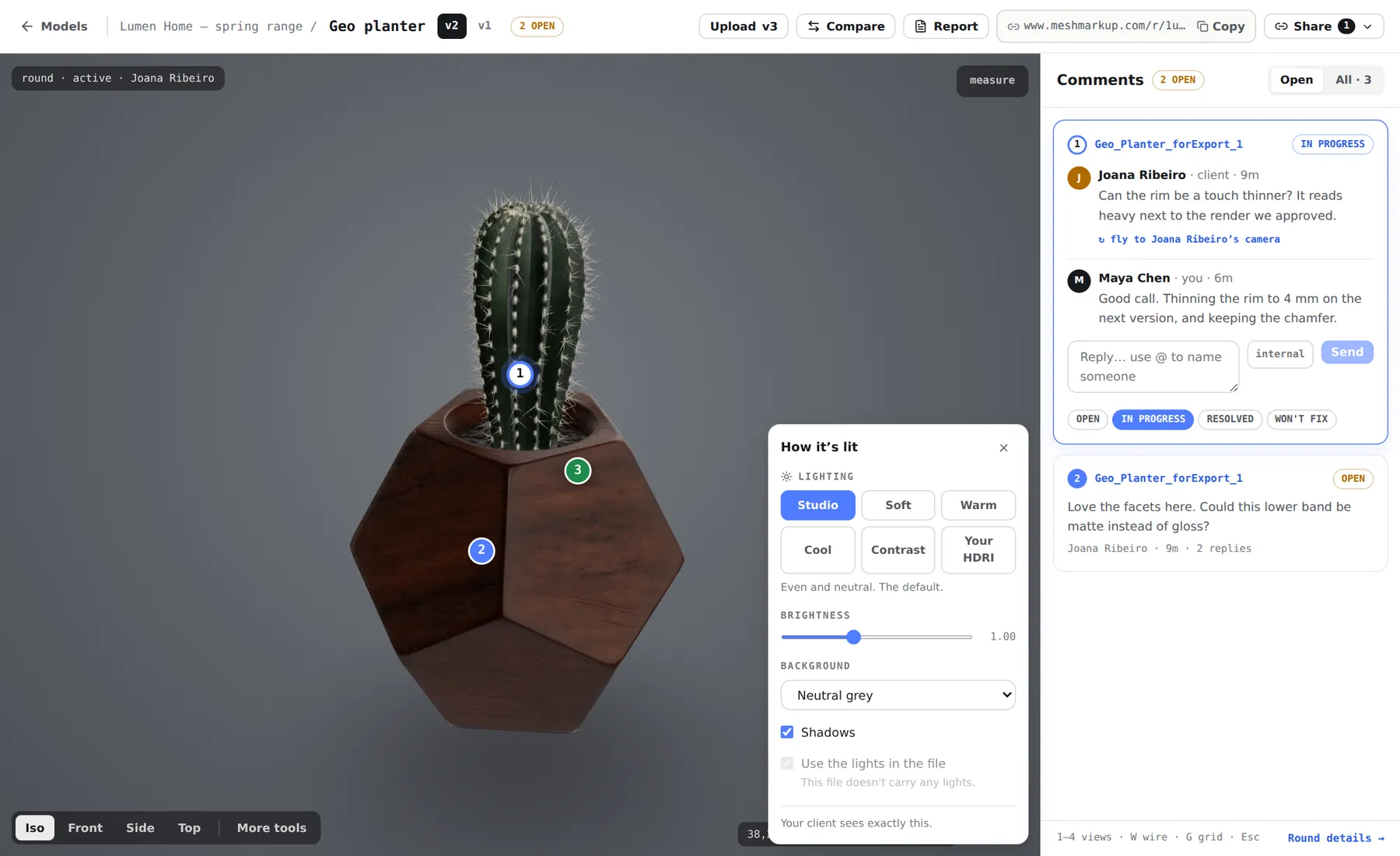
The look panel: preset, brightness, background, shadows and your own HDRI Change what you need
The model updates as you click and drag. There's no save button: your choice is stored on the model a moment after you stop.
Close the panel
Click the Lighting button again, click anywhere else on the stage, or press Esc. The panel's last line is a reminder: "Your client sees exactly this."
To go further (a material on each part, your own softboxes, ray-traced renders), click Open in Studio at the top of the panel. See Studio: materials, lighting and renders.
The look belongs to the model, not to one version. When you upload v2, it opens with the same lighting as v1, so you don't set it up again every round.
Lighting presets
Pick one of six buttons under Lighting. The line under the buttons describes the one you've chosen.
| Preset | What it does | Good for |
|---|---|---|
| Studio | Even and neutral. The default. | Almost everything |
| Soft | Low contrast, gentle shadows | Organic forms, characters, soft goods |
| Warm | Tungsten | Wood, brass, interiors |
| Cool | Daylight | Metal and glass |
| Contrast | A hard key light | Showing form, edges and surface quality |
| Your HDRI | Lights the model with an .hdr you upload | Matching a render or a real location |
The built-in presets are generated inside the viewer. Nothing is downloaded from a third-party site when your client opens the link, so they work behind a company firewall too.
Brightness, background and shadows
- Brightness is a slider from 0.30 to 2.20. 1.00 is the model as authored. Raise it if a dark material reads as black; lower it if white surfaces burn out.
- Background is a menu: Neutral grey (the default), Light, Dark, A colour or The environment itself. Choosing A colour shows a colour picker so you can match a brand colour or a presentation deck. The environment itself is only available with Your HDRI; with any other preset it's greyed out and marked "needs an HDRI".
- Shadows turns on a soft contact shadow under the model and lets parts shadow each other. Untick it for a flat, catalogue look, or when the shadow distracts from a floating part.
Use the lights in your file
If your file carries its own lights, the Use the lights in the file box is available, and it's on by default. With it on, your file's lights replace the preset's direct lights, so the model is lit the way you set it up. The preset still provides the soft surrounding light and reflections. Untick it to fall back to the preset.
If the file has no lights, the box is greyed out and says "This file doesn't carry any lights." The lights MeshMarkup reads are standard glTF lights. In Blender, for example, they're included when you tick Punctual Lights in the glTF exporter's options. See export a GLB from Blender.
Upload your own HDRI
An HDRI lights the model with a real environment, like a photo studio or a street, and can be shown behind it.
Choose Your HDRI
Click Your HDRI under Lighting. A box appears below the presets.
Upload the file
Click Choose an .hdr and pick an equirectangular .hdr file. The limit is 40 MB. A 2K HDRI is plenty for a review, and Poly Haven has free ones.
Show it as the backdrop (optional)
Under Background, choose The environment itself to draw the HDRI behind the model instead of a plain background.
Remove it
Click the × next to the file name. The model goes back to the Studio preset.
Only .hdr files are accepted, not .exr or .jpg. The file counts towards your plan's storage like any other upload. Each model has one environment; uploading another replaces it.
What your client sees
Your client's review link opens with the same preset, brightness, background, shadows and HDRI you chose, so the model looks the way you intended on every screen. Their Lighting button lets them try another built-in preset, change the brightness or switch the background to grey, light, dark or a colour of their own, to see the model differently for themselves. That changes their own view, not what's saved, and the next time they open the link it's back to yours. They can still orbit, zoom and use the measure tool.
If the model looks grey or flat whatever the lighting, the problem is usually missing textures rather than the lights. See model looks grey. The free viewer opens with the default Studio look, and its Lighting button offers the same presets, brightness and background colours for your own view; saving a look for your client, with shadows and your own HDRI, is part of the app.
Was this guide helpful?
Related guides
Get feedback on the model, not on a screenshot
Upload a model, send one link, and your client clicks the exact spot. Free to start — no card.