How to manage 3D design revisions with clients
How to manage 3D design revisions. Keep every round as a version of one model, carry open notes forward, compare with a ghost overlay and send the right link each time.
To manage 3D design revisions, keep every round as a numbered version of one model rather than a new file, carry the client's unresolved notes onto each new version, and check what changed before you send it back. In MeshMarkup you upload the revision with Upload v2 on the same model; open notes move across with their replies, Compare lays the previous version over the new one as a ghost, and renders or drawings uploaded under the same name become Rev B, Rev C. Each version keeps its own notes and report, so the history answers itself.
A revision round, start to finish
Close out what you can on the current version
Before you upload anything, go through the notes. Reply to each one and set RESOLVED for what you've fixed, WON'T FIX (with a reply saying why) for what you won't, and leave OPEN or IN PROGRESS for what's still being worked on.
Save the round report
Click Report, let the views render, and Save as PDF. That's the record of what was asked and answered on this version. See export a round as a PDF.
Upload the revision onto the same model
Open the model and click Upload v2 (the button always shows the next number). Any format MeshMarkup opens works; non-GLB files are converted in your browser first.
Check the carried notes
A banner says how many unresolved notes were copied across, with their replies. Each has a since v1 tag. Check that each pin still sits where it makes sense, reply and set its status.
Compare against the previous version
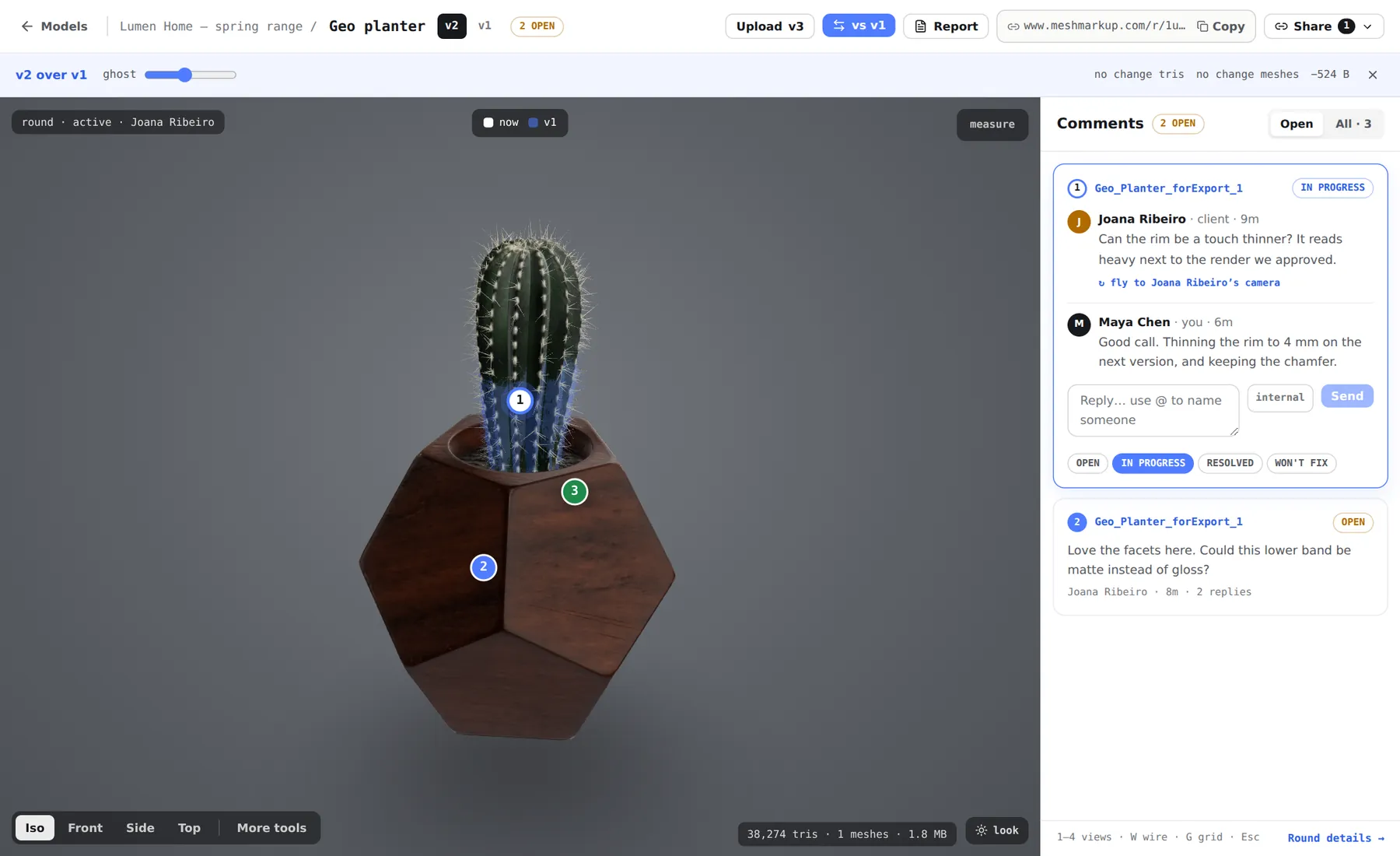
Click Compare and pick the version to show underneath. The old one is drawn as a translucent blue ghost; blue showing through means the geometry moved.
Update the renders and drawings
Upload changed images or PDFs under the same name so they become the next revision. If you use saved snapshot angles, click Re-shoot on the banner that offers it.
Send a fresh link for the new version
Open the new version, click Share for review and create a Leave feedback link, or Sign it off on the final round.
Why one model, many versions
The most common revision mistake is uploading the fix as a new model called "lamp_v2_final". It looks tidy on the day, and it breaks everything that tracks revisions:
- The notes don't follow. A correction the client asked for in round one isn't on the new file, so nobody can see whether it was dealt with.
- There's nothing to compare. Compare works between versions of one model.
- The history is scattered. "What did they say about the first draft?" means opening three models.
On one model, the version tabs (v1, v2, v3) name the rounds for you. Hovering a tab shows its file size and upload date, and clicking it opens that version with its own notes exactly as they were left. Versions need Solo or above; Free keeps one version per model.
Carrying notes from one revision to the next
Only notes marked OPEN or IN PROGRESS move to the new version. They keep their position, the camera they were written from, the whole thread (internal notes included) and their status. RESOLVED and WON'T FIX notes stay on the old version, as the record of what it was agreed against.
The pin stays where the client originally pointed. If you reshaped that area, it may float slightly off the surface. That's deliberate: "this is where they meant" is still the most useful anchor. Turn on v1 notes in the compare strip to show the old version's notes as dashed markers, and check each issue was fixed where the client meant it.
Comparing revisions
For the model, the compare strip gives you:
- a ghost slider from 5% to 70% opacity,
- the change in triangles, meshes and file size, or no change and same size,
- the v1 notes toggle described above.
That number line is a useful revision check in its own right: a "small fix" that doubled the triangle count will make the client's link slower to open. The ghost is a studio tool; your client's link shows only the version you shared, so send a screenshot if you want them to see it.
For renders and drawings, an image uploaded again under the same name becomes its next revision with open notes kept, and Compare with rev A gives a slider that you and your client can both use. Image revision compare is on Solo and up. Documents in Drawings & documents follow the same naming rule and keep earlier revisions in the Rev menu. See drawings and documents.
Naming and housekeeping
Revision tracking depends on a few naming habits:
- Name the model the way the client knows the product. "Desk lamp, brass" reads better on a review link than "DL-04_export". The version number is added for you.
- Don't put version numbers in the model name. The tabs already do that, and the name stays right on v7.
- Keep image file names stable.
lamp-front.pnguploaded again becomes Rev B;lamp-front-v2.pngbecomes a separate image with no history. - Name documents after the model when you can. A PDF named like a model, such as
bracket-02-drawing.pdf, links itself to the model called bracket-02. - Mind your storage. Every version counts towards it, and a single old version can't be deleted on its own. See archive and delete models.
What to send when
Different points in a revision cycle call for different links. A model link stays on the version it was made for, so v1 links keep showing v1 after you upload v2.
| Stage | Send | Why |
|---|---|---|
| Work in progress you don't want notes on | Look only link | The client sees progress, with no note box |
| Each working revision | A new Leave feedback link on the new version | Notes land on the version they're about |
| A collection still growing | A project link | Always shows the latest version of every model |
| Renders only | Leave feedback with Show the 3D model off | The 3D file isn't sent |
| The final revision | Sign it off link (Solo plan and up) | Approval refused while notes are open |
When the last revision is approved, the round report on that version reads Approved with the date. For the approval side, see 3D model approval software; for the full loop, the 3D model review workflow.
FAQ
Can I compare v3 with v1, not just v2?
Yes. The Compare menu lists every other version of the model, with its size.
Do notes carry from all earlier versions?
Notes carry from the version immediately before the new one. Since unresolved notes keep carrying forward each round, anything still open reaches the newest version.
Do the lighting and Studio look carry over?
Yes. The lighting and background you set belong to the model, not the version, and Studio work is saved on the model, so the next version opens dressed the same way.
Was this guide helpful?
Related guides
Get feedback on the model, not on a screenshot
Upload a model, send one link, and your client clicks the exact spot. Free to start — no card.