3D model approval software: recorded client sign-off on the exact version
How 3D model approval software should work. Get a client sign-off that records who approved, when and which version, blocked while any note is still open.
3D model approval software gives you a client approval you can point to later: who approved, when, and which version of the model they approved. In MeshMarkup the client approves on a Sign it off link in their browser, the approval is refused while any note is still open, and the round report saves the approved round as a PDF. Sign-off is on the Solo, Studio and Pipeline plans.
Why "looks good" in an email isn't an approval
Most 3D approvals still happen in a reply: "Looks good, go ahead." It feels like enough until someone asks which file it was. Three questions come up in almost every dispute about an approved design:
- Who approved it? The person who replied may not be the person who could approve.
- When? If revisions crossed in the post, the date decides which one was meant.
- Which version? "The latest one" changes meaning every time you upload.
There's a fourth that comes up less often but costs more: was anything still outstanding? A client who approves while a question about wall thickness is unanswered has approved something they didn't fully agree to.
MeshMarkup does have a quick version of that reply: on any client link, on every plan, the client can click No changes, looks good, and you get an email. It's useful mid-project, but it isn't a formal sign-off and answers none of the questions above.
Approval software is worth having when it answers all four without anyone having to reconstruct an email thread. That matters most for product teams sending designs to manufacture, visualisation studios handing renders to a marketing team, and agencies who bill on approval.
How a recorded sign-off works in MeshMarkup
An approval belongs to one version of one model. The flow:
Run the working rounds on Leave feedback links. Your client pins notes on the model, on renders and on PDF drawings. You reply and fix.
Close every note. Set each to RESOLVED or WON'T FIX. If you won't fix something, reply first to say why, because won't-fix counts as closed.
Send a Sign it off link on the final version. Open the Share menu on that version and click Sign it off. Send it to the person who can approve, and say which version it is.
The client approves. At the bottom of the review panel they see Approve v3 (with their version number). They type their name and press it.
You're told. You get an email, the model's status becomes Approved, and the round shows ✓ signed off on Review rounds.
The approval records the name the client typed and the date and time, on that version's review round. Once a version is approved, the button doesn't come back on any link in that round. Full details of each screen are in client sign-off.
Sign-off blocked while notes are open
This is the part that makes an approval mean something. While any note on the version is OPEN or IN PROGRESS:
- the sign-off link shows a line under the button such as 2 comments still open — those need closing first,
- pressing Approve anyway is refused, with a message saying how many are open,
- the round on Review rounds reads Sign-off blocked with the count.
When everything is closed, the round reads Every note answered — ready for sign-off. If the client has one last comment, they leave a note instead of approving; that note is open, so it blocks approval until you deal with it.
The result is a simple rule your team and your client can both rely on: an approved version is one where everything raised was answered.
The round report as the approval record
The approval lives in MeshMarkup, but you'll usually want a copy in the job folder. Open the approved version, click Report, wait for the views to render, then Save as PDF.
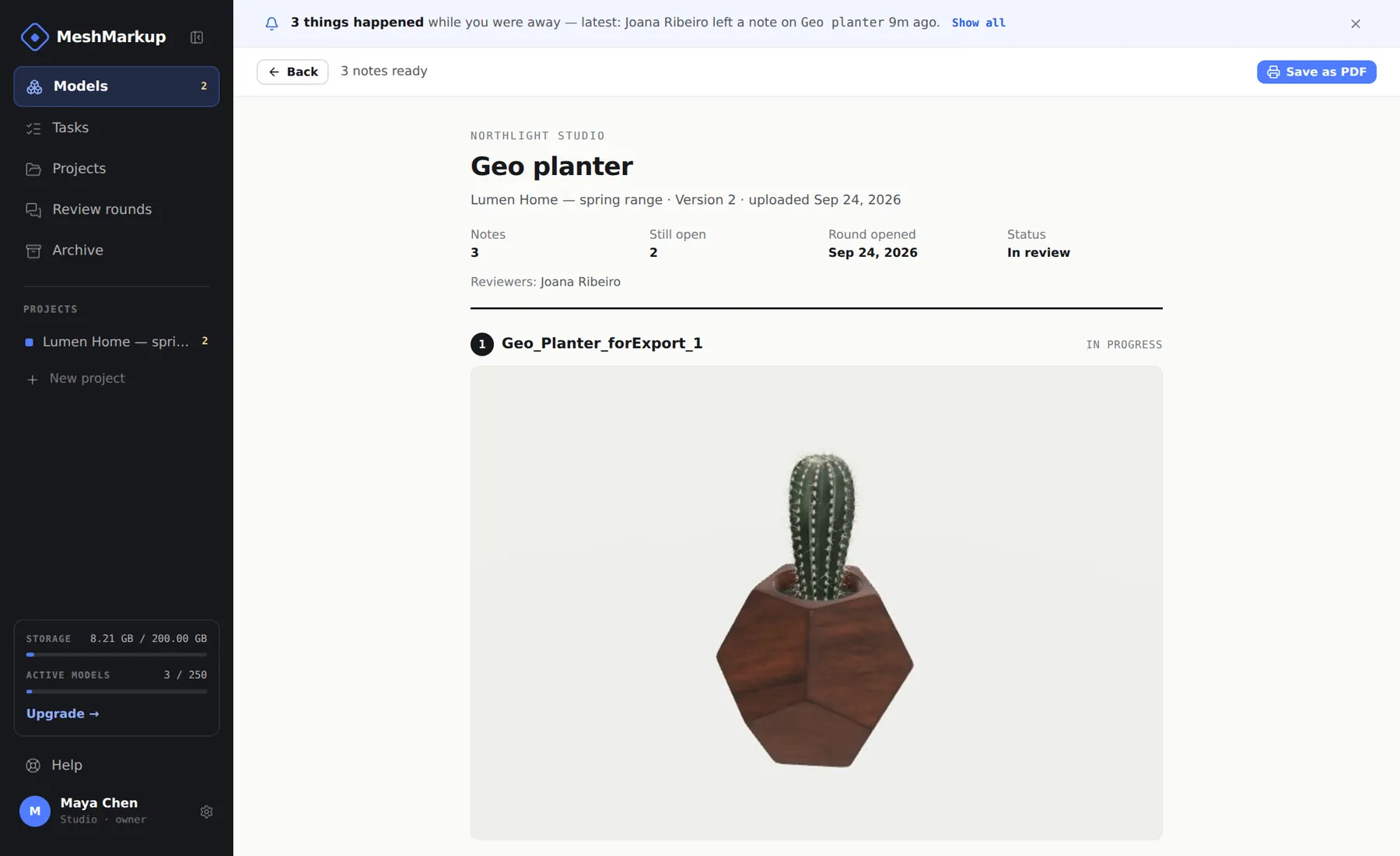
The report holds:
- your studio's name, the model's name, the project, the version number and its upload date,
- a Status line reading Approved with the date,
- Reviewers: everyone who took part, by the names they gave,
- every note with a picture of the model from the note's camera, its status and the whole thread, including notes carried from an earlier version.
Internal notes are left out, so the same PDF can go to the client, to a manufacturer or into a dispute file. The name of the person who approved also shows in Latest activity on the Models page and in the approval email. See export a round as a PDF.
Approving renders and visualisations
Visualisation work often ends in images, not a model. A client approving product renders or an architectural visualisation can do it the same way: add the renders to the model with Add images, or drop them on the Models page as their own review, no model. Notes go on the images, with arrows or boxes when needed, and a Sign it off link approves that review like any model.
Renders you make in Studio go to the same place with Add to Images. For collecting notes on renders before the approval round, see 3D render feedback.
A client approval workflow that holds up
A few habits keep approvals clean:
- Don't send Sign it off on the first round. A client who sees an Approve button early may press it before they've looked properly. Use Leave feedback until the last round.
- Send it to the approver only. Anyone who opens a sign-off link can press the button, and the name is typed, not checked. Give the approver their own link.
- Approve one version at a time. Approving v3 says nothing about v4. If you upload a change after approval, send a new sign-off link for the new version. See managing 3D design revisions.
- Show what changed before you ask. Use Compare on the model page to check what moved since the last round, and send the client a screenshot or walk them through it.
- Save the report the day it's approved. Approvals can't be withdrawn in MeshMarkup, and they don't lock the model, so a dated PDF is the clearest snapshot of what was agreed.
- For several models, use a project link. On a project Sign it off link, approved models move to the client's Signed off column. See project review links.
FAQ
Is a MeshMarkup approval an e-signature?
No. It's a record that someone with the sign-off link typed a name and approved one version, with the date and time. There's no identity check or signed certificate. If your contract needs a formal signature, use your usual tool and file the round report alongside it.
Can I approve on the client's behalf?
No. There's no approve button on your side; only a sign-off link can approve a version.
What if the client changes their mind after approving?
The approval stays on that version. Upload a new version with the changes and send a new sign-off link for it.
Do approved versions get copied anywhere?
If your deployment has the watched-folder integration switched on (Solo and up), approved versions are copied back to the folder. Integrations depend on what's configured; see integrations.
Was this guide helpful?
Related guides
Get feedback on the model, not on a screenshot
Upload a model, send one link, and your client clicks the exact spot. Free to start — no card.