3D proofing: how to proof a product or packaging model with your client before production
Run a 3D proof round like a print proof. Check dimensions and colours, compare with the last proof, and get a recorded sign-off with a PDF you can file.
To proof a 3D model with your client, treat it like a print proof: upload the model, check its size and colours yourself, send the client a feedback link, fix what they mark on the model, and repeat until nothing is open. Then send a Sign it off link so they approve that exact version, and save the round report as a PDF. That gives you a record of who approved which version, and when, before anything goes to production.
Your client needs no account or 3D software, and every comment is pinned to the part it's about. If you're comparing tools, client proofing software explains how proofing from print and video maps onto 3D models, renders and drawings.
What a 3D proof round looks like
In print, a proof is the last version the client checks before the job is run, and their approval on it is what you point to if there's a dispute later. A 3D proof works the same way:
| Print proof | 3D proof in MeshMarkup |
|---|---|
| Send a PDF proof | Send a Leave feedback link to one version of the model |
| Client marks up the PDF | Client clicks the model and leaves a note pinned to that spot |
| You correct and send proof 2 | You upload v2 onto the same model; open notes carry across |
| Client signs the proof | Client presses Approve v2 on a Sign it off link |
| File the signed proof | Save the round report as a PDF |
Each version is one proof. The notes on it, and the approval if there is one, belong to that version and stay with it when you upload the next.
Before you send the proof: a checklist
Check these yourself first.
- It's the right file. The model name and version number sit at the top-left of the client's view. Name the model the way the client knows the product.
- It's the right size. Click Measure on the left toolbar and check one dimension you know, such as the overall height or a pack's width. If it's out by 1,000, 100 or 25.4, it's a units problem; see wrong size or scale.
- Textures and artwork are there. A grey model usually means the textures didn't come with the file. See model looks grey.
- It's lit neutrally. Set the lighting with the Lighting button before the client sees it. Their link opens with exactly what you set; they can try another preset for themselves, but it never changes what's saved.
- Old notes are dealt with. On a second or later proof, reply to every carried note and set its status, so the client can see what changed and why.
- You know who approves. Anyone who opens a sign-off link can press the button. Decide who that person is before you send one.
Send the proof
Upload the model
Go to Models and click Upload model. STEP, FBX, OBJ, STL and the other formats MeshMarkup opens are converted to GLB in your browser. See uploading 3D models.
Run the checklist above
Fix anything wrong in your 3D app before the client sees it.
Create a feedback link
Click Share for review, choose an expiry if you want one, and click Leave feedback. The link is created and copied.
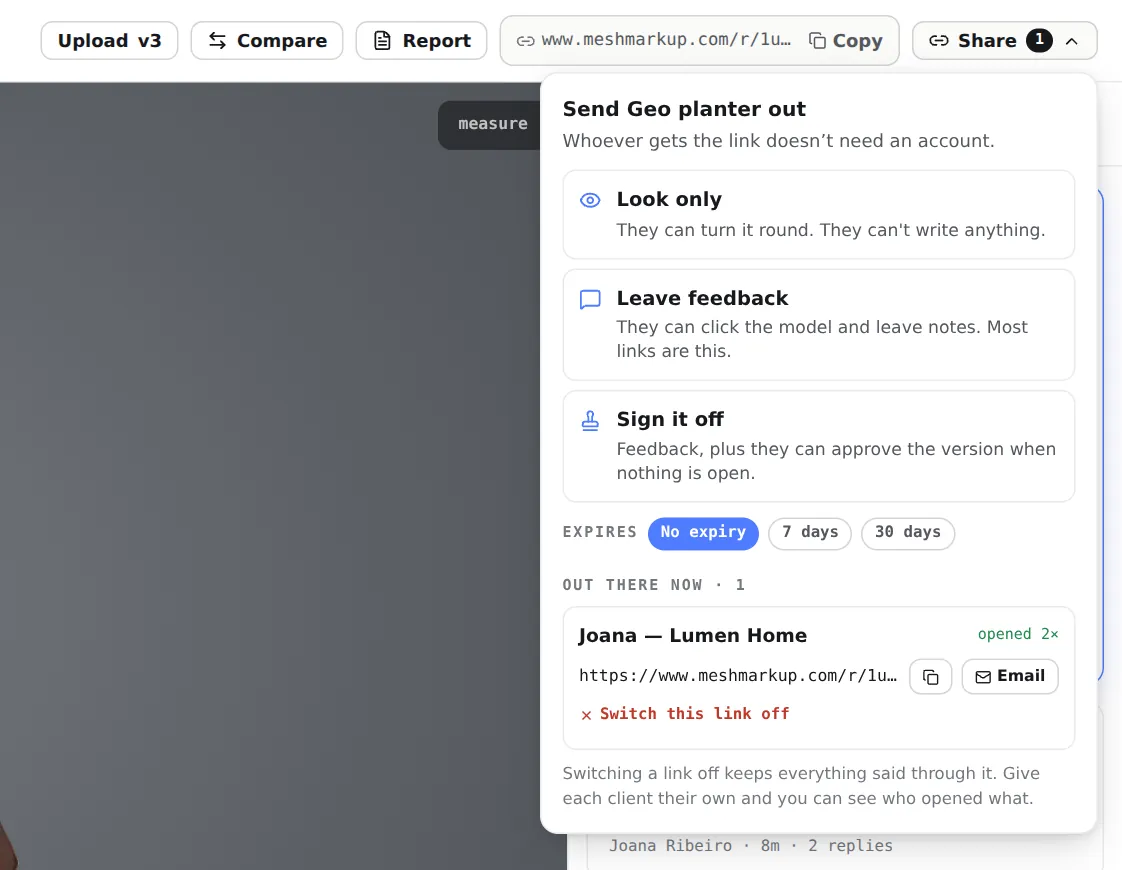
Use Leave feedback for proof rounds and Sign it off for the final proof Send it with clear instructions
Paste the link to your client, or click Email next to it. Tell them what to check: dimensions, colours, artwork placement, and anything else specific to the job.
Answer the notes
Each note is a numbered pin on the model. Reply, fix the model, and set each note to RESOLVED or WON'T FIX. See notes, replies and statuses.
Use Leave feedback for the working proofs, not Sign it off. A client who sees an Approve button on the first proof may press it before they've looked properly.
Check the dimensions
The measure tool gives the straight-line distance between two points you click, in millimetres, centimetres or metres. Your client can use it on their link too, so they can check a dimension without asking you.
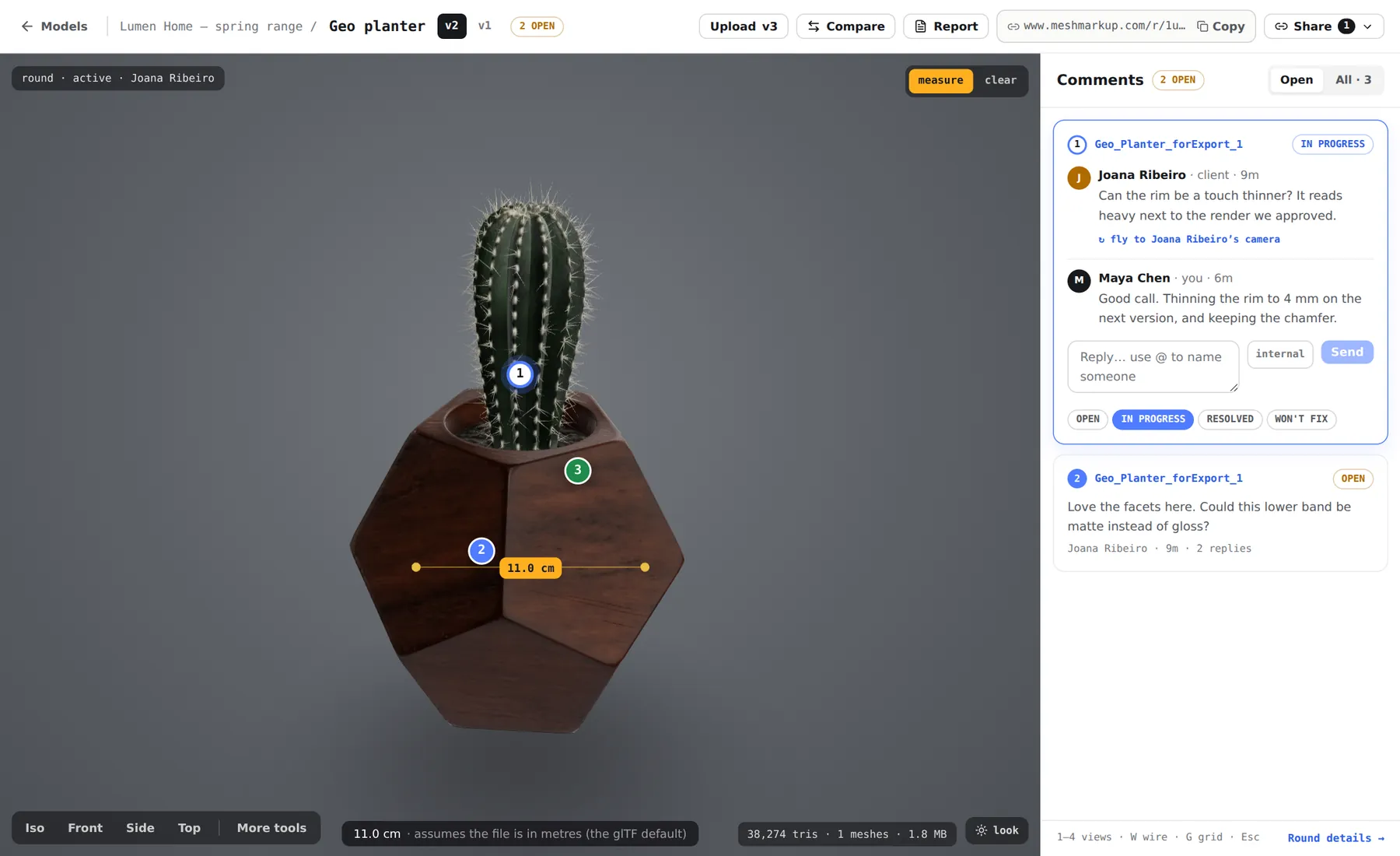
Measurements aren't saved and aren't sent to anyone. Ask your client to write any dimension that matters into a note, so it's on the record and in the round report. GLB, glTF, STEP, IGES, FBX, Rhino and 3MF files arrive at real size; OBJ, STL and PLY carry no unit, so a millimetre file reads as metres. Full details in measure a 3D model.
For manufacturing tolerances, use your CAD software. CAD files are converted to triangles for review, so a measurement across a curved surface can differ very slightly from the CAD dimension.
Check materials and colours
Click Lighting on the toolbar down the left edge of the viewer and choose the Studio preset, which is even and neutral, on a background with some contrast against the model. The client's link opens with the same lighting, background and shadows, so everyone starts from the same light. A preset the client tries for themselves only changes their own view. See lighting and backgrounds.
For packaging and consumer products, a few habits help:
- Avoid the coloured presets for a colour check. Warm and Cool tint the model on purpose.
- Keep the background neutral unless you're matching a brand colour deliberately. A strong background colour changes how the product's colours read.
- Say what the screen can't do. Colour on a screen depends on the screen. Treat the 3D proof as the proof of shape, artwork placement and finish, and keep a physical colour proof in your process if exact colour matters.
Compare against the last proof
When the client asks for changes, upload the corrected file onto the same model with Upload v2. Notes that were still open or in progress are copied onto v2 with their replies, tagged since v1, and v1 keeps its own notes as the record of the first proof.
Then click Compare to draw the previous version as a translucent blue ghost behind the new one. Anywhere blue shows through, the geometry changed. The strip under the header also shows the change in triangles, meshes and file size. The ghost is a studio tool: your client's link shows only the version you shared, so send a screenshot if you want them to see the comparison.
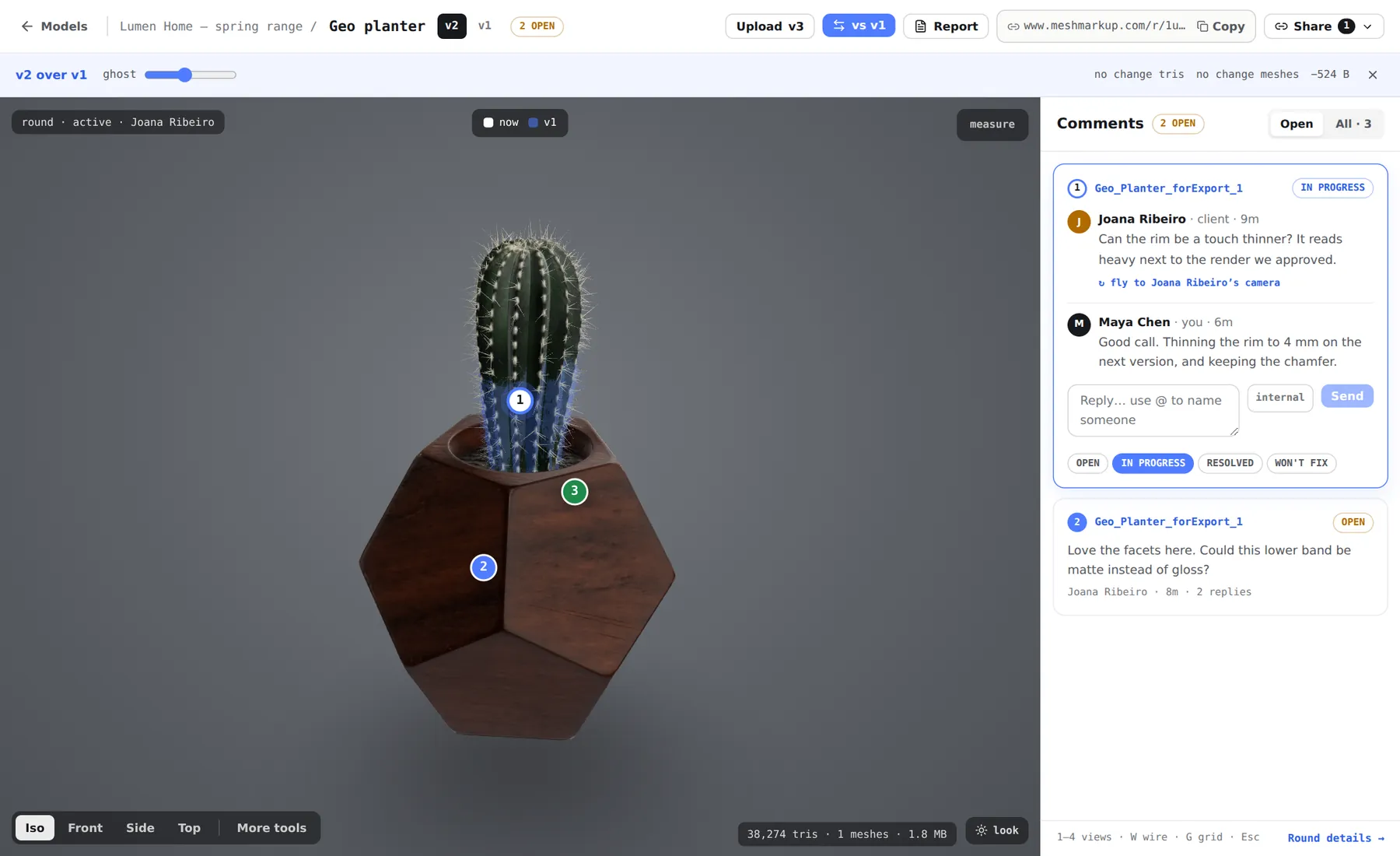
Versions need a paid plan: Free keeps one version per model. More in versions and comparing.
Get the sign-off and file the proof record
When a proof comes back with nothing left to change, ask for approval.
Close every note
Set each one to RESOLVED or WON'T FIX. Notes that are OPEN or IN PROGRESS block the approval.
Send a sign-off link
Open the Share menu on the final version and click Sign it off. Send it to the person who approves the job, and say which version you're asking them to approve.
Wait for the approval
Your client types their name and presses Approve v3 (with their version number). If any note is still open, the approval is refused and they're told how many. You're emailed when it goes through, and the model's status changes to Approved.
Save the round report
On the approved version, click Report, wait for the views to render, then Save as PDF. Its Status line reads Approved with the date.
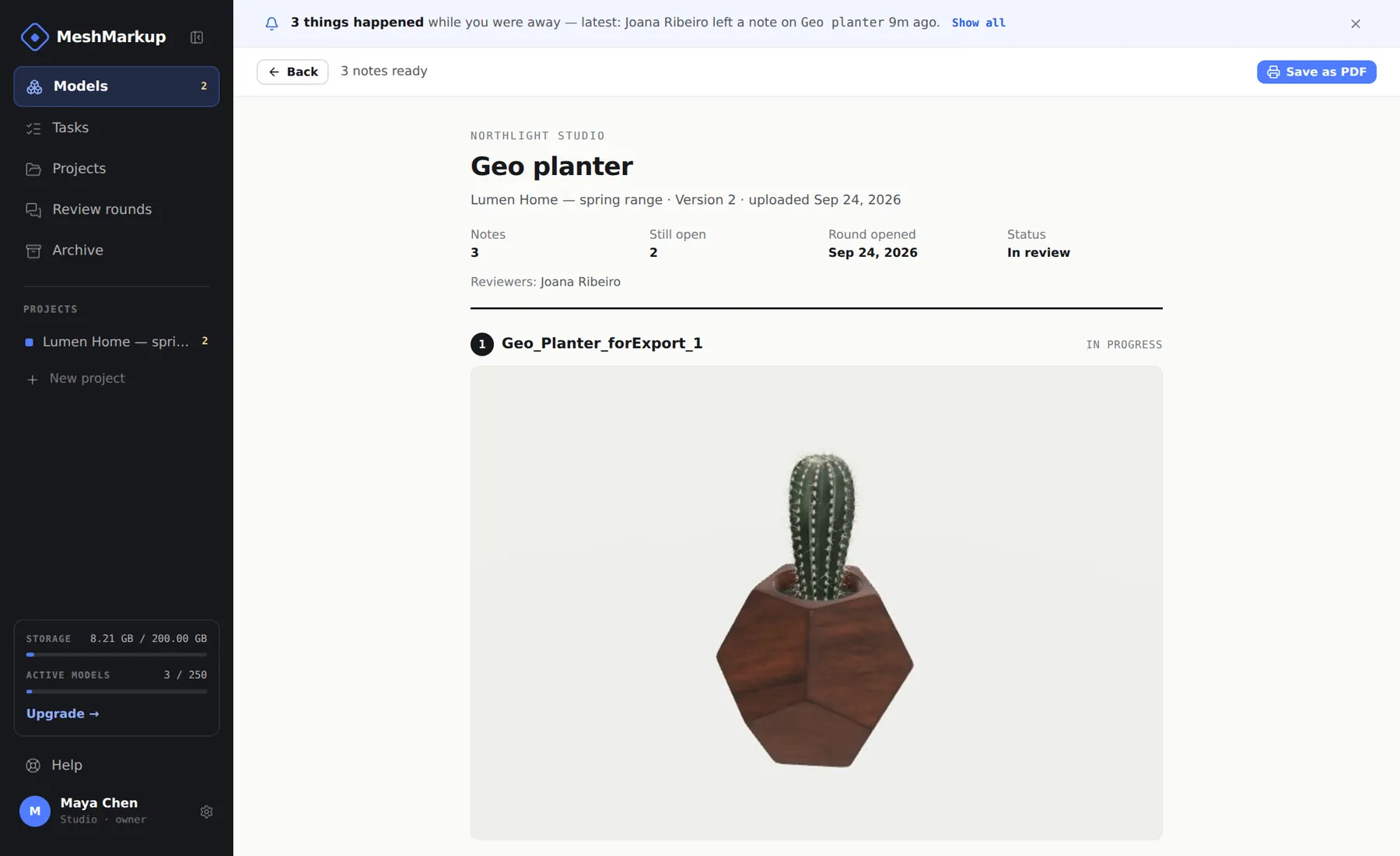
The round report: the proof record to file with the job
The report lists the version number and upload date, every note with a picture of the model from the note's camera, each reply and its status, and everyone who took part. The name of the person who approved shows in Latest activity on the Models page and in the approval email. Internal notes are left out, so the report is safe to send to the client.
A MeshMarkup approval is a record that someone with the link pressed approve on one version. It isn't an e-signature and doesn't check identity. If your contract needs a formal signature, use your usual tool and file the report alongside it. See client sign-off, round report and 3D model approval software.
Was this guide helpful?
Related guides
Get feedback on the model, not on a screenshot
Upload a model, send one link, and your client clicks the exact spot. Free to start — no card.