Client proofing software for 3D models, renders and drawings
Client proofing software for 3D work. Send a proof link, let the client mark up the model, renders or drawings, track every correction and file the approved proof.
Client proofing software lets you send work to a client, collect their corrections on the work itself, track each one until it's fixed, and record the client's approval of the final proof. MeshMarkup does this for 3D: the proof is a link to one version of a model, with its renders, snapshots and PDF drawings beside it, and your client marks it up in their browser without an account. If you already proof print, packaging or video work, the rounds will feel familiar; only the thing being proofed has a back and an inside.
What client proofing means, and where 3D fits
Proofing grew up in print. A designer sends a proof, the client marks corrections on it, and the round ends with a signed proof everyone points to if the job is questioned. Photo and video teams took the same idea online: a link instead of a PDF, comments pinned to a spot on the image or a moment in the cut, and an approve button at the end.
Most proofing tools stop at flat files. A 3D job usually has three kinds of material, and a client may need to proof all of them:
- The model itself. Shape, proportions, the underside of a product, how parts fit. A flat proof shows only the angles you chose.
- Renders and snapshots. The images that will go on a website, a pack or a catalogue page.
- Drawings and documents. A dimensioned PDF drawing, a dieline, a supplier's spec sheet.
In MeshMarkup all three sit on the same review link, and a note on any of them goes into one list with the same replies, statuses and report.
A proof round, step by step
This is the shape of one round for, say, a packaging agency proofing a bottle and its label with a brand team.
Check it like a proof before it goes out. Measure one known dimension, set neutral lighting with the Lighting button, and check textures and artwork are there. The 3D proofing checklist covers this in detail.
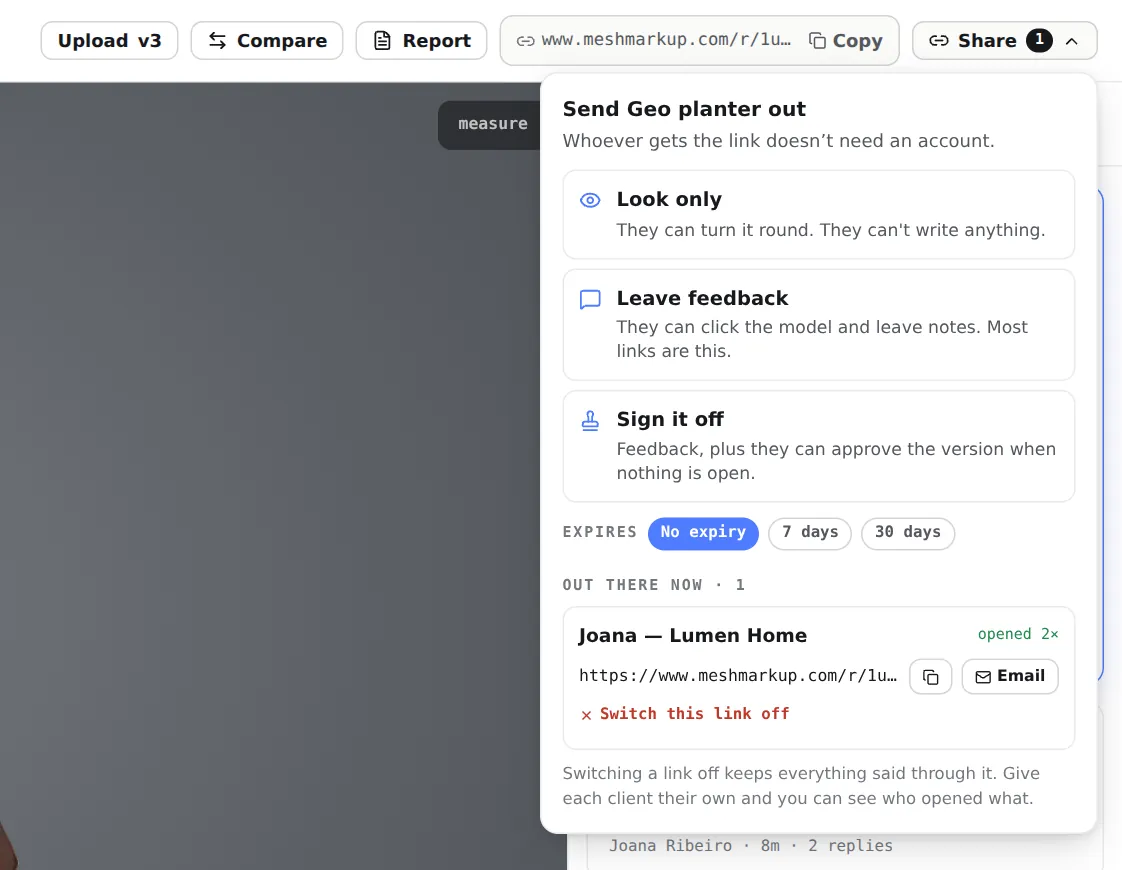
Send a Leave feedback link. Click Share for review, set Ask for feedback by if you want a date, and click Leave feedback. Add the client's email under Their email and MeshMarkup reminds them in your name until they answer. See feedback-by dates and reminders.
The client marks it up. On the model they click a spot and type a note; the note keeps their camera view. On a render or PDF page they can also draw an Arrow, Box, Highlight or a freehand line with the note.
You correct and reply. Reply to each note, fix the work, and set a status: IN PROGRESS shows the client Working on it, RESOLVED shows Fixed.
Send proof 2. Upload the corrected model as v2 on the same model, or upload a render again under the same name to make it Rev B. Then send a fresh link for the new version.
Get the final proof approved. When nothing is open, send a Sign it off link and the client approves that version (Solo plan and up).
Proofing tasks mapped to MeshMarkup
Where each part of a proofing habit lives:
| Proofing task | In MeshMarkup |
|---|---|
| Send a proof without sending the file | A review link; the client never downloads the model |
| Mark up a proof | Notes pinned on the model, or drawn on images and PDFs |
| Several reviewers on one proof | Unlimited reviewers, free, no sign-up; each can have their own link |
| Internal comments the client mustn't see | internal replies, never shown on the link or in the report |
| Proof deadline and chasing | Ask for feedback by and automatic reminders |
| Proof 2, proof 3 | Model versions (v2, v3) and image revisions (Rev B) |
| See what changed | Compare: a ghost of the old model, or a slider between image revisions |
| Approved proof | A Sign it off link, recorded with the name typed and the date |
| File the proof | The round report, saved as a PDF |
What's different about proofing a 3D model
A few habits from flat proofing need adjusting.
The client can look anywhere. On a PDF the client sees what you laid out. On a 3D proof they can turn the model over and find the unfinished underside. Check the whole model, not just the hero angle, or send a Look only link while you're still working on parts you don't want commented on yet.
Colour depends on the screen and the light. A 3D proof is a good proof of shape, artwork placement and finish. It isn't a contract colour proof. Light the model with a neutral preset and keep a physical colour proof in the process when exact colour matters.
The viewpoint is part of the comment. "The logo is too low" means little without the angle. Every MeshMarkup note stores the camera it was written from, and clicking it takes you to that view. The round report prints each note with a picture from that camera.
Proofs are versions, not files. Uploading the corrected model as a new model loses the link between rounds. Uploading it as v2 on the same model copies open notes across with their replies, so a correction the client asked for in proof 1 is still visible, tagged since v1, until you close it. See how to manage 3D design revisions.
Proofing renders and drawings without the model
Sometimes the client only needs to proof the pictures: a set of product renders for a web shop, or a PDF drawing for a supplier. Drop the images or PDF on the Models page and choose Their own review, no model, or switch Show the 3D model off in the Share menu so the link shows only images. The 3D file is never sent.
If you make the renders in MeshMarkup's Studio, click Add to Images after a render and it's ready to proof next to the model. For the details of image notes and revisions, see 3D render feedback.
Closing out the proof
The last proof ends with a recorded approval. On a Sign it off link the client sees Approve v3 (with their version number), types their name and presses it. While any note is OPEN or IN PROGRESS the approval is refused, so an approved proof is one with nothing outstanding. The model's status becomes Approved and you're emailed.
Then open Report on that version and save it as a PDF. It lists every note with its view, the replies and statuses, everyone who took part, and a Status line reading Approved with the date. That PDF is your signed proof to file with the job. 3D model approval software goes further into what the approval does and doesn't record.
FAQ
Does my client need an account to proof?
No. They open the link in any modern browser, on a computer, tablet or phone, type their name once and leave notes. Reviewers never use a seat.
Can several people at the client proof the same version?
Yes. Everyone with a link to the same version sees the same client-visible notes, so a brand manager and a production manager can comment on one proof and reply to each other. If two clients mustn't see each other's comments, give them different models.
Is the approval a legal signature?
No. It records that someone with the sign-off link typed a name and approved one version, and when. It doesn't check identity. If your contract needs a formal signature, use your usual tool and file the round report with it.
Was this guide helpful?
Related guides
Get feedback on the model, not on a screenshot
Upload a model, send one link, and your client clicks the exact spot. Free to start — no card.