Get client sign-off on a 3D model
Send a Sign it off link so your client can approve a version of a 3D model, with their name and the date on record and approval blocked while notes are open.
To get a client to sign off a model, send them a Sign it off link. It works like a feedback link, and adds an Approve button for the version they're looking at, such as Approve v3. The button only goes through when no notes are open, so an approval means everything raised has been dealt with. MeshMarkup records the name they typed and when they approved, on the review round.
Send a sign-off link
Close the open notes
On the model page, go through the Open tab and set each note to RESOLVED or WON'T FIX. Notes that are OPEN or IN PROGRESS block the approval.
Open the Share menu
Click Share for review, or Share if links already exist.
Create the link
Choose an expiry if you want one, then click Sign it off. The link is created and copied, and it's listed as Sign-off link.
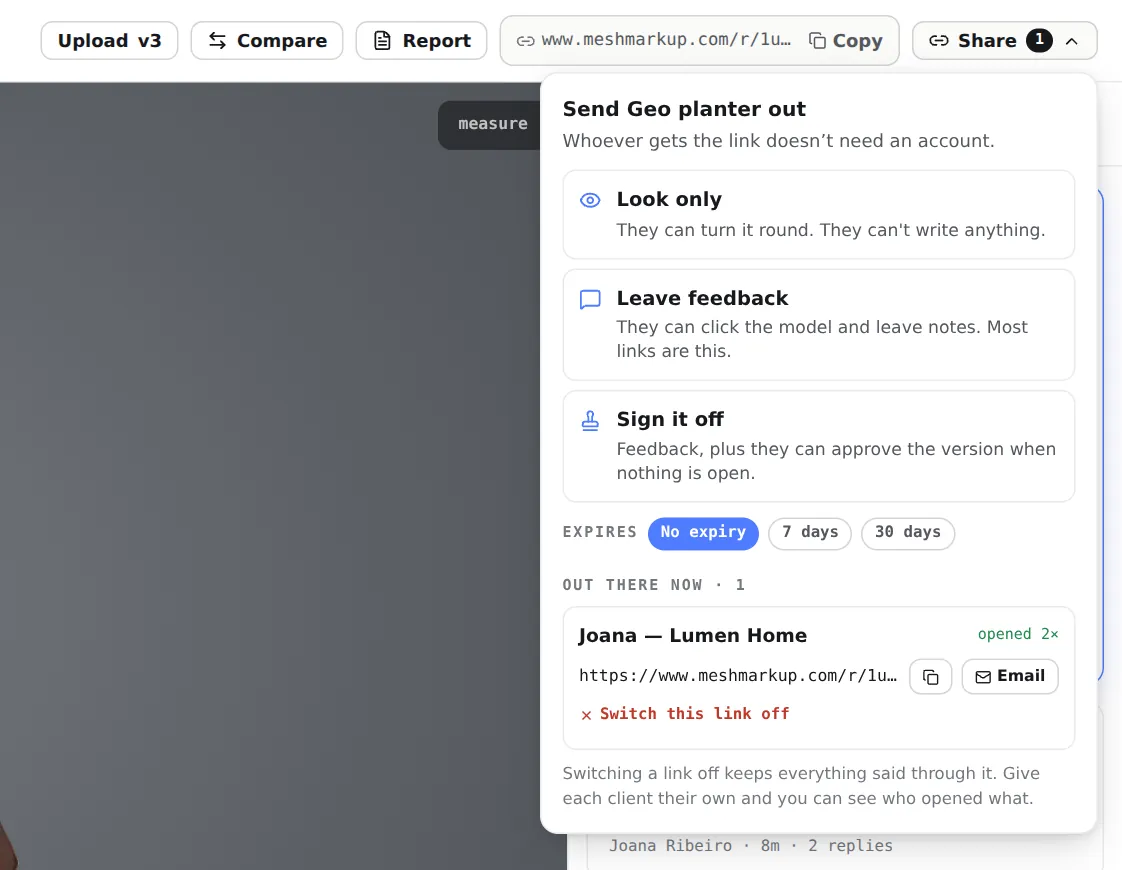
Sign it off: feedback, plus approving the version Send it
Paste it to your client, or click Email next to it to send it from MeshMarkup. Say in your message that you're asking for approval, and which version it is.
Wait for the approval
You'll get an email that your client approved the model, and the model's status changes to Approved.
Send it to the person who can actually approve. Anyone who opens a sign-off link can press the button.
What your client sees
The link opens the usual review screen: the model, the panel beside it, and the option to click the model to leave a note. At the bottom of the panel is Approve v3 (with the number of the version they're on).
- If notes are still open, a line under the button says how many, for example 2 comments still open — those need closing first. Pressing the button anyway shows a message saying how many are still open, and nothing is approved.
- If they have something to add, they can still leave a note instead. That note is open, so it blocks approval until you deal with it, which is the point.
- When they approve, they need to have typed their name. The button is replaced by Approved and the date, and the model shows an Approved tag.
Once a version is approved, the button doesn't come back, on that link or on any other link in the same review round.
Where the approval is recorded
The approval is stored on the review round with the name the client typed and the date and time. You see it in several places:
- Review rounds: the round shows ✓ signed off and Signed off with the date. Before that, it shows Sign-off blocked with the number of open comments, or Every note answered — ready for sign-off.
- Models: the model's status becomes Approved, and the Approved filter lists every signed-off model. Latest activity shows who approved it.
- The model page: the label at the top left of the viewer reads round · approved.
- Email: you're notified that they approved it, if Tell me when feedback arrives is on in Settings.
- The round report: its Status reads Approved with the date, so you can print or save the approved round as a PDF for your records.
On a project link, approved models move to the Signed off column of the client's project page.
What sign-off doesn't do
It's a clear record that your client pressed approve on a particular version, and it's worth knowing its limits:
- It doesn't check who they are. Your client types a name; there's no account, password or email check behind it. Anyone with the link can approve. Send sign-off links only to the person who should sign.
- It isn't an e-signature. There's no signed document or certificate. If your contract needs a formal signature, use your usual tool for that and keep the round report alongside it.
- It covers one version. Approving v3 says nothing about v4. When you upload a new version, send a new sign-off link for it.
- It doesn't lock anything. Notes and replies can still be added after approval, and you can still upload new versions.
- It isn't the same as "No changes, looks good". On any client link, on every plan, the client can click No changes, looks good, and you get an email. That's a quick yes, not a formal sign-off on the record.
- It can't be undone in MeshMarkup. There's no button to withdraw an approval. If the client changes their mind, upload a new version and ask again.
- Won't-fix notes don't block it. A note marked WON'T FIX counts as closed. Reply before you close a note that way, so the client knows why before they approve.
- You can't approve for them. There's no approve button on your side; only a sign-off link can do it.
Tips for a smooth sign-off
- Use a feedback link for the working rounds, and a sign-off link for the last one. Clients who see an Approve button early sometimes press it before they've really looked.
- Clear the notes first. A client who opens a sign-off link and sees comments still open has to wait for you. Resolve everything, then send the link.
- Compare before you ask. Show what changed since the last round with versions and comparing, so the approval is for something they've understood.
- Keep a copy. Open Report on the approved version and save it as a PDF; it lists every note and reply with its view and the approval date.
Was this guide helpful?
Related guides
Get feedback on the model, not on a screenshot
Upload a model, send one link, and your client clicks the exact spot. Free to start — no card.