How to email a review link from MeshMarkup
Send a 3D model review link to your client by email straight from MeshMarkup, with your own note. What the email says, where replies go and the daily limits.
To email a review link, open the model's Share menu, click Email next to a live link, type your client's address and an optional note, and click Send the link. MeshMarkup sends a short email in your name with a button that opens the model. When your client replies to that email, the reply comes to your own inbox.
You can send up to 10 of these emails a day on the Free plan, and 50 a day on paid plans.
Send a link by email
Open the Share menu
Open the model and click Share for review (or Share, once a link exists).
Make sure there's a link to send
If there isn't one yet, pick the expiry and click the kind of link you want, usually Leave feedback. See review link permissions.
Click Email on the link
Under Out there now, click Email next to the link. A small form opens under it.
Type the address and a note
Type your client's address. The note is optional: a line like Here's v2 with the handle moved, let me know about the finish helps them know what to look at.
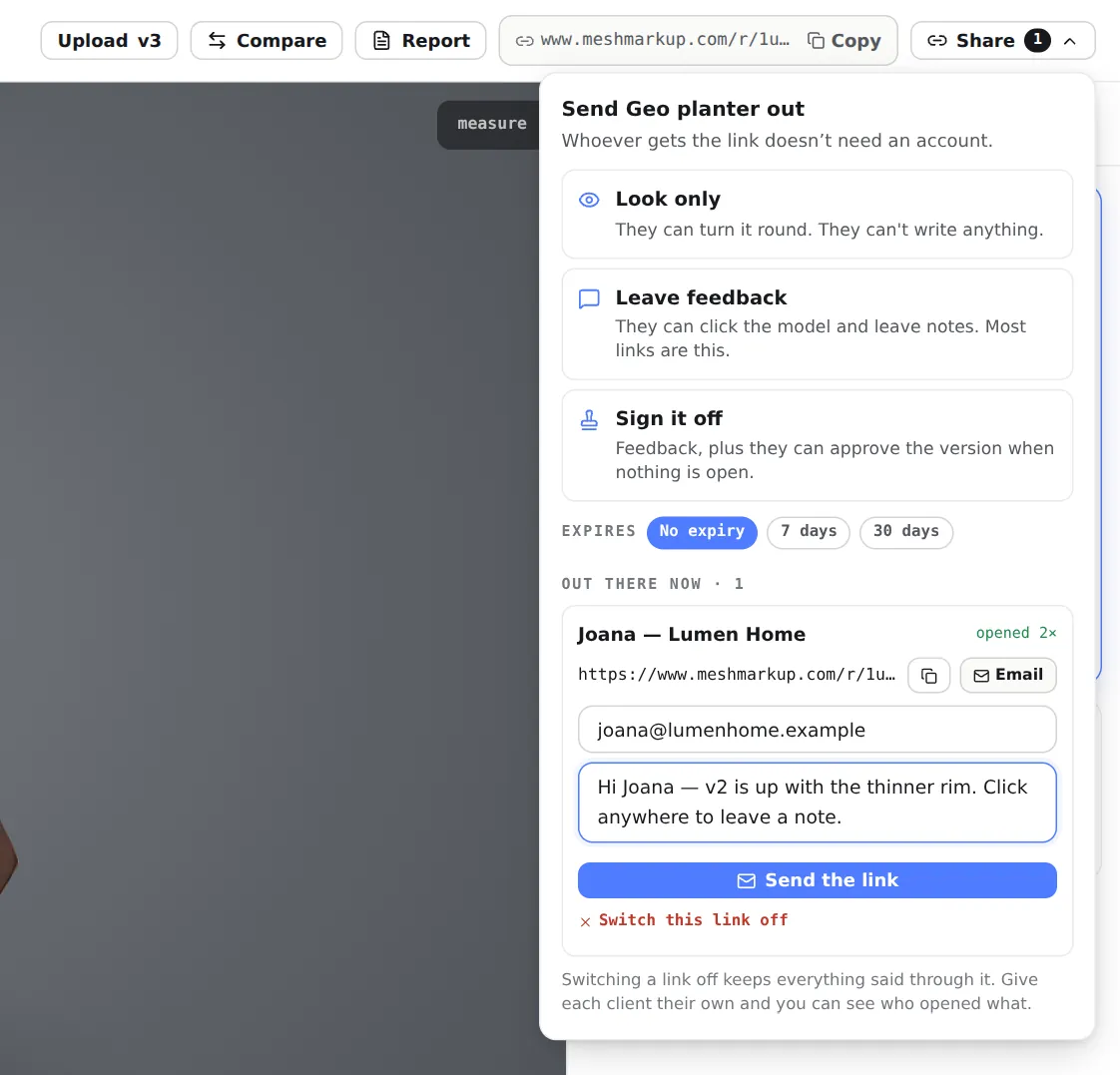
Emailing a link: their address and an optional note Send it
Click Send the link. When it has gone, the form says Sent to the address, and Replies come straight to you.
Each email goes to one address. To send the same link to a second person, click Email again and send another. For a separate opens count per person, create a link for each instead.
What your client receives
The email comes from MeshMarkup but reads as a message from you:
- Subject: Your name sent you model name to review.
- Heading: Your name would like your eyes on model name.
- Your note, if you wrote one, quoted exactly as you typed it and signed with your name.
- A short explanation that the link opens the 3D model itself, in the browser, with nothing to install and no account.
- A button: Open the model and leave notes, or Open the model for a Look only link, which leaves out the part about notes.
- The address itself, for pasting into a browser.
- How long it lasts, such as The link works for the next 7 days, if the link has an expiry.
The name used is your display name from Settings, the one your clients see next to your replies. If you haven't set one, the first part of your email address is used instead, so it's worth setting a name before you send.
Replies come to you
The email's reply address is your own. If your client hits reply, the message lands in your inbox, not with MeshMarkup. Notes they leave on the model still arrive in MeshMarkup as usual.
The note: plain text, up to 600 characters
The note is plain text. Line breaks are kept, but there's no bold, colour or other formatting: what you type is what they see. The box stops accepting text at 600 characters. Keep it to a line or two about what changed and what you'd like them to look at.
Daily limits
| Plan | Review link emails |
|---|---|
| Free | 10 a day |
| Solo, Studio, Pipeline | 50 a day |
The count is per person and covers the last 24 hours, not the calendar day. When you reach it, the form tells you so. The link still works: copy it and send it from your own email or chat.
If the email doesn't send
The form shows what went wrong:
- That link has been switched off. or That link has expired. Make a new one. Create a new link and email that.
- That link can't be shown again. Make a new one to email it. The link was made before links could be shown again. Create a new one.
- That email address doesn't look right. Check the address for typos.
- The email didn't go out. Try again, or copy the link instead. Try again in a moment, or paste the link into your own email.
If your client says it never arrived, ask them to check their spam folder, or send the link yourself. See sign-in and email problems for more.
Project links and the free viewer
Project links
A project link opens every model in a project. Its Email button opens your own email app with a message already written, the subject project name — for your review and the link in the body, so you send it from your own address. The daily limit above doesn't apply because MeshMarkup isn't sending it.
From the free viewer
The free 3D viewer has its own Share button in the top-right corner once a model is open. It offers Copy a review link and Send it by email.
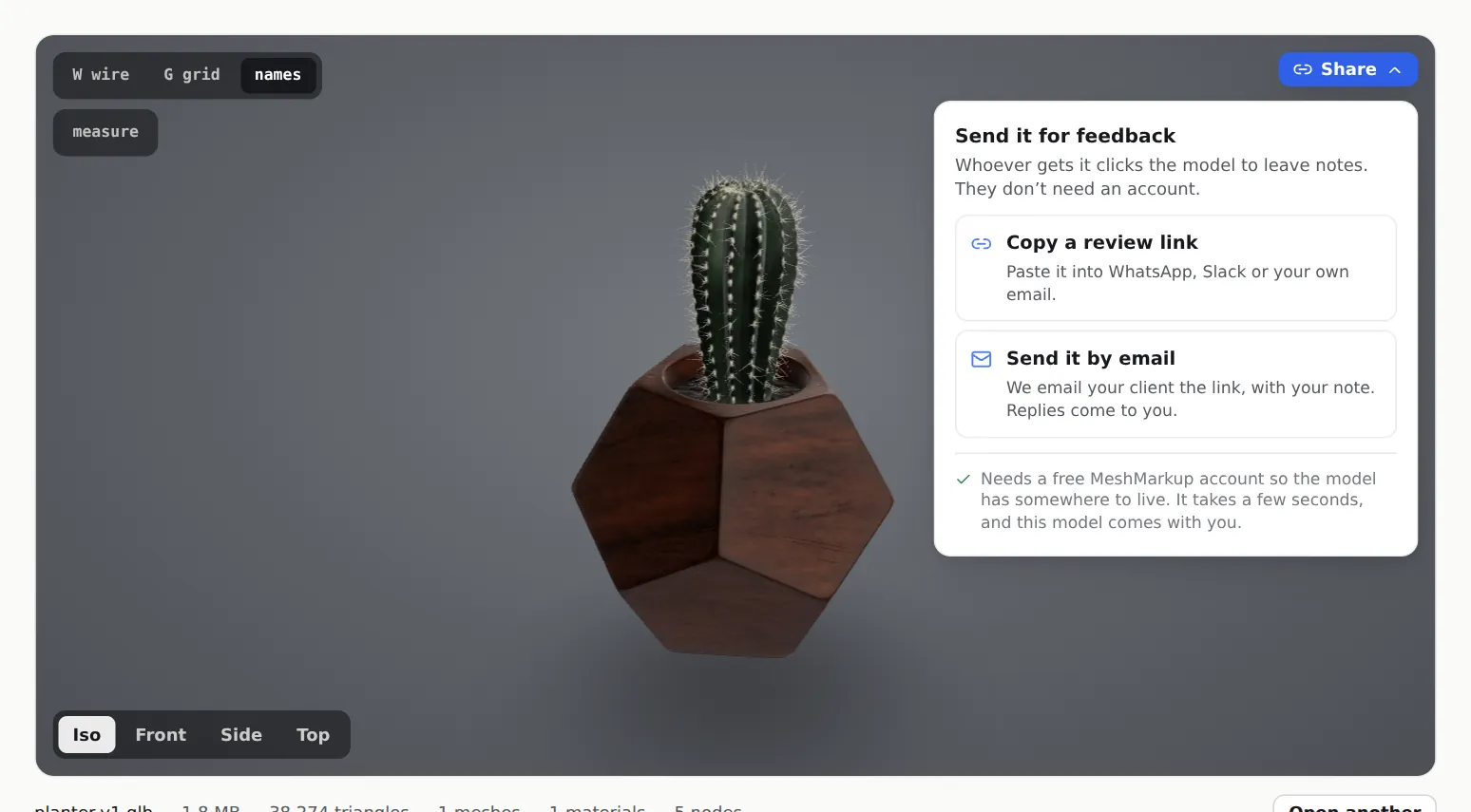
Choose Send it by email
Type the address and an optional note, then click Continue.
Sign in or create a free account
The model needs somewhere to live before a client can open it. If you're already signed in, this step is skipped.
Let it finish
You land on your Models page, where the model is uploaded, a Leave feedback link is made and the email goes out. A box confirms Sent to your client, with the link and Copy link in case you want it too.
The model waits in the browser you opened it in while you sign in. If the sign-in email opens in a different browser, go back to the first one, or upload the file from your Models page instead. Private browsing windows can't hold the model at all, so the viewer tells you to create an account and upload it. More about the viewer in view a 3D model online.
Was this guide helpful?
Related guides
Get feedback on the model, not on a screenshot
Upload a model, send one link, and your client clicks the exact spot. Free to start — no card.