How to send a 3D model to a client for feedback
Share a 3D model with a client as one link they open in their browser, then get notes pinned to the exact spot on the model instead of screenshots and long emails.
The quickest way to get feedback on a 3D model is to send your client a review link. They open it in any browser, turn the model round, and click the exact spot they want to talk about. Each note is pinned to that point on the geometry, with the camera angle they were looking from. They don't need an account, a plugin or any 3D software.
This guide takes you from the file on your computer to notes arriving from your client, in about five minutes.
What you need
- A MeshMarkup account. The Free plan is enough: it includes 3 new models every 30 days and 50 MB of storage, and you don't need a card.
- Your model in a format MeshMarkup opens. GLB is best, because it carries the geometry, materials and textures in one file. FBX, OBJ, STL, STEP, IGES, Rhino (.3dm), 3MF, PLY, DAE and 3DS are converted for you as they upload. See which format to use.
- Your client's email address, if you want MeshMarkup to send the link for you.
Send the model in five steps
Upload the model
Open Models and click Upload model, or drop the file onto the Drop a model here card. Anything that isn't GLB or glTF is converted to GLB in your browser first, so large files never wait in a queue.
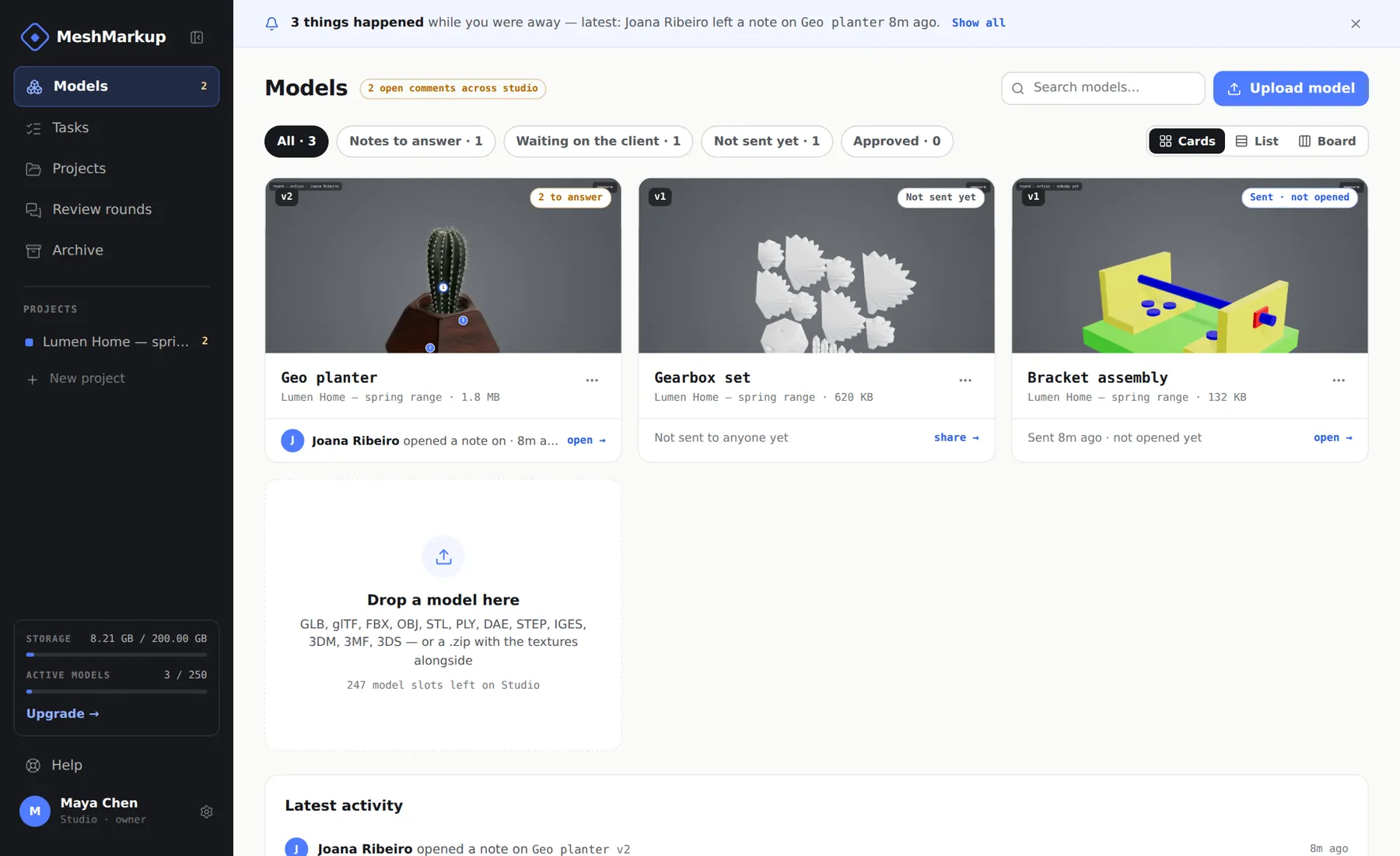
Your models, with Upload model in the top right Open the model and check how it looks
Click the model's card. Turn it round, and if it needs it, click the Lighting button on the toolbar down the left edge of the viewer to set the lighting and background. What you set is exactly what your client will see when they open the link.
Create a review link
Click the blue Share for review button in the top-right corner of the viewer (it reads Share once a link exists) and pick what the client can do. Leave feedback is right for almost every review: they can click the model, write notes and reply. You can also choose an expiry of 7 or 30 days.
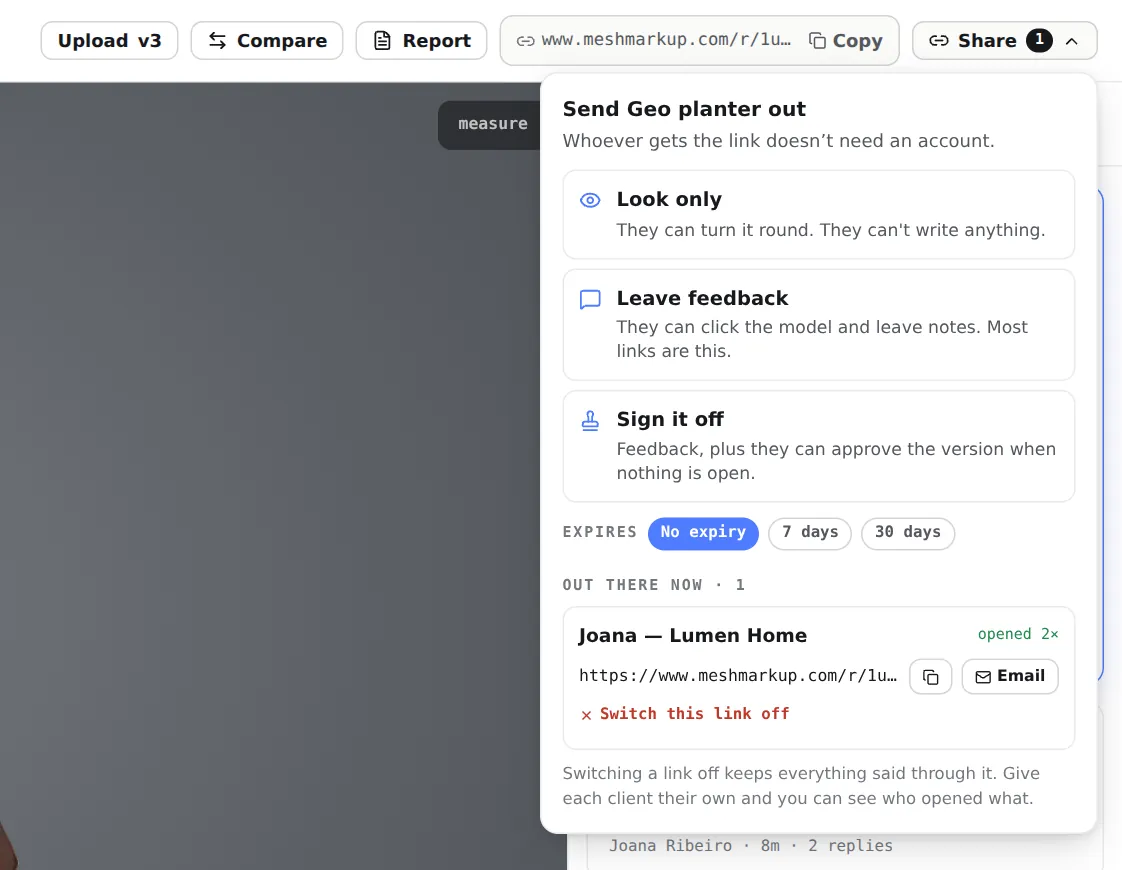
The Share menu. The new link is copied as soon as you create it Send it to your client
The link is copied as soon as it's created, so paste it into WhatsApp, Slack or your own email. Or click Email next to the link, type your client's address and an optional note, and MeshMarkup sends it for you. Replies come straight back to you.
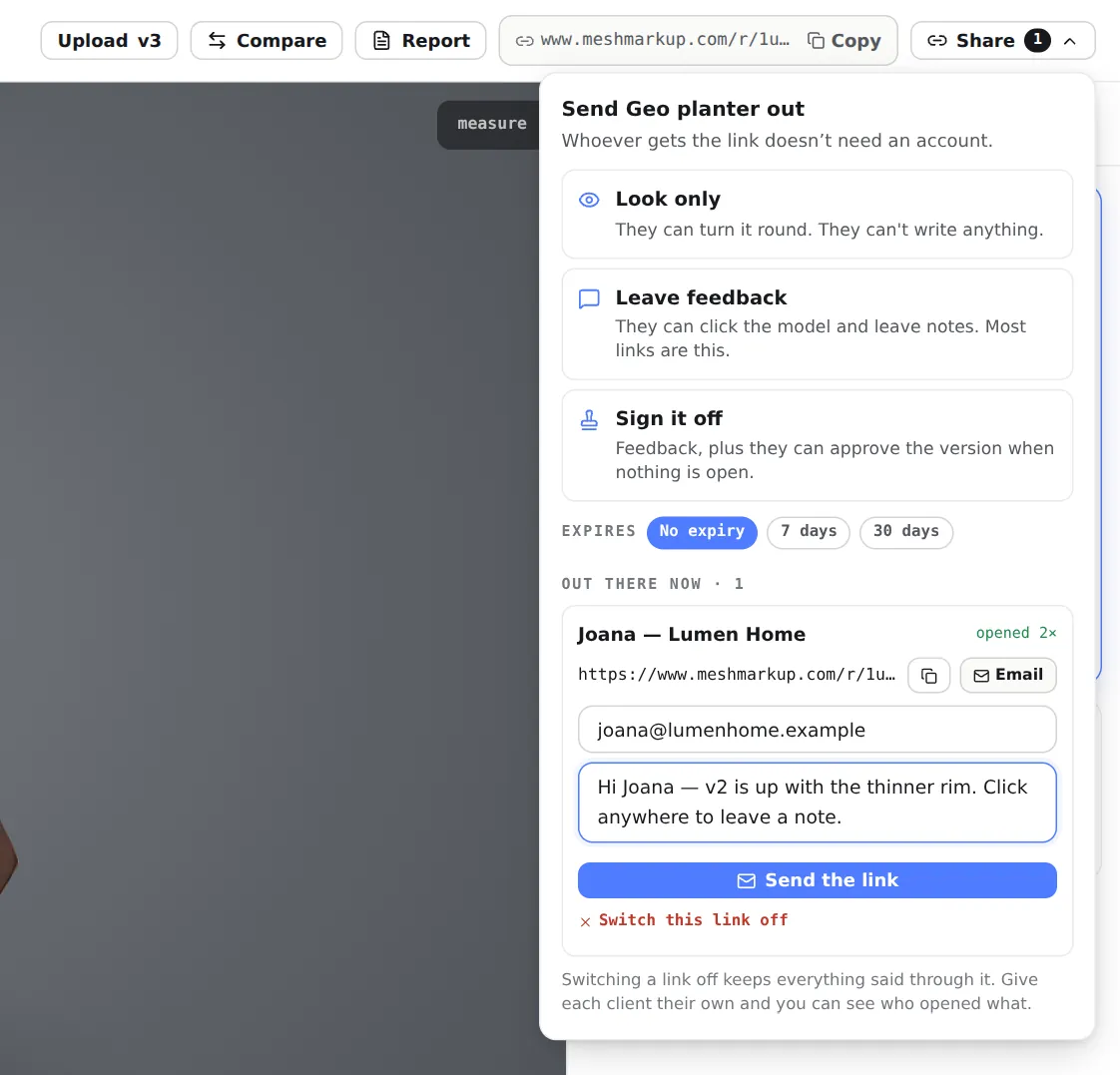
Emailing the link from MeshMarkup Read the notes as they arrive
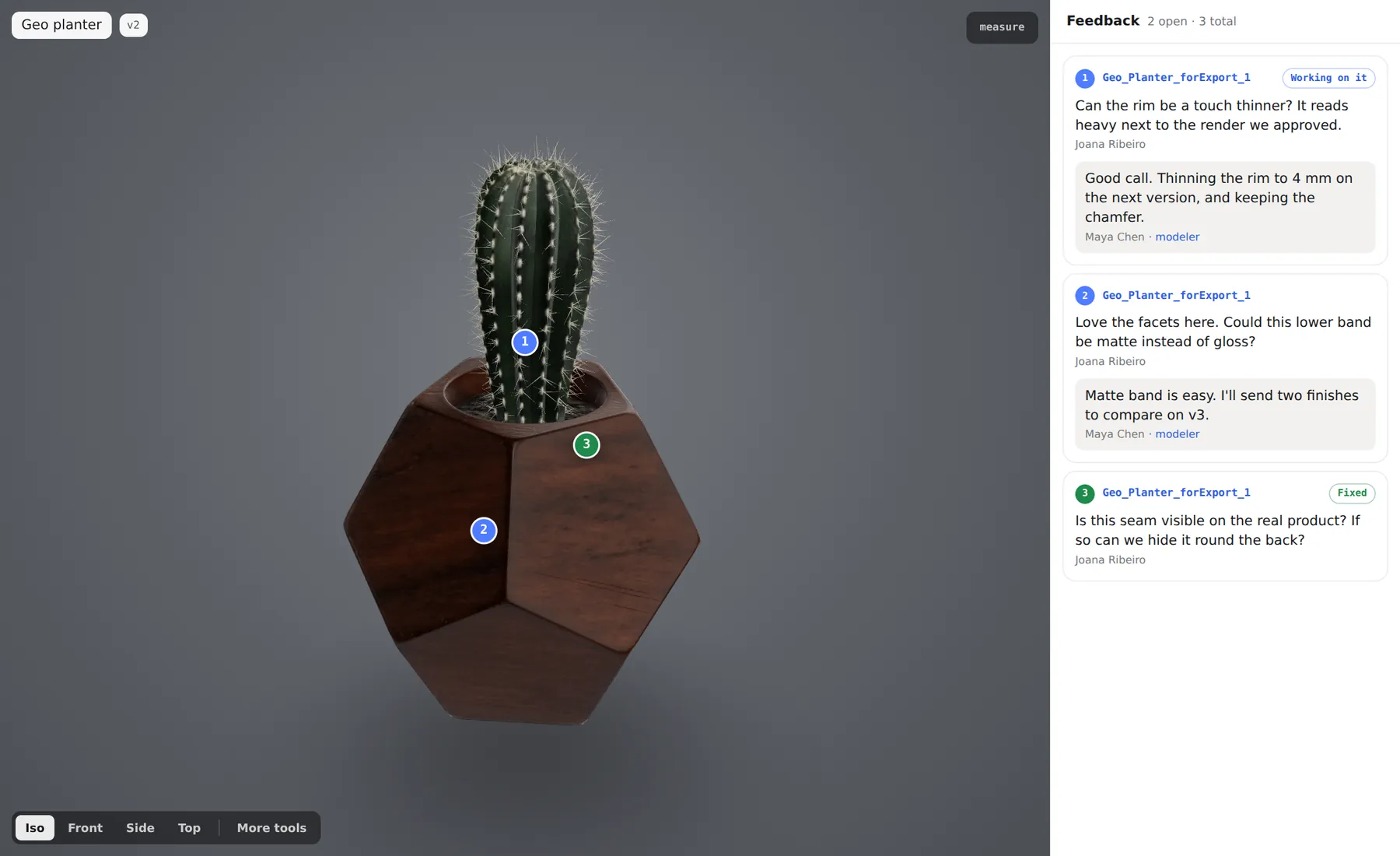
Each note appears on the model as a numbered pin. Click one and the camera flies to what your client was looking at. Reply, fix it, and mark it resolved. Everything waiting on you is also listed on Tasks.
What your client sees
Your client clicks the link and the model opens in their browser, on a laptop or a phone. They type their name once, so you know who said what. Then they click the spot they mean and type a line, and that's the whole job. Because replying is this easy, clients actually do it. See what your client sees for the full walkthrough.
Choosing what the client can do
| Link type | What they can do | When to use it |
|---|---|---|
| Look only | Turn the model round and zoom in | Showing progress, no feedback wanted |
| Leave feedback | Pin notes on the model and reply | Almost every review |
| Sign it off | Everything above, plus approve the version | The final round, when you need a record of approval |
Sign it off needs the Solo plan or above. The client can't approve while notes are still open, so an approval means everything raised was dealt with. More in client sign-off.
When the client asks for changes
Fix the notes, then upload the new version onto the same model. Notes still open are carried over to the new version with their replies, and the old version keeps its history. Send the new version with a fresh link. On your side, you can overlay v1 and v2 to check exactly what moved before it goes out. See versions and comparing.
If something doesn't work
- The model is grey or has no textures. The textures weren't included in the upload. Zip the model with its texture files, or export a GLB. See model looks grey.
- The client says the link doesn't open. Check that it hasn't expired or been switched off in the Share menu. Then see link not working.
- You don't have a 3D model yet, only renders. MeshMarkup reviews the 3D model itself. Export it from your 3D app first; there's a guide for each app.
Other ways to share 3D models with clients
This guide covers one model and one client. If you're working out how to share 3D models with clients more generally, such as several models from one link, renders without the 3D file, or a link that only lets people look, see share a 3D model online. It also covers keeping shared models private: expiry, switching links off, and why separate links don't separate conversations.
Was this guide helpful?
Related guides
Get feedback on the model, not on a screenshot
Upload a model, send one link, and your client clicks the exact spot. Free to start — no card.