How to share a 3D model online (privately, as a link)
Share a 3D model online as a private link that opens in any browser. Choose what people can do, share several models at once, and switch links off.
To share a 3D model online, upload it to MeshMarkup and send the review link it gives you. Whoever opens the link sees the interactive 3D model in their browser, on a computer or a phone, with no account and nothing to install. You decide whether they can only look, leave feedback or sign the model off, and you can switch any link off when you're done.
Sending a big file by email or a file-transfer service leaves the other person to find software that opens it. A link skips that step, and keeps the model private to the people you send it to.
Share a 3D model online in five steps
Upload the model
Open Models and click Upload model, or drop the file onto Drop a model here. GLB works best. FBX, OBJ, STL, PLY, DAE, STEP, IGES, Rhino 3DM, 3MF and 3DS are converted to GLB as they upload.
Set how it looks
Open the model, turn it round and use Lighting on the left toolbar for the light, background and shadows. People who open the link see what you set. If you leave a section cut, an exploded view or hidden parts, the link opens that way too.
Open the Share menu
Click the blue Share for review button in the top-right corner of the viewer. Pick an expiry for the link: No expiry, 7 days or 30 days.
Choose what people can do
Click Look only, Leave feedback or Sign it off. The link is created and copied straight away.
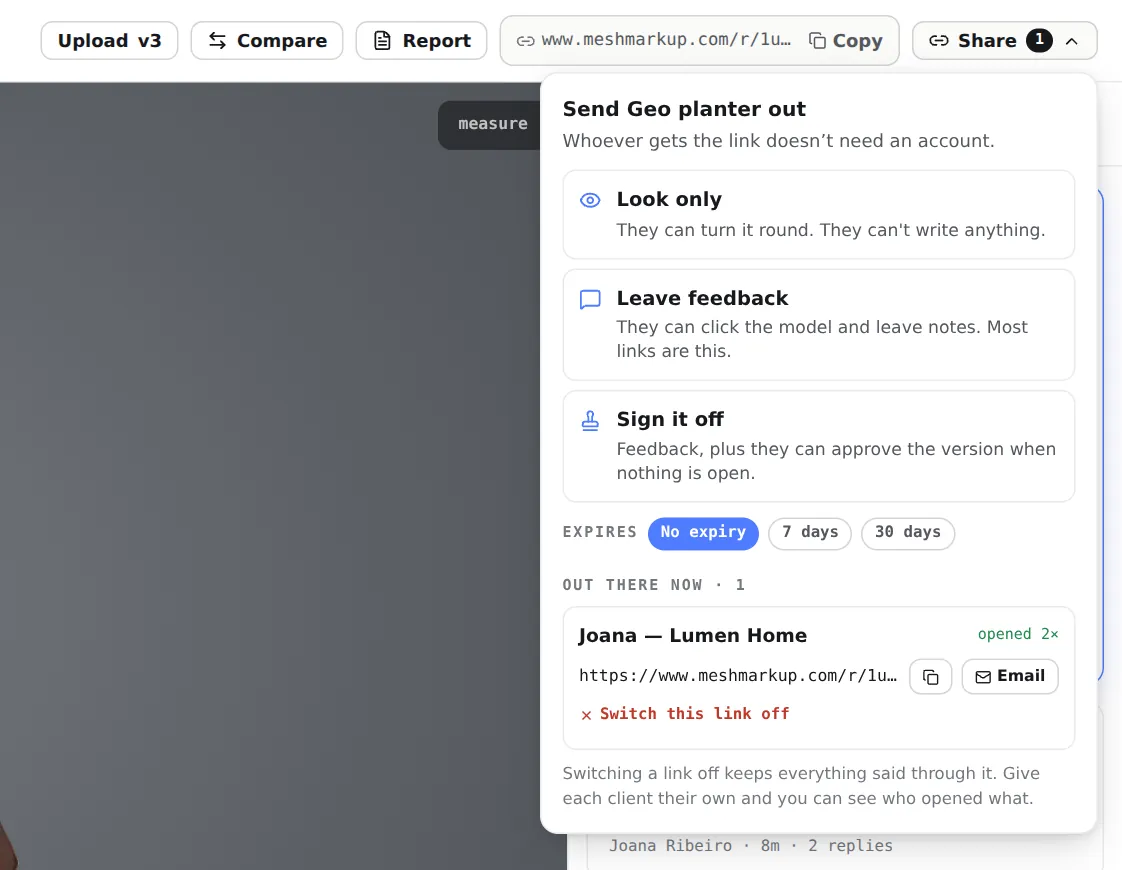
The Share menu: three kinds of link, an expiry, and the links already out Send the link
Paste it into an email, WhatsApp, Slack or Teams, or click Email next to the link and MeshMarkup sends it for you with an optional note. Replies come back to you.
That's all the other person needs. For the version of this guide focused on collecting feedback, see send a 3D model to a client for feedback.
Pick the right link for who's opening it
The same model can have several links, each with its own permissions.
| Who you're sharing with | Link | What they get |
|---|---|---|
| A client giving feedback | Leave feedback | Click the model to pin notes, reply to yours |
| A manager or stakeholder who just needs to see it | Look only | Turn, zoom and measure, with no note box |
| A client approving the final version | Sign it off | Everything above, plus Approve for that version (Solo plan and up) |
| Someone who should only see renders | Any link, with Show the 3D model off | The images and snapshots, never the 3D file |
Give each person their own link. The Share menu shows how many times each one has been opened, so you know who has looked, and switching one off doesn't affect the others. Full details in review links and permissions.
Share several models with one link
When a job has more than one model, such as a product range, a set of furniture or the parts of a stand, put them in a project and share the project instead. A project link opens every model in the project from one page and always shows the latest version of each, so you don't send a new link every time you upload a revision.
A model link, by contrast, stays on the version it was made for. When you upload v2 of a single model, create a fresh link on v2 and send that.
Keep a shared model private
Nothing in MeshMarkup is public. There's no profile, gallery or embed code, and review links are kept out of search engines. Access is by the link, so:
- Set an expiry when you create the link if the model shouldn't stay viewable. An expired link shows Link not available.
- Switch a link off with Switch this link off in the Share menu. It stops working at once for everyone who has it, and can't be switched back on.
- Separate clients by model, not by link. Everyone with a link to the same version sees the same notes. If two clients mustn't see each other's comments, give them different models.
There's no password option and no download button on the review page. For CAD files, MeshMarkup stores the converted 3D model, not your STEP or IGES, so the CAD data never reaches the person viewing it. See share a CAD model without sending the file.
Share without signing up first
If you just want to send one model quickly, drop it on the free viewer. Once it's open, click Share in the top-right corner and choose Copy a review link or Send it by email. You create a free account on the way and the model comes with you, so the link is ready a few seconds later. See view a 3D model online.
The Free plan adds 3 new models every 30 days, with 50 MB of storage, with no card needed. Reviewers are free and unlimited on every plan.
Questions
What does the person I share with see?
The 3D model in their browser, with a panel saying who sent it, by when you'd like feedback (if you set a date) and how to leave a note. They type their name once, and that's it. Walk through it in what your client sees, or try it on the sample review.
Can I share interactive 3D models with clients on a phone?
Yes. Review links work on phones and tablets with touch controls. Very heavy models open slower on a phone, so keep review files lean; see reduce file size.
Can I see when someone opens the link?
Yes. Each link shows not opened yet or how many times it's been opened, and the first time someone opens one of your links you get a just opened email, if you have feedback emails switched on. See feedback-by dates and reminders.
Is sharing different for freelancers?
No, but the plans matter more when you're on your own. See 3D collaboration software for freelancers.
Was this guide helpful?
Related guides
Get feedback on the model, not on a screenshot
Upload a model, send one link, and your client clicks the exact spot. Free to start — no card.