Uploading 3D models to MeshMarkup
Which 3D formats MeshMarkup accepts, how FBX, OBJ, STEP and others are converted in your browser, and how to upload a model with its textures in a zip.
MeshMarkup opens GLB and glTF directly, and converts FBX, OBJ, STL, PLY, DAE, STEP, IGES, Rhino 3DM, 3MF and 3DS to GLB in your browser as you upload. To bring textures along, drop the model together with its texture files, or put them in one .zip and upload the zip. Files from Blender, 3ds Max, Maya, Cinema 4D, SketchUp, SolidWorks and other apps have to be exported from those apps first.
Upload a model
Open Models
Go to Models. New uploads from this page go into your first project.
Choose or drop the file
Click Upload model in the top right, or drag the file anywhere onto the Models page, in any view. The Drop a model here card at the end of the grid (in the Cards view) also shows how many models your plan has left: on Free, how many new models are left in these 30 days.
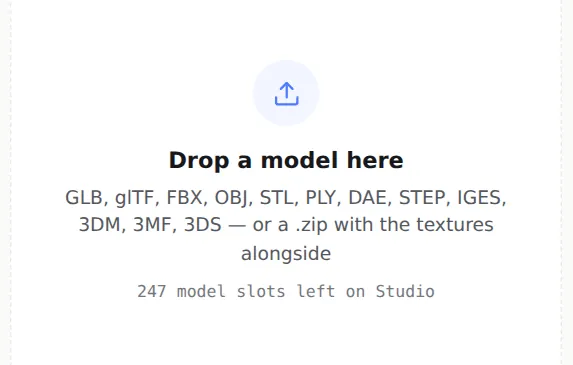
Drop a model here, or click to choose a file Wait for the card to finish
A card for the model appears straight away and shows each stage: Converting to GLB (only for formats that need it), Uploading with a percentage, Saving, then Making preview. When the preview is ready, the card becomes a normal model card.
Open it and check it
Click the card. Turn the model round, check the textures are there, and check the size with Measure on the left toolbar if scale matters.
The model takes its name from the file name. To change it, use Rename… in the card's menu.
Supported formats
| Format | What happens | Size in the viewer |
|---|---|---|
| GLB | Uploaded as it is | Metres, as the glTF standard defines |
| glTF | Packed into a GLB, if it has no separate files (see below) | Metres |
| FBX | Converted to GLB | Converted to real size from the file's unit |
| STEP / STP, IGES / IGS | Surfaces turned into a mesh, then GLB | Real size |
| Rhino 3DM | Converted to GLB | Real size, from the model's units |
| 3MF | Converted to GLB | Its unit is applied, so it arrives at real size |
| OBJ, STL, PLY, 3DS | Converted to GLB | The file carries no reliable unit, so check it |
| DAE (Collada) | Converted to GLB | Depends on the exporter |
A few things worth knowing about the conversion:
- It runs in your browser, before anything is sent, so the file isn't waiting in a queue on a server. Big CAD assemblies can take several seconds and use a fair amount of memory, so a desktop browser is the better place for those.
- STEP and IGES keep their assembly part names and colours.
- Rhino meshes, NURBS and SubD come through. Curves, points and annotations are left out, because there is nothing to pin a note to.
- STL carries no material, so it always arrives plain grey. PLY keeps vertex colours when the file has them.
- If a model names a texture that wasn't uploaded with it, the texture is dropped and the model arrives untextured rather than failing.
What comes out is always a GLB, and the viewer and your client's link both read that. For which format to pick in the first place, see GLB vs glTF vs FBX vs OBJ vs STEP. If the size looks wrong, see wrong size or scale.
Textures: drop them together, or zip them
OBJ, FBX and DAE files usually keep their textures as separate image files. Uploaded on its own, the model has nowhere to find them and comes in grey. The quickest fix is to select the model and its .mtl and texture images together, and drop them (or pick them with Upload model) in one go: MeshMarkup treats them as one model. A zip does the same and is easier to send around:
Put the files in one folder
The model file, plus its texture images and, for an OBJ, its .mtl file.
Zip the folder
It must be a plain .zip, not .rar or .7z.
Upload the zip
MeshMarkup opens it in your browser, finds the model, matches the textures to it and bakes them into one GLB.
Texture files it picks up: PNG, JPG/JPEG, WebP, BMP and TGA, plus .mtl and .bin. A zip with several model files of the same kind (an assembly exported part by part, such as body.stl, arm.stl and legs.stl, or several STEP parts) opens as one model, with each part named after its file. Up to 60 parts per zip. To upload separate models, zip them separately. If the zip holds a GLB or glTF alongside another format, the GLB or glTF is used.
A .gltf with a .bin file
A .gltf is a text file that often points at a separate .bin (the geometry) and image files. On its own it has no geometry to show, so MeshMarkup stops and tells you which files are missing. Either drop the .gltf together with its .bin and textures (or zip them and upload the zip), or export a .glb instead, which packs everything into one file.
If a model still looks grey after this, see model looks grey or has no textures.
Formats you have to export first
These are the native files of their own programs, and no other software can read them. Drop one in and MeshMarkup tells you which menu to use:
| File | Export from |
|---|---|
| .blend | Blender: |
| .c4d | Cinema 4D: |
| .max | 3ds Max: the Babylon or glTF exporter |
| .ma, .mb | Maya: |
| .skp | SketchUp: |
| .sldprt, .sldasm | SolidWorks: , which keeps the assembly |
| .ipt, .iam | Inventor: |
| .f3d | Fusion: |
| .catpart, .catproduct | CATIA: |
| .prt | Your CAD package: save or export as STEP |
There's a step-by-step guide for each app, for example Blender, 3ds Max, SolidWorks and Fusion.
File size and storage
What counts is your plan's storage. The file that's stored, and counted, is the GLB after conversion, which can be larger or smaller than the file you dropped.
| Plan | Storage | Models | Versions per model |
|---|---|---|---|
| Free | 50 MB | 3 new every 30 days | 1 |
| Solo | 20 GB | 25 active at once | Unlimited |
| Studio | 200 GB | 250 active at once | Unlimited |
| Pipeline | 2 TB | Unlimited | Unlimited |
If an upload would take you past your storage, it stops with Storage limit reached for this plan and offers an upgrade. Deleting a model frees its storage; on paid plans, archiving frees an active model slot. On Free, each new model counts for 30 days from the day it was added, even if you archive or delete it, and an upload that fails doesn't count. The sidebar shows how much you've used, and Settings → Usage has the detail.
A smaller file also opens faster on your client's phone. See reduce file size and polygon count.
Uploading several files at once
You can select or drop several files at once. Each file becomes its own model, uploaded side by side with its own progress card. That's handy for sending a whole set, but it means loose texture files aren't matched to a model: an OBJ dropped next to its .mtl and images arrives grey, and the other files are refused. Zip them instead, one zip per model.
To add a new version of a model you've already uploaded, open the model and click Upload v2 (the number follows the current version) instead of uploading from the Models page. Versions need Solo or above; see versions and comparing.
Was this guide helpful?
Related guides
Get feedback on the model, not on a screenshot
Upload a model, send one link, and your client clicks the exact spot. Free to start — no card.