How to export from 3ds Max to GLB or FBX (for client review)
Export a 3ds Max scene as a GLB with the built-in glTF exporter, or as an FBX in older versions, so your client can review it in the browser at the right size.
To export from 3ds Max 2023 or later for client review, use the built-in glTF exporter: choose , set Save as type to **GL Transmission Format (.glb, .gltf), tick Export glTF Binary (.glb), and export. In older versions, export an FBX with and Embed Media** ticked; MeshMarkup converts it for you.
Best format: GLB, or FBX in older versions
GLB is what MeshMarkup's viewer reads natively, so it uploads exactly as you exported it, with materials and textures packed into one file. 3ds Max has had a glTF exporter built in since the 2023 release.
FBX is the fallback for 3ds Max 2022 and earlier. MeshMarkup converts FBX to GLB in your browser as it uploads, and it now reads the unit stored in the FBX, so a scene built in centimetres comes in at real size.
Don't send the .max file. MeshMarkup can't open it, and dropping one shows a message asking you to export first.
Export a GLB step by step
Prepare the scene
Hide or delete helpers, lights you don't need and anything the client shouldn't see. Collapse heavy modifier stacks (TurboSmooth at render iterations can multiply the triangle count many times).
Convert materials where you can
The exporter gives the best results with the glTF Material. Physical Materials with plain Bitmap maps also export reasonably. See "Textures and materials" below for what doesn't.
Open the exporter
Choose (or to send only your selection) and set Save as type to **GL Transmission Format (.glb, .gltf)**. Autodesk's docs also describe a entry in recent versions, which gives the same glTF output.
Choose the options
Tick Export glTF Binary (.glb). Choose whether to export everything or only the selection. For Shell Materials, choose baked if you've baked your materials, otherwise original.
Export and check the size
Click Export. The Free plan has 50 MB of storage in total, so check the file size before uploading.
FBX for 3ds Max 2022 and earlier
Open the FBX exporter
Choose and set Save as type to **Autodesk (.FBX)*.
Set the FBX options
Under , tick Embed Media so the textures travel inside the file. Tick Smoothing Groups and Triangulate. Leave animation off unless you need it.
Export
Click OK. If the textures still don't come through, zip the FBX together with its texture images and upload the zip instead.
Recommended settings
| Setting | GLB (2023+) | FBX (older) |
|---|---|---|
| Save as type | GL Transmission Format (.glb, .gltf) | Autodesk (*.FBX) |
| Binary | Export glTF Binary (.glb) on | Binary (default) |
| Textures | Packed in the GLB | Embed Media on, or zip with textures |
| Materials | glTF Material or Bitmap maps | Standard or Physical with Bitmap maps |
| Selection | Selected objects only if you're sending part of the scene | Same |
Units and scale
3ds Max scenes are often set to inches or centimetres in , while glTF and MeshMarkup's measurements are in metres. The glTF exporter is meant to account for this, and FBX files now come in at the size their unit says. Even so, measure something you know once it's uploaded. If a 90 cm door reads 90 m or 0.9 cm, see wrong size or scale.
Textures and materials
The glTF exporter has clear limits, per Autodesk's documentation:
- Only Bitmap inputs are supported. Procedural maps (Noise, Falloff, Mix, OSL maps) don't export. Bake them to images with or the Bake to Texture tool first.
- Nested materials and Multi/Sub-Object materials with empty slots aren't supported. Fill or remove empty slots before exporting.
- Vertex colours, animation and skinning don't export in glTF. For a static review model that's rarely a problem.
- V-Ray, Corona and Arnold materials generally don't translate well. Convert to glTF Material or Physical Material with Bitmap maps.
Keep textures at 2K (2048 px) or below for a review file. That keeps the upload quick and leaves room in your storage.
Common problems
- The glTF option isn't in the Save as type list. You're on 3ds Max 2022 or earlier. Export FBX with Embed Media instead.
- The model is grey. The materials used procedural maps or renderer-specific materials. Bake to Bitmaps or use glTF Material. See model looks grey.
- An FBX uploads without textures. Embed Media was off. Re-export with it on, or zip the FBX with its texture folder.
- The file is far too big. A TurboSmooth or MeshSmooth is exporting at high iterations. Lower it, or add ProOptimizer to reduce the triangle count. See reduce file size.
- Some objects are missing. They were hidden, frozen out of the selection, or you used Export Selected without selecting them.
Upload and send it
Upload the file
Drop the GLB, FBX or zip on Models. FBX and zips are converted to GLB in your browser first.
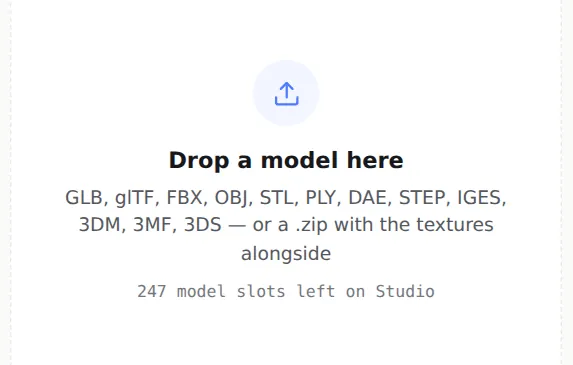
Drop the file here; FBX is converted as it uploads Share it for review
Open the model, check it, and click Share for review. The full walkthrough is in how to send a 3D model to a client for feedback.
Was this guide helpful?
Related guides
Get feedback on the model, not on a screenshot
Upload a model, send one link, and your client clicks the exact spot. Free to start — no card.