Why a 3D model has no textures or looks grey, and how to fix it
A grey 3D model almost always means the textures were left behind. Zip the model with its texture files, or export a GLB, and the colours come back.
A model usually looks grey because its textures are separate image files that weren't uploaded with it. OBJ, FBX, DAE, 3DS and multi-file .gltf models only point to their images, so a single dropped file has nothing to paint with. The fix is to upload a .zip of the model together with its texture files, or to export a GLB, which packs geometry, materials and textures into one file.
Some models are grey for a different reason: the format has no materials at all (STL, most PLY), or the materials were built from procedural nodes that no exchange format can carry. Both are covered below.
Why the textures go missing
A 3D file can hold its textures in two ways. A GLB embeds them, so what you export is what arrives. Most other formats reference them by file name, and those files have to travel alongside the model.
| You uploaded | Where the textures are | What happens on its own |
|---|---|---|
| GLB | Inside the file | Textures come through |
| OBJ | Named in the .mtl file, which names the images | Grey. Without the .mtl there are no materials at all |
| FBX | Sometimes embedded, usually separate images | Grey where the images are separate |
| DAE, 3DS | Separate images | Grey |
| .gltf | A .bin file for the geometry, plus images | Refused before upload (see below) |
| STL | None: the format has no materials | Always a neutral grey |
| PLY | Vertex colours, if the scan has them | Coloured by vertex, otherwise grey |
| STEP, IGES | Part and face colours set in CAD | Colours come through, but not rendering materials |
When a model names an image that isn't there, MeshMarkup doesn't fail the upload. It leaves that map off and brings the model in untextured, so you can still share it while you sort out the textures.
Procedural and renderer materials
Materials made from node graphs (Blender shader nodes, V-Ray, Corona, Arnold, Redshift) are recipes for a specific renderer. No exchange format carries them, not even GLB. Before you export, bake them to ordinary image textures (base colour, roughness, metalness, normal), then export the model with those images. KeyShot's GLB export bakes its materials to textures for you.
Fix it: upload a zip with the textures
Gather the model and its textures in one folder
For an OBJ, that's the
.obj, the.mtland every image the.mtlnames. For a .gltf, it's the.gltf, its.binand its images. Subfolders are fine: atextures/folder next to the model works as it is.Make a plain zip
On Windows, right-click the folder and choose Compress to ZIP file (or on older versions). On a Mac, right-click and choose Compress. Use .zip, not .rar or .7z; MeshMarkup can't open those.
Check it in the free viewer (optional)
Drop the zip on the free viewer. It uses the same conversion as the app and never uploads anything, so it's a quick private check that the textures are found.
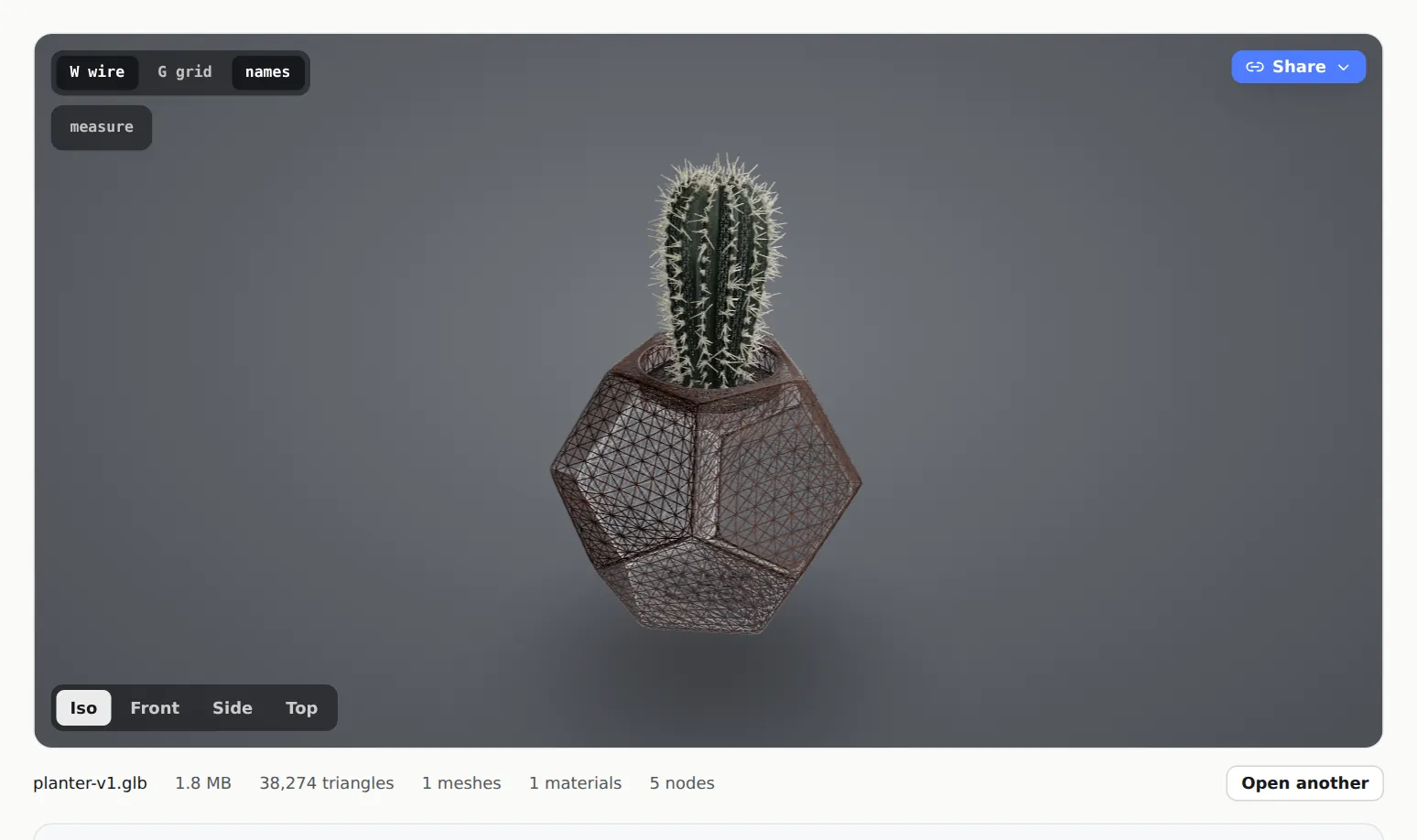
The free viewer shows the materials count under the model Upload the zip
Open Models and drop the zip on the page, or click Upload model and choose it. MeshMarkup unpacks it in your browser, matches each texture to the model, and uploads a single GLB with the textures baked in.
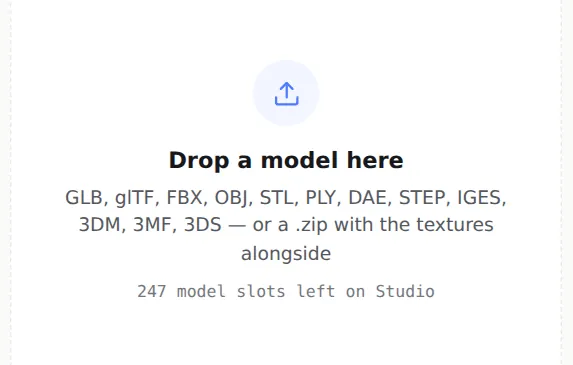
Drop the .zip here, the same as any model
A zip with several model files of the same kind (an assembly exported part by part, such as body.stl, arm.stl and legs.stl, or several STEP parts) opens as one model, with each part named after its file. Up to 60 parts per zip. To upload separate models, zip them separately.
Fix it: export a GLB instead
If you still have the original scene, exporting a GLB is the most reliable fix, because there is nothing left to go missing. In Blender that's with the format set to glTF Binary (.glb). There's a guide for each app, starting with exporting a GLB from Blender, and a comparison of GLB, glTF, FBX, OBJ and STEP.
For FBX, most exporters also have an option to embed the textures in the file (in Autodesk apps it's called Embed Media). An FBX with embedded media keeps its textures when you upload it on its own.
What MeshMarkup checks before uploading a .gltf
A .gltf file is text that points at other files: a .bin holding the geometry, and usually one image per texture. On its own it isn't just untextured; it has no geometry at all. So before anything is uploaded, MeshMarkup reads the file and, if it points at files you haven't included, stops and names them. The message looks like this:
Do what it says: zip the .gltf with the files it lists, or re-export as .glb.
If a model gets through but the viewer can't read it, you'll see This model wouldn't open with the reason underneath, and a reminder that a .gltf usually needs its .bin and textures alongside it. See link not working or black screen for that message.
After you've fixed it
- On a paid plan, open the model and upload the fixed file as a new version, so its notes and history stay together. See versions and comparing.
- On the Free plan, which keeps one version per model, delete the grey model and upload the fixed one as a new model. See archiving and deleting models.
- If the colours are there but the model looks dark or flat, it's the lighting rather than the textures. Click Lighting on the toolbar down the left edge of the viewer to change the preset and brightness. See lighting and backgrounds.
Still grey after all that? Email the file to hello@meshmarkup.com and we'll look at what's inside it.
Was this guide helpful?
Related guides
Get feedback on the model, not on a screenshot
Upload a model, send one link, and your client clicks the exact spot. Free to start — no card.