How to export from Maya to FBX (for client review)
Export a Maya scene as an FBX with embedded textures and metre units, so MeshMarkup converts it to a GLB and your client reviews it in the browser at true size.
To export from Maya for client review, save an FBX: choose (or ), set Files of type to FBX export, tick Embed Media, set Units to convert to Meters, and export. MeshMarkup converts the FBX to a GLB in your browser as it uploads, with the textures included.
Best format: FBX
Maya 2025 and 2026 don't include a glTF exporter, so FBX is the most reliable choice:
- Textures travel with it. With Embed Media on, the image files are packed inside the FBX.
- Size comes through. The FBX records its unit, and MeshMarkup applies it, so a scene in centimetres comes in at real size.
- It's built in. The FBX plug-in ships with Maya; you may need to switch it on once in (
fbxmaya).
If you'd rather send a GLB, community plug-ins exist, such as the open-source Maya-to-glTF exporter on GitHub. They aren't made by Autodesk, so test one on a copy of your scene first.
Don't send .ma or .mb files. MeshMarkup can't open them and asks you to export first.
Export an FBX step by step
Clean up the scene
Delete history on the meshes you're sending () and freeze transformations if you've scaled things oddly (). Hide rigs, cameras and reference geometry.
Select what to send
Select the meshes for the review. Sending a selection is usually cleaner than exporting the whole scene.
Open the exporter
Choose and set Files of type to FBX export. Use instead if you want everything.
Set the geometry options
In the options panel, open Geometry and tick Smoothing Groups and Triangulate. If you use Smooth Mesh Preview, tick Smooth Mesh only if you want the smoothed version exported, and watch the file size.
Embed the textures
Under Include, tick Embed Media. This packs the image files into the FBX.
Set units and axis
Under , choose Meters. Under , choose Y. Then click Export Selection.
Recommended settings
| Setting | Choose | Why |
|---|---|---|
| Files of type | FBX export | Built in, carries textures and units |
| Smoothing Groups | On | Keeps hard and soft edges as modelled |
| Triangulate | On | Avoids surprises with n-gons |
| Embed Media | On | Textures travel inside the file |
| Animation, Cameras, Lights | Off | Not needed for a static review |
| Scene units converted to | Meters | MeshMarkup measures in metres |
| Up Axis | Y | The model stands upright |
Units and scale
Maya works in centimetres by default. MeshMarkup reads the unit stored in the FBX and scales to match, so the size should be right whichever unit you leave. Converting to Meters on export is still the safest option, because it keeps the numbers in the file identical to what MeshMarkup shows. After uploading, measure a part you know. If it's 100 times off, see wrong size or scale.
Textures and materials
FBX carries basic material settings and file textures, not renderer shading networks.
- Arnold aiStandardSurface materials don't translate through FBX. For review, use Standard Surface, Lambert or Blinn with file texture nodes connected to colour, roughness and normal.
- Procedural textures (ramp, noise, fractal) don't export. Bake them to images with , or Maya's Transfer Maps, and connect the result as a file texture.
- Keep textures at 2K (2048 px) or below. The Free plan has 50 MB of storage in total.
Alternative: OBJ in a zip
If an FBX gives you trouble, export an OBJ with and Files of type set to OBJexport, with Materials on. Put the .obj, the .mtl and every texture image in one folder, zip it, and upload the zip. OBJ has no unit, so MeshMarkup assumes metres; in a centimetre scene, scale the model down 100 times on a copy before exporting if you need true measurements.
Common problems
- The model is grey. Embed Media was off, or the materials were Arnold or procedural. Re-export with Embed Media, or zip the FBX with its textures. See model looks grey.
- The FBX option isn't listed. The FBX plug-in isn't loaded. Tick
fbxmaya.mll(orfbxmaya.bundleon macOS) in the Plug-in Manager. - Hard edges look soft, or the model looks faceted. Smoothing Groups was off, or normals were locked oddly. Tick Smoothing Groups and re-export.
- The file is enormous. Smooth Mesh Preview was exported, or the model is dense. Untick Smooth Mesh, or use on a copy. See reduce file size.
- The model is lying on its side. Up Axis was set to Z. Set it to Y and export again.
Upload and send it
Upload the FBX or zip
Drop it on Models. It's converted to GLB in your browser before uploading.
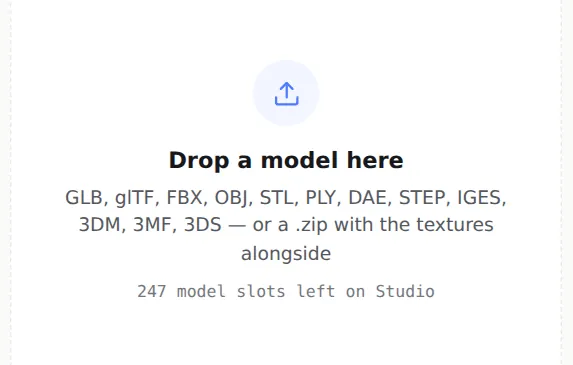
FBX, OBJ and zips are converted as they upload Check the size and share it
Open the model and measure something you know with the measure tool, then click Share for review. The full walkthrough is in how to send a 3D model to a client for feedback.
Was this guide helpful?
Related guides
Get feedback on the model, not on a screenshot
Upload a model, send one link, and your client clicks the exact spot. Free to start — no card.