What your client sees when they open a review link
A walkthrough of a MeshMarkup review link from the client's side, with no account: the guide, your questions, pinning a note, replies and phones.
When your client opens a review link, the 3D model opens in their browser with a panel beside it that says who sent it, by when you'd like feedback, and how to give it in a few plain steps. They don't create an account, install anything or download the file. They turn the model, answer your questions with one tap, click any spot they want to talk about and type a note. Every note is saved the moment they add it, and you see it straight away.
This guide walks through that screen from their side, so you know what to tell them and what they can and can't see.
Opening the link
The link works in any modern browser on a computer, tablet or phone. At the top of the panel your client sees:
- Your name, as in Alex Park sent you this to review. If you've renamed your studio in Settings, its name is shown too.
- The model's name and version, such as v2.
- Feedback by and the date, if the link has one. See feedback-by dates and reminders.
A Look only link says To look at. There's nothing to fill in, and shows no note box.
Under that, How to give feedback lists the steps: turn the model, answer your questions (when you pinned some), point at what they mean, and That's it: each note goes straight to you. There's nothing else to send. Got it folds the steps away, and the browser remembers that. On a phone, your questions come first and the steps after them.
Until your client first touches the model, a hint over it reads Drag to turn · scroll to zoom · Click a spot to leave a note (on a phone: pinch to zoom, Tap a spot).
The model opens with the lighting and background you set with the Lighting button on your model page, and cut or exploded the way you left it.
If the link has expired or been switched off, your client sees Link not available and Ask whoever sent it for a fresh link. See link not working for the other causes.
Turning the model round
- Rotate: drag with the mouse, or one finger on a touchscreen.
- Pan: drag with the right mouse button, or two fingers.
- Zoom: scroll, or pinch, or the + and − buttons in the bottom-right corner.
- Reset view: the first button on the left brings the whole model back into view.
Your client starts with just two labelled buttons on the left, Reset view and More tools (plus Drawings when you've shared some). More tools opens the full toolbar: camera views, display modes, lighting, section cut, exploded view, the parts list, measuring, the floor grid, auto-rotate and fullscreen. Fewer tools at the bottom of it goes back. The browser remembers which they chose.
Answering your questions
Notes you pinned on the model before sending it are listed first, under Alex's questions (with your first name), with a count such as 1 of 2 answered. Each one has two buttons:
- Looks good answers it in one tap. Your client's reply reads Looks good.
- Needs a change opens a box: What should change? They type it and click Send.
An answered question is marked Answered, and their answer appears under it. They can still click it to add a reply.
Leaving a note
Your client clicks the exact spot they mean. A New note box opens under the panel:
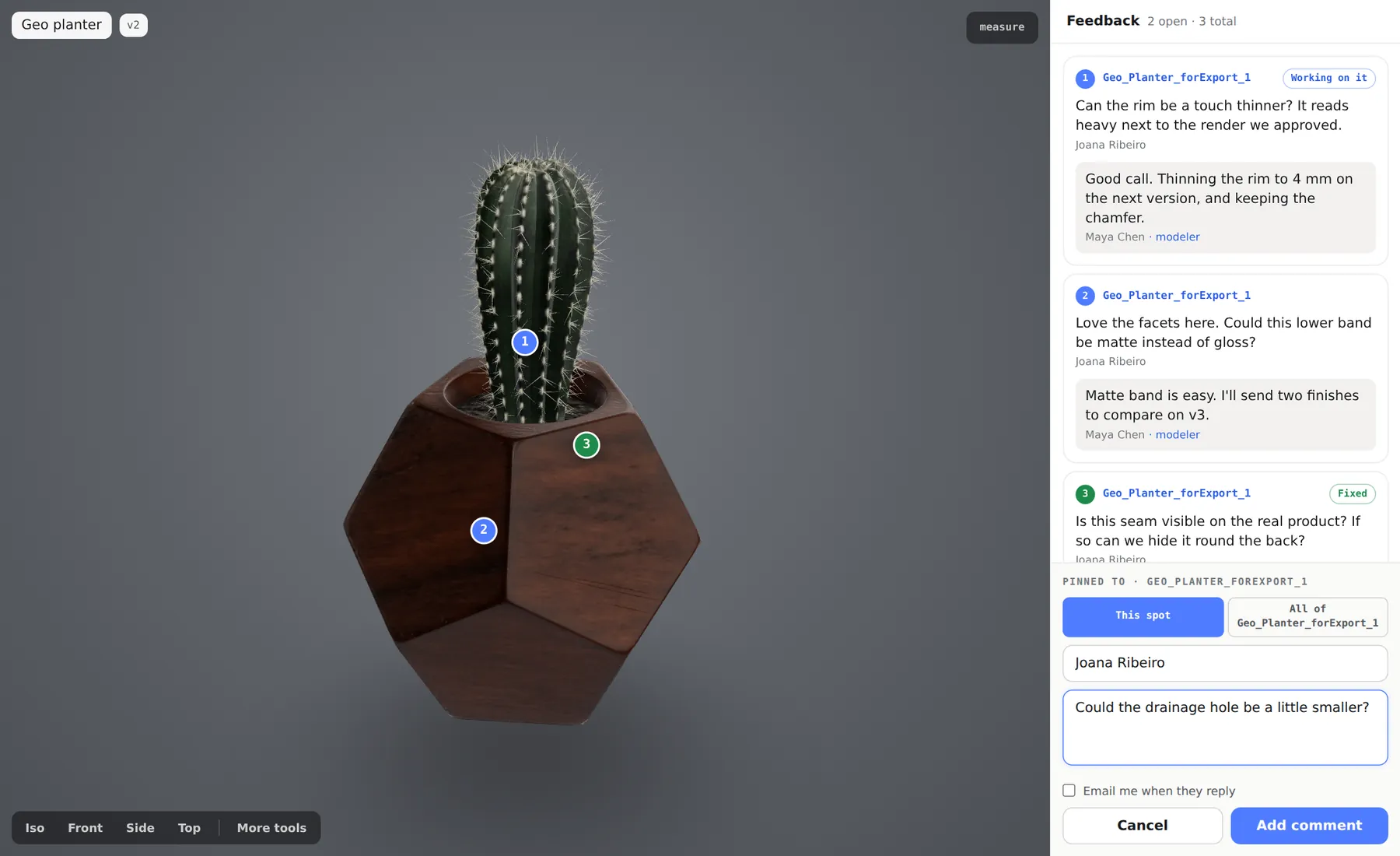
- on and the part's name show what they clicked. If that part has a name in your file, they can choose This spot or All of that part, for notes about a whole part rather than one point.
- Your name, so you know who said what. They're asked once, the first time they send anything, and the browser remembers it.
- What would you like changed here? is the note itself. Typing @ lists people they can name: your studio and the other reviewers on this version.
- Email me when Alex replies (with your first name) is optional. Ticking it shows an email field.
Add note saves it, and Saved. Alex can see it now. confirms it went. Cancel throws it away. The note keeps the camera angle they were looking from, so when you click it, you see exactly what they saw.
Replies and statuses
Clicking a note in the panel selects it and flies the camera back to its view. Under a selected note there's a reply box and a Send reply button, so your client can answer you or add to what someone else said.
Your replies are shaded and marked · modeler after your name. The page checks for new notes and replies every few seconds while it's open, so a conversation can happen without anyone refreshing.
Your client also sees where each note stands:
| You set it to | Your client sees |
|---|---|
| OPEN | No label |
| IN PROGRESS | Working on it |
| RESOLVED | Fixed, and the note's number turns green |
| WON'T FIX | No label |
Email updates
If your client ticks Email me when … replies and gives an address, they get an email when someone replies on the notes for that version. Updates are gathered into one email rather than one per reply, and each email has a link to stop them. Once they've given an address it stays switched on for that review, even if a later note leaves the box unticked. Without an address, they don't get emails, and you can still reach them through your replies on the link.
What your client can't see
- Internal notes. Anything your studio sends with internal switched on never reaches the review link, the round report or your client's email.
- Your other models, unless you send a project link.
- Your Tasks, statuses board, settings or who else is on your team.
- Other versions. A link shows the version it was made for. When you upload v3, send a new link for v3.
They can see every client-visible note on that version, including notes left through other links to the same version. If two clients shouldn't see each other's feedback, don't send them links to the same version.
Looks good and sign-off
On any client link, on every plan, your client can click No changes, looks good when they have nothing to add. You get an email saying so. It's a quick yes, not a formal sign-off.
On a Sign it off link (Solo plan and up), an Approve v2 button sits at the bottom of the panel. If notes are still open, it says how many need closing first, and approving is refused until they're dealt with. Once approved, the model shows an Approved tag and the date. See client sign-off.
On a phone
The model fills the top of the screen and the panel sits underneath, taking up to about half the height and scrolling inside. Your questions come straight after the date, before the steps, so they're the first thing your client sees. Everything works by touch: one finger to turn, two to pan, pinch to zoom, and a tap on the model to start a note. Reset view and More tools stay down the left edge.
Very large models are slower to open on a phone. If your client says it's stuck or black, see link not working or black screen and reduce file size.
Was this guide helpful?
Related guides
Get feedback on the model, not on a screenshot
Upload a model, send one link, and your client clicks the exact spot. Free to start — no card.