How to view a 3D model online for free (GLB, FBX, OBJ, STL, STEP)
Open GLB, FBX, OBJ, STL, STEP and Rhino files in your browser for free, with no account and nothing uploaded. Check the wireframe, polycount and dimensions, then share it.
To view a 3D model online for free, go to meshmarkup.com/viewer and drop your file onto the box. It opens GLB, glTF, FBX, OBJ, STL, PLY, DAE, STEP, IGES, Rhino 3DM, 3MF and 3DS files, plus a .zip with textures. The file is read and converted in your own browser, so nothing is uploaded, and you don't need an account, a plugin or any 3D software.
Once it's open you can turn it round, check the wireframe and triangle count, read part names and measure distances. If you want a client's feedback on it, the Share button turns it into a review link.
Open a model in three steps
Go to the free viewer
Open /viewer in any modern browser, on a computer, tablet or phone.
Drop your file on the box
Or click the box to choose a file. The box reads "Drop a 3D model here", and underneath, "Read in your browser · nothing is uploaded". Formats other than GLB and glTF show Converting… for a moment while they're turned into a GLB on your computer.
Look around
The model opens framed to fit, from a three-quarter view. Drag to turn it, scroll to zoom. The file name, size and counts appear under the stage.
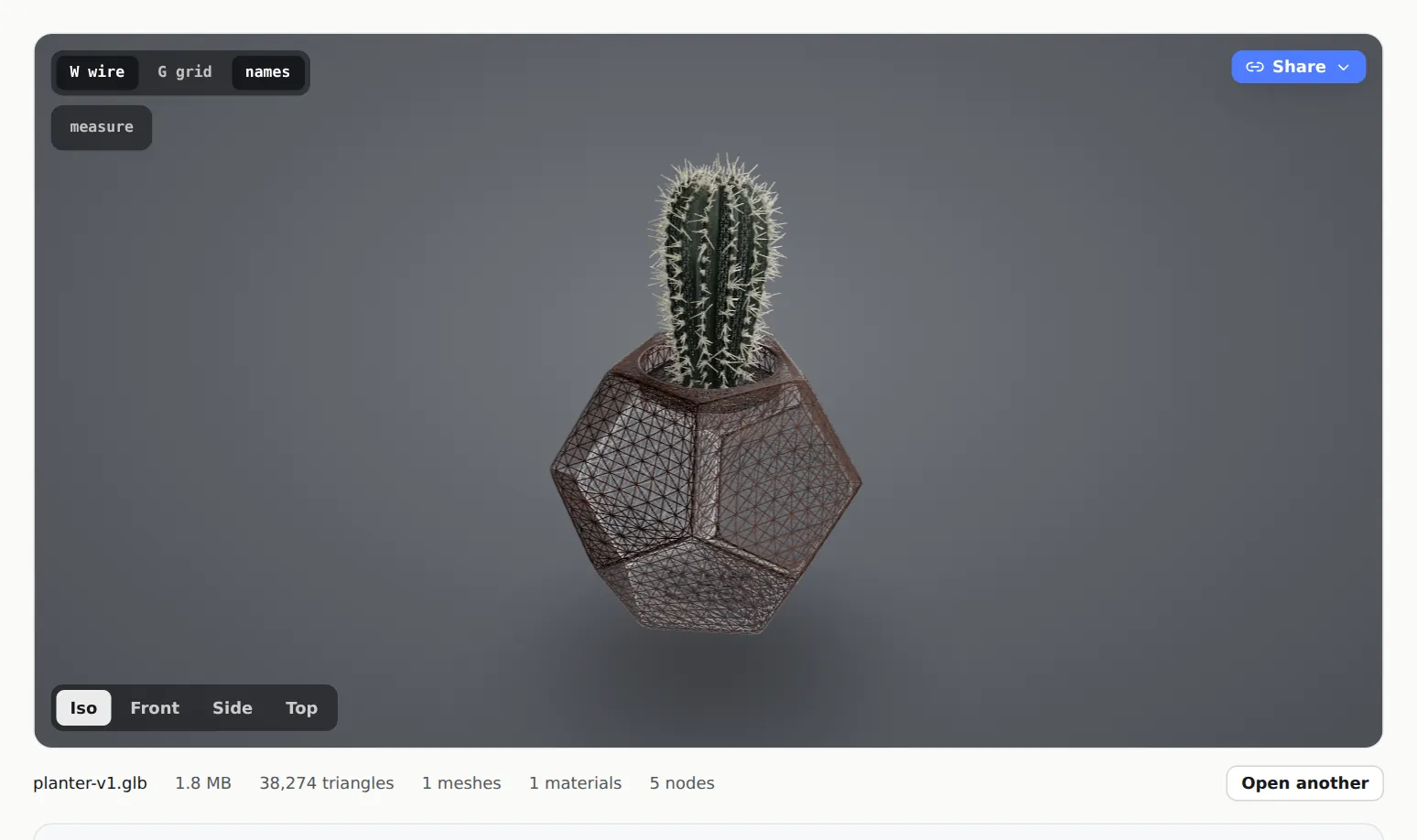
A model open in the free viewer, with the wireframe on
To look at a different file, click Open another under the stage. Nothing you do changes your file.
Which files open
| Format | Notes |
|---|---|
| GLB | Opens as is, including Draco-compressed files. The best format for sharing |
| glTF | Opens as is if it's self-contained. If it has a separate .bin and textures, zip them together |
| FBX | From 3ds Max, Maya, Cinema 4D and most DCC apps. Zip it with its textures |
| OBJ | Zip it with its .mtl and textures, or it comes in grey |
| STL, PLY, 3MF | 3D printing and scans. STL has no colour, so it shows in neutral grey |
| STEP / STP, IGES / IGS | CAD. Converted with OpenCascade. See open a STEP file online |
| 3DM | Rhino files, read with McNeel's own library |
| DAE, 3DS | Collada and legacy 3ds Max |
| .zip | A model with its texture files, or several part files (e.g. STLs or STEPs) opened together as one assembly |
Native files from Blender (.blend), 3ds Max (.max), Maya (.ma, .mb), Cinema 4D (.c4d), SketchUp (.skp), SolidWorks, Inventor, Fusion and CATIA can't be read outside their own programs. If you drop one in, the viewer tells you which menu exports a format it can open, for example "SolidWorks — File → Save As → STEP (.step)". Not sure which to pick? See which 3D format to use.
Controls
| Action | Mouse | Touchscreen |
|---|---|---|
| Turn the model | Drag with the left button | Drag with one finger |
| Pan | Drag with the right button | Drag with two fingers |
| Zoom | Scroll wheel | Pinch |
The + and − buttons in the bottom-right corner zoom too.
Everything else is on the dark toolbar down the left edge of the stage. Hover over a button to see its name and shortcut key:
- Orbit (O) and Pan (H): choose what a drag with the left button does.
- Camera views: Isometric, Front, Side and Top (or press 1 to 4). Fit to view (F) frames the whole model again.
- Display mode: Realistic, Clay (C), Wireframe (W) to see the topology and where the triangles are, and X-ray (X). Part names on hover (N) shows the name of the part under your cursor, read from the file.
- Lighting: try another lighting preset, change the brightness, or set the background to grey, light, dark or any colour. It only changes your own view; Reset puts it back.
- Measure (M): click it, then two points on the model, to read the distance between them. See measure a 3D model.
- Floor grid (G): a grid under the model, for scale and orientation.
- Auto-rotate (R): turns the model slowly on its own.
- Fullscreen: fills the screen with the viewer.
Stats: polycount and file size
Under the stage, the viewer lists the file name, its size, and the number of triangles, meshes, materials and nodes. It's a quick polycount check before a model goes to a game engine, a web configurator or AR. What the numbers mean and what counts as heavy is in check the polygon count.
Is it private?
Yes. The viewer reads the file directly in your browser, and every conversion, including STEP, FBX and Rhino, runs on your own computer. Nothing is sent to a server, so there's nothing stored and nothing to delete. That makes it safe for a client's unreleased product.
The only exception is when you choose to share: then the model is uploaded to your own MeshMarkup account, where it's private.
There's no fixed file size limit, because the file never leaves your device. The limit is your device's memory. Models of a few hundred megabytes open on a desktop; on a phone, very heavy models are better opened on a computer.
Share it for feedback
Click Share
The big blue Share button is in the top-right corner of the stage once a model is open. It says who gets it "clicks the model to leave notes. They don't need an account."
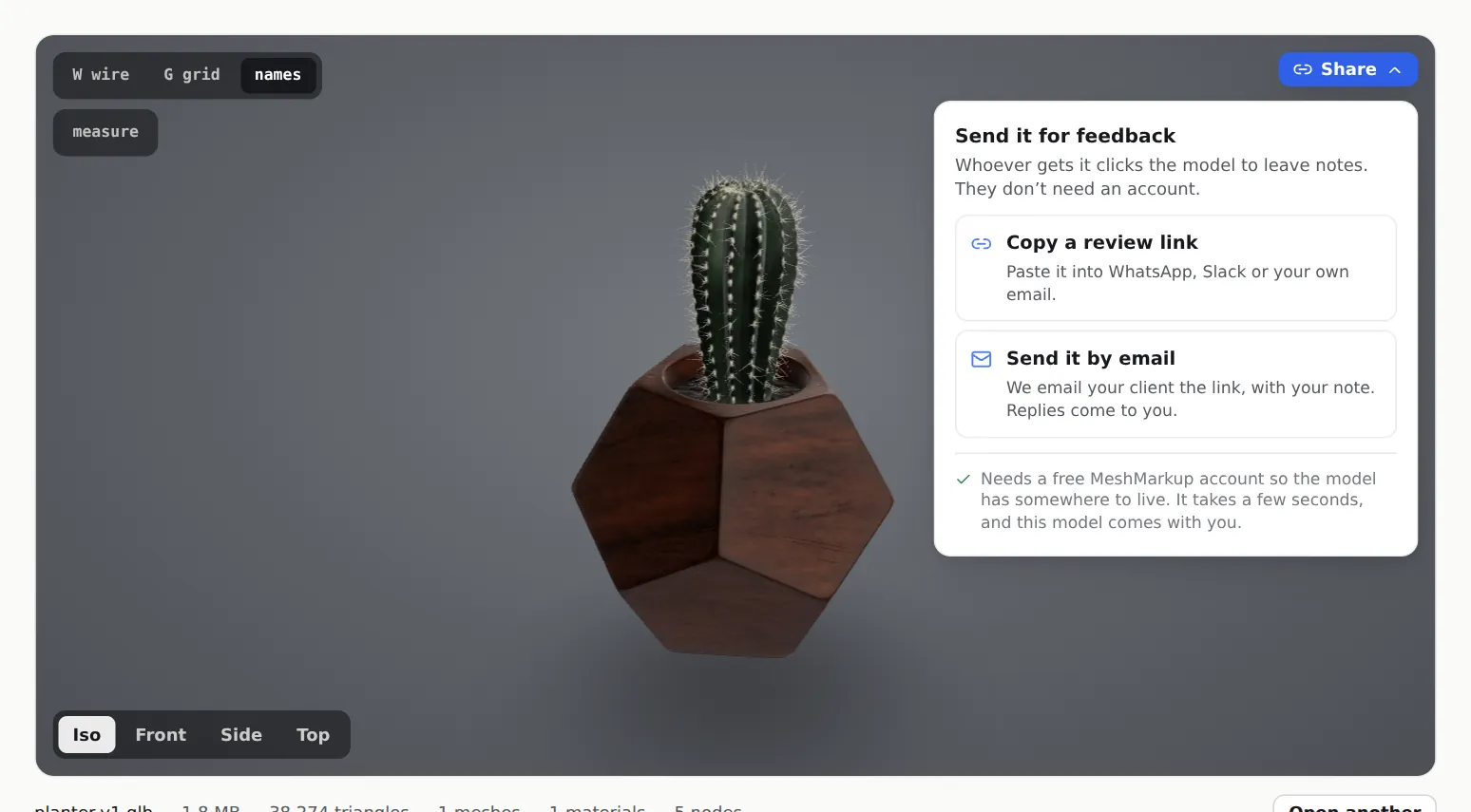
Copy a review link, or have MeshMarkup email it Choose how to send it
Copy a review link gives you a link to paste into WhatsApp, Slack or your own email. Send it by email asks for your client's address and an optional note, then Continue.
Sign in or create a free account
Sharing needs a free MeshMarkup account, so the model has somewhere to live. It takes a few seconds, and the model you have open comes with you. If you're already signed in, it goes straight through.
Send the link
You land on your Models page with the model uploaded and the link made, copied or emailed.
If you're in a private browsing window, your browser may refuse to hold the model while you sign up. In that case, create the account first and upload the model from your Models page.
The shared model counts towards your plan: the Free plan adds 3 new models every 30 days, with 50 MB of storage. Saved lighting, notes, versions and the rest are in the app, not the free viewer. See send a 3D model to a client for feedback.
Was this guide helpful?
Related guides
Get feedback on the model, not on a screenshot
Upload a model, send one link, and your client clicks the exact spot. Free to start — no card.