How to check the polygon count of a 3D model
See the triangle, mesh, material and node counts and file size of any 3D model in your browser, check the topology in wireframe, and know when a model is too heavy.
The quickest way to check a 3D model's polygon count is to drop it into the free viewer. Under the model it shows the file size and the number of triangles, meshes, materials and nodes, and pressing W turns on the wireframe so you can see where the density is. Nothing is uploaded, and it works for GLB, glTF, FBX, OBJ, STL, PLY, DAE, STEP, IGES, 3DM, 3MF and 3DS. Inside the app, every model shows its triangle and mesh count in the bottom-left corner of the viewer.
Where to find the numbers
In the free viewer
Open /viewer and drop a file on the box, or click it to choose one. When the model appears, the line under the stage reads, for example:
chair.fbx · 4.8 MB · 182,440 triangles · 12 meshes · 12 materials · 31 nodes
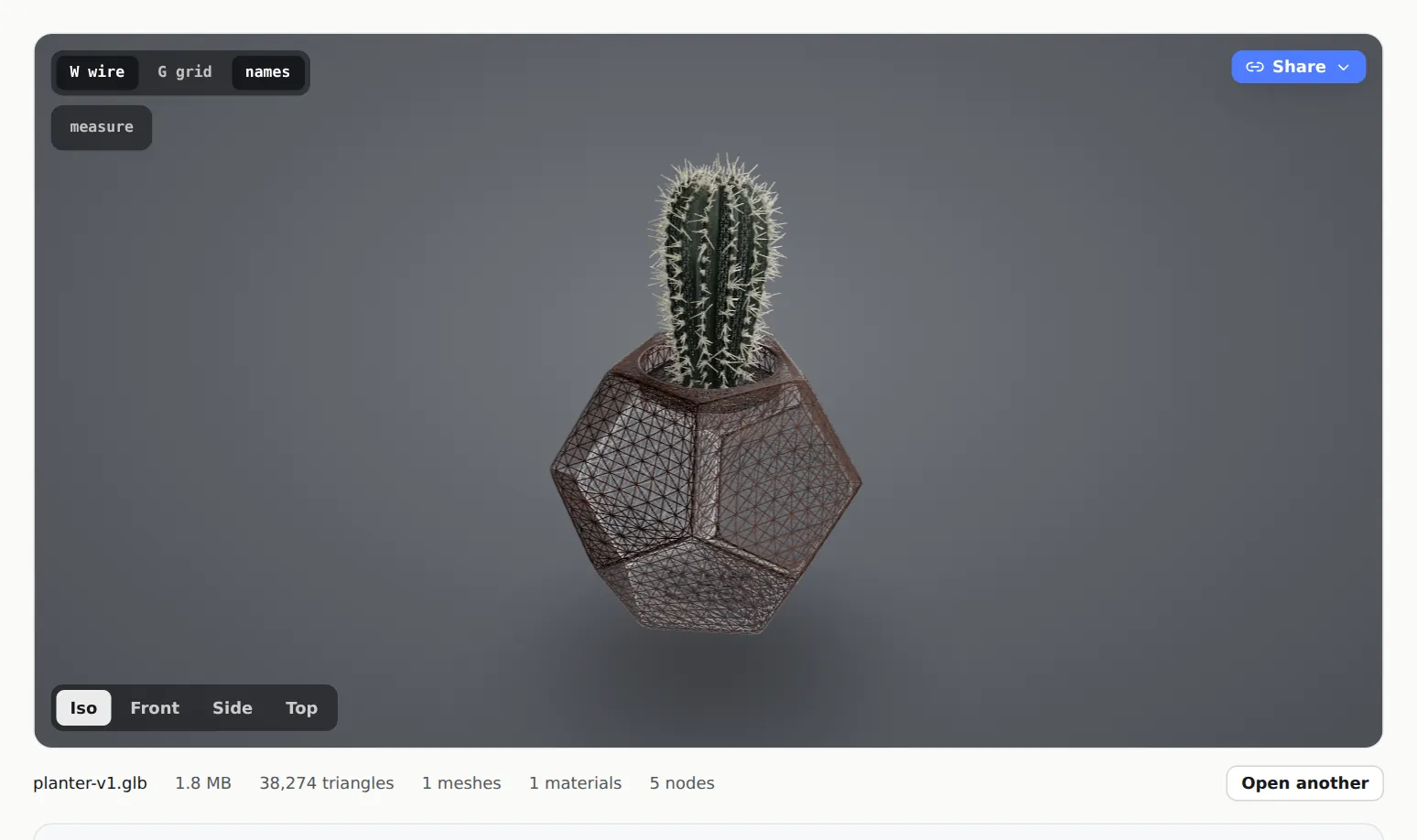
The file size is the size of the file you opened. Files that aren't GLB or glTF are converted in your browser first, and the counts are taken from the converted model.
In the app
On a model's page, the bottom-left corner of the stage, beside the toolbar, shows the triangle count, the mesh count and the size of the stored file, for example 182,440 tris · 12 meshes · 3.1 MB. The size is that of the GLB MeshMarkup stores, so for a converted file it can differ from the file you uploaded.
When you compare two versions, the strip under the header shows the difference in triangles, meshes and file size between them. It's a quick way to catch a revision that doubled the polygon count.
What each number means
| Stat | What it counts | Why it matters |
|---|---|---|
| Triangles | Every triangle in every mesh. Quads and n-gons are counted as the triangles they're split into | The main measure of how heavy the geometry is to draw |
| Meshes | Separate pieces of geometry | Each mesh is at least one draw call. Many small meshes can be slower than one large one |
| Materials | Material slots on the meshes | More materials means more draw calls and usually more textures |
| Nodes | Every object in the scene tree: groups, empties and meshes | A very deep or large tree is a sign of an unmerged CAD assembly or a messy export |
Triangles, not polygons, is the number that counts for real-time use: a quad is two triangles, and a game engine, a web viewer or an AR app draws triangles. If your 3D app reports 90,000 faces in quads, expect about 180,000 triangles here.
The materials figure counts each mesh's material separately, so a material shared by ten parts can be counted ten times. It can be higher than the number of materials listed in your 3D app.
Wireframe, grid, part names and views
All of these live on the dark toolbar down the left edge of the viewer, in the free viewer, on a model's page and on a client's review link. Hover over a button to see its name and shortcut key. The wireframe, clay and X-ray modes and Part names on hover are in the Display mode menu; the standard views are in the Camera views menu.
| Key | Button | What it does |
|---|---|---|
| O | Orbit | Dragging turns the model round. This is the default |
| H | Pan | Dragging slides the model across the screen |
| V | Camera views | Opens the camera views menu |
| 1 | Camera views → Isometric | Three-quarter view of the whole model |
| 2 | Camera views → Front | Front view |
| 3 | Camera views → Side | Side view |
| 4 | Camera views → Top | Top view |
| F | Fit to view | Frames the whole model again |
| D | Display mode | Opens the display mode menu |
| C | Display mode → Clay | Shows the model in one plain matte colour, without textures, so you see the shape |
| W | Display mode → Wireframe | Draws every triangle's edges over the surface |
| X | Display mode → X-ray | Makes the surface see-through, so you can find hidden internal parts |
| N | Display mode → Part names on hover | Shows the name of the part under your cursor |
| L | Lighting | Opens the lighting options |
| M | Measure | Measures the distance between two points |
| G | Floor grid | Shows a floor grid under the model, for scale and orientation |
| R | Auto-rotate | Turns the model slowly on its own |
| + / − | Zoom + and − (bottom-right corner) | Zooms in and out |
Press C, W or X again to go back to the normal Realistic view. The keys don't work while you're typing in a text box.
In wireframe, look for areas that are solid with lines: dense spots on flat surfaces, smoothing that was applied twice, hidden internal parts, or tiny bolts carrying more triangles than the panel they're attached to. Part names come straight from the file, so they tell you which object in your 3D app to fix.
How many triangles is too many?
There's no single number, because it depends on where the model is going. These are common rules of thumb, not hard limits:
- Client review in MeshMarkup. Heavy models load and open fine on a desktop, but your client may open the link on a phone. Keeping a model to a few hundred thousand triangles and a GLB of a few tens of megabytes makes it open quickly everywhere. Storage also counts: the Free plan has 50 MB in total.
- Web configurators and product viewers. These usually aim much lower, often under about 100,000 triangles, with textures doing the detail.
- AR on phones. Budgets are tight because the phone is also running the camera. Aim for the low end and keep the file small.
- Game engines. It depends on the engine, the platform and how many copies are on screen. Ask for the project's budget.
Check the number of meshes and materials too. A model with 50,000 triangles split across 2,000 meshes can be slower than a single 500,000-triangle mesh.
How to reduce the polygon count
- Remove what nobody sees. Internal parts, the backs of panels against a wall, and hidden fasteners are often a large share of a CAD model's triangles.
- Decimate. In Blender, add a Decimate modifier; most 3D apps have a similar tool. Watch the wireframe as you lower the ratio and stop before silhouettes go faceted.
- Bake detail into textures. Sculpted and high-subdivision detail can live in a normal map on a much lighter mesh.
- Merge small parts and materials. Fewer meshes and material slots mean fewer draw calls.
- Compress. Draco-compressed GLB files open in MeshMarkup and are much smaller to send, though the triangle count is unchanged.
CAD files (STEP, IGES) are turned into triangles by MeshMarkup with detail relative to the size of each part, so a screw and a car body both come out smooth. You can't change that setting, but you can simplify the assembly before exporting. The full walkthrough, app by app, is in reduce file size and polygon count.
Was this guide helpful?
Related guides
Get feedback on the model, not on a screenshot
Upload a model, send one link, and your client clicks the exact spot. Free to start — no card.