Getting started with MeshMarkup
Create a free MeshMarkup account, upload your first 3D model, send a review link to a client and read the notes they pin to the model, step by step.
MeshMarkup is a place to put a 3D model in front of a client and get feedback pinned to the model itself. You sign in with your email or Google, upload a model, create a review link and send it. Your client opens the link in their browser, clicks the spot they want to talk about and types a note. You see each note as a numbered pin, with the camera angle they were looking from.
The Free plan covers everything in this guide, so you can try it on a real job before paying for anything.
Your first review in five steps
Create your account
Go to sign in and type your email, then click Email me a sign-in link. Open the email and click the link, or type the 6-digit code from the email on the sign-in page. You can also use Continue with Google. You land on Home, where a Get started checklist walks you through the next steps; its last step lets you choose a password if you'd like to sign in without the email (optional). Your account starts with a project called First project, and one model already in it: Sample: astronaut, with a review round a sample client has left notes on. Open it to see how notes, replies and statuses work, and click See what your client sees to open the review the way your client would. The sample doesn't count towards your models or storage, and you can delete it whenever you like.
Upload a model
On Home, drop the file on the Drop a model here box (or click choose a file), or open Models and click Upload model. GLB and glTF go straight up. FBX, OBJ, STL, PLY, DAE, STEP, IGES, 3DM, 3MF and 3DS are converted to GLB in your browser first, and a .zip carries a model together with its textures.
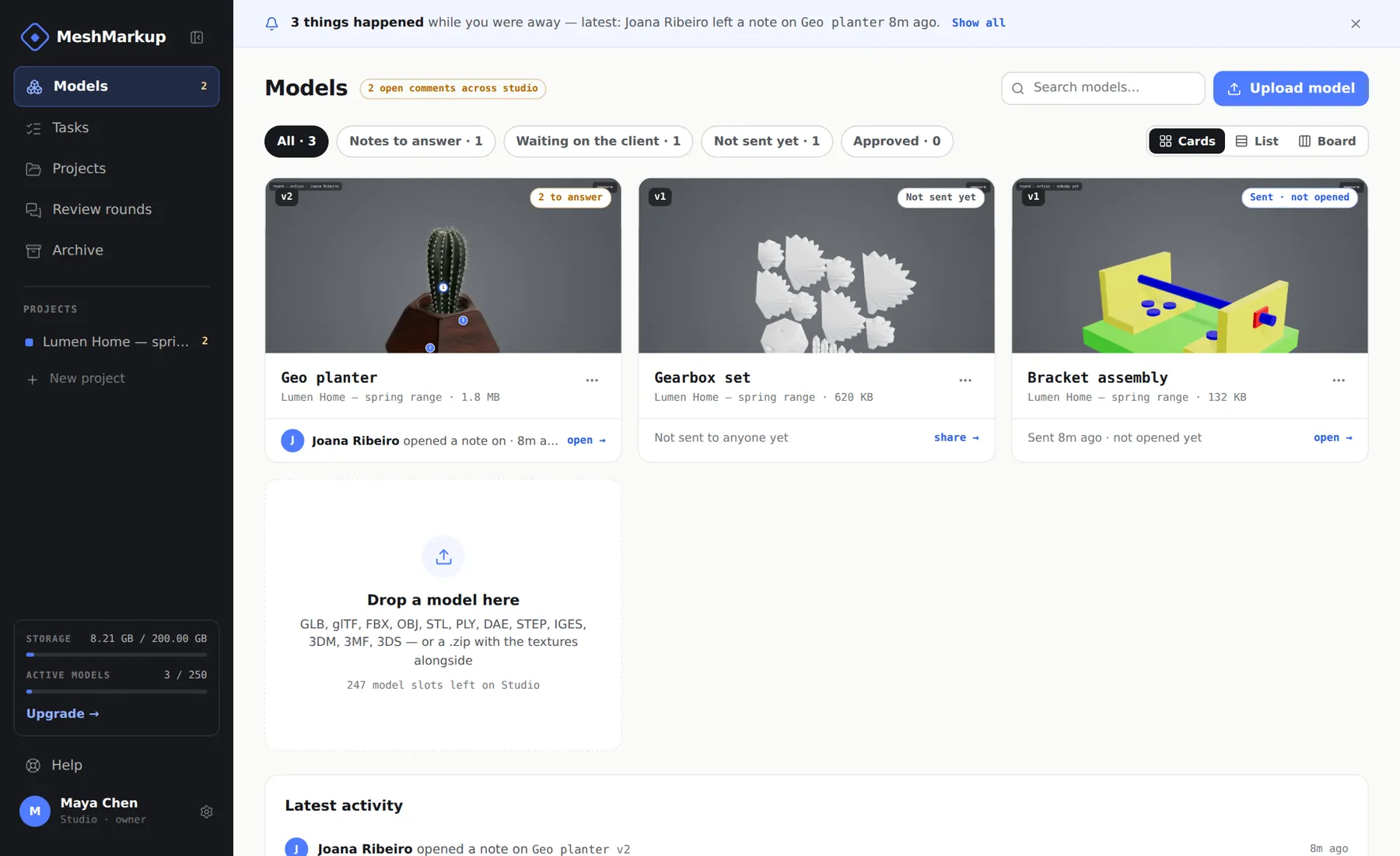
Your models. Upload model is top right Check how it looks
Click the model's card to open it. Drag to turn it round, and click the Lighting button on the toolbar down the left edge of the viewer if you want to change the lighting or background. Your client sees the same look you set here.
Create a review link and send it
Click the blue Share for review button in the top-right corner of the viewer and choose Leave feedback. The link is created and copied in one go, so paste it into an email, WhatsApp or Slack. Or click Email next to the link and MeshMarkup sends it for you.
Read the notes
As your client leaves notes, numbered pins appear on the model and the notes appear in the Comments panel on the right. The page updates on its own, so you don't need to refresh.
Reading and answering notes
Click a note in the Comments panel, or its pin on the model, and the camera flies to the view your client had when they wrote it. You see what they saw, not a description of it.
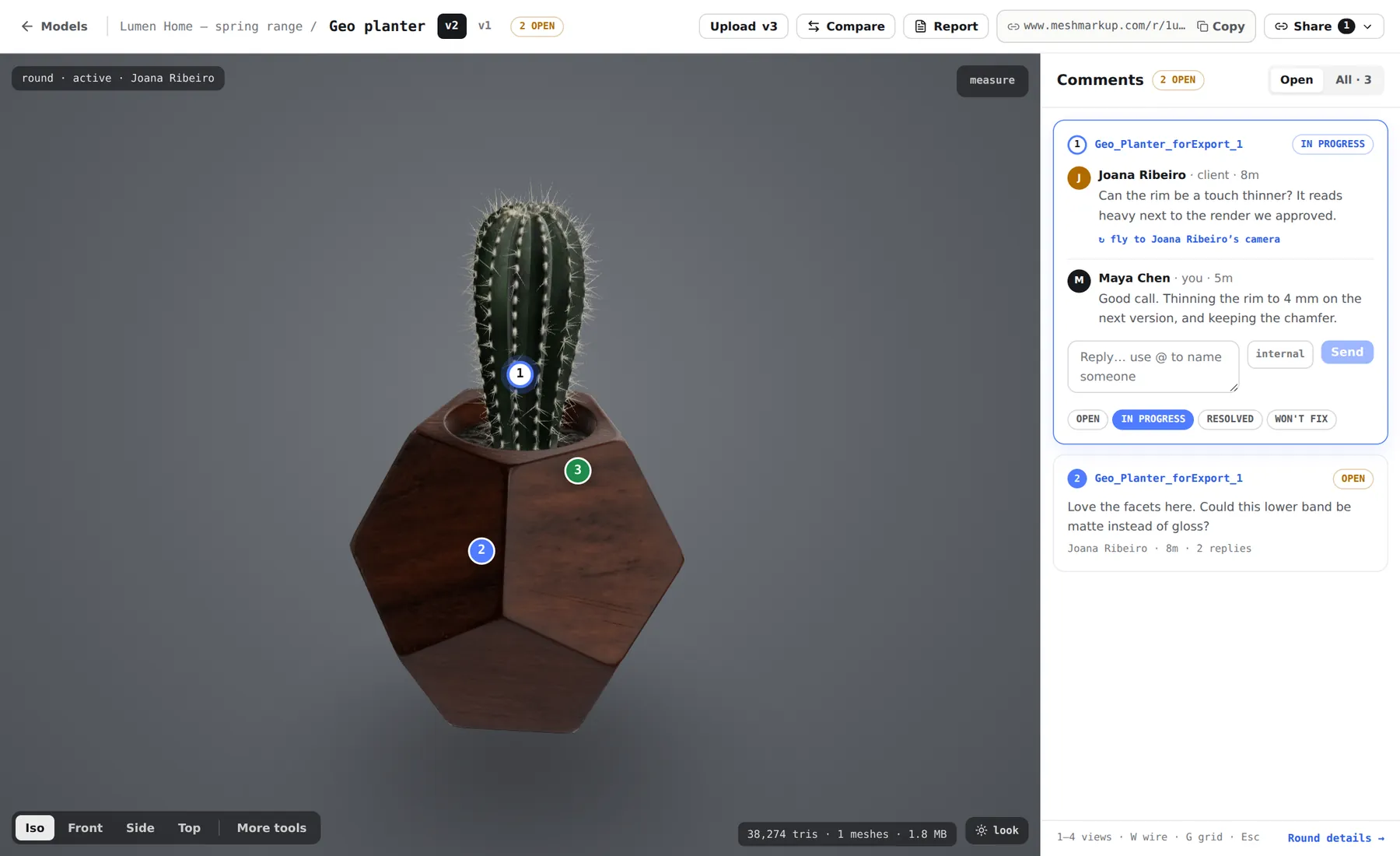
Under the selected note you can:
- Reply. Type in the reply box and click Send. Your client sees the reply on their link.
- Keep it internal. Switch on internal before sending and the reply stays inside your studio. The client never sees it.
- Set a status. Mark the note OPEN, IN PROGRESS, RESOLVED or WON'T FIX, so you and the client both know where it stands.
The Open tab lists only notes that still need work. All shows everything, resolved included. Every note waiting on you, across all your models, is also listed on Tasks. For the details, see notes, replies and statuses.
What the Free plan includes
| Free | |
|---|---|
| Projects | 1 |
| Models | 3 new every 30 days |
| Versions per model | 1 |
| Storage | 50 MB |
| Seats | 1 |
| Reviewers | Unlimited, and they never need an account |
Every plan, Free included, has pinned notes with the camera saved, threaded replies, internal notes, @mentions, measuring, a separate link for each client, the Tasks board, email when feedback arrives and the printable round report.
What Free doesn't have:
- A second version. Free keeps one version per model, so Upload v2 on a model page shows a SOLO badge. Solo and above keep every version, move open notes onto the new one and let you compare versions.
- Client sign-off. The Sign it off link needs the Solo plan or above. See client sign-off.
- More new models. Free adds 3 new models in any 30 days. Each one counts for 30 days from the day it was added, and archiving or deleting it doesn't give it back. When they're used, the Models page says when the next one frees up, and the sidebar meter (New models · 30 days) shows where you are. Solo and above add as many as you like.
The plans are in Settings → Billing: Solo is €29 a month, Studio €89 and Pipeline €249, and paying yearly gives you two months free. See plans and billing.
Finding your way round
The sidebar has everything you'll use day to day:
- Home is where you land: the one thing to do next (such as a client's newest note, in their words), where every model stands, your recent models, notes waiting for an answer, what happened lately and your plan.
- Models shows every active model with its status, such as Not sent yet, Sent · not opened, Notes to answer or Approved. The filter chips answer "whose move is it?"
- Tasks lists every note waiting on you, and models waiting on the client.
- Projects groups models, for one client or one collection, and lets you share a whole project with a single link.
- Review rounds lists each round of feedback with its links, who took part and whether it was signed off.
- Archive holds models you've put away.
Your name, as your clients see it next to your replies, and your email notifications are in Settings.
Where to go next
- Upload 3D models: every format, zips with textures, and what to do with a .blend or .max file.
- What your client sees: the review link from their side.
- Review link permissions: Look only, Leave feedback, Sign it off, and expiry.
- Email a review link straight from MeshMarkup.
- If your model looks grey, the textures didn't come with it. See model looks grey.
Was this guide helpful?
Related guides
Get feedback on the model, not on a screenshot
Upload a model, send one link, and your client clicks the exact spot. Free to start — no card.