MeshMarkup plans, prices and billing
What each MeshMarkup plan includes and costs, how to upgrade, change or cancel, where to find invoices and VAT details, and what happens when you hit a limit.
MeshMarkup has four plans: Free, Solo at 29 a month, Studio at 89 and Pipeline at 249, in euros or US dollars (the numbers are the same in both). Paying yearly gives you two months free. You upgrade from Settings → Billing and pay through Stripe; invoices, your card, VAT details, plan changes and cancelling are all under Manage your subscription. Cancelling never deletes anything: the plan runs to the end of the period you paid for, then the studio moves to Free with every model kept.
What each plan includes
| Free | Solo | Studio | Pipeline | |
|---|---|---|---|---|
| Monthly | 0 | 29 | 89 | 249 |
| Yearly | 0 | 290 | 890 | 2,490 |
| Models | 3 new every 30 days | 25 active at once | 250 active at once | Unlimited |
| Versions per model | 1 | Unlimited | Unlimited | Unlimited |
| Projects | 1 | Unlimited | Unlimited | Unlimited |
| Storage | 50 MB | 20 GB | 200 GB | 2 TB |
| Seats | 1 | 1 | 5 | Unlimited |
| Client sign-off | – | Yes | Yes | Yes |
| Slack channel | – | Yes | Yes | Yes |
| REST API and webhooks | – | Yes | Yes | Yes |
Prices are per studio, in € or $. Reviewers are free and unlimited on every plan and never use a seat. Every plan includes notes pinned to the model, threaded replies, internal notes, @mentions, measuring, the Tasks board, email when feedback lands, the printable round report, a full data export and self-service account deletion.
On Free, the limit is on new models: you can add 3 in any 30 days. Each model counts for 30 days from the day it was added (when its first version is saved, so a failed upload doesn't count), and archiving or deleting it doesn't give it back. On paid plans, the limit is on active models, and archived models don't count towards it. Comparing versions and carrying open notes onto a new version need a second version, so they start on Solo.
Upgrade your plan
Only the studio's owner can change the plan. Admins and members see the plan buttons disabled.
Open Settings → Billing
Click your name at the bottom of the sidebar, then the Billing tab. The top of the page shows your current plan and What you're using.
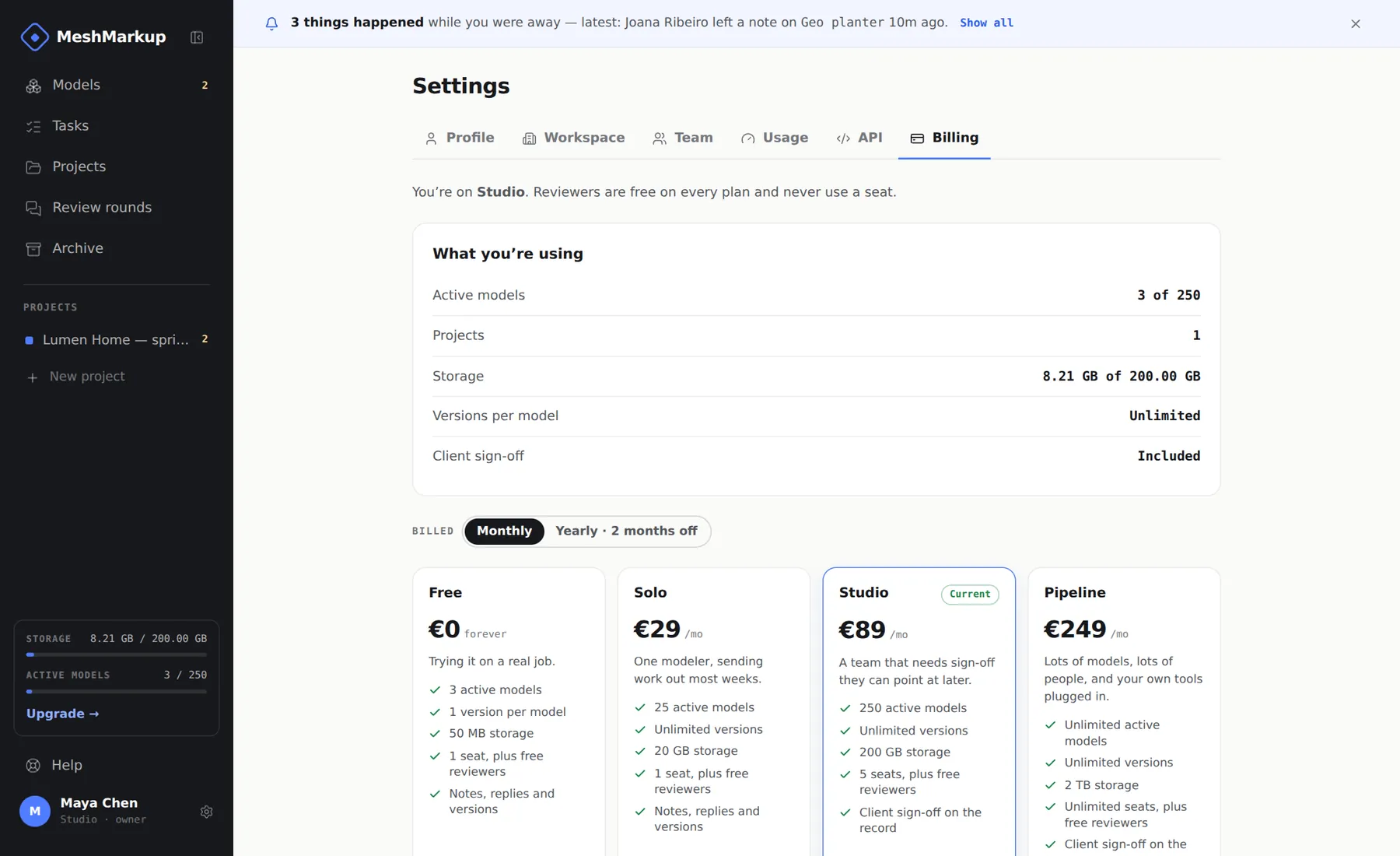
Your usage, the billing period and currency switches, and the plans Choose monthly or yearly, and a currency
Use Billed to switch between Monthly and Yearly · 2 months off. Where both currencies are offered, Currency switches between € EUR and $ USD.
Click Choose Solo, Choose Studio or Choose Pipeline
You're taken to Stripe's checkout page. Enter your card and billing address. If your studio is a business, add your tax ID (VAT number) there so it's printed on your invoices. Promotion codes can be entered at checkout too.
Come back to MeshMarkup
After paying you return to Settings → Billing. The plan changes as soon as Stripe confirms the payment; refresh the page if it still shows the old plan.
Invoices, card and VAT details
Once you've paid, Settings → Billing shows a Manage your subscription card. Click Open to see your plan, its status, the currency and the renewal date, and a list of things you can do. Each Open button takes you to the right screen in Stripe and brings you back afterwards:
- Payment method: change the card, or add a backup.
- Change plan or billing period: move between plans, or from monthly to yearly.
- Invoices and receipts: every invoice since the first, as a PDF.
- Billing details and VAT number: the company name, address and VAT number printed on your invoices.
- Cancel subscription: see below.
Card details are only ever entered on Stripe's own pages. MeshMarkup never sees your card number.
Change or cancel
To change plan once you're subscribed (Solo to Studio, say, or monthly to yearly), click Choose on the plan you want, or use Manage your subscription → Change plan or billing period. Either way Stripe shows a confirmation screen for your existing subscription, with the proration worked out, so you pay the difference for the rest of the period rather than the whole price again. You never end up with two subscriptions.
To cancel, use Manage your subscription → Cancel subscription. The plan keeps running until the end of the period you've paid for, and the billing page shows Cancelled — this plan runs until that date. Then the studio moves to Free. You can subscribe again from the plans at any time.
Nothing is deleted when you cancel or downgrade. Every model, version, note and link stays. What changes is what you can add: on Free you can't upload a second version, add more than 3 new models in 30 days or go over 50 MB until you're back under the limits or upgrade again.
If a payment fails, Stripe retries the card over the following days. Your plan stays on while it does, and Settings → Billing shows a warning with an Update card button. If Stripe gives up, the studio moves to Free and keeps every model; paying the invoice or choosing a plan again restores it.
What happens when you hit a limit
Limits are checked when you add something, never by taking things away. When you reach one, the action stops and a short prompt explains which limit it was and which plan lifts it:
| What you tried | What you see | What lifts it |
|---|---|---|
| Upload a second version on Free | Round two needs a paid plan | Solo |
| Add a fourth new model within 30 days on Free | You've added this month's free models | Wait until one is 30 days old, or Solo |
| Upload a file that doesn't fit | Your storage is full | Delete a model, or a bigger plan |
| Create a Sign it off link on Free | Client sign-off comes with Solo | Solo |
| Invite a teammate with no free seat | Every seat on Solo is taken (or your plan), with a link to add more | Studio or Pipeline |
Settings → Usage shows each limit as a meter (on Free, New models, last 30 days), and lists the models taking the most space. When Free's new models are used up, the Models page and the upgrade prompt say when the next one frees up. On a paid plan, to free an active model slot without losing anything, archive a model you've finished with; see archiving and deleting models. To make models take less room, see reducing file size.
Was this guide helpful?
Related guides
Get feedback on the model, not on a screenshot
Upload a model, send one link, and your client clicks the exact spot. Free to start — no card.