Export a review round as a PDF report
Turn a round of client feedback on a 3D model into a printable report, every note with the view it was left from, and save it as a PDF from your browser.
To export a review round, open the model, click Report at the top of the page, wait while MeshMarkup renders a picture of each note's view, then click Save as PDF and choose to save it as a PDF in your browser's print dialog. The report lists every note on that version with the view it was left from, the full thread of replies and its status. Internal notes are left out, so you can send it to the client.
The report is included on every plan, Free too.
Create the report
Open the model at the right version
Open the model from Models. If it has more than one version, click v1, v2 and so on at the top to pick the round you want. The report covers the version you're looking at.
Click Report
Report sits in the bar at the top of the page, above the viewer. It appears once the version has at least one note. On a phone the button shows just its icon.
Wait for the views to render
The report opens in the same tab and renders the model once for each note, from that note's camera. The bar at the top counts up, Rendering 3 of 8 views…, then reads 8 notes ready.
Click Save as PDF
The button is available once the views are ready. It opens your browser's print dialog.
Save it as a PDF
In the print dialog, set the destination or printer to the PDF option, such as Save as PDF in Chrome and Edge, or PDF at the bottom left of the dialog on a Mac. Then save. To print on paper, pick your printer instead.
Back, top left, returns to the model.
What's in the report
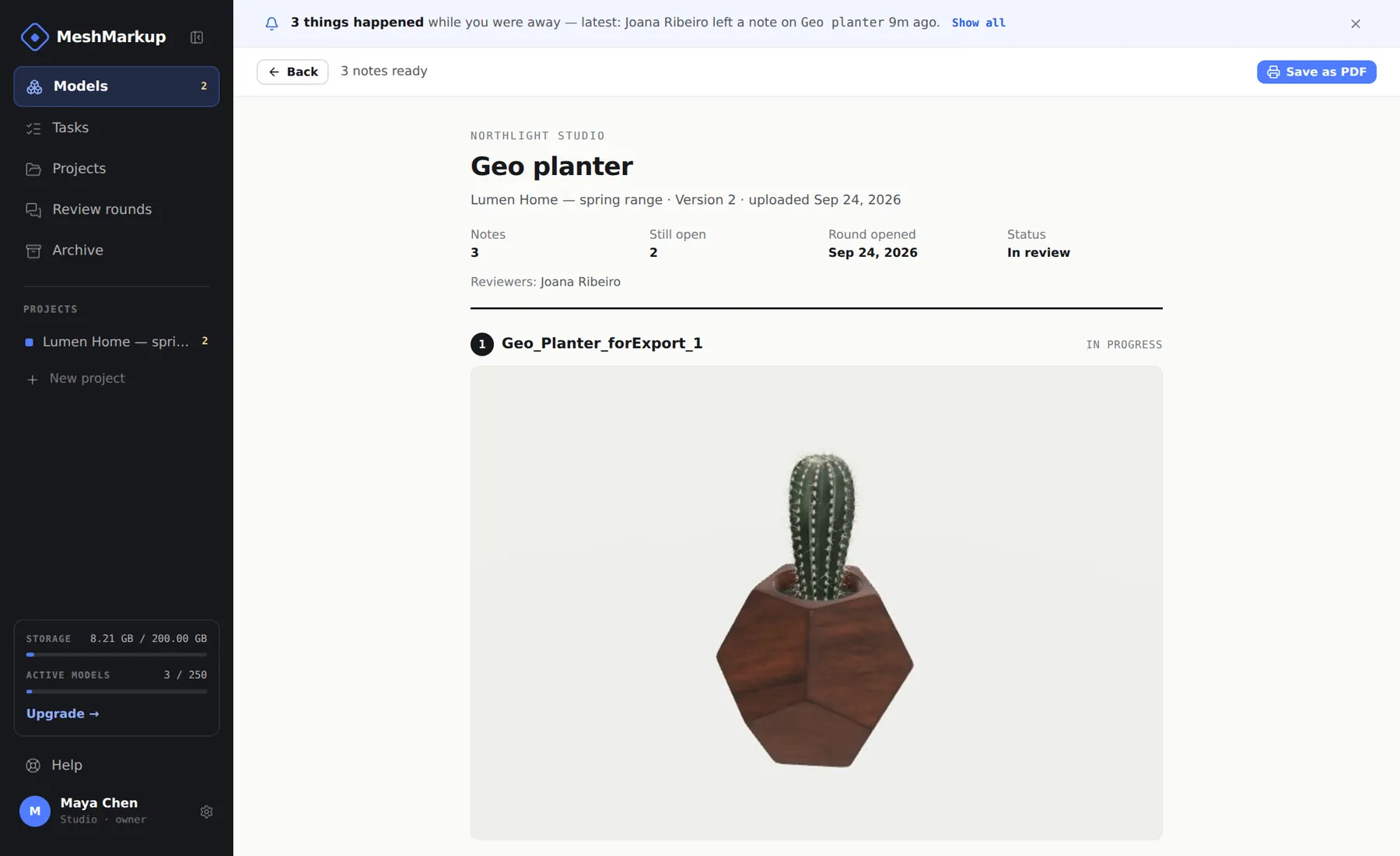
At the top:
- Your studio's name, the model's name, and the project, version number and upload date.
- Notes: how many there are on this version.
- Still open: how many are open or in progress.
- Round opened: when the review round started.
- Status: Approved with the date if the client signed it off, In review while notes are open, or No open notes.
- Reviewers: everyone who took part, by the names they gave.
Then every note, in order:
- Its number, the part it was pinned to (or On the model), and its status: Open, In progress, Resolved or Won't fix.
- carried from v2 (or another version) if it was still open when this version was uploaded.
- A picture of the model from the note's camera, the same view you get when you click the note.
- The thread: each message with who wrote it, whether it was the client or your studio, and the date.
The footer says Internal notes are not included and when the report was generated.
How it lays out on paper
Each note is kept together, so a page break never separates a picture from the comment that explains it. The pictures are sized to fit two notes on most pages, which keeps a long round readable without a page per note. Colours for the note numbers and statuses print as they appear on screen, and the sidebar and buttons are left off the printout.
The suggested file name comes from the page title, for example chair v2 — round report, so you rarely need to rename it.
The pictures
The views are rendered fresh in your browser, from the camera saved with each note, against a plain light background with neutral lighting. They don't use the lighting and background you set with Lighting on the model page, so materials can look a little different from the viewer.
If a model takes too long to render, the report stops waiting after about 30 seconds and shows view unavailable in place of the missing pictures. The notes and threads are all still there. Heavy models render faster after reducing the polygon count.
When to use it
- At the end of a round. Save the report before you upload the next version, as a record of what was asked for and what you answered.
- After sign-off. On an approved version, the Status line shows the approval date. Keep it with the job as proof of what was approved. See client sign-off.
- For people who won't open a link. Some clients and managers want a document to read on paper or attach to an email. The report gives them every note with its picture.
- For your own team. It's a quick way to hand a round of changes to someone who'll make them, though they won't see internal notes in it; those stay on the model page.
If something looks wrong
- The Report button isn't there. The version has no notes yet. Once a client leaves one, the button appears.
- Save as PDF is greyed out. The views are still rendering. Wait for notes ready.
- The report shows the wrong version. It covers the version selected on the model page. Go back, click the version you want, and open Report again.
- Some pictures say view unavailable. The model didn't finish rendering in time. Reload the report and give it another try, or reduce the model's size.
Was this guide helpful?
Related guides
Get feedback on the model, not on a screenshot
Upload a model, send one link, and your client clicks the exact spot. Free to start — no card.