3D design collaboration software and model-based collaboration
What 3D design collaboration software does, why model-based collaboration beats screenshots and PDFs, and how studios and clients share one model in MeshMarkup.
3D design collaboration software gives everyone involved in a design, the studio that makes it and the clients who approve it, one shared place to discuss the model itself. In MeshMarkup that place is the model: your team works on it in the app, clients open it through a review link in their browser, and every comment is pinned to the geometry with the view it was made from. This is what's usually called model-based collaboration, and it replaces the screenshots, marked-up PDFs and email threads most studios still run on.
What model-based collaboration means
In a document-based workflow, the model never leaves the studio. What travels is a picture of it: a render, a screenshot, a PDF export of a few views. Comments come back on the picture, or in an email about the picture, and someone in the studio translates them back onto the model.
In model-based collaboration, the model is what travels. The client, the art director and the contractor all look at the same 3D object, from whatever angle they need, and comment on it directly. Nothing has to be translated, because the note is already on the part it's about.
The difference shows up in three places:
- Context. A note on the model carries its position and the camera view. A comment on a screenshot carries whatever the person typed.
- Coverage. Reviewers find problems on the sides you didn't render. A screenshot set only covers the angles you chose.
- Continuity. Notes belong to a numbered version of the model, so feedback from round one is still there, answered or not, when round three arrives.
How studios and clients work together in MeshMarkup
MeshMarkup splits collaboration into two sides that meet on the model.
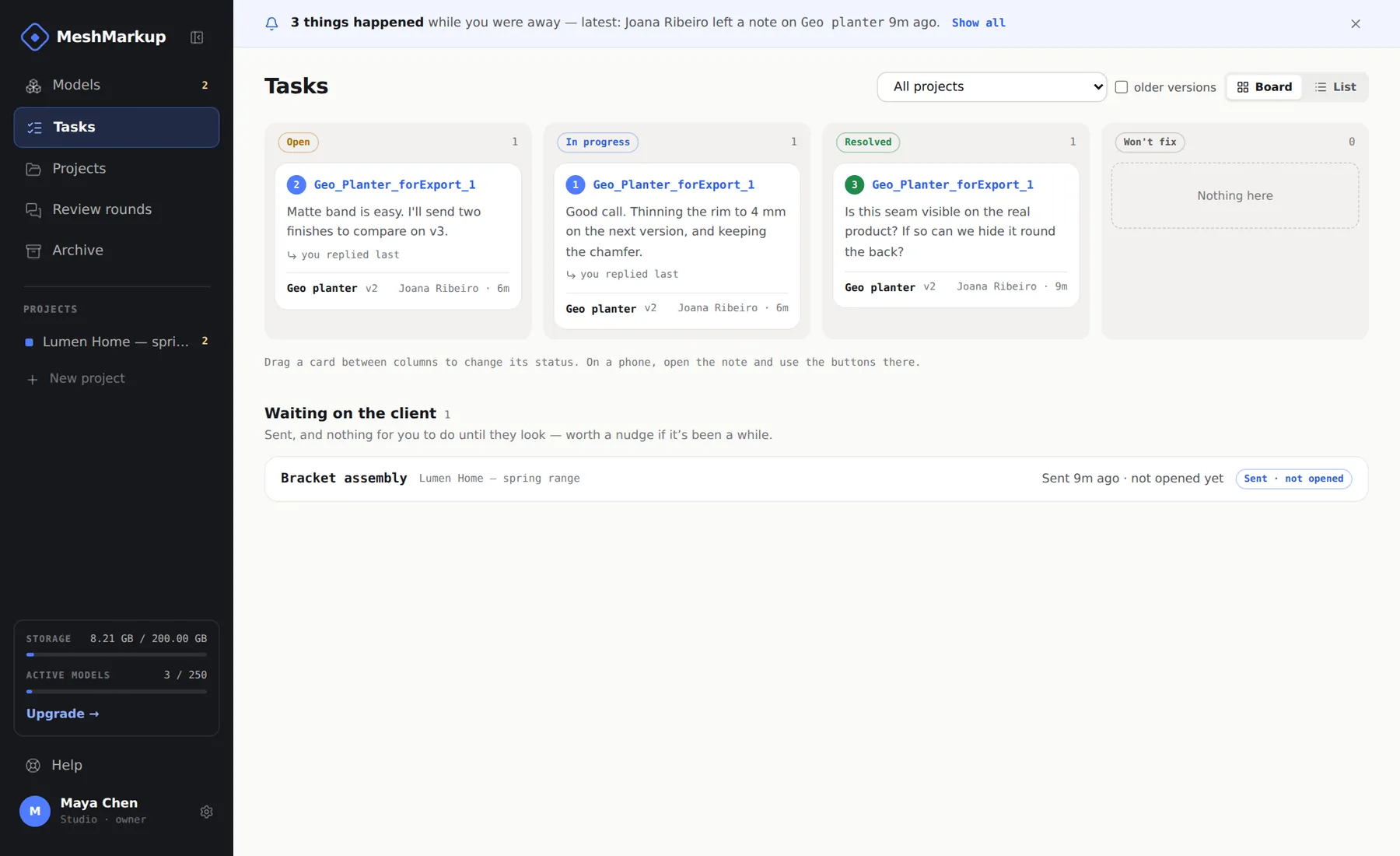
Your studio works inside the app. Teammates upload models and new versions, reply to notes, set statuses, and talk to each other in internal notes that the client never sees. Everyone shares one Tasks board, which lists every note across every model, with waiting on you marking the ones where the client spoke last. Setting up seats and roles is covered in collaborating on 3D models with your team.
Your clients never join the studio. They get a link: a review link for one version of one model, or a project link that opens every model in a project and always shows the latest version of each. They don't create an account, they don't use a seat, and they only see what the link opens.
Both sides write in the same thread under each note. A client asks a question on a part, a modeller answers it, a producer adds an internal note asking someone else to check it, and the client sees Working on it and then Fixed as the status changes.
An example: an agency running visualisation work
Picture a small visualisation studio working for an interior design agency on a retail fit-out. The agency's designer, their client and a joinery contractor all need to see the 3D model of the shop counter before it's built.
The studio uploads the model
The modeller exports a GLB from their 3D app and drops it on the Models page, in a project for the fit-out.
The producer sets up the round
They pin two questions on the model ("Is this the stone you specified?", "Is 900 mm the right counter height?") and add three renders as images next to it.
Everyone gets a link
The designer, the client and the contractor each get their own Leave feedback link with a feedback-by date, so MeshMarkup reminds them in the producer's name.
Feedback lands on the model
The contractor measures the overhang and leaves a note on the edge. The client circles a joint on one render with the box tool. The designer answers both questions with Looks good, one tap each.
The studio works through it
The producer replies, @mentions the modeller in an internal note about the joint, and sets statuses. The modeller uploads v2; open notes carry across to it with their replies.
At no point does anyone describe a location in words, and nobody has to merge three email threads into a list of changes.
What a 3D visualisation collaboration tool should cover
If you're comparing tools for this kind of work, check that the tool handles each stage, not only viewing:
| Stage | What you need | In MeshMarkup |
|---|---|---|
| Share | A link that opens in any browser, private, with an expiry | Review links with Look only, Leave feedback or Sign it off, and 7 days, 30 days or no expiry |
| Comment | Notes pinned to the model and to renders | Pinned notes with saved camera views; notes, arrows, boxes and highlights on images and PDFs |
| Discuss | Threads, mentions, private team notes | Threaded replies, @mentions, internal notes |
| Track | Statuses and one queue across models | Four statuses and the Tasks board |
| Revise | Versions on the same model, feedback carried across | Upload v2, carried notes and a ghost comparison (Solo and up) |
| Decide | A clear approval on a version | Sign it off links (Solo and up) and the round report |
It's also worth checking how the tool fits the rest of your studio. MeshMarkup emails the team when feedback arrives, and on Solo and up connects to integrations such as Slack, task tools and watched folders, where your studio has them switched on. If you work in Blender, the Blender add-on sends a scene for review and brings the notes back.
Where collaboration happens, and where it doesn't
MeshMarkup is for collaborating on decisions about a model, not on building it. Two people can't model in the same file at once, and nobody edits geometry or materials through a review link. Your modelling stays in Blender, 3ds Max, Rhino, SolidWorks or whatever you use; MeshMarkup is where the model goes when it needs other people's eyes.
That split is deliberate. It means clients need no software, licence or training, and it means the tool doesn't care which program a model came from. For engineering teams this distinction matters more, and CAD collaboration software explains it in detail.
Getting started with model-based collaboration
You don't need to change how your studio models. Start with the next job that would normally go out as renders:
- Upload the model alongside the renders, so the client can comment on either. See notes on renders and PDFs.
- Pin your questions on the model before you send it, so the client knows where to look.
- Give each reviewer their own link, and set a feedback-by date.
- Keep every round on one model with Upload v2, rather than uploading "counter_v2" as a new model.
For what a single review round looks like end to end, see 3D model review software and the complete review workflow.
FAQ
Do clients need a MeshMarkup account to collaborate?
No. Clients and other reviewers open links without an account, and they're free and unlimited on every plan.
Can clients see our internal discussion?
No. Internal notes never appear on review links, in client emails or in the round report.
How many people can work in the studio?
Free and Solo have one seat, Studio has five, and Pipeline is unlimited. Reviewers never use a seat. See plans and billing.
Was this guide helpful?
Related guides
Get feedback on the model, not on a screenshot
Upload a model, send one link, and your client clicks the exact spot. Free to start — no card.