How to collaborate on 3D models with your team and clients
Invite your team, talk privately with internal notes and @mentions, track feedback on Tasks, and bring clients in with review links that need no account or seat.
To collaborate on 3D models in MeshMarkup, invite your team to your studio from Settings → Team, then send clients a review link from the model's Share menu. Your team works in the app, where they upload models, reply to notes, talk privately with internal notes and track everything on the Tasks page. Your clients open the link in any browser with no account and no seat, and pin notes straight onto the model.
Two sides: your team and your clients
MeshMarkup keeps the two groups apart on purpose:
| Your team | Your clients | |
|---|---|---|
| How they get in | An invitation to your studio | A review link |
| Account | Yes | No |
| Uses a seat | Yes | Never |
| What they see | Every model, note and project in the studio | Only what the link opens |
| Internal notes | Read and write them | Never see them |
| Tasks, settings, other models | Yes | No |
Both sides write in the same thread under each note, so the conversation about a model stays on the model.
Bring your team in
Open Settings → Team
Click your name at the bottom of the sidebar, then the Team tab. You need to be the owner or an admin to see the invite form.
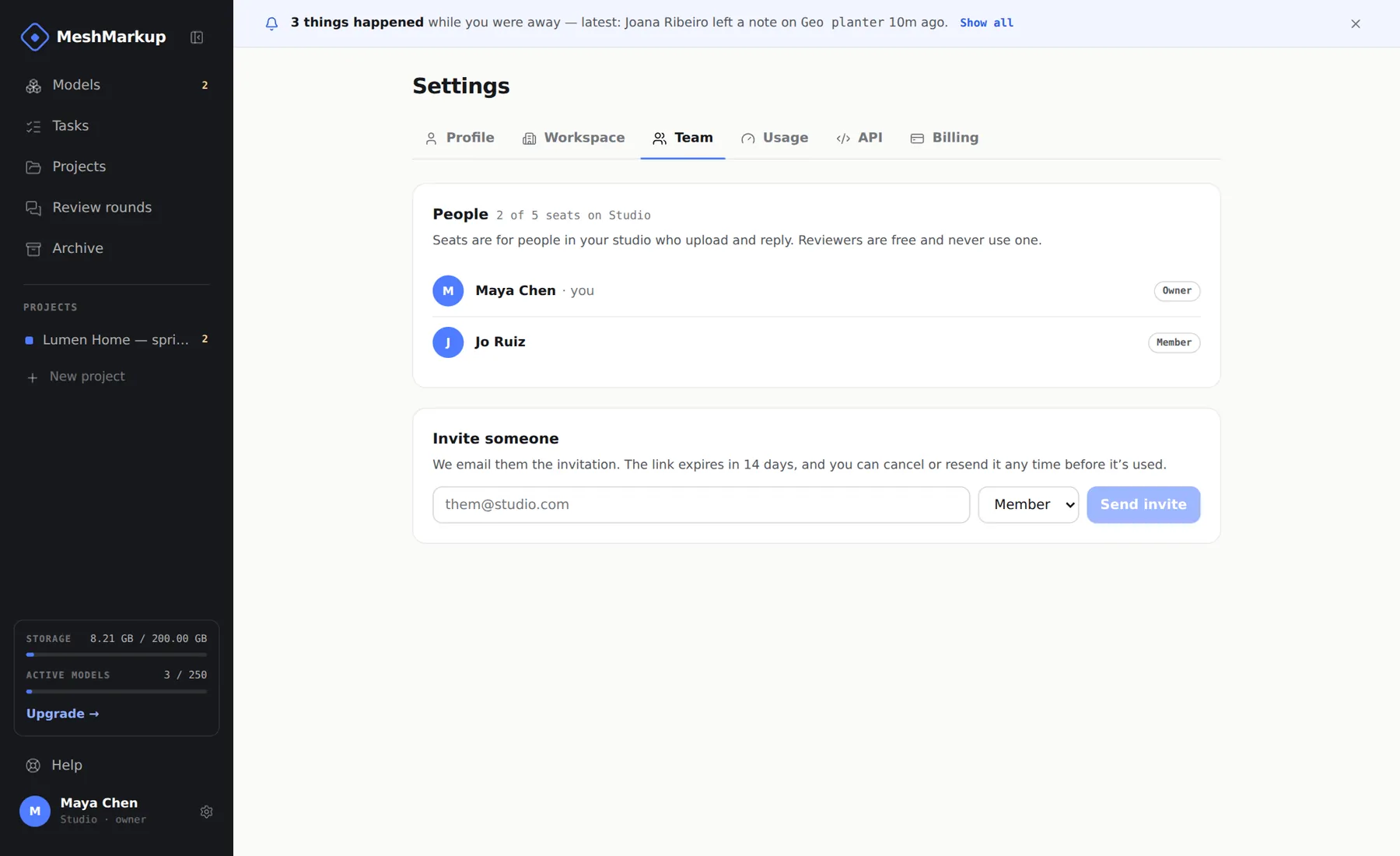
People in the studio, and the invite form Enter their email and choose a role
Under Invite someone, type their email and pick Member or Admin.
Click Send invite
They get an email with a link that lasts 14 days. The same link is shown on the page with a Copy button if you'd rather send it yourself.
They sign in and join
Once they sign in with the invited address, they land in your studio with the role you chose.
The full walkthrough, including resending and cancelling invitations, is in invite your team.
Seats per plan
| Plan | Seats |
|---|---|
| Free | 1 |
| Solo | 1 |
| Studio | 5 |
| Pipeline | Unlimited |
With one seat, the seat is you, so a team starts on Studio. A pending invitation holds a seat until it's accepted, cancelled or expires. Reviewers are unlimited and free on every plan. See plans and billing.
Roles
| Role | What they can do |
|---|---|
| Owner | Everything, and the only one who can change the plan and pay |
| Admin | Everything a member can, plus invite people, rename the workspace, connect Slack and other integrations, and create API keys and webhooks |
| Member | Upload models, share them for review, reply to notes and change their status |
There's no button yet to remove someone or change a role; invite your team explains how to ask for it.
If you're in more than one studio
Anyone who belongs to more than one studio, such as their own and one they were invited to, gets a studio switcher at the top of the sidebar. Pick a studio there to switch to it. Your role, and whether you can invite people, is set separately in each studio.
Talk inside the studio: internal notes and @mentions
Under each note on the model page, your team has the same reply box, with two extras for working together.
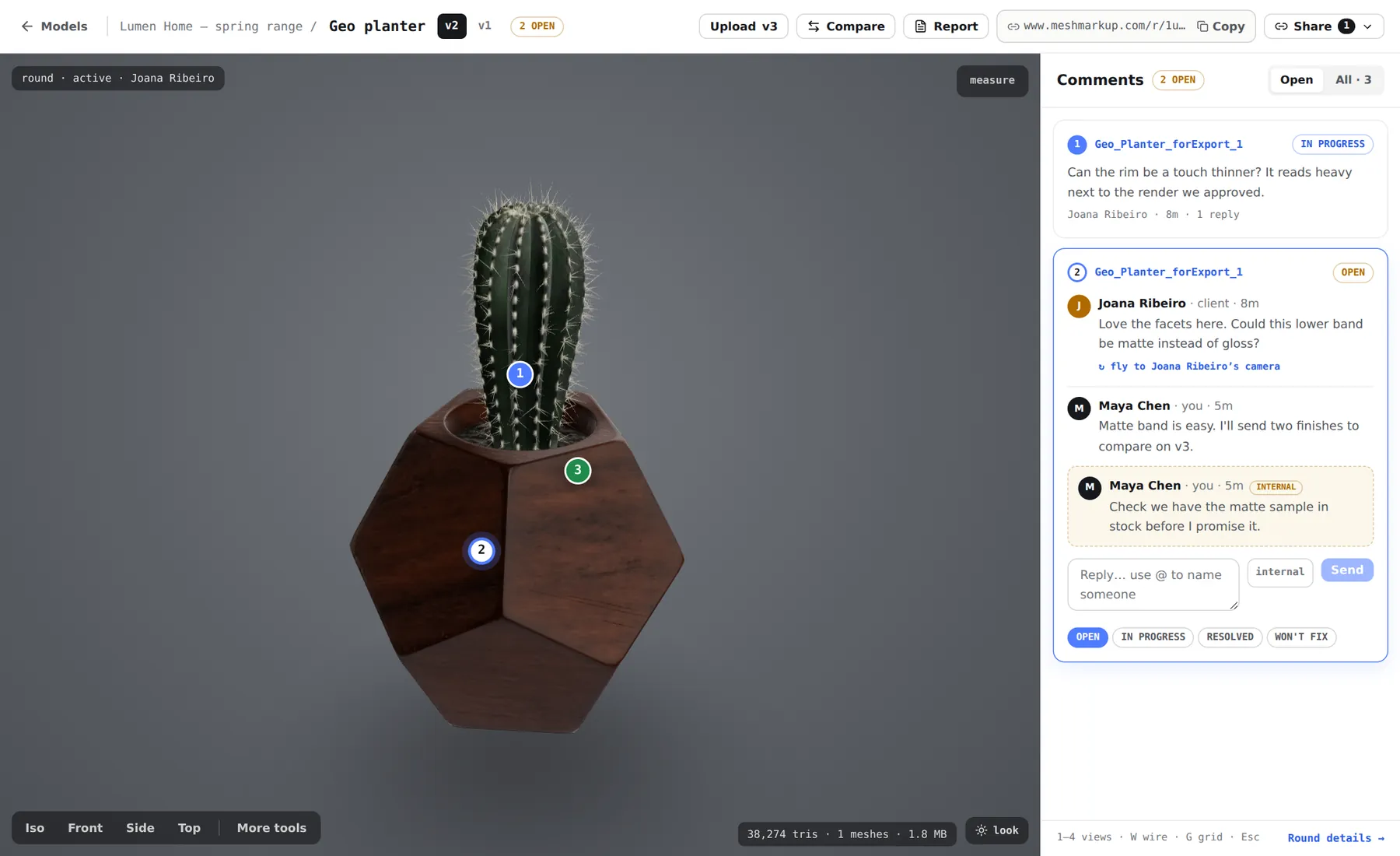
- internal. Click it before Send and the reply stays inside your studio, shown with a dashed outline and an INTERNAL tag. Clients never see it: not on their link, not in their emails, not in the round report. It stays switched on until you send, then turns off, so the next reply goes to the client again.
- @mentions. Type @ to pick someone: your teammates, or the reviewers who have taken part on this version.
Who gets told about a mention:
| You name | In a normal reply | In an internal note |
|---|---|---|
| A teammate | Emailed (if their notifications are on), and it counts on their mentions you filter on Tasks | The same |
| A reviewer | Emailed only if they left an address with Email me when … replies | Left out, so they're never sent a note they can't see |
Clients can @mention too, to name you or another reviewer. More in notes, replies and statuses.
Keep track: Tasks, email and Slack
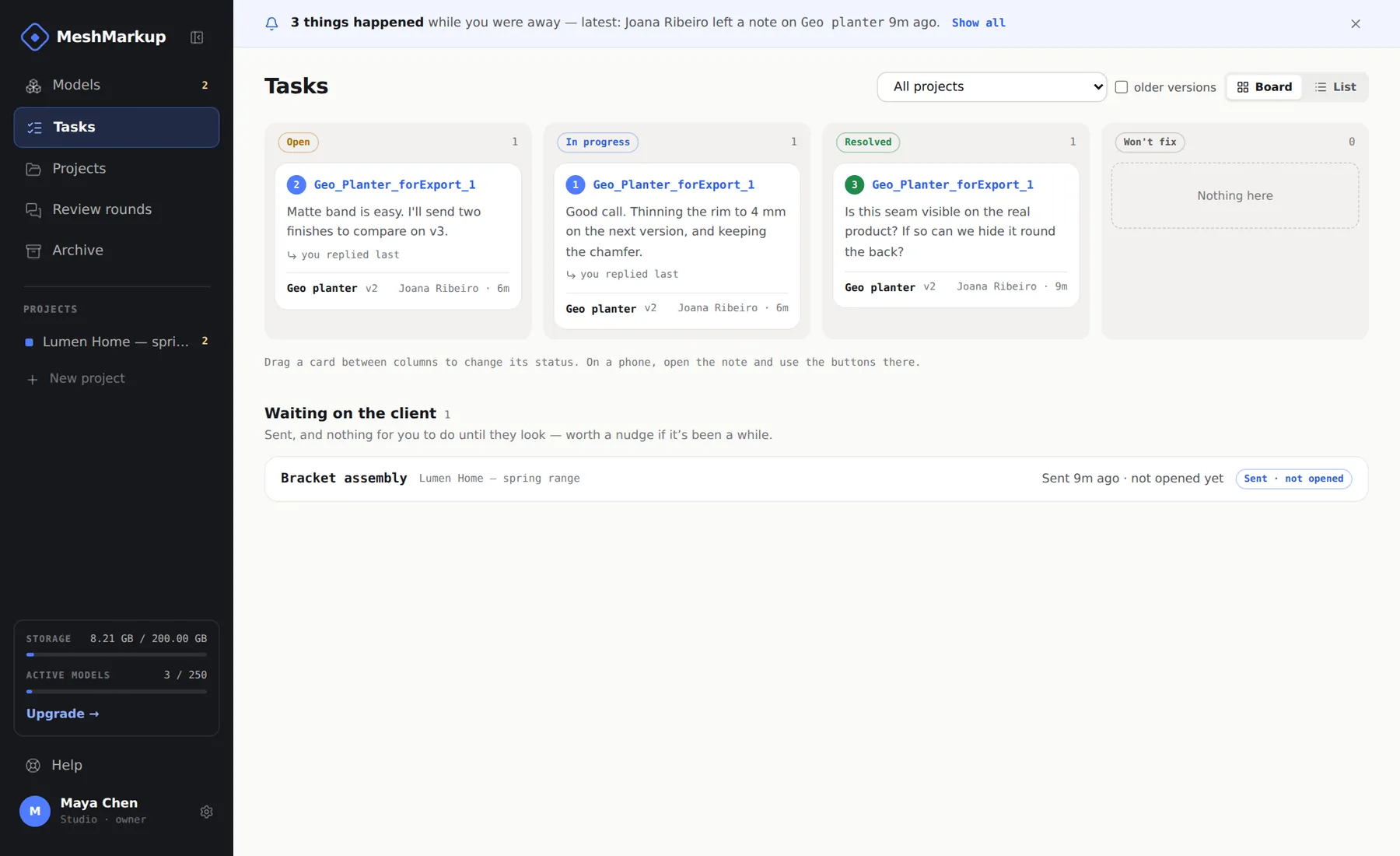
The Tasks page gathers every note across every model in the studio:
- Board has columns for Open, In progress, Resolved and Won't fix; drag a card to change its status. List groups notes by model.
- waiting on you marks notes where the client spoke last, and the chip at the top filters to them. mentions you filters to notes that named you.
- The project menu narrows the page to one project, and Waiting on the client lists models you've sent that nobody has come back on yet.
Everyone in the studio is emailed when a client leaves a note, replies or signs off, unless they switch it off under Settings → Profile with Tell me when feedback arrives. Emails are batched, so a client leaving six notes sends one message. Internal notes email nobody except teammates you @mention.
Bring your clients in: review links and project links
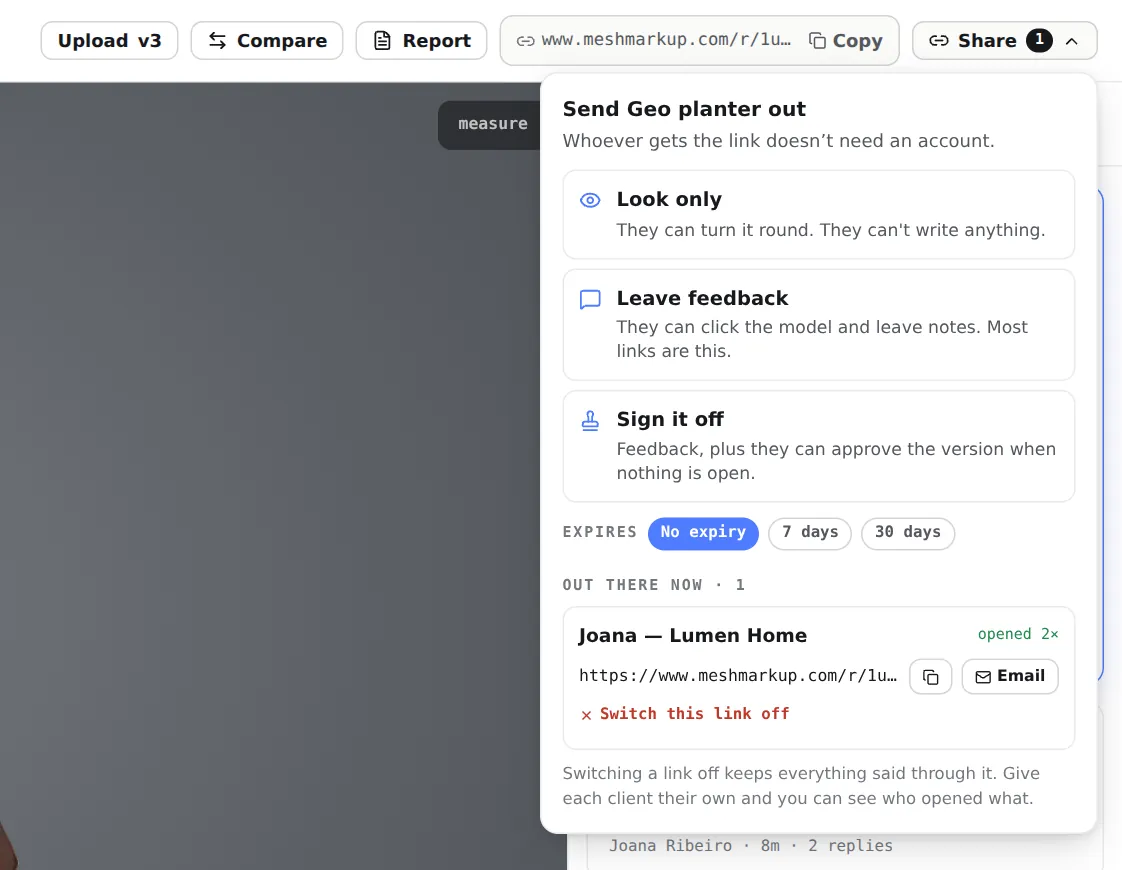
Clients never join your studio. You send them a link:
- A review link opens one version of one model. Create it from the model's Share menu as Look only, Leave feedback or Sign it off (Solo plan and up), with an optional expiry of 7 or 30 days. See review links and permissions.
- A project link opens every model in a project on one page, always at the latest version. Create it with Share the project on the Projects page. See share a whole project.
What a client can see: the model with the lighting you chose, every client-visible note and reply on that version (including notes left through other links to it), and whether a note is Working on it or Fixed.
What they can't see: internal notes, your other models (unless you send a project link), other versions, your Tasks, your settings or who is on your team. Because everyone with a link to the same version shares one thread, give two clients who mustn't see each other's comments different models. What your client sees walks through their screen.
A sensible division of work
Every member can upload, share, reply and change statuses, so how you split the work is up to you. A pattern that works for small teams:
- The modeler uploads. Whoever made the change uploads the new version on the model page. Open notes carry across to it, tagged since v1, so nothing is lost. See versions and comparing.
- One person triages. A lead or producer works through Tasks each day: replies to anything waiting on you, sets IN PROGRESS on what's being fixed, @mentions the right teammate in an internal note, and nudges clients listed under Waiting on the client.
- The modeler closes the loop. Once a fix is in the new version, they mark the note RESOLVED, and the client sees Fixed. If something won't be done, reply with the reason before setting WON'T FIX.
- The client signs off. On Solo and up, send a Sign it off link. Approval is blocked until every note is resolved or won't fix, so sign-off means the list really is clear. See client sign-off.
For the whole process from first upload to approval, see the 3D model review process.
Was this guide helpful?
Related guides
Get feedback on the model, not on a screenshot
Upload a model, send one link, and your client clicks the exact spot. Free to start — no card.