3D viewer with comments: leave notes on a 3D model in your browser
MeshMarkup is a 3D viewer with comments. Open a review link in any browser, click the model and leave a note pinned to that spot, with your camera view saved.
MeshMarkup is a browser-based 3D viewer with comments: someone sends you a review link, the model opens in your browser, and you click any spot on it to leave a note there. The comment is pinned to that point on the geometry and saves the camera angle you were looking from, so the person who made the model sees exactly what you saw. You don't need an account, a plugin or any 3D software.
This guide is written for the person leaving comments, whether you're a client, a colleague or a supplier. If you're the one sending the model, start with share a 3D model online.
Leave a comment on a 3D model
Open the review link
It works in any modern browser on a computer, tablet or phone. A panel beside the model says who sent it and, if they set one, the date they'd like feedback by.
Turn the model to the angle you mean
Drag to rotate, right-drag or two fingers to pan, scroll or pinch to zoom. A drag only turns the model, so you won't open a comment by accident.
Click the spot
Click or tap the surface where something needs to change. A New note box opens and shows the part you clicked.
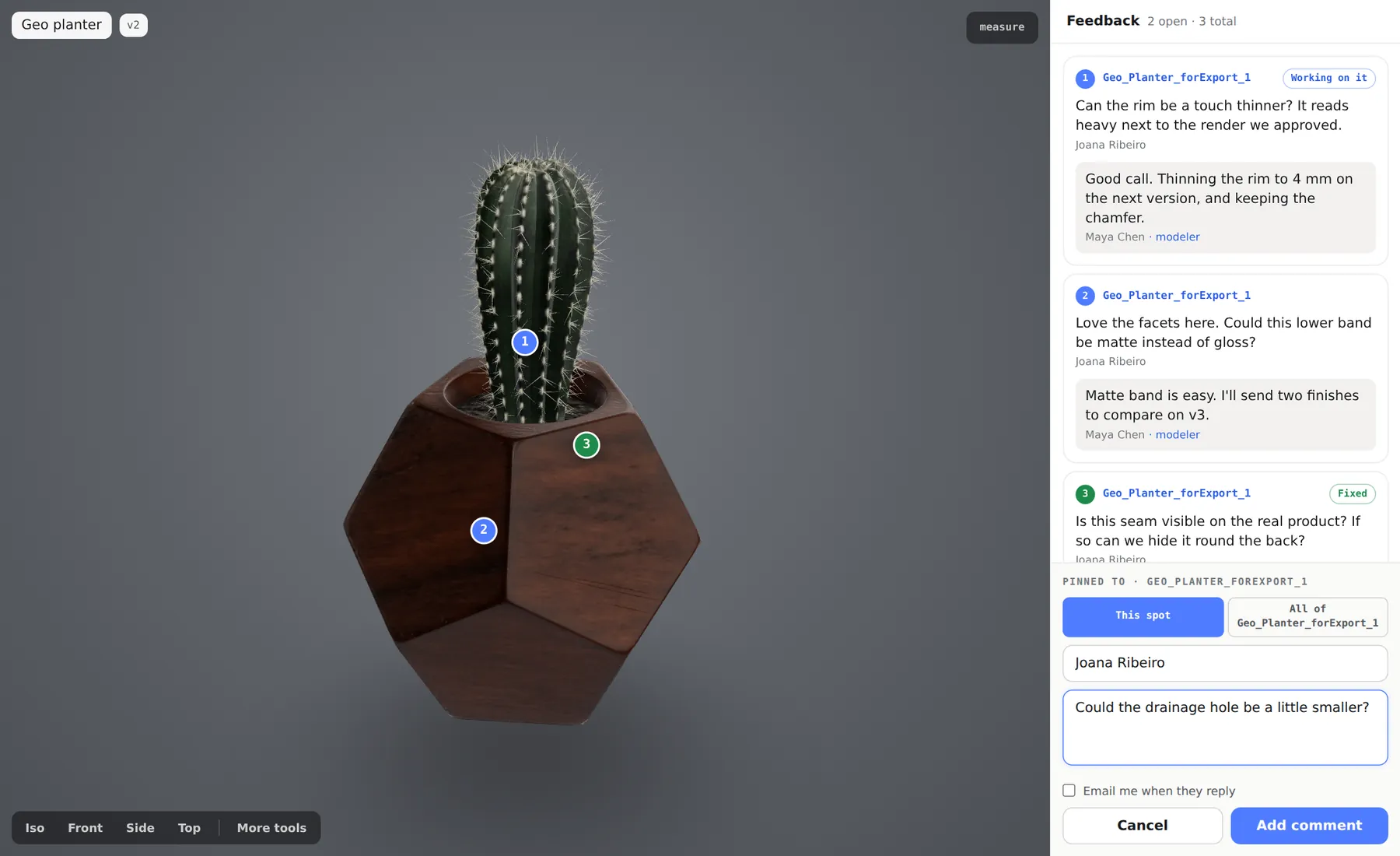
Click the model, then write the note Choose This spot or the whole part
If the part has a name in the file, pick This spot for a point, or All of the part for a comment about the whole component.
Write the note
Type your name under Your name the first time (your browser remembers it), then the comment under What would you like changed here?. Type @ to name someone. Tick Email me when … replies if you want answers by email.
Click Add note
The note appears as a numbered pin, and Saved confirms the sender can see it. There's nothing else to send.
If the sender pinned questions on the model before sharing it, they're listed first. Each one has Looks good to answer in one tap, or Needs a change to type what should change.
What a comment saves
A comment in a 3D viewer is only useful if the person reading it can find what you meant. Each note in MeshMarkup carries:
- The point or part you clicked, shown as a numbered pin on the model.
- Your camera view. Clicking the note later flies the camera back to that angle and distance.
- The version of the model you were looking at, such as v2.
- Your name, so the sender knows who said what.
- A thread of replies underneath, from you, the sender and anyone else reviewing the same version.
- A status the sender sets. You see Working on it when they've started and Fixed when it's done.
Compare that with a comment in an email: "the corner looks wrong" could mean any of eight corners, from any side.
Viewer tools to use before you comment
Your toolbar starts with Reset view and More tools. More tools opens the rest:
| Tool | Use it to |
|---|---|
| Camera views | Jump to Isometric, Front, Side or Top (keys 1 to 4) |
| Display mode | See Wireframe, Clay or X-ray, and turn on Part names on hover |
| Section cut | Cut through the model and comment on the inside; a click on a cut face pins a note there |
| Exploded view | Pull an assembly apart and comment on parts that are normally hidden |
| Parts list | Find a part by name, hide it or show it on its own |
| Measure | Read the distance between two points, then put the number in your note |
| Lighting | Change the light and background for your own view only |
What you change with these tools is for your view only; it doesn't change the model for anyone else. Your comment still saves the camera angle you had. More on the tools in section cut and exploded view and measuring.
Replies and comments on renders
Click any note to select it and fly to its view. A reply box and Send reply sit under it, so you can answer the sender or add to someone else's comment. Replies from the sender are marked · modeler. The page checks for new comments every few seconds while it's open, so you can have a conversation without refreshing.
Some review links also have Images: renders, drawings or a PDF next to the model. Switch to them at the top of the model and comment the same way, with an Arrow, Box, Highlight or Pen mark if words aren't enough. See notes on images and PDFs.
For the sender: reading the comments
On the studio side, comments arrive as numbered pins on the model page and cards in the Comments panel, live while the page is open. From each one you can reply, @mention a teammate, keep a reply internal, and set the status. Tasks lists every comment across every model, and an email arrives when new comments land. When a round is done, Report turns the comments into a printable PDF. See notes, replies and statuses.
Pins are placed through review links rather than on the model page itself, so to add your own comment, open one of your Leave feedback links in another tab.
Questions
Do I need an account to comment?
No. A Leave feedback or Sign it off link takes comments from anyone who has it. You type a name, and that's all. A Look only link shows the model with no comment box.
Can I try it before anyone sends me a link?
Yes. Open the sample review to see a review link from the reviewer's side. You can also drop your own file on the free viewer and click Try adding a note; those notes stay in your browser tab until you choose to send them. See STEP file viewer with annotations.
Does it work on a phone?
Yes. The model sits at the top of the screen with the panel underneath. Tap a spot to start a note; one finger turns the model, two pan, and pinching zooms. See what your client sees.
Why can't I see some other comments?
You see every comment left on the version your link opens. Comments on other versions, and the sender's internal notes, aren't shown.
Was this guide helpful?
Related guides
Get feedback on the model, not on a screenshot
Upload a model, send one link, and your client clicks the exact spot. Free to start — no card.