STEP file viewer with annotations, free in your browser
Open a STEP file in a free online viewer, pin annotations on the parts, then send the model with your notes as a link. What's free and what needs an account.
MeshMarkup's free viewer is a STEP file viewer with annotations: drop a .step or .stp file on it, click Try adding a note, and pin notes on the parts you want to talk about, with no account. When you're ready, send the model with your notes as a link, either to your own client or back to whoever sent you the file. Threaded replies, statuses, versions and sign-off live in the signed-in app.
This guide sets out what you can do in the free viewer, what happens to your notes, and when it's worth moving the model into an account.
Open the STEP file and annotate it
Open the free viewer
Go to /viewer, or the STEP page at /viewer/step, in a desktop browser for big assemblies.
Drop the STEP file on the box
.step, .stp, .iges and .igs all work, and so does a .zip with one of them. The box shows Converting… while the CAD surfaces are turned into a 3D model. It opens with part names, colours and real-world size.
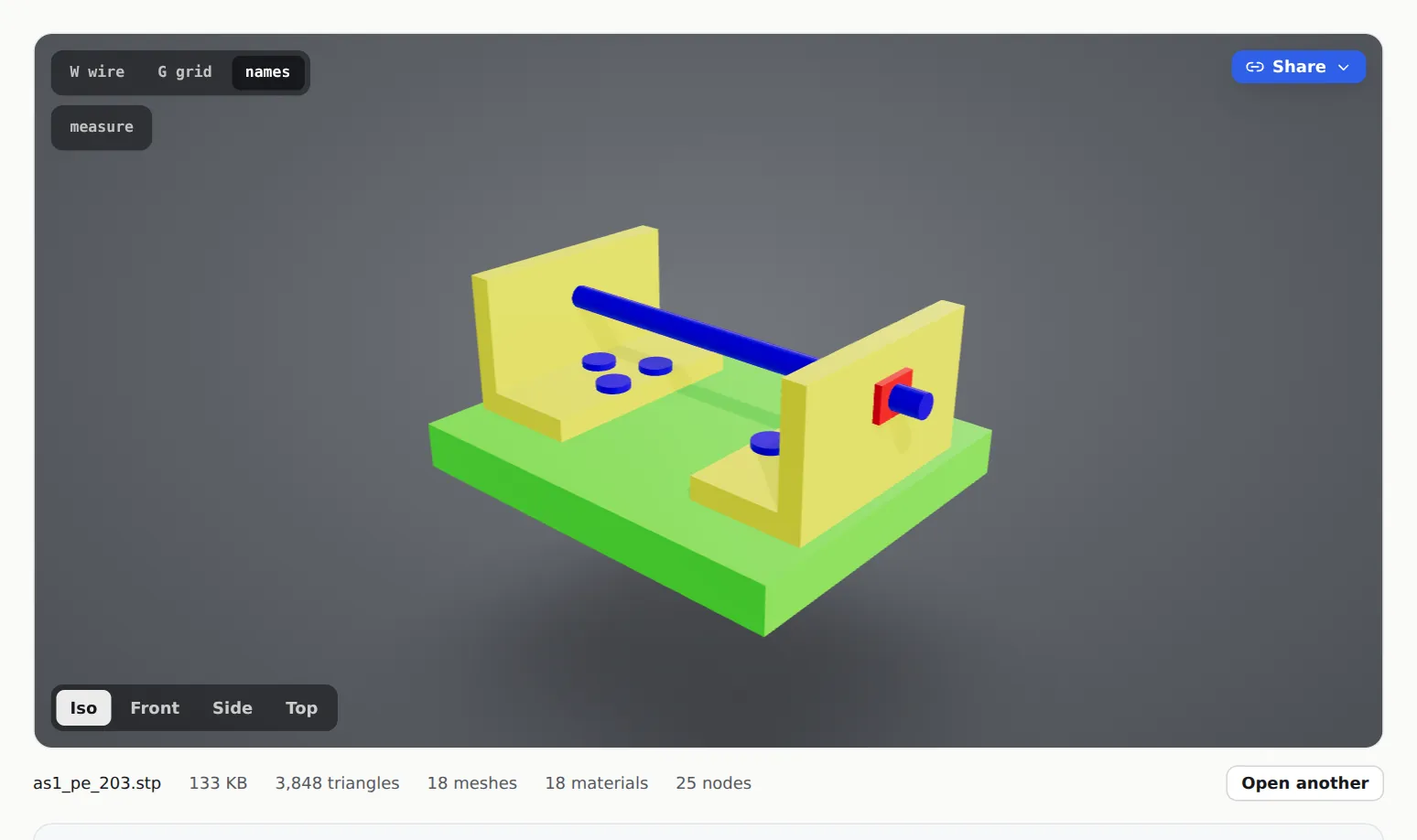
A STEP assembly opened in the free viewer Click Try adding a note
The button sits at the bottom of the stage. The viewer then asks you to Click the spot you want to comment on.
Click the part and write the note
A note box opens with its number and the part's name, such as Note #1 · Bracket. Type the note and click Add note.
Add more, or stop
Your notes are listed under the stage in Your notes. Click Add another to keep going, or Done adding to go back to turning the model freely. Remove note deletes one.
The full walkthrough of opening STEP files, with export settings for each CAD program, is in open a STEP file online.
What the free viewer can do with a STEP file
Everything below works without an account:
| You can | How |
|---|---|
| Read part names | Display mode → Part names on hover (N) |
| Find, hide or isolate parts | Parts list (P) |
| Look inside | Section cut (S) or X-ray (X) |
| Pull the assembly apart | Exploded view (E) |
| Measure | Measure (M), then two points. STEP opens at true size |
| Check the mesh | Wireframe (W), with triangle, mesh, material and node counts under the stage |
| Pin notes | Try adding a note, then click the part |
| Send the notes on | Send with my notes, or Send my notes back |
Most files are read and converted in your own browser. Very large CAD files are converted on MeshMarkup's server instead and deleted as soon as the converted model is back in your browser. Nothing is kept unless you choose to send the model.
Where your notes go
Notes in the free viewer are kept in your browser tab only. Close the tab or open another file and they're gone, unless you send them. There are two ways to send them.
Send the model to your own client
Under Your notes, click Send with my notes. You create a free MeshMarkup account on the way, or go straight through if you're signed in. The model and your notes go into your account, and you get a review link. Your client opens it in their browser, sees your notes pinned on the model and clicks to reply, with no account on their side.
This is the right choice when you made the part and want a client's answer: "Is this clearance enough?", "Chamfer or fillet here?". For the wider picture, see send a STEP file to a client who has no CAD.
Send your notes back to whoever sent you the file
If someone sent you the STEP, click Someone sent you this file? Send your notes back to them. Type your name, their email and, if you want their reply by email, your own. Click Send my notes back. They get an email with a link to the model and your notes, each pinned on the spot it's about. You don't need an account for this.
Sending back works for models up to 50 MB. Above that, the viewer asks you to copy your notes into an email instead.
What needs the signed-in app
The free viewer is for looking and for a first set of notes. The conversation itself happens in the app, where the model lives in your account:
- Threads and statuses. Replies under each note, and OPEN, IN PROGRESS, RESOLVED and WON'T FIX, which your client sees as Working on it and Fixed.
- Review links with permissions. Look only, Leave feedback or Sign it off, with expiry, an opened count and a switch to turn each link off. See review links and permissions.
- A saved starting view. On a model page, a section cut, an exploded view or hidden parts are saved, and the review link opens that way.
- Drawings next to the model. PDFs and parts lists in the Drawings & documents panel. See drawings and documents.
- Versions. Upload a revised STEP onto the same model, carry open notes across and compare with a ghost of the old one (Solo and up).
- Sign-off and records. A Sign it off link (Solo and up) and a printable round report (every plan).
The Free plan covers one project with 3 new models every 30 days and 50 MB of storage, which is enough to try a real job. See plans and billing.
Questions
Is the STEP file itself sent anywhere when I share?
The model is converted before it's sent, and MeshMarkup stores the converted 3D model rather than your STEP file. Your client sees the geometry, part names and colours, not the CAD data.
Can my client add their own annotations?
Yes. On a review link they click the model to pin notes, with no account, and can reply to yours. See 3D viewer with comments.
What doesn't come through from the STEP file?
Sketches, dimensions, PMI and rendering materials. CAD colours are shown with a plain satin finish. For annotating whole assemblies in more depth, see 3D CAD annotation tool.
Was this guide helpful?
Related guides
Get feedback on the model, not on a screenshot
Upload a model, send one link, and your client clicks the exact spot. Free to start — no card.