3D CAD annotation tool: mark up STEP and IGES assemblies in the browser
Use MeshMarkup as a 3D CAD annotation tool. Upload a STEP or IGES assembly, then pin notes on parts, cut faces and exploded views in the browser.
A 3D CAD annotation tool lets people mark up the model itself rather than a drawing of it. In MeshMarkup you upload a STEP or IGES assembly, it opens in the browser with its part names, colours and real size, and anyone you send a review link to can pin a note to a point, a whole part, a cut face or an exploded component. Nobody needs a CAD licence or an account to add a note, and every note keeps the camera angle it was written from.
This guide is for engineers, product designers and the people who review their work: buyers, managers, manufacturers and clients who don't run CAD.
3D markup vs 2D PDF markup
Most CAD feedback still happens on PDFs: someone prints the drawing to PDF, a reviewer draws a cloud round a view and writes "check this". That works when the question fits a 2D view. It breaks down when it doesn't.
| Marking up a PDF drawing | 3D markup in MeshMarkup | |
|---|---|---|
| What's annotated | A projection of the part, chosen by whoever made the drawing | The part itself, from any angle the reviewer picks |
| Hidden features | Need a section view someone drew in advance | The reviewer cuts through the model and comments on the cut face |
| Which part | Balloon numbers and a parts table | Click the part; the note can cover All of that part by name |
| Dimensions | Read from the drawing | Read from the drawing, or measured on the model |
| Revisions | A new PDF and a fresh round of clouds | Open notes move to the next version, with a ghost of the old one to compare |
| Who can take part | Anyone with a PDF reader | Anyone with a browser |
The drawing isn't going away: it carries tolerances, PMI and title-block information that a 3D view doesn't. MeshMarkup keeps both, with the drawing next to the model. See Keep the drawing next to the model below.
Get the assembly ready for markup
Export STEP AP214 or AP242
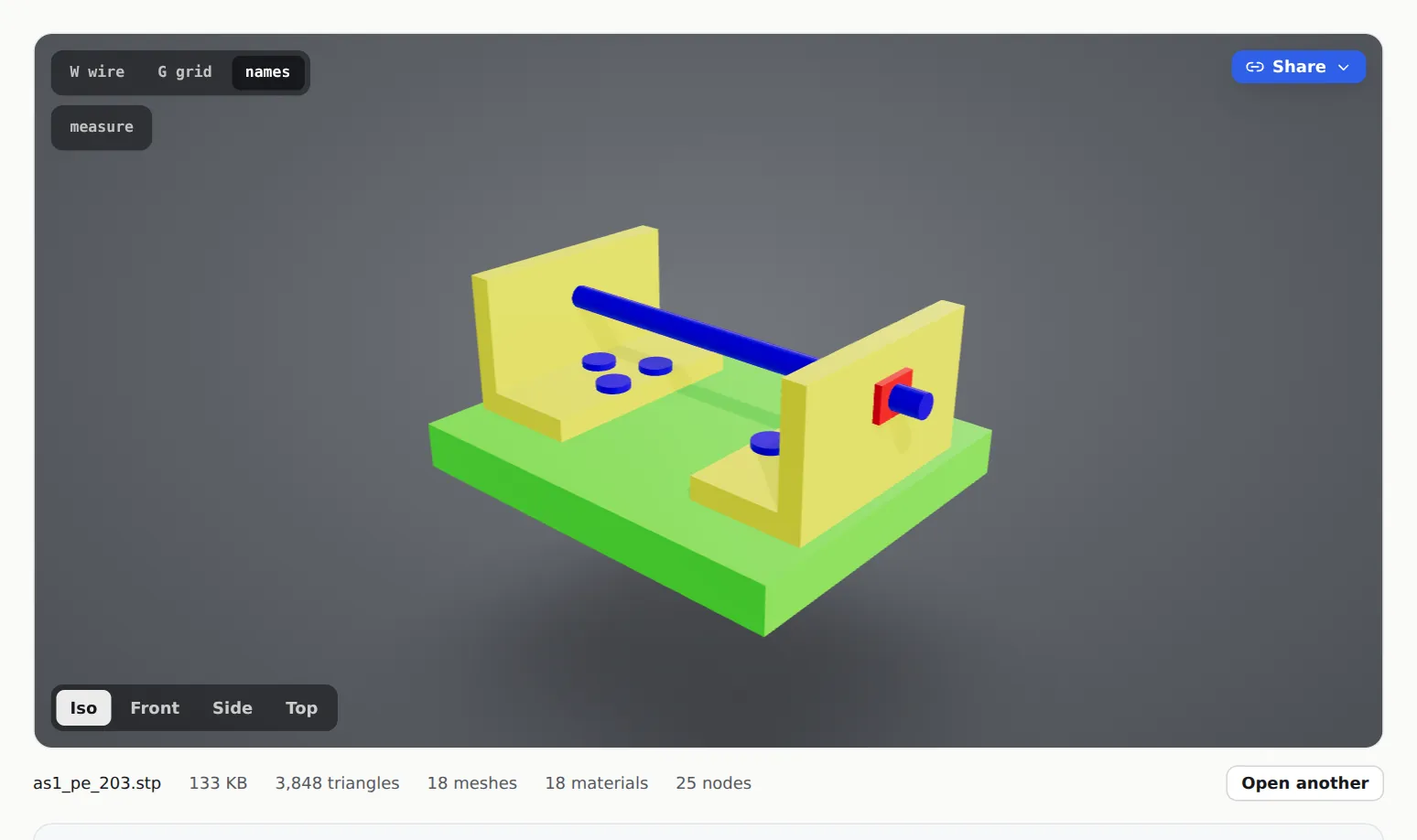
Both carry part names and colours. AP203 often comes through grey. App-specific steps are in export STEP from SolidWorks, Fusion and Onshape.
Name the parts in CAD
The names in the file are the names reviewers see and pin notes to. "Bearing housing" is more use than "Part7".
Leave out what nobody needs to see
Fasteners, internal purchased parts and library hardware add weight without adding anything to the review.
Upload it on Models
Drop the .step, .stp, .iges or .igs file on Models, or a .zip with several part files or with the drawing and parts list. Files are converted to a 3D model in your browser; very large CAD files are converted on MeshMarkup's server instead. Either way MeshMarkup stores the converted model, not your STEP file.
If you only want to look first, the free viewer opens STEP and IGES without an account. See open a STEP file online.
Marking up an assembly
Click Share for review on the model page and choose Leave feedback. Your reviewer opens the link, turns the assembly, and clicks where they want to comment. The viewer's tools make CAD markup more precise than a click on the outside of the model:
- Notes on a whole part. When a clicked part has a name, the reviewer chooses This spot or All of that part. Selecting a part note highlights the whole part.
- Notes on a cut face. Section cut (S) slices the model along X, Y or Z and fills the cut faces, so a solid reads as solid. Clicking a cut face pins a note right on it, which suits "this wall is too thin". See section cut and exploded view.
- Notes on an exploded assembly. Exploded view (E) spreads parts out from the middle or along one axis. Notes stay on their part as it moves, and a note added while exploded lands on the right part when the model is put back together.
- Hidden and isolated parts. The Parts list (P) finds a part by name, hides what's in the way or shows one part on its own. See parts list.
- Measured values in the note. Measure (M) gives the distance between two points. STEP and IGES come in at true size, so a 40 mm hole measures 4.0 cm. Measurements aren't saved, so the number goes in the note.
You set the starting view: on your model page, a cut, an explode or hidden parts are saved, and the review link opens that way. Reviewers can change the view for themselves without changing what you saved.
For the click-by-click of placing a note, see annotate a 3D model online.
Keep the drawing next to the model
The Drawings & documents button on the viewer's toolbar keeps PDFs, Excel or CSV parts lists and pictures with the model. Zip the STEP with its drawing and parts list, drop the zip on Models, and they're linked to the model. Each document has a Visible to clients switch; drawings start visible, spreadsheets start hidden. See drawings and documents.
When you want the reviewer to mark up the drawing itself, add it with Add images instead. PDFs added there take notes with an Arrow, Box, Highlight or Pen mark, in the same list as the notes on the 3D model. See notes on images and PDFs.
Answer, revise and approve
Each note has a thread and a status: OPEN, IN PROGRESS, RESOLVED or WON'T FIX. Reply where the reviewer can see it, or click internal to discuss it with your team only. Every note across every model is on Tasks.
When the design changes, export a new STEP and click Upload v2 on the same model. Open notes move across with their replies, and Compare shows the old version as a ghost so the reviewer can see what moved. On the last round, a Sign it off link (Solo plan and up) records who approved which version, and it's refused while notes are open. See versions and comparing, client sign-off and, for a process to wrap round it, engineering design review.
Questions
Does the 3D view show PMI, dimensions or sketches from the CAD file?
No. A STEP opens as solids and surfaces with part names and colours. Dimensions, tolerances and sketches aren't shown, which is why the drawing belongs next to the model.
Can the reviewer download my STEP file?
MeshMarkup stores the converted 3D model, not the STEP, so the CAD data is never sent to the reviewer.
Do reviewers need CAD software?
No. A review link opens in any modern browser on a computer, tablet or phone, with no account. For sending a part to someone without CAD, see send a STEP file to a client who has no CAD.
Was this guide helpful?
Related guides
Get feedback on the model, not on a screenshot
Upload a model, send one link, and your client clicks the exact spot. Free to start — no card.