How to annotate and mark up a 3D model online
Pin notes to a spot or a whole part of a 3D model in the browser, each saving the camera view. Reply, set statuses, add measurements and follow notes to v2.
To annotate a 3D model online with MeshMarkup, open a Leave feedback review link in any browser, turn the model to the angle you mean, click the spot, type your note and click Add note. The note becomes a numbered pin on the surface (or on a whole part), and it saves the camera view, so whoever opens it later sees exactly what you saw. Your studio then replies, @mentions teammates and marks the note IN PROGRESS, RESOLVED or WON'T FIX.
How annotation works in MeshMarkup
An annotation here is a note pinned to the model itself, not to a picture of it. Each note has:
- A pin, numbered in order, either on the exact point that was clicked or on a whole named part.
- The camera view at the moment it was written. Clicking the note later flies the camera back to that angle and distance.
- A thread of replies underneath it.
- A status: OPEN, IN PROGRESS, RESOLVED or WON'T FIX.
Notes are placed on review links. Your reviewers (clients, their colleagues, anyone you send a Leave feedback or Sign it off link to) click the model to pin them, with no account. Your model page in the app is where your studio reads and answers them; clicking the model there doesn't open a note, which is why it says Your reviewer clicks the model to pin a comment. A Look only link lets people turn and measure the model but not annotate it.
Place a note on the model
Share a Leave feedback link
On the model page, click Share for review (or Share) and choose Leave feedback. The link is created and copied. See review links and permissions.
Open the link and find the angle
Drag to rotate, right-drag or two fingers to pan, scroll or pinch to zoom. The Camera views button on the toolbar down the left edge (or the keys 1 to 4) jumps to the Isometric, Front, Side and Top views. The angle you're looking from is the one the note will save.
Click the exact spot
Click (or tap) the surface. A drag only turns the model, even if it starts on the model, so you won't open a note by accident while orbiting. A New note box opens under the panel, showing the part you clicked.
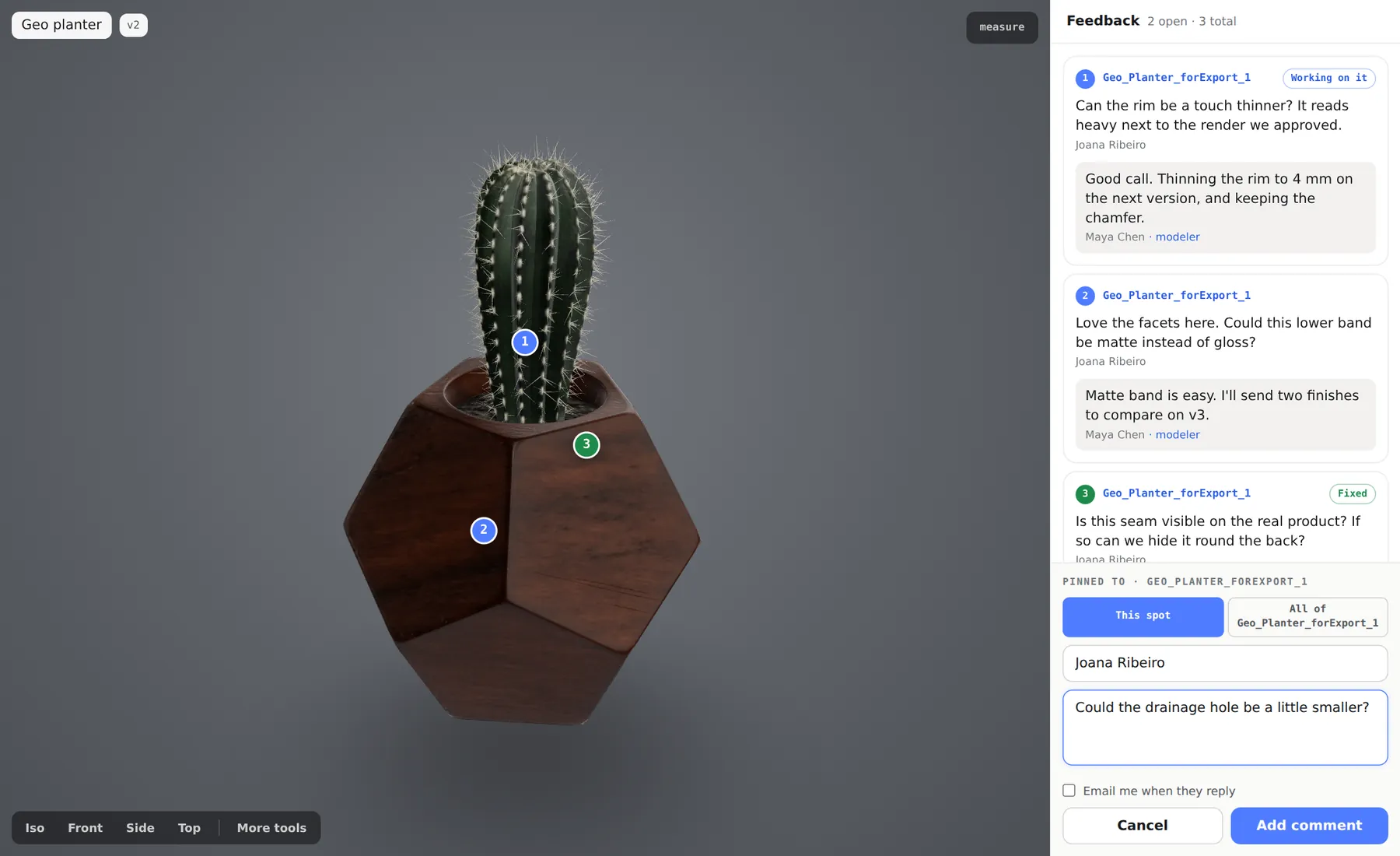
Click the model, then describe what needs changing Choose This spot or the whole part
If the part has a name in the file, pick This spot for a point, or All of part for a comment about the whole component. Unnamed geometry is pinned to the model and has no choice.
Write the note
Type your name under Your name (the browser remembers it next time), then the note under What would you like changed here?. Type @ to name someone from the studio or another reviewer. Tick Email me when … replies and add an address if you want to hear back by email.
Click Add note
The pin appears on the model with its number, and the studio sees it straight away. Cancel throws the draft away.
Notes pinned to a whole part
A part note is for feedback like "make the whole handle matte black", where one dot on a 40-part assembly wouldn't say which piece you mean. When a part note is selected, that whole part is highlighted on the model. The part name comes from your file, so name your objects before you export if you want reviewers to have this choice.
To see the name of the part under the pointer, open Display mode on the left toolbar and turn on Part names on hover (or press N). The same toolbar has wireframe (W) and a floor grid (G). Esc deselects the current note.
Reply, @mention and set a status
Clicking a note, in the panel or on its pin, flies the camera to the view it was written from and opens its thread. On a review link, the reply box sits under the selected note with Send reply. On your model page, your studio gets the same thread plus:
- Send for a reply the client sees, marked · modeler on their link.
- internal, to keep a reply inside your studio. The client never sees it.
- The four status buttons: OPEN, IN PROGRESS, RESOLVED and WON'T FIX. Your client sees Working on it for in progress and Fixed for resolved.
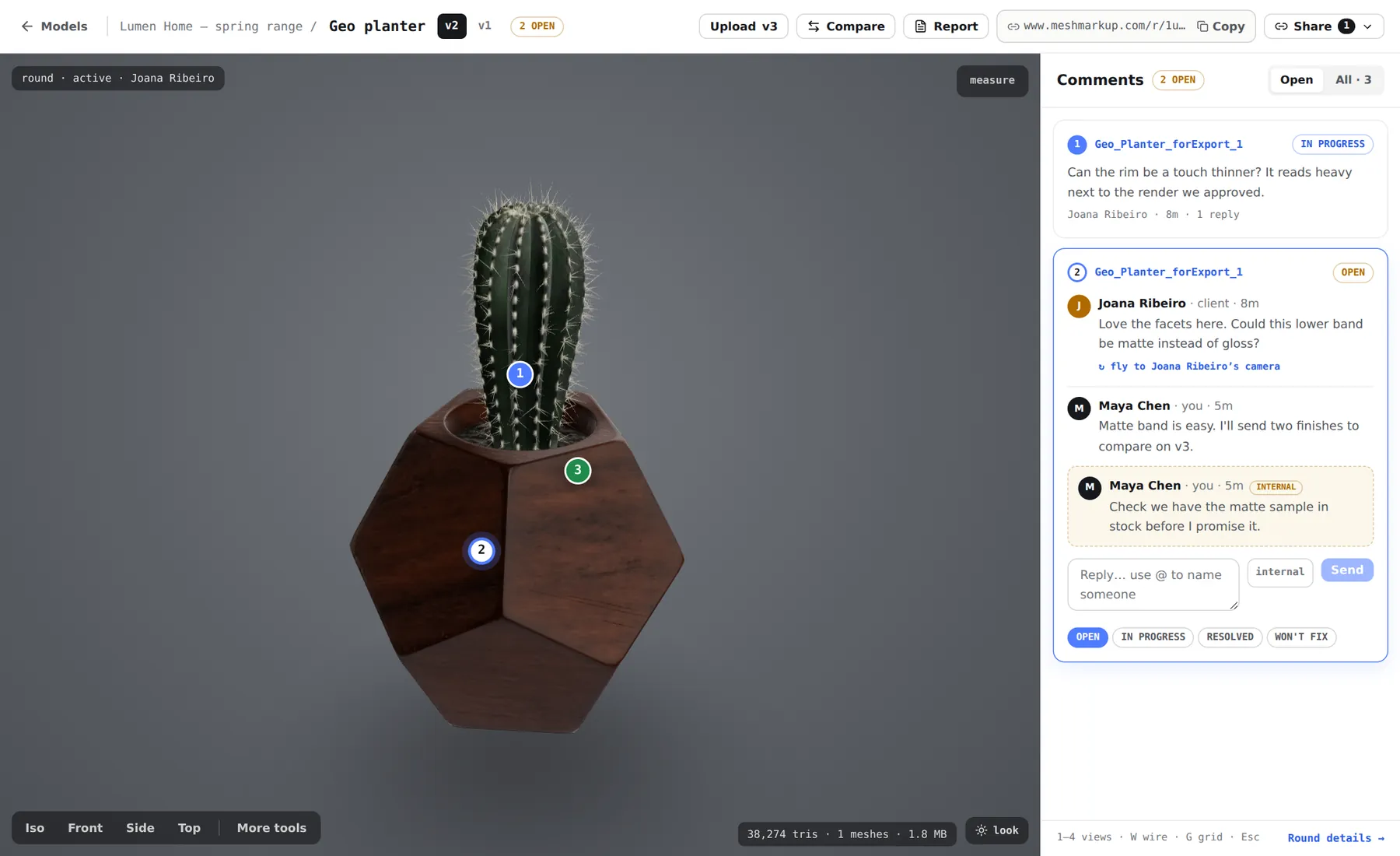
Every note waiting on you, across every model, is also on the Tasks page. The details of replies, internal notes and mentions are in notes, replies and statuses.
Add exact dimensions with the measure tool
"The slot is too narrow" starts a conversation; "the slot is 4.2 mm and needs to be 6" ends one. Anyone on a review link can measure before they write:
Click Measure
It's the ruler button on the toolbar down the left edge of the viewer (or press M), and it stays highlighted while it's on.
Click two points on the model
An amber line joins them, with the straight-line distance at its middle.
Put the number in the note
Click Measure again to leave measuring mode, then click the spot and write the note with the dimension in it.
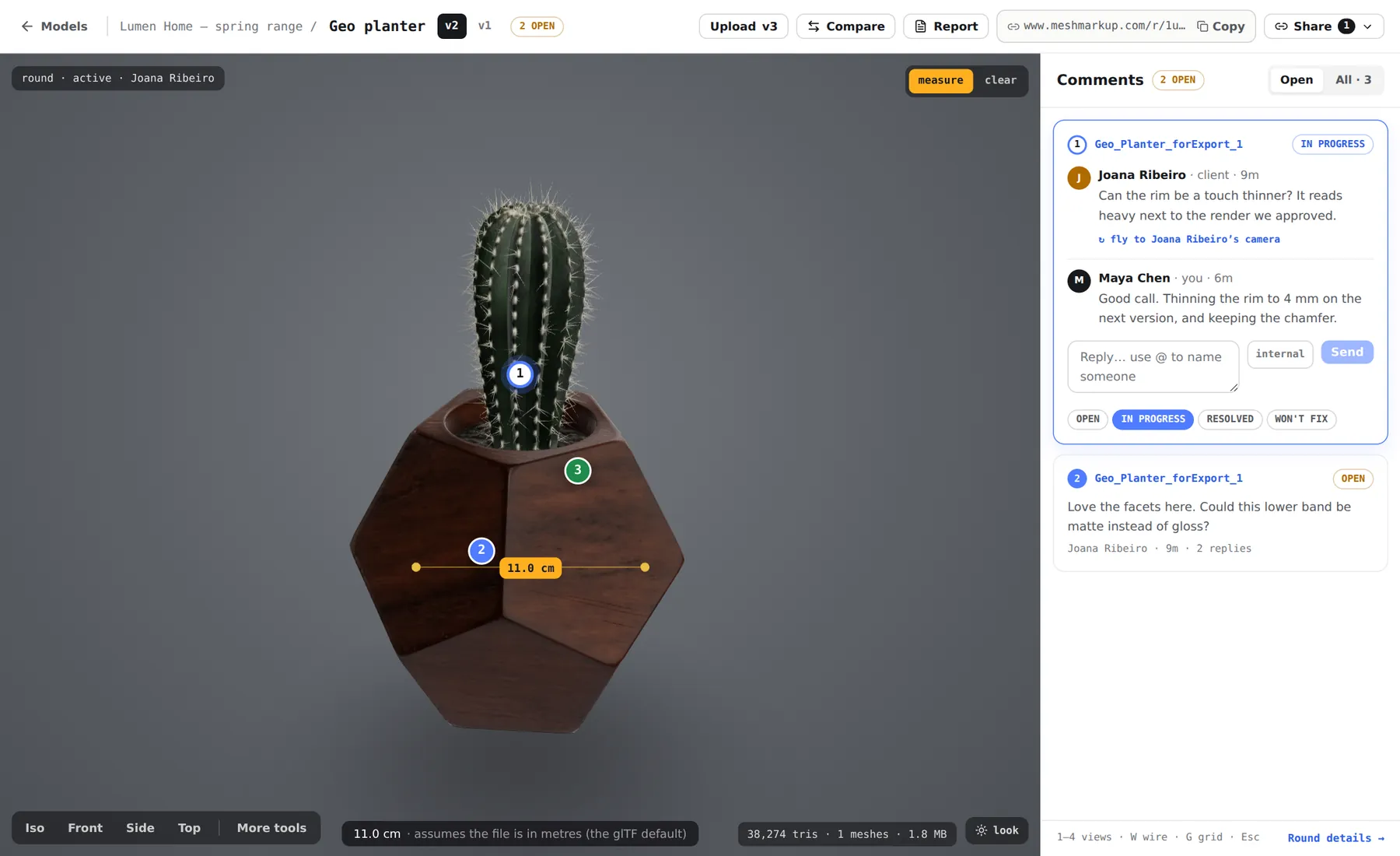
While measuring, clicks drop measuring points, not notes. Measurements aren't saved or sent to anyone, so the note is where the number goes on the record. Distances are right when the file is in metres; see how to measure a 3D model for which formats come in at real size.
Notes on the next version
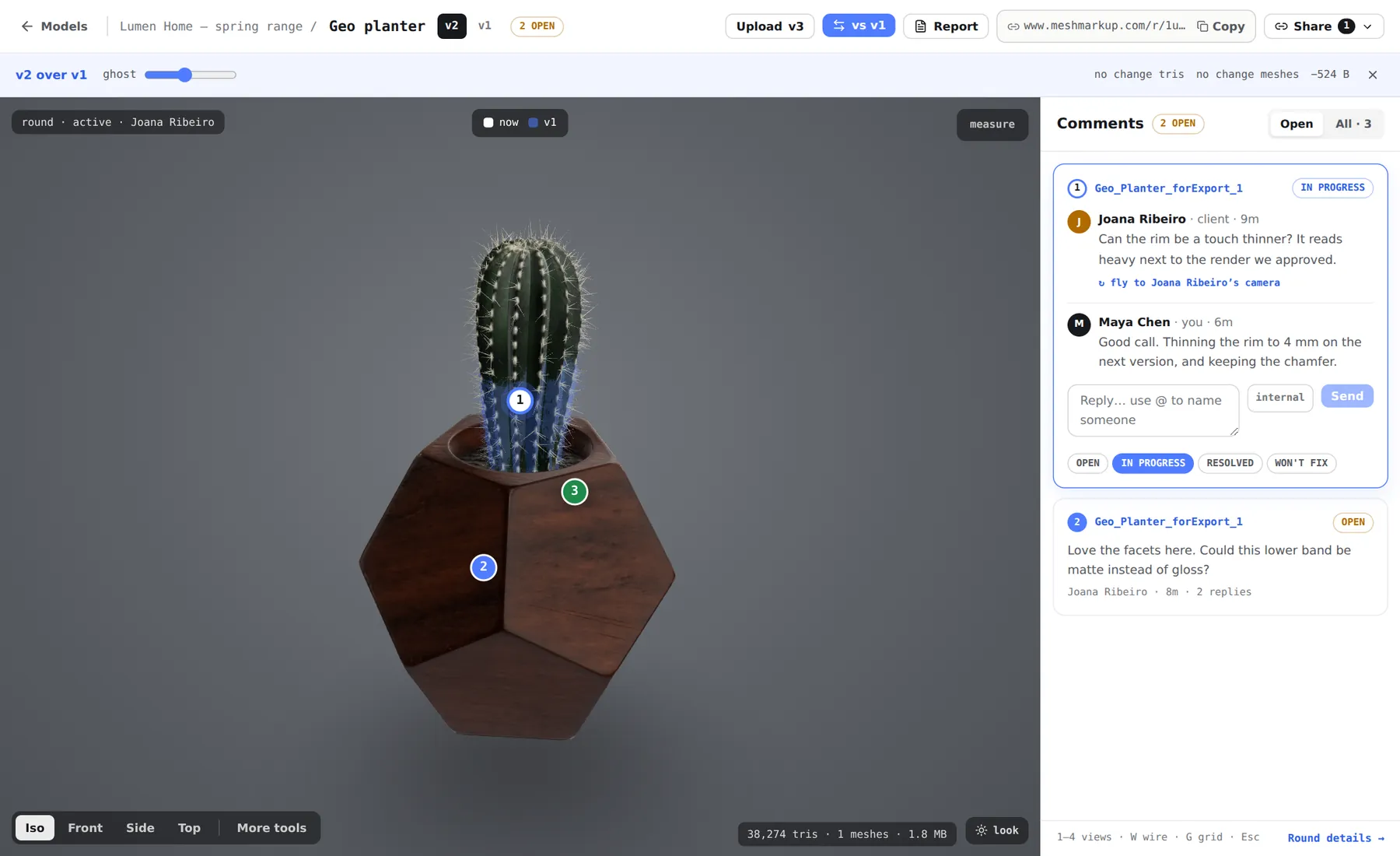
When you upload v2, every note that's still OPEN or IN PROGRESS on v1 is copied onto v2 with its replies, its position and its saved camera, and tagged since v1. Resolved and won't-fix notes stay on v1 as the record of what was settled there. A carried note may have a different number on the new version.
To check the changes against the old notes, click Compare on the model page and pick the earlier version. It's drawn as a ghost underneath, and its notes show as dashed pins you can switch on and off with the v1 notes checkbox. Send your client a new link for v2: a model link stays on the version it was made for. See versions and comparing.
Annotations vs marked-up screenshots
Drawing arrows on screenshots works, but it loses what makes a 3D model worth reviewing:
| Pinned 3D notes | Marked-up screenshots | |
|---|---|---|
| Angle | Saved with the note; one click to see it | Fixed to whichever angle was captured |
| Where on the model | On the surface, or on a named part | Wherever the arrow was drawn |
| Replies | A thread under each note | Usually a separate email chain |
| Status | Open, in progress, resolved or won't fix | Tracked by hand, if at all |
| Next version | Open notes are copied across to it | Re-shoot and re-annotate |
Screenshots still have their place, such as a render for a presentation. For collecting and closing feedback, pinned notes keep the conversation on the model. To turn a finished round into a document, the printable round report gives each note with its rendered view and thread.
Choosing a 3D model annotation tool for the job
MeshMarkup works as online 3D annotation software for any model it opens, but the job shapes how you use it:
- CAD assemblies. For STEP and IGES parts, the useful markup happens on cut faces, exploded parts and whole named components, with the drawing kept beside the model. See 3D CAD annotation tool.
- Reviewers who just want to comment. If you're the one leaving notes rather than sending the model, 3D viewer with comments walks through the reviewer's side, including how to try it before anyone sends you a link.
Whichever it is, the notes behave the same way: pinned to the geometry, saved with the camera view, answered in a thread and carried to the next version while they're open.
Was this guide helpful?
Related guides
Get feedback on the model, not on a screenshot
Upload a model, send one link, and your client clicks the exact spot. Free to start — no card.