How to collect client feedback on 3D models (without screenshots and email chains)
Collect client feedback on a 3D model as notes pinned to the geometry with the client's camera view saved, then reply, track and export it in one place.
To collect client feedback on a 3D model, send your client a Leave feedback review link instead of screenshots or renders. They open the model in their browser, click the exact spot they mean and type a note; the note is pinned to that point on the geometry, with the camera angle they were looking from. You answer, set a status and track every note from one place, and nobody has to describe "the bit on the left" in an email.
Why screenshots and email chains don't work for 3D
Feedback on a flat drawing can be circled on a PDF. Feedback on a 3D model is harder, because the thing being discussed has a back, an inside and a hundred possible angles.
- Which view? A screenshot shows one angle. "The edge looks too sharp" could mean four edges, and a render hides whatever is behind it.
- Which version? Screenshots don't say whether they came from v2 or v3, and old attachments keep circulating after you've fixed the problem.
- Which thread? Comments end up split across emails, chat and marked-up PDFs, and one "looks good apart from the handle" reply gets lost under another.
- Renders aren't the model. A render shows the angles you picked. Reviewing the 3D model lets the client look underneath and behind, and find the problems a render would hide.
In MeshMarkup each note belongs to a point on the model, a saved camera and a numbered version. Click a note and you see what your client saw, on the version they were looking at, with the whole conversation underneath.
Collect feedback in five steps
Upload the model
On Models, click Upload model or drop the file onto Drop a model here. GLB is best; FBX, OBJ, STL, STEP and other formats are converted for you. See uploading 3D models.
Create a Leave feedback link
Open the model and click Share for review. Choose an expiry if you want one, then click Leave feedback. The link is created and copied.
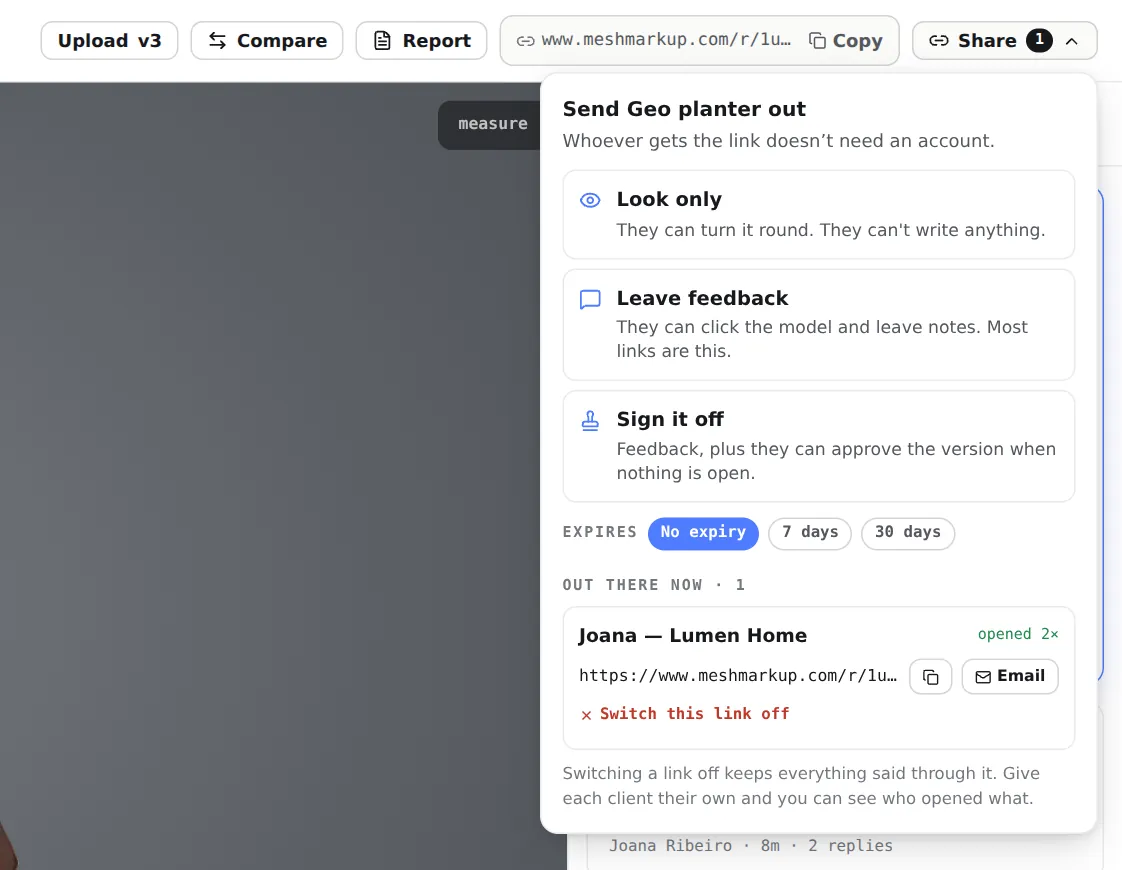
Leave feedback is the right link for almost every review Send it to your client
Paste it anywhere, or click Email next to the link and MeshMarkup sends it for you. Give each client their own link, so the Share menu's opened count tells you who has looked.
Your client pins their notes
They click the spot on the model, type their name and a note, and click Add note. No account or download is needed. If they tick Email me when … replies, they're emailed when you answer.
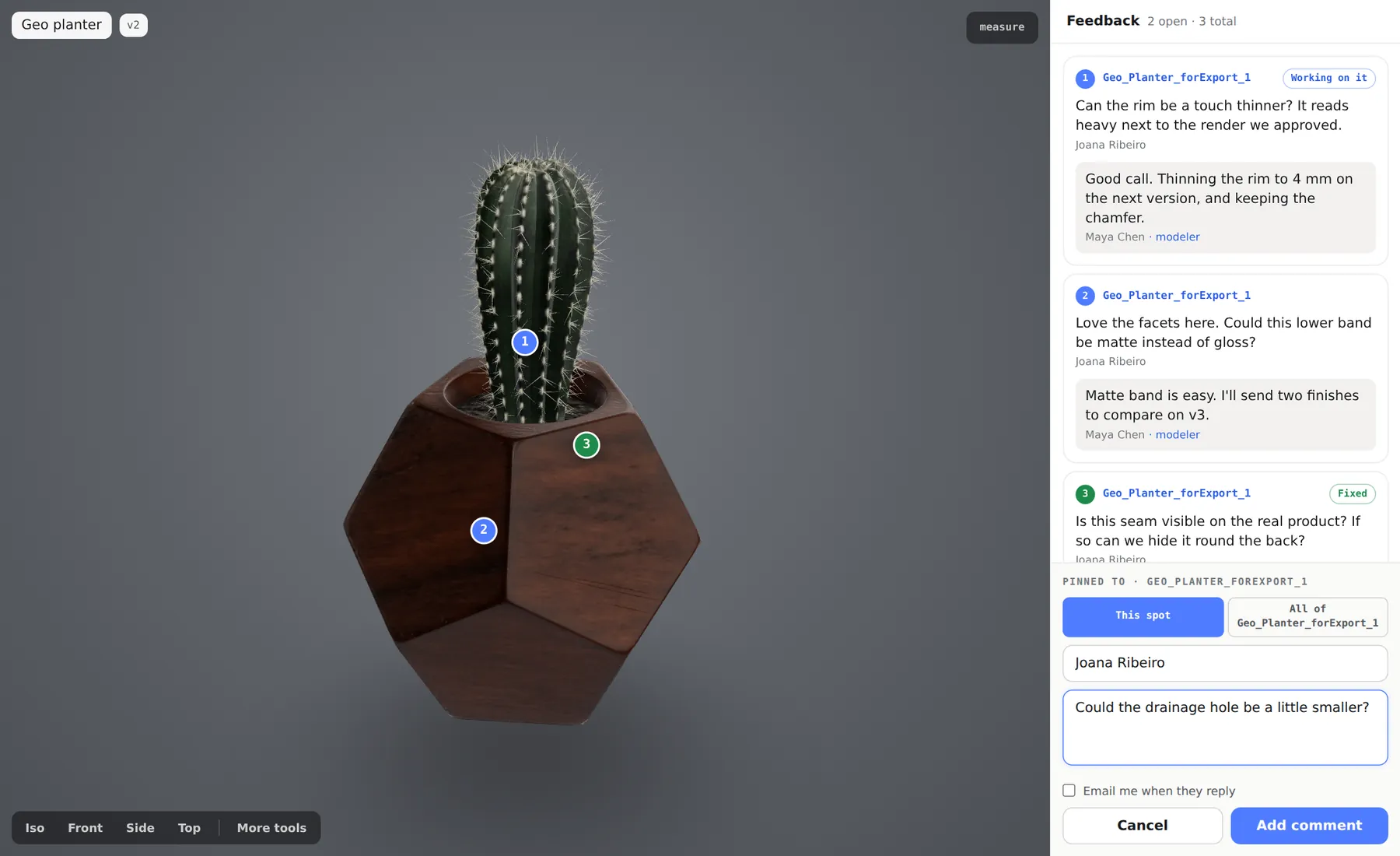
The client clicks the model, then writes the note Read the notes as they arrive
Each note appears on your model as a numbered pin and a card in the Comments panel. Click one and the camera flies to your client's view.
For the full walkthrough of the client's screen, see what your client sees. For more on pinning notes to points and parts, see annotating a 3D model online.
Reply, discuss and set a status
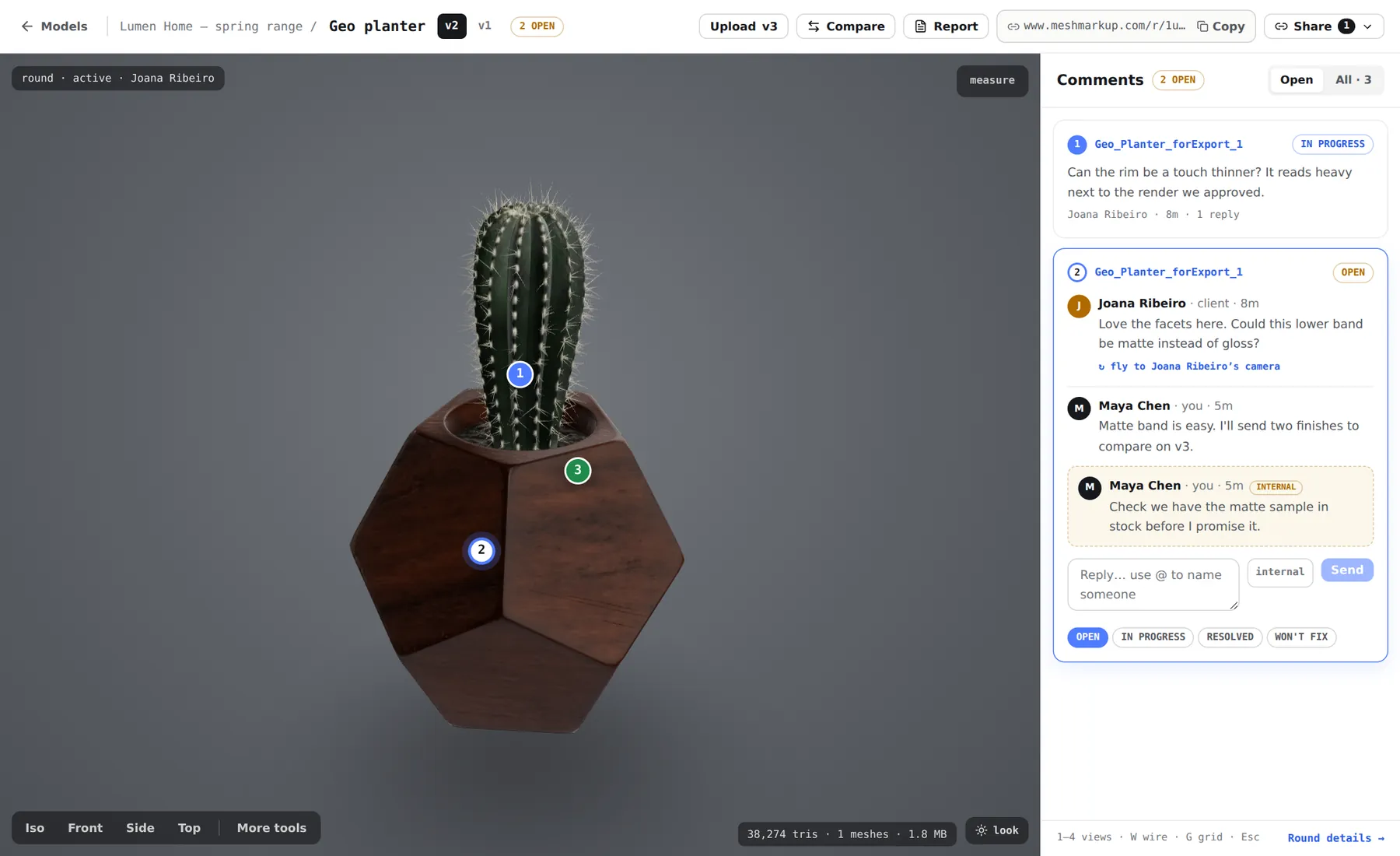
Select a note to open its thread. From there:
- Reply in the box that reads Reply… use @ to name someone, then click Send. Your client sees the reply on their link, marked as from the modeler.
- @mention a teammate or a reviewer by typing @ and picking a name. The person you name gets an email, and the note counts towards their mentions you filter on Tasks.
- Keep it internal by clicking internal before you send. Internal notes show an INTERNAL tag, never reach the client and are left out of the round report. Check the button before your next reply, because it stays on until you click it again.
- Set the status with the four buttons: OPEN, IN PROGRESS, RESOLVED or WON'T FIX. Your client sees Working on it and Fixed, so they know where things stand without asking.
Every detail is in notes, replies and statuses.
Use Tasks as your feedback queue
Tasks lists every note across every model, so eight models in review is one page rather than eight.
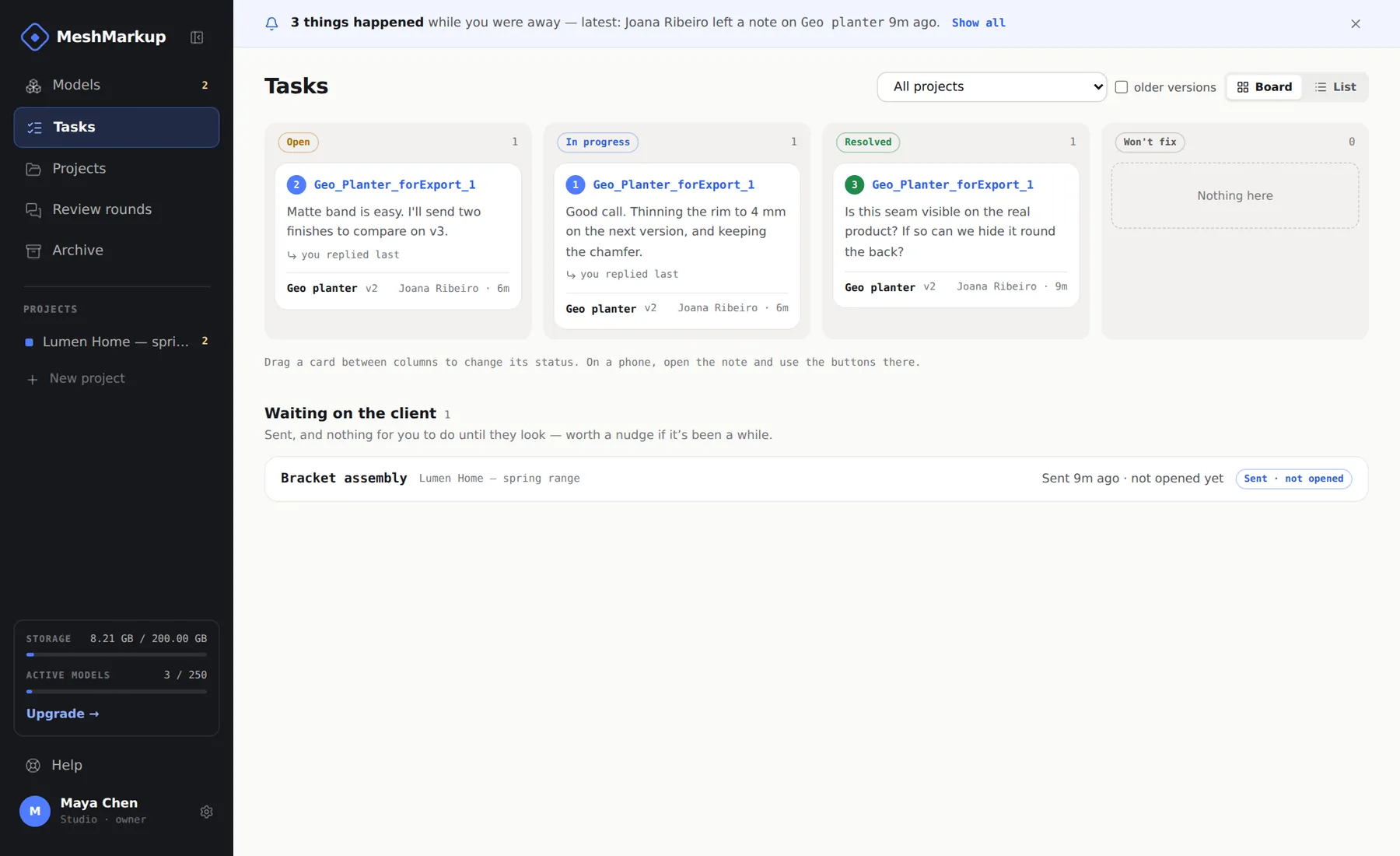
- Board has Open, In progress, Resolved and Won't fix columns. Drag a card to change its status.
- List groups the notes by model.
- waiting on you marks notes where the client spoke last; click the chip at the top to see only those.
- mentions you shows the notes that named you.
- Waiting on the client lists models you've sent that nobody has come back on yet, so you know whom to nudge.
Clicking a card opens the model at that note's view.
Hear about feedback when it lands
You don't need to keep the page open. When a client leaves a note, replies or signs off, you get an email. Notes that arrive close together are gathered into one email, so a client leaving six notes sends one message. Turn these on or off with Tell me when feedback arrives in .
Keep a record of the round
When a round is done, click Report on the model page. MeshMarkup renders each note from its saved camera, with its thread and status, and Save as PDF opens your browser's print dialog. Internal notes are left out, so the report can go straight to the client or into the project folder. It's included on every plan. See export a round as a PDF.
Feedback on renders, and choosing a 3D design feedback tool
How to get feedback on 3D models depends on what the client is judging. Shape, fit and proportion are best judged on the model itself. Materials, light and framing are often easier on a render, so MeshMarkup takes both in the same review link: renders and PDFs sit beside the model, and the client pins notes on them with an arrow, box or highlight. See 3D render feedback.
If you're comparing 3D design feedback tools for client work more broadly, see 3D client review software.
Was this guide helpful?
Related guides
Get feedback on the model, not on a screenshot
Upload a model, send one link, and your client clicks the exact spot. Free to start — no card.