3D client review software: what your client gets and what your studio gets
What good 3D client review software looks like from both sides. Your client opens a link on any browser or phone with no account; your studio tracks every note.
3D client review software should be easy for the client and organised for the studio. The best way to review a 3D model with a client is to send a link that opens the model in their browser, with no account or download, so they can click the spot they mean and leave a note; your side then collects every note in one place, with replies, statuses and versions. That's how MeshMarkup works, and this guide looks at it from both sides of the link.
What makes a client review work
Most review problems aren't about the 3D at all. They come from the gap between the person who made the model and the person who has to judge it:
- the client can't open the file, or has to install a viewer to try,
- they describe a problem in words ("the bit near the top") and you guess which bit,
- feedback arrives in four places and one comment goes missing,
- nobody is sure which version a comment was about.
Good client review software closes that gap from the client's end first. If the client can't comfortably leave a note in under a minute, nothing on the studio side will save the round.
The client's side: a link, any browser, any device
Your client gets a link by email or chat. When they open it:
- No account, no install, no download. It runs in any modern browser on a computer, tablet or phone. They type their name once, the first time they send anything.
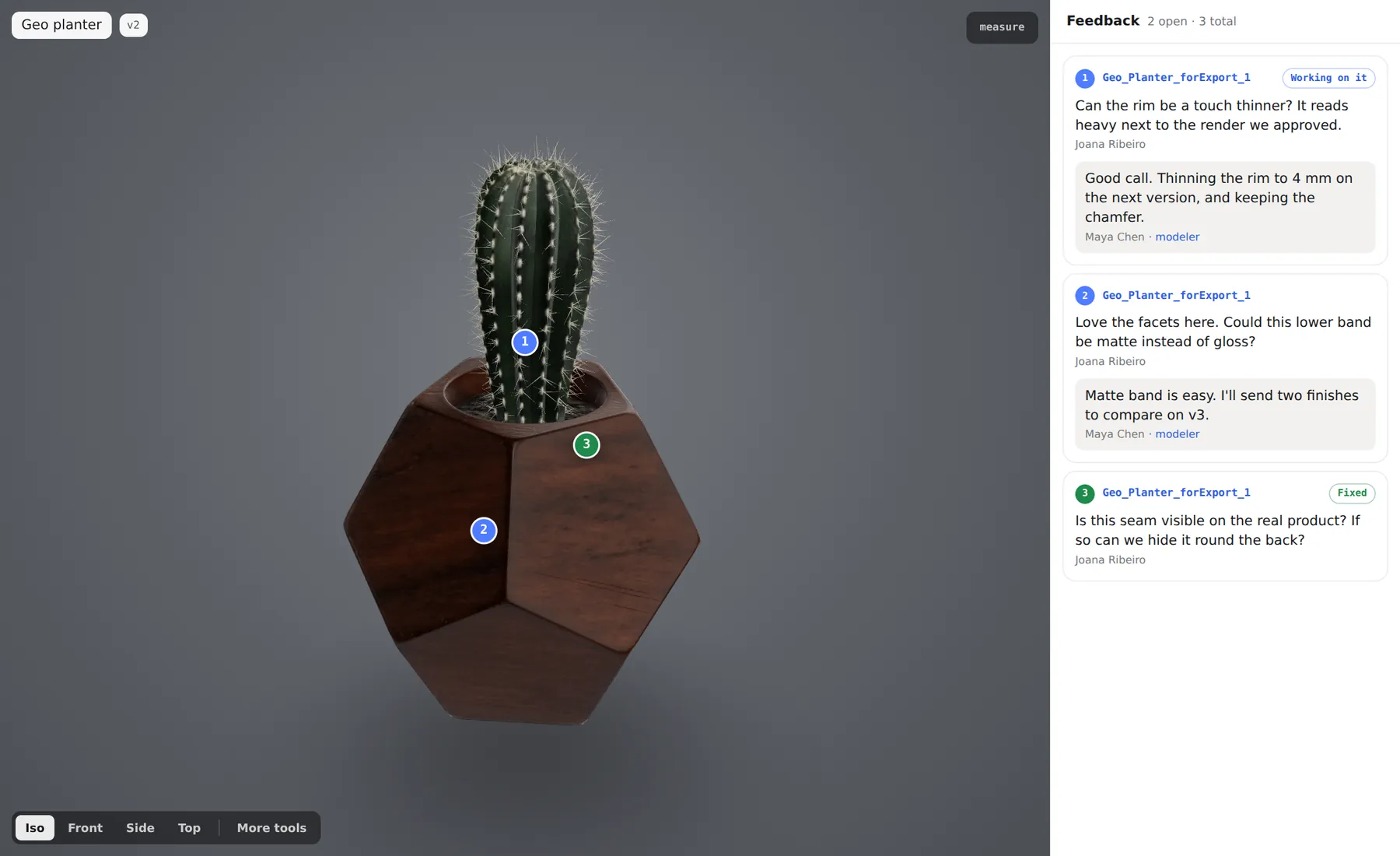
- They know who sent it and what you want. The top of the panel says who sent it, the model's name and version, and Feedback by with a date if you set one. How to give feedback lists the steps in plain words.
- They answer your questions in one tap. Questions you pinned before sending show first, each with Looks good and Needs a change.
- They point instead of describing. A click on the model opens a note box; the note is pinned to that spot, or to the whole part if it has a name in your file, and keeps the camera angle they were looking from.
- They can check things themselves. More tools opens measuring, section cut, exploded view, the parts list and camera views, so "how wide is it?" doesn't need an email.
- They see progress. Your replies appear on the link, marked as from the modeler, and notes you're working on read Working on it, then Fixed.
On a phone
Many clients open review links from their phone, often straight from an email. The model fills the top of the screen and the panel sits underneath. One finger turns it, two pan, a pinch zooms, and a tap starts a note. Very large models are slower on a phone, so reduce the file size before sending if your file is heavy.
The full walkthrough is in what your client sees.
The studio's side: one place for every round
On your side, each note arrives as a numbered pin on the model and a card in the Comments panel. Click it and the camera flies to the client's view.
- Reply, or talk privately. Reply in the thread, or click internal for a comment only your studio sees. Internal notes never reach the link or the round report.
- Set a status. OPEN, IN PROGRESS, RESOLVED or WON'T FIX.
- Work from one queue. Tasks lists every note across every model. waiting on you marks notes where the client spoke last, and Waiting on the client lists models nobody has come back on.
- Hear about it. You're emailed when feedback arrives, gathered so six notes send one email, and when a client first opens a link. On Solo and up you can post into a Slack channel, and integrations such as task tools can turn client notes into tasks, where configured.
- Chase without chasing. Set Ask for feedback by and add the client's email; MeshMarkup reminds them in your name and stops when they answer. See feedback-by dates and reminders.
A client review workflow for a small studio
A typical round for a freelancer or a small studio:
Upload the model on Models. STEP, FBX, OBJ, Rhino 3DM and other formats are converted in your browser. Blender users can send a scene with the Blender add-on.
Check the size with Measure and set the lighting the client will see.
Share a Leave feedback link, one per client so the opened count tells you who has looked.
Answer the notes, fix the model and upload v2 on the same model; open notes carry across.
Close with a Sign it off link on the final version (Solo plan and up) and save the round report as a PDF.
For more detail on each step, see the 3D model review workflow. If you're mainly sharing renders rather than models, 3D render feedback covers the image side.
Choosing the right kind of link
| Situation | Link |
|---|---|
| Showing work in progress, no notes wanted | Look only |
| A normal review round | Leave feedback |
| Several models for one client | A project link, always on the latest versions |
| The final round, approval needed | Sign it off (Solo, Studio and Pipeline) |
| Someone who only needs to glance at a file you were sent | The free viewer |
Links can expire after 7 or 30 days, or never, and you can switch any one off. Everyone with a link to the same version sees the same client-visible notes, so if two clients mustn't see each other's comments, give them different models. See review links and permissions.
What it costs to bring clients in
Reviewers are unlimited and free on every plan: they never sign up and never use a seat. Your plan sets what you can put in (models, versions, storage) and what your studio gets, such as sign-off on Solo and up. The Free plan is enough to run a real review on one job; versions start on Solo. See pricing.
FAQ
Does the client need any 3D software?
No. The model opens in their browser. They never download the file.
Can the client see my other models?
No, unless you send a project link. A model link shows only the version it was made for, without your Tasks, settings or team.
What about a manager who won't open a link?
Once the round has notes, send them the round report. Report on the model page saves every note with a picture from its camera and its replies as a PDF they can read on paper or attach to an email.
Was this guide helpful?
Related guides
Get feedback on the model, not on a screenshot
Upload a model, send one link, and your client clicks the exact spot. Free to start — no card.