How to run a 3D model review with a client: the complete workflow
The whole 3D model review loop in MeshMarkup, from exporting and uploading to client notes, a second version, sign-off and a PDF record of the round.
A 3D model review runs in a loop: you upload the model, send your client a review link, they pin notes to the exact spot on the model, you answer and fix them, then upload the next version and send it back. In MeshMarkup every round lives on one model, so open notes are copied to the new version with their replies, you can overlay v1 and v2, and the final round can end with the client's sign-off and a PDF report as the record.
This guide walks through the whole loop once, end to end, and links to the detailed guide for each step. If you're still choosing a tool, 3D model review software covers what to look for.
The review workflow, step by step
Export the model from your 3D app
GLB is the best format for a review, because it carries the geometry, materials and textures in one file. MeshMarkup also opens FBX, OBJ, STL, PLY, DAE, STEP, IGES, 3DM, 3MF and 3DS, and converts them for you. There's a guide for each 3D app, such as Blender and SolidWorks. A client doesn't need production detail, so if the file is heavy, reduce its size first; it will open faster on their laptop or phone.
Upload it
On Models, click Upload model or drop the file onto Drop a model here. Anything that isn't GLB or glTF is converted to GLB in your browser before it uploads. More in uploading 3D models.
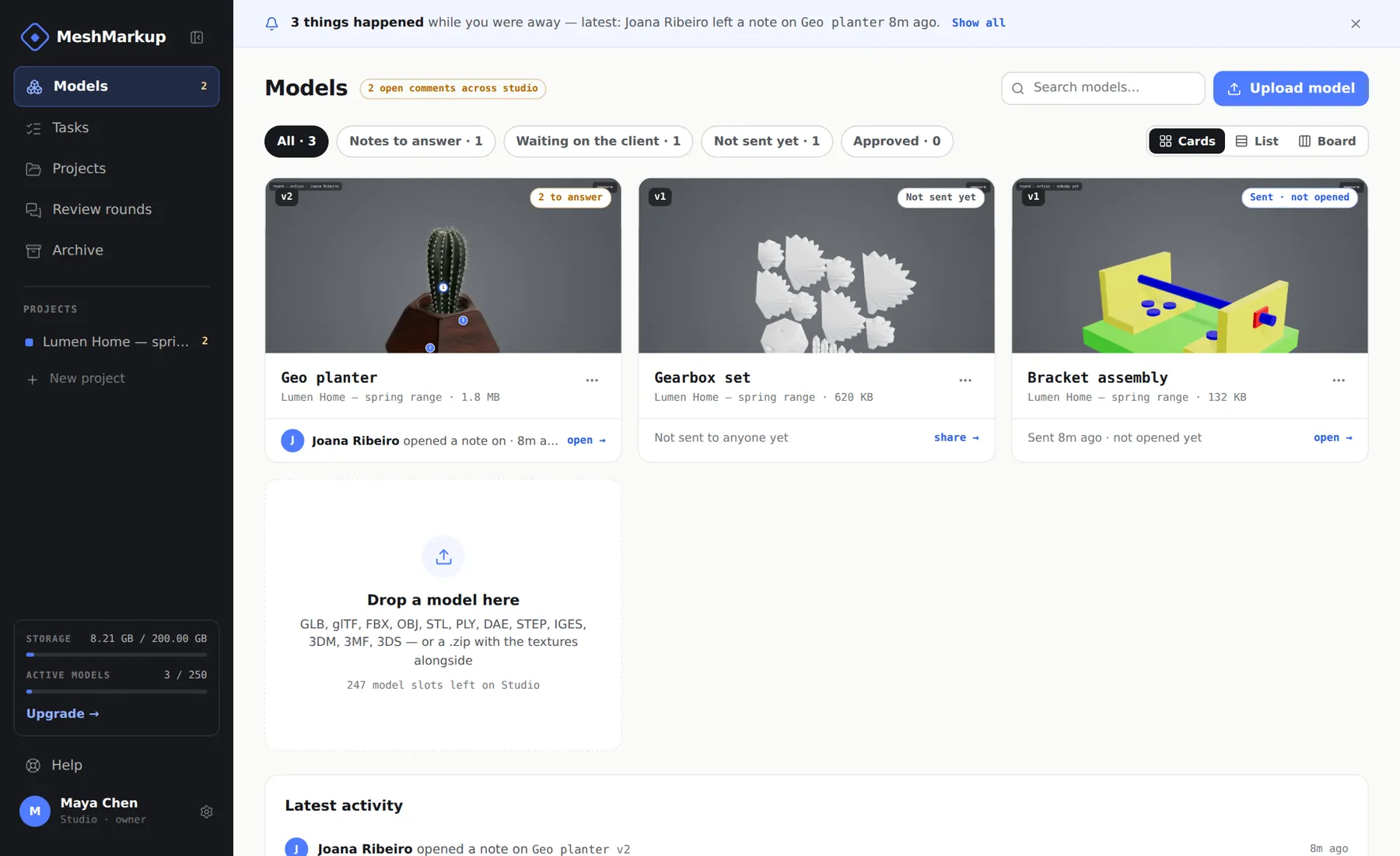
Your models, with Upload model top right Check it before anyone else sees it
Open the model and turn it round. Click Lighting on the toolbar down the left edge of the viewer to set the lighting preset, brightness, background and shadows; your client sees exactly what you set. Click Measure on the same toolbar and then two points to confirm the model came in at the right size. See lighting and backgrounds and measuring.
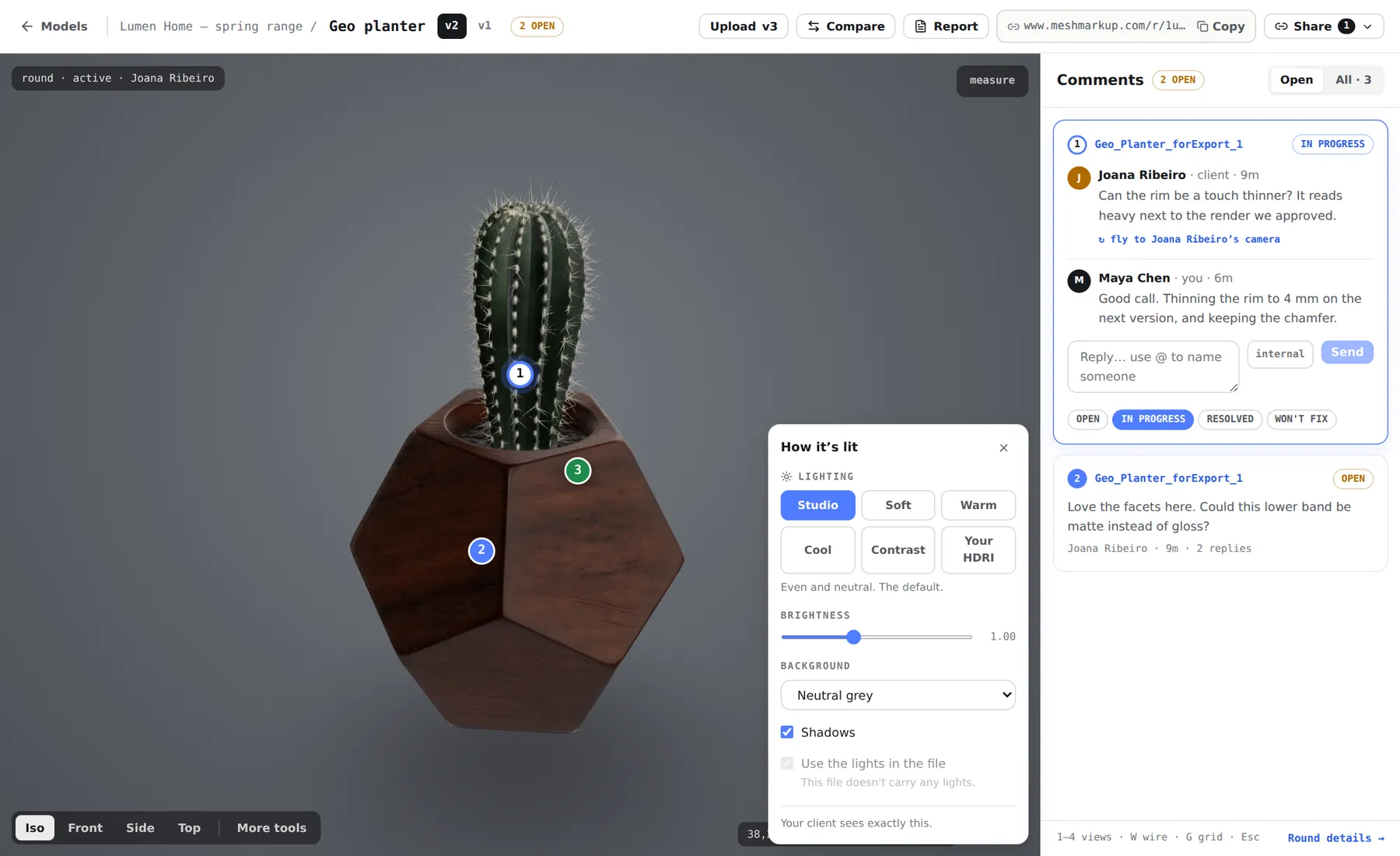
The look panel: what you set here is what the client sees Create a review link
Click Share for review. Pick an expiry first (No expiry, 7 days or 30 days), then the kind of link. Leave feedback is right for working rounds. The link is created and copied straight away.
Send it
Paste it into your own email or chat, or click Email next to the link to send it from MeshMarkup with a short note.
Let the client leave notes
They open the link in their browser with no account, click the spot they mean, type their name and a note, and click Add note. Each note is saved with the camera angle they were looking from.
Triage the notes
Reply, set a status on each note, and use Tasks to see everything waiting on you across every model.
Upload v2 and go again
Upload the revised file onto the same model, check what moved with Compare, and send a fresh link for the new version.
Close it out
On the last round, ask for approval with a Sign it off link (Solo plan and up), and save the round report as a PDF.
Choosing the right link
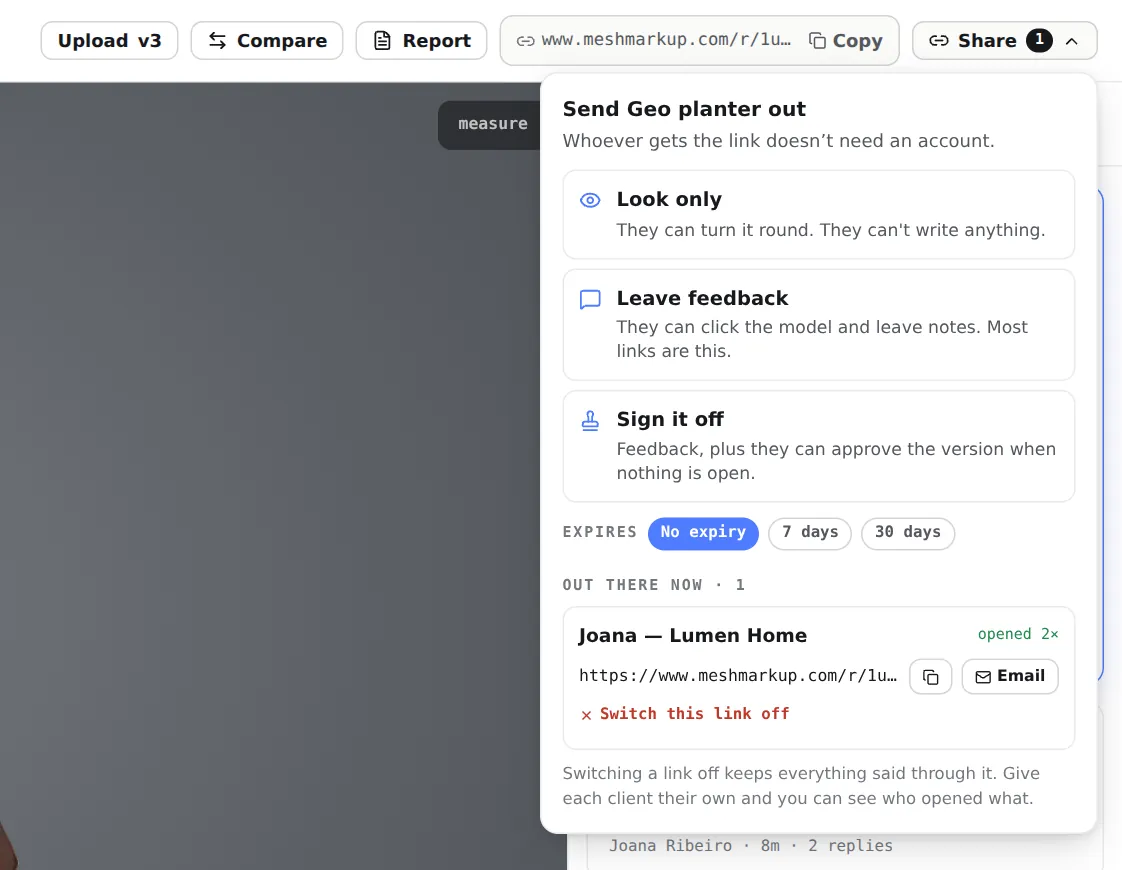
| Link | What the client can do | Use it for |
|---|---|---|
| Look only | Turn the model round, zoom and measure | Showing progress when you don't want notes yet |
| Leave feedback | Pin notes on the model and reply | Every working round |
| Sign it off | Everything above, plus approve the version | The final round (Solo plan and up) |
The Share menu shows how many times each link has been opened. Give each client their own link, so you can see who has looked and switch one person's link off without affecting anyone else. Full details in review links and permissions.
To send several models at once, a project link opens every model in a project from one page and always shows the latest version of each.
What the client does
Your client doesn't sign up or install anything. The model opens with a panel beside it that says who sent it, by when you'd like feedback and how to give it, and a hint over the model to click a spot to leave a note. They answer any questions you pinned with one tap, click the spot they mean, type their name once, write what needs changing, and click Add note. If the spot is on a named part, they can pin the note to This spot or to the whole part. They can reply to your answers, name people with @, and tick Email me when … replies if they want to hear back by email.
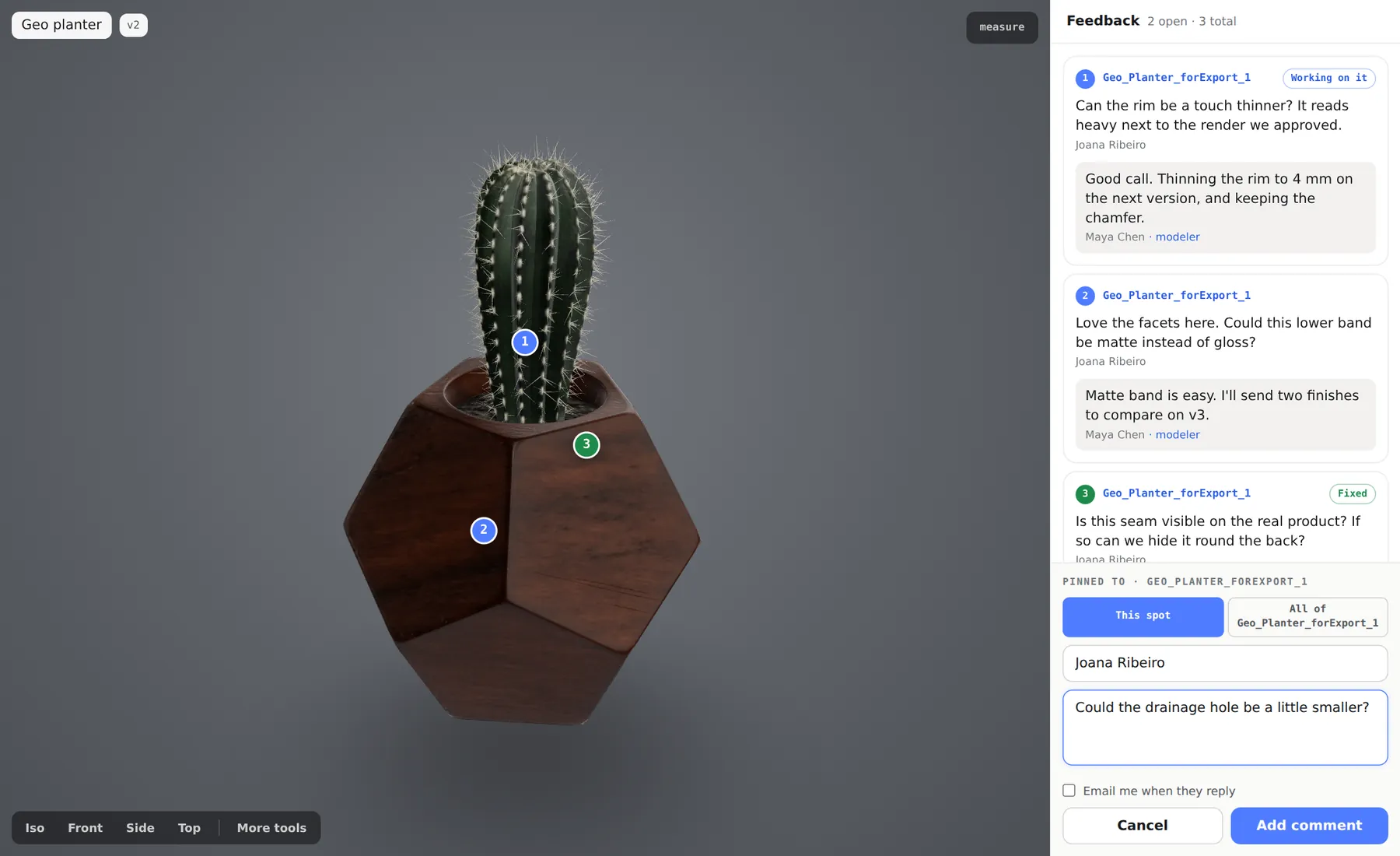
Walk through it yourself in what your client sees.
Triage the feedback
Notes appear on your model page as numbered pins and as cards in the Comments panel; the page updates while you have it open. Click a note and the camera flies to the view your client had when they wrote it.
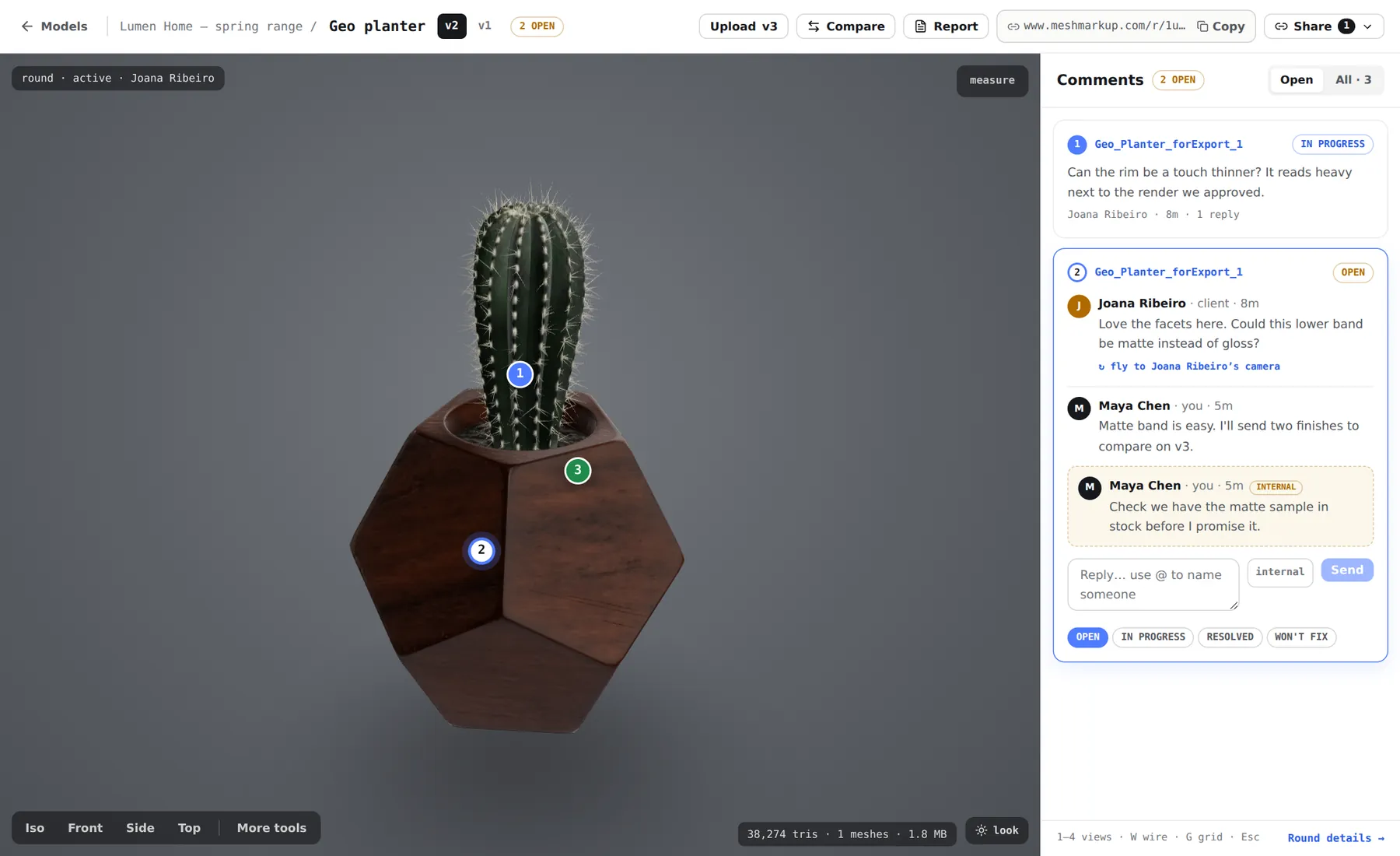
For each note:
- Reply in the box under the thread. Your client sees the reply on their link, and is emailed if they asked to be.
- Talk to your team privately by clicking internal before sending. Internal notes never reach the client, and they're left out of the round report.
- Set a status: OPEN, IN PROGRESS, RESOLVED or WON'T FIX. The client sees Working on it and Fixed labels. If you won't fix something, reply first to say why.
When you have several models out, Tasks collects every note in one place. waiting on you marks notes where the client spoke last, and Waiting on the client lists models nobody has come back on yet. Notes, replies, internal notes and Tasks are covered in depth in notes, replies and statuses.
Your model page is for reading and answering notes; the notes themselves are pinned by the people who open your review links.
Upload v2 and run the next round
When the fixes are done, open the model and click Upload v2. Notes that were still OPEN or IN PROGRESS are copied onto the new version with their replies and a since v1 tag, and v1 keeps its own notes as the record of that round. Resolved and won't-fix notes stay on v1.
Before you send it, click Compare to draw v1 as a translucent blue ghost behind v2. Anywhere blue shows through is where the geometry changed, and the strip above the model shows the change in triangles, meshes and file size.
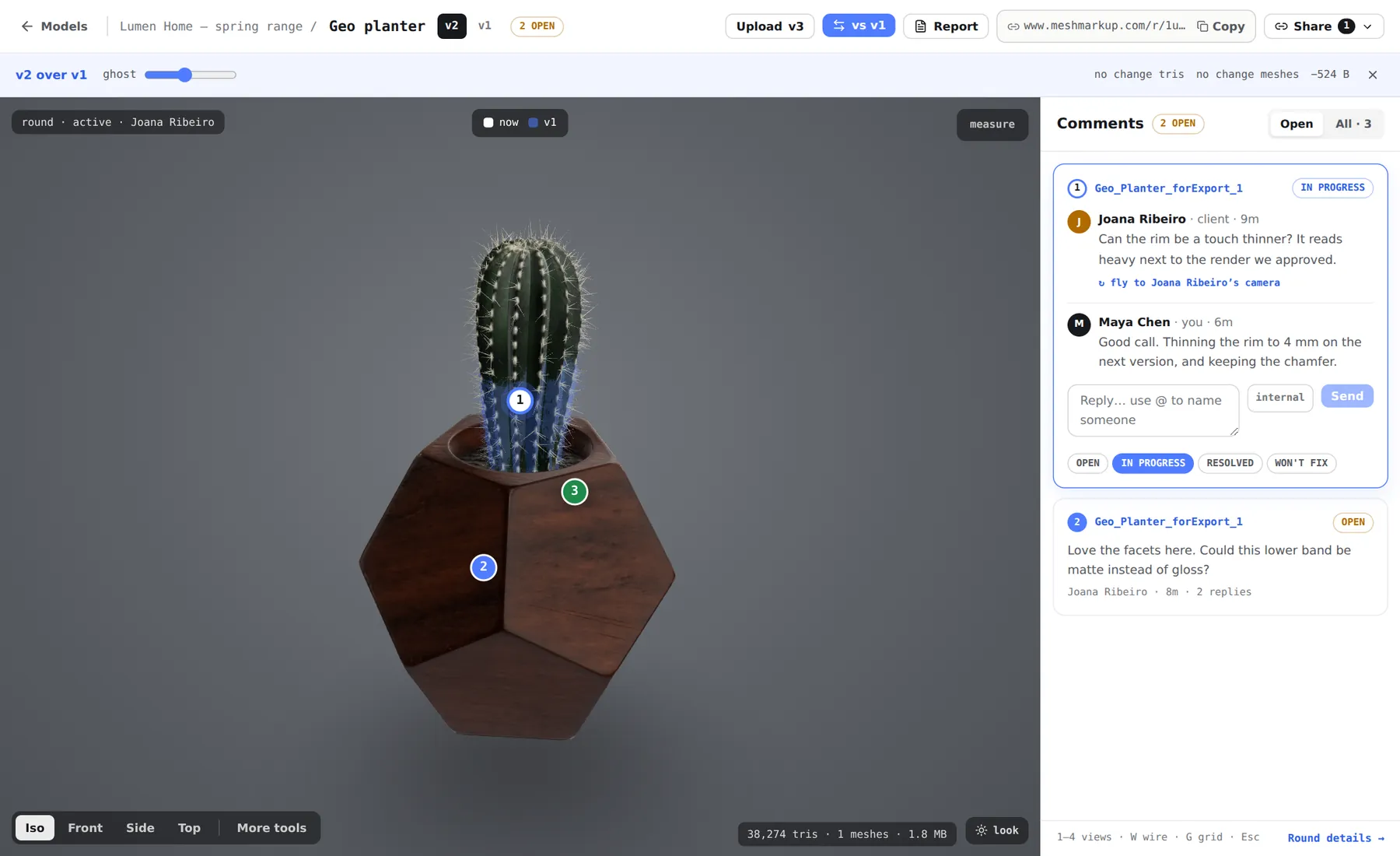
A review link stays on the version it was made for, so v1 links keep showing v1. Open v2, click Share for review and create a fresh link for round two. See versions and comparing.
Sign-off and the record
On the last round, clear every open note, then send a Sign it off link. Your client sees an Approve button for the version, such as Approve v3. It only goes through when no notes are OPEN or IN PROGRESS, so an approval means everything raised was dealt with. The model's status becomes Approved, and the round records the name the client typed and the date. See client sign-off.
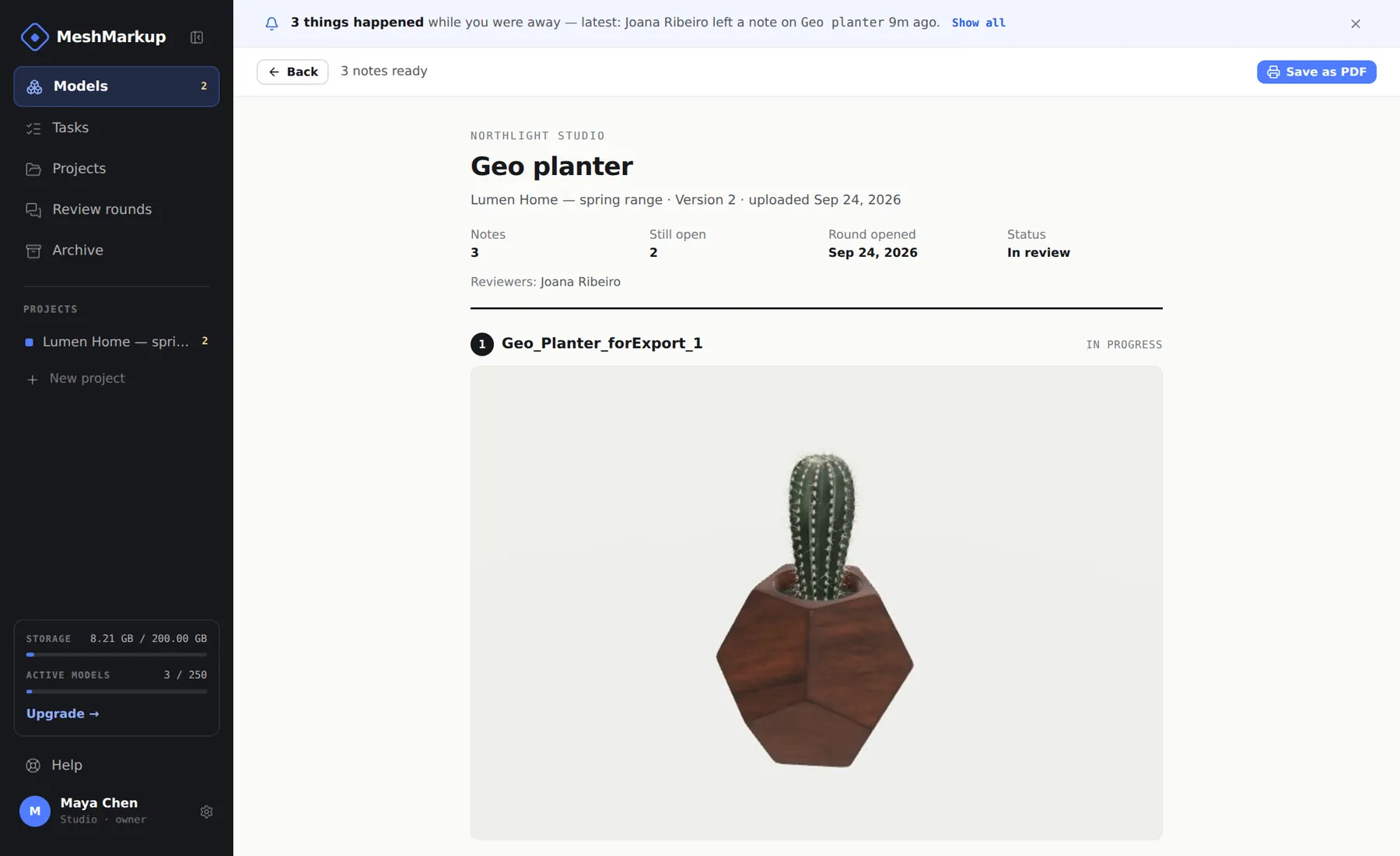
Then click Report on the model page. MeshMarkup renders every note from its saved camera, with its thread and status, and Save as PDF opens your browser's print dialog. The report is on every plan, and internal notes are left out, so you can send it to the client or file it with the job. See export a round as a PDF.
Tips for a smoother review
- Keep every round on one model. Upload the revision with Upload v2, not as a new model called "chair_v2". The version tabs (v1, v2) name the rounds for you, and the history, carried notes and comparison all depend on it.
- Model link or project link. A model link stays on one version, and MeshMarkup can email it for you. A project link suits a collection or a growing job, because it always shows the latest version of every model.
- Separate links don't separate conversations. Everyone with a link to the same version sees the same notes. If two clients mustn't see each other's comments, give them different models.
- Close finished rounds. Close round on Review rounds stops a round's links taking new notes or sign-offs; clients can still open them to look.
- Save a report at the end of every round, before you upload the next version, as the record of what was asked and answered.
For an assembly reviewed with engineers or suppliers, with section cuts, exploded views and drawings, see engineering design review. For form, colour and finish reviews with Studio looks and renders, see product design review software.
Was this guide helpful?
Related guides
Get feedback on the model, not on a screenshot
Upload a model, send one link, and your client clicks the exact spot. Free to start — no card.