The 3D visualization workflow: from client brief to approved render
A 3D visualization workflow from brief to sign-off, with modelling, lookdev, render review rounds and revisions kept on one model in MeshMarkup.
A 3D visualization workflow runs from the client's brief through modelling, lookdev and renders to a signed-off image set, with a review round at each stage. The rounds are where jobs slip, because feedback arrives as marked-up JPEGs, voice notes and long emails. In MeshMarkup the model, its renders and every comment sit on one review link: the client pins notes on the 3D model during modelling, on the renders during lookdev, and approves the final version on the record.
This guide is for visualization artists and small agencies doing product, packaging, furniture and interior work.
The stages of a 3D visualization workflow
Most visualization jobs follow the same shape, whatever the subject. What changes from stage to stage is what the client is looking at.
| Stage | What the client reviews | Where it happens in MeshMarkup |
|---|---|---|
| Brief and references | Your understanding of the job | Outside MeshMarkup: a call, a document, a mood board |
| Blockout and modelling | Shape, proportions, details | The 3D model on a Leave feedback link |
| Lookdev | Materials, colours, lighting | Your Studio look on the model, or test renders |
| Final renders | Framing, finish, small fixes | Renders added to Images, beside the model |
| Sign-off | The finished set | A Sign it off link on the final version |
| Delivery | The files they paid for | Your usual delivery, plus the round report as the record |
Review the model before the renders: a wrong proportion found in modelling takes minutes to fix, but found after a night of rendering it costs the night.
Review the model before you light it
Once the blockout or first model is ready, export it (GLB is best; FBX, OBJ, 3DM, STEP and the rest are converted for you) and upload it on Models. Click Share for review and choose Leave feedback.
Your client opens the link in their browser, with no account, turns the model round and clicks the spot they want to talk about. Each note is pinned to that point and keeps their camera angle, so "the legs look too thin from here" arrives with the exact view they meant. If you named the parts in your scene, they can pin a note to the whole part, such as All of Tabletop, rather than one point.
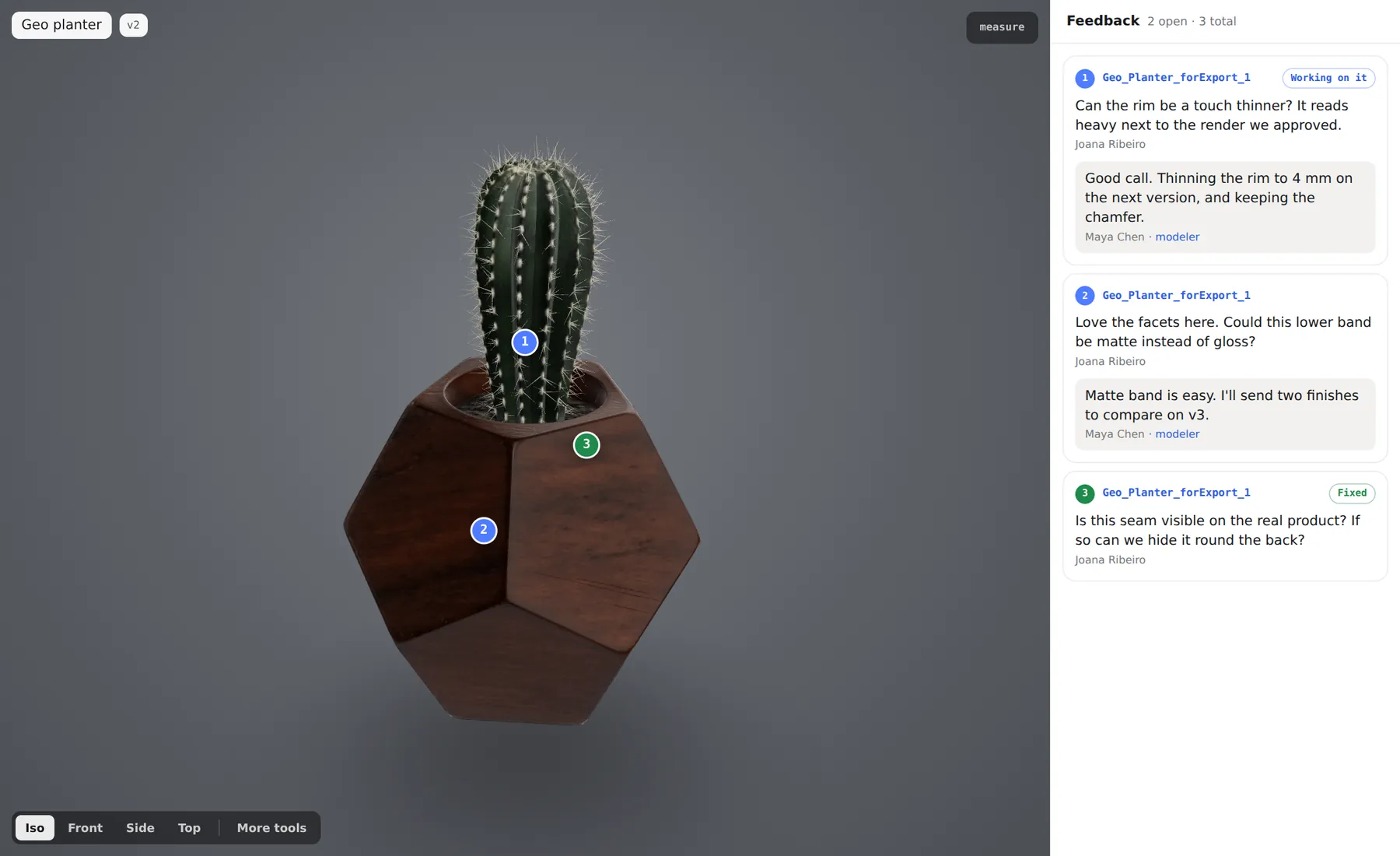
A few things help at this stage:
- Show work in progress with Look only. A Look only link lets the client turn and measure the model without a note box, which suits a quick "this is where we are" update.
- Ask for feedback by a date. The Share menu fills in three working days from today. Add the client's email and MeshMarkup reminds them in your name until they answer. See feedback-by dates and reminders.
- Check the size first. Click Measure on the left toolbar and check a known dimension before the client does. See wrong size or scale.
For the client's side of the screen, see what your client sees.
Lookdev in Studio
When the shape is agreed, move on to materials and light. You can do lookdev in your own renderer, or in Studio, which is built into MeshMarkup.
In Studio you click a part and give it a material from the strip under the model (Metals, Plastics, Rubber, Glass, Paint), then set the light on the Lighting tab. Renders are ray traced by your own graphics card in the browser tab, and nothing is uploaded until you add a picture to Images. See the Studio guide for every control.
Two Studio features matter for client review:
- Show this look to clients makes the review link open the model in your materials, light and background, so the client comments on the dressed model rather than the plain one. It's on Solo and up.
- Several looks let you build, say, a walnut version and an oak version of the same model. The look that's picked is the one clients see. Also Solo and up.
Render review rounds
Renders go in the same review link as the model. From Studio, click Add to Images on a finished render. Renders from your own pipeline go in with Add images at the top of the model page (JPG, PNG, WebP or PDF). The client switches between 3D model and Images and leaves notes the same way: click the spot, type the note. On images they can also draw an Arrow, Box, Highlight or Pen line with it.
When you fix a render, upload it again under the same name. It becomes Rev B, open notes stay on it, and on Solo and up a Compare with rev A button lets you and the client slide between the two. If the client only needs to see the renders, switch Show the 3D model off in the Share menu before you make the link. More in render feedback and notes on images and PDFs.
Revisions without losing the thread
Visualization jobs rarely end after one round. When you change the model, click Upload v2 on the same model rather than uploading a new one. Notes still OPEN or IN PROGRESS are copied to v2 with their replies, and v1 keeps its own notes as the record of that round. Compare draws v1 as a ghost behind v2 so you can check what moved before the client sees it.
Angles saved with Snapshots can be re-shot on v2 with one click, so the client compares the same view before and after. For the detail, see versions and comparing and managing 3D design revisions. Every note waiting on you, across every job, is on Tasks.
Sign-off and delivery
On the final round, resolve or answer every note and send a Sign it off link. The client sees an Approve button for that version. It's refused while any note is still open, so an approval means every comment was dealt with, and it's recorded with the name the client typed and the date. Sign-off links come with the Solo, Studio and Pipeline plans; see client sign-off.
Then click Report on the model page and save the round as a PDF. Each note is shown from its saved camera with its thread and status, and internal notes are left out. It's a useful thing to attach to the final invoice. See round report.
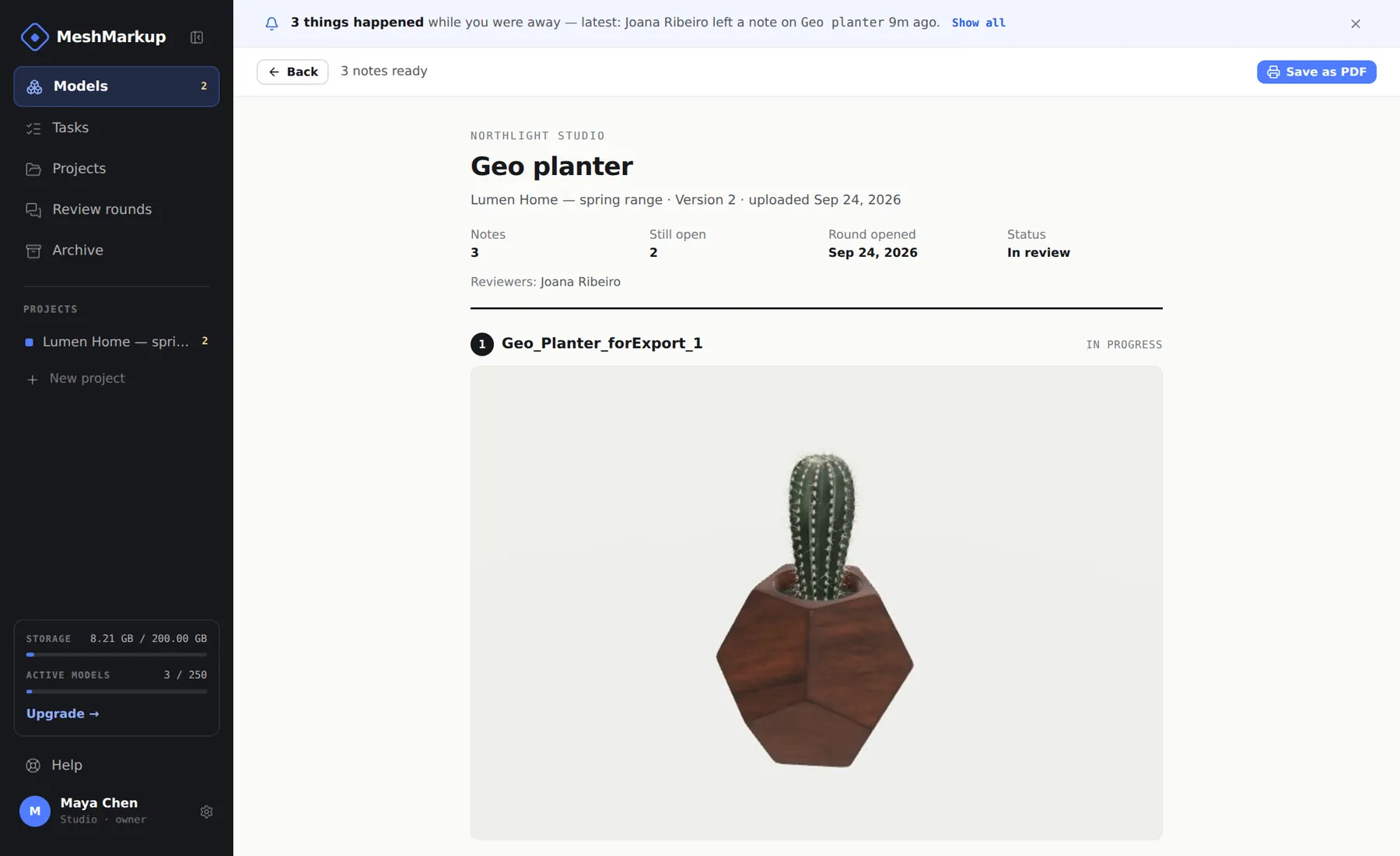
MeshMarkup is for review, not file delivery, so send the final files the way you normally do. Where they're set up, integrations such as Dropbox or Google Drive can copy approved versions back to a watched folder.
Questions
Can I run the workflow on renders only?
Yes. Drop renders on the Models page and choose Their own review, no model. Notes, replies, statuses and sign-off work the same; you only lose the modelling-stage review.
Does my client need to install anything to see the model?
No. Review links open in any modern browser on a computer, tablet or phone, and clients never create an account or use a seat.
Do I have to use Studio?
No. Model and render in whatever you use, and bring the model and renders into MeshMarkup for the review rounds. For the review loop in general, see the complete 3D review workflow.
Was this guide helpful?
Related guides
Get feedback on the model, not on a screenshot
Upload a model, send one link, and your client clicks the exact spot. Free to start — no card.