3D asset review: checking game, AR and e-commerce models before they ship
Run a 3D asset review in the browser. Check polycount, wireframe, textures and scale, pin notes on parts, and compare versions before an asset ships.
A 3D asset review checks two things: that the model looks right to the person paying for it, and that it will work where it's going, whether that's a game engine, an AR viewer, a product page or a configurator. MeshMarkup covers both in one browser link: you see the triangle and mesh counts, wireframe and textures, measure it for scale, and the reviewer pins notes on the exact part that needs work. New versions go onto the same model, so you can see whether a fix also doubled the polycount.
This guide is for teams that make or buy assets in volume: game and XR studios, e-commerce teams commissioning product models, configurator builders, and the outsourcers who deliver to them.
What a 3D asset review should check
An asset can look perfect in a beauty render and still fail in production. A useful review covers the technical side as well as the look.
| Check | What goes wrong | How to see it in MeshMarkup |
|---|---|---|
| Polygon count | Too heavy for the target device or budget | Triangle and mesh count in the bottom-left corner of the viewer |
| Topology | Dense spots, hidden internal parts, doubled smoothing | Wireframe (W) and X-ray (X) in Display mode |
| Textures | Missing maps, wrong colour, grey model | Realistic view, and Clay (C) to judge shape without textures |
| Scale | Asset arrives 1000 times too big or small | Measure (M) and the Floor grid (G) |
| Part structure | Parts merged that should be separate, or unnamed | Part names on hover (N) and the Parts list (P) |
| Materials and draw calls | Too many meshes or material slots | Meshes in the corner stats; materials in the free viewer's stats |
Rules of thumb for budgets are in check the polygon count. Your project's own budget always wins.
Run the technical pass before anyone else looks
Do the technical checks yourself first, so the reviewer's time goes on the look.
Drop the file into the free viewer
The free viewer shows the file size and the number of triangles, meshes, materials and nodes under the stage, without an account. It opens GLB, glTF, FBX, OBJ, STL, PLY, DAE, STEP, IGES, 3DM, 3MF and 3DS.
Look at the wireframe
Press W and turn the model round. Look for dense areas on flat surfaces and small parts carrying more triangles than they need.
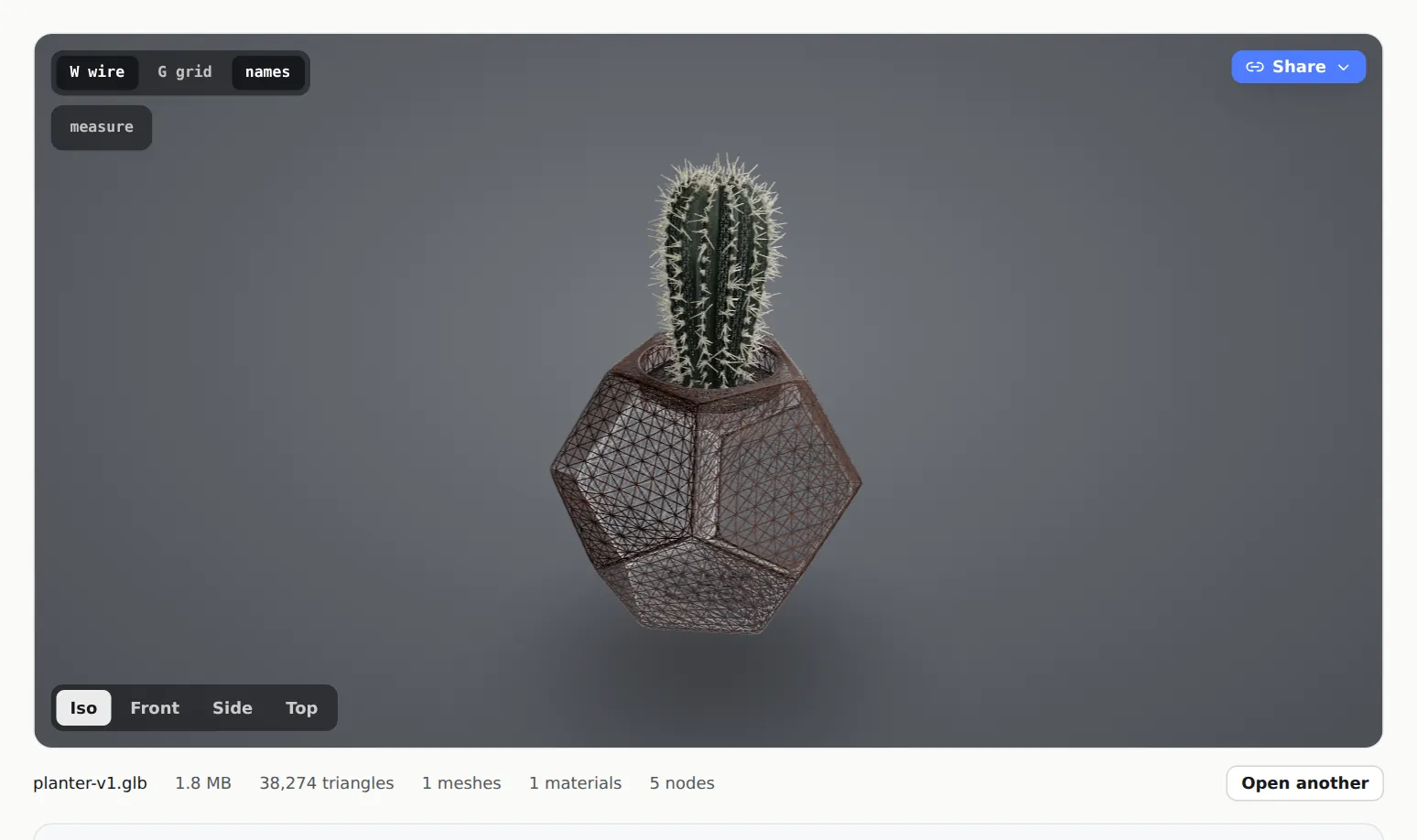
Wireframe on, with triangles, meshes, materials and nodes under the stage Check textures and scale
If it comes in grey, the textures were left behind: export a GLB, or zip the model with its texture folder. See model looks grey. Then measure something with a known size. If it's off by 100 or 1000, it's a units problem; see wrong size or scale.
Fix and upload
Upload the asset on Models. On the model page, the corner of the viewer shows the triangle count, mesh count and the size of the stored GLB.
If the file is too heavy, reduce file size and polygon count has the steps app by app.
Send assets for review
Click Share for review on the model and choose Leave feedback. The art lead, client or product owner opens the link in a browser with no account and clicks the asset where something needs to change. Each note keeps the camera angle it was written from.
For a batch of assets, such as a furniture range for a web shop or a set of props, put them in one project and send a project link. It opens every model in the project from one page and always shows the latest version of each, so the reviewer works through the batch without a separate link per asset.
Reviewers can use the same viewer tools you used, from More tools on their toolbar: wireframe, X-ray, measure and the parts list. A technical reviewer can check the topology on the review link itself.
Notes on parts, not just points
Asset feedback is often about a whole component: "the strap texture is stretched", "the lid should be a separate mesh for the animation". When a reviewer clicks a named part, they can pin the note to This spot or to All of that part. A part note highlights the whole part when it's selected, so there's no doubt which piece of a 30-part model it means.
This depends on part names in your file, so name objects before you export. For configurator and e-commerce assets, the names you'd use for variants (Seat, Frame, Cushion) are the ones the reviewer will see. The Parts list lets anyone find a part by name, hide what's in the way, or show one part on its own; see parts list.
For finished product shots, the client can also comment on renders and snapshots next to the model. See notes on images and PDFs.
Versions: catch regressions between rounds
Upload each fix as a new version of the same model with Upload v2. Open notes move to the new version with their replies, so nothing raised is dropped between rounds.
Compare draws the previous version as a ghost behind the new one, and the strip above the model shows the change in triangles, meshes and file size. That's the quickest way to spot an asset that got its fix and also gained 200,000 triangles, or split into twice as many meshes. See versions and comparing.
Fit asset review into your pipeline
- Tasks lists every note across every asset in one place, as a board with Open, In progress, Resolved and Won't fix columns, or as a list grouped by model. waiting on you filters to notes where the reviewer spoke last.
- Integrations such as Jira, Linear or Asana can turn each client note into a task in your team's tool, and a watched folder in Dropbox or Google Drive can turn new files into models and changed files into new versions, where they're set up. See integrations.
- The REST API and signed webhooks are on Solo and up, for studios that want to plug review into their own tools.
- Blender users can send the scene for review from Blender with the Blender add-on and see notes come back.
Questions
Does MeshMarkup enforce a polygon budget?
No. It shows the counts and the change between versions, and you compare them against your project's budget.
Can I review assets in formats other than GLB?
Yes. FBX, OBJ, STL, PLY, DAE, STEP, IGES, Rhino 3DM, 3MF and 3DS are converted to GLB as they upload, and the counts are taken from the converted model. For a real-time asset, GLB is still the best thing to review, because it's closest to what the engine or web viewer will load.
Can several people review the same asset?
Yes. Reviewers are free and unlimited on every plan. Everyone with a link to the same version sees the same notes, so the art lead and the client can reply to each other. If two clients mustn't see each other's comments, give them separate models.
Was this guide helpful?
Related guides
Get feedback on the model, not on a screenshot
Upload a model, send one link, and your client clicks the exact spot. Free to start — no card.