How to export from Revit to FBX (for client review)
Export a Revit 3D view as an FBX, trimmed with a section box, so your client can walk round the building model in the browser and pin notes on it.
To export from Revit for client review, open a 3D view, then choose and save. MeshMarkup converts the FBX to a GLB in your browser as it uploads. Only what's visible in that 3D view is exported, so use a section box and hide categories first to keep the file light enough for a browser.
Best format: FBX
Revit has no built-in glTF export, and FBX is the 3D format it exports that MeshMarkup opens:
- Built in. No add-in to install.
- Converted for you. MeshMarkup turns the FBX into a GLB in your browser.
- Size comes through. MeshMarkup applies the unit stored in the FBX, so the building comes in at its real size.
If you'd rather export a GLB directly, the free third-party Leia glTF Exporter add-in (by e-verse, on the Autodesk App Store) supports some Revit versions. It isn't made by Autodesk or MeshMarkup, so check that it supports your version.
Export an FBX step by step
Open a 3D view
Open the default {3D} view, or a copy of it. FBX export is greyed out unless a 3D view is active.
Trim to what matters
Turn on Section Box in the view's Properties and drag its handles round the part of the building you're reviewing. Hide categories you don't need in (for example furniture, site, MEP or annotation).
Set a sensible detail level
Set the view's Detail Level to Medium or Coarse unless the review is about fine detail. Fine detail can multiply the triangle count.
Export
Choose . In the options, leave Use Levels of Detail on to keep curved elements lighter, and Include boundary edges off unless you want edge lines. Name the file and click Save.
Check the size
The Free plan has 50 MB of storage in total. If the FBX is larger, trim the section box further or hide more categories.
Recommended settings
| Setting | Choose | Why |
|---|---|---|
| View | A 3D view | FBX is only available from 3D views |
| Section Box | On, round the area under review | Exports only that part |
| Visibility/Graphics | Hide unneeded categories | Smaller, clearer file |
| Detail Level | Medium or Coarse | Fewer triangles |
| Use Levels of Detail | On | Lighter curved geometry |
| Include boundary edges | Off | Adds geometry you don't need for review |
Units and scale
Revit works in feet internally, whatever units you display. MeshMarkup reads the unit stored in the FBX and scales the model to match, so a 3 m ceiling should measure 3 m. Check one dimension you know, such as a door or a floor-to-floor height, with the measure tool after uploading.
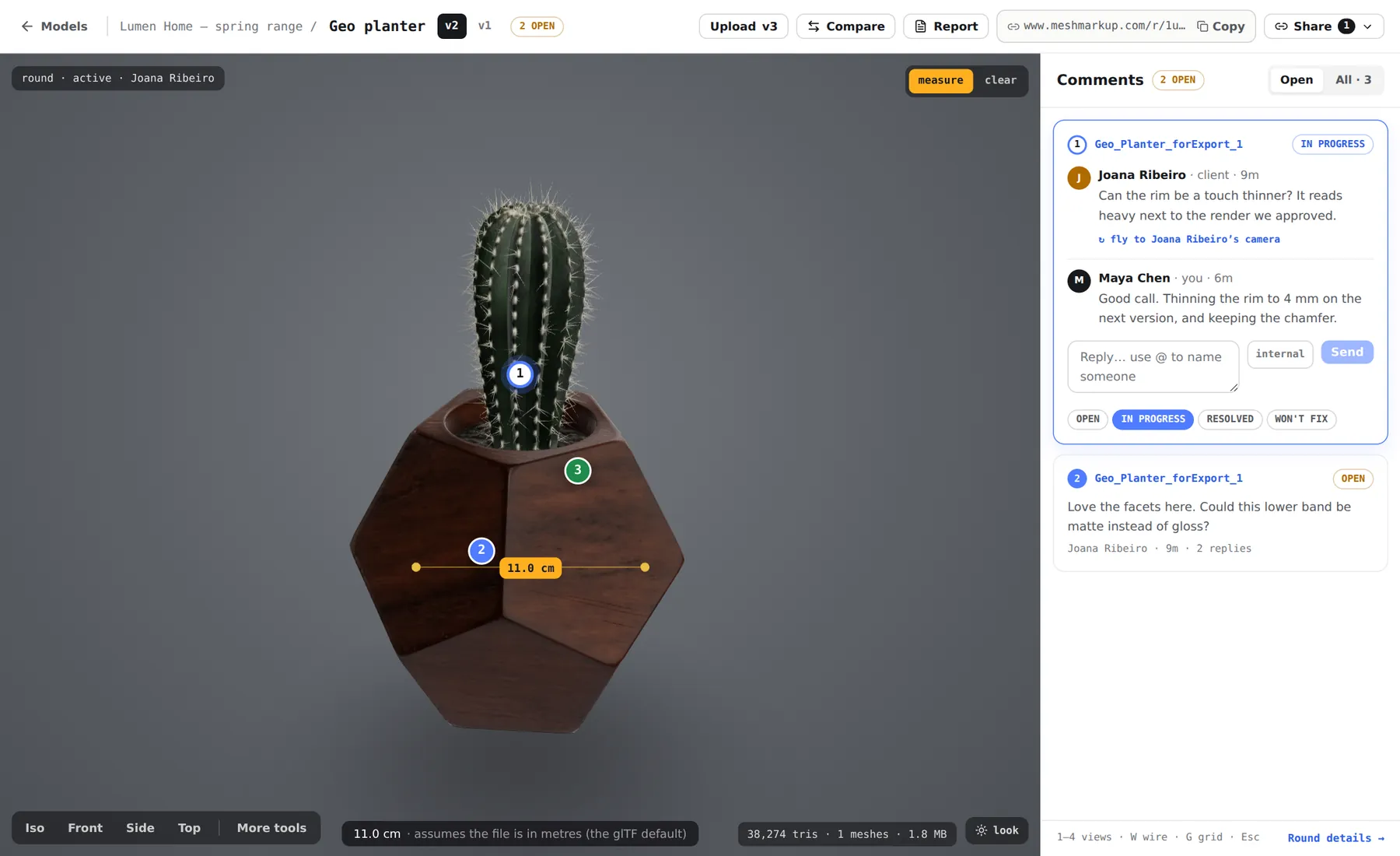
If it's 3.28 or 30.48 times off, the unit didn't come through; see wrong size or scale.
Textures and materials
- Material colours come through in the FBX. Most walls, floors and glazing arrive in their material colours.
- Render appearances (images from the Autodesk material library) may or may not travel with the FBX, depending on the material and your installation. If the model arrives in plain colours, that's usually why.
- Glass exports as a transparent material, but may look different from a Revit render.
- For a design review, colours are usually enough. If textures matter, try the Leia glTF add-in, which exports a GLB.
Common problems
- FBX is greyed out in the Export menu. A 3D view isn't active. Open a 3D view and try again.
- The file is huge or the upload fails. The whole model was exported. Use a section box, hide categories, and lower the detail level. See reduce file size.
- Parts of the building are missing. They were hidden in the view, outside the section box, or on a phase or design option not shown. Adjust the view and export again.
- Everything is plain grey or white. Render appearances didn't travel. Colours are usually enough for review; for textures, try the glTF add-in. See model looks grey.
- The building is the wrong size. Measure a known dimension and see wrong size or scale.
Upload and send it
Upload the FBX
Drop it on Models. It's converted to GLB in your browser before uploading; a large building can take a little while.
Share it for review
Open the model, check it, and click Share for review. Your client can orbit round the building and pin notes to walls, openings and details. The full walkthrough is in how to send a 3D model to a client for feedback.
Was this guide helpful?
Related guides
Get feedback on the model, not on a screenshot
Upload a model, send one link, and your client clicks the exact spot. Free to start — no card.