How to export a GLB from Substance 3D Painter (for client review)
Export a textured model from Substance 3D Painter with the glTF PBR Metal Roughness preset, so your client reviews your texturing on the model in the browser.
To export from Substance 3D Painter for client review, open (Ctrl+Shift+E), choose the glTF PBR Metal Roughness output template, set the size to 1024 or 2048, and export. Depending on your version, Painter writes a single .glb with the mesh and textures, or a .gltf with separate .bin and image files; upload the .glb as it is, or zip the .gltf set and upload the zip.
Best format: GLB
GLB is the format MeshMarkup's viewer reads natively, and it's the one format Painter can write with the mesh and textures together.
- Your texturing, on the model. Base colour, metal, roughness, normal, occlusion and emission maps are packed with the mesh, so the client sees what you painted.
- One file. Nothing to lose on the way.
- No conversion. A GLB uploads exactly as exported.
The glTF PBR Metal Roughness template has been able to write a .glb since Substance Painter 2017.4.
Export step by step
Open Export Textures
Choose or press Ctrl+Shift+E (Cmd+Shift+E on macOS).
Choose an output folder
Set Output directory to an empty folder, so the files for this export stay together.
Pick the glTF template
Set Output template to glTF PBR Metal Roughness. This packs occlusion, roughness and metallic into the channels glTF expects.
Set the size and format
Set Size to 1024 or 2048. Higher sizes make the file much bigger for little gain in a browser review. Leave the file type the template picks.
Choose which texture sets to export
In the list of texture sets, keep the ones on the model ticked. Unticked sets export without textures.
Export
Click Export. Open the output folder and see what Painter wrote: either a
.glb, or a.gltfwith a.binand several.pngfiles.
Recommended settings
| Setting | Choose | Why |
|---|---|---|
| Output template | glTF PBR Metal Roughness | Matches glTF's material model |
| Size | 1024–2048 | Sharp in the browser, keeps the file lean |
| Padding | Default (dilation) | Avoids seams showing at UV borders |
| Texture sets | All sets on the model | Every part gets its textures |
| Output directory | An empty folder | Easy to zip if you get a .gltf set |
If you get a .gltf and loose files
Some versions write a .gltf file that points at a separate .bin (the geometry) and one image per map. On its own, a .gltf has no geometry to show, and MeshMarkup says so if you drop it alone.
Select everything in the output folder
The
.gltf, the.binand every image. You can drop the whole selection on the Models page as it is, or zip it first.Zip them (optional)
Compress them into one
.zipif you'd rather keep one file.Upload
MeshMarkup reads the set in your browser and turns it into a single GLB with the textures inside.
Units and scale
Painter doesn't change the size of your mesh; it exports it at the scale it was imported. glTF is in metres, so if the mesh came from an app working in centimetres, it can come out 100 times too big. Check one dimension with MeshMarkup's measure tool after uploading. If it's off, fix the scale in the modelling app, export the mesh in metres, and re-import it into Painter. See wrong size or scale.
Textures and materials
- Metal/roughness only. glTF uses the metal/roughness workflow, so texture in a metal/roughness project for the most faithful result.
- Height maps aren't part of glTF. Painter's mixed normal output usually carries height detail into the normal map; if fine detail is missing, check the normal channel in the template.
- Opacity exports in the base colour's alpha. If transparent parts look solid, check that the shader in Painter uses an alpha blend or alpha test mode.
- Several texture sets each become their own material. That's fine, but each set adds a full set of maps to the file size.
Common problems
- The glTF PBR Metal Roughness template is greyed out. Some project templates or shaders limit the presets available. Create the project with a PBR metal/roughness template, or export another preset's textures and assemble a GLB in Blender.
- The upload says the file has no geometry. You dropped a
.gltfon its own. Drop it together with its.binand images, or zip them and upload the zip. - The model is grey. A texture set was unticked, or the images weren't in the zip. Export again with all sets and include every file. See model looks grey.
- The file is too big. Lower Size to 1024, or merge small texture sets. See reduce file size.
- Seams show on the model. Padding was off. Use the default dilation padding and export again.
Upload and send it
Upload the GLB or zip
Drop it on Models. A zip is turned into one GLB in your browser first.
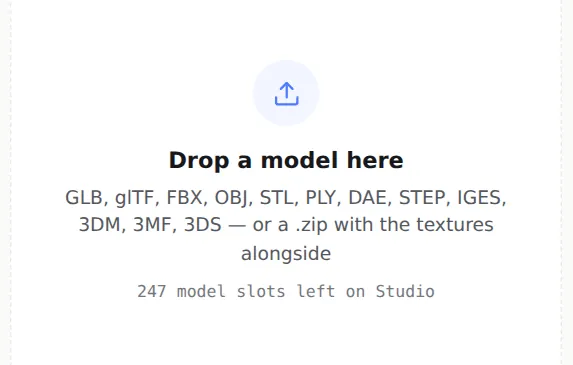
Drop the .glb, or the zip of the .gltf set Share it for review
Open the model, set the lighting with the Lighting button, and click Share for review. The full walkthrough is in how to send a 3D model to a client for feedback.
Was this guide helpful?
Related guides
Get feedback on the model, not on a screenshot
Upload a model, send one link, and your client clicks the exact spot. Free to start — no card.