How to export from ZBrush to FBX or OBJ (for client review)
Decimate a ZBrush sculpt and export it as an FBX or OBJ with its polypaint or textures, so your client can review it in the browser without a heavy file.
To export from ZBrush for client review, first reduce the sculpt with Decimation Master, then export an FBX with (with polypaint or embedded textures), or an OBJ with . MeshMarkup converts either to a GLB in your browser. Decimating first matters: a multi-million-polygon sculpt is too heavy to turn round smoothly in a browser.
Best format: FBX (or OBJ)
ZBrush has no official glTF or GLB export, so pick between FBX and OBJ:
- FBX is best when you have polypaint or several SubTools. It can carry polypaint as vertex colours, embed textures, and keep SubTools as separate objects.
- OBJ is simplest for a single mesh. Zip it with its
.mtland texture images if it has any.
Both are converted to GLB in your browser as they upload.
Reduce the polycount first
A sculpt at its highest subdivision is often several million polygons. Browser review works best at a few hundred thousand triangles, and the Free plan has 50 MB of storage in total.
Duplicate the SubTools
Work on copies so your sculpt stays untouched. Use on each SubTool you'll export.
Pre-process
Open . If the model has UVs, tick Keep UVs. Click Pre-process Current (or Pre-process All). This can take a while on dense meshes.
Decimate
Set % of decimation (try 10–20% to start) and click Decimate Current (or Decimate All). Look closely at the result: detail should hold up at review distance.
Export step by step
Export an FBX
Show only what to send
In the SubTool list, hide SubTools you don't want the client to see.
Open the FBX plug-in
Open .
Choose the options
Choose whether to export the selected, visible or all SubTools; Visible is usually right. Turn on Embed textures if you've created texture maps. To send polypaint, turn on the option to export it as vertex colours. Set Scale if you know the real size (see "Units and scale").
Export
Click Export, name the file and save.
Export an OBJ
Select the SubTool
OBJ export from writes the current SubTool. Merge SubTools first with if you want them all in one file.
Export
Choose , pick OBJ, and save.
Zip it with any textures
If you have texture maps, put the
.obj, its.mtland the images in one folder and zip it. Upload the zip.
Recommended settings
| Setting | FBX | OBJ |
|---|---|---|
| Polycount | Decimated to a few hundred thousand triangles | Same |
| What to export | Visible SubTools | Current (or merged) SubTool |
| Colour | Polypaint as vertex colours, or embedded textures | Textures via zipped .mtl and images |
| Scale | Set if the size matters | Exported as is; read as metres |
Units and scale
ZBrush scale is arbitrary. A head sculpted in ZBrush has no real-world size unless you gave it one, so MeshMarkup's measurements won't mean much by default. OBJ carries no unit, and MeshMarkup reads its numbers as metres. If size matters (a figure for printing, a prop for a set), set the Scale in the FBX plug-in, or scale the model in another app to real size in metres before sending. Otherwise, tell your client measurements aren't to scale. See wrong size or scale.
Textures and materials
- Polypaint travels as vertex colours in FBX. MeshMarkup keeps what the converter reads, but if the model arrives grey, bake polypaint to a texture (UV the model, then create a texture from polypaint) and export with Embed textures on.
- MatCaps and ZBrush materials don't export. The client sees the model under MeshMarkup's lighting, which you can adjust with the Lighting button in the viewer.
- Texture maps (colour, normal, displacement baked to normal) keep detail on a decimated mesh. A normal map from the high-res sculpt makes a lighter mesh look much closer to the original.
Common problems
- The upload is slow or the viewer stutters. The mesh is too dense. Decimate further, or send only the SubTools under review. See reduce file size.
- The model is grey. Polypaint or textures didn't come through. Bake polypaint to a texture, export FBX with Embed textures, or zip an OBJ with its
.mtland images. See model looks grey. - Only one SubTool arrived. OBJ export writes the current SubTool. Merge first, or use FBX with Visible SubTools.
- Decimation smeared the UVs. Keep UVs was off during pre-process. Tick it, pre-process again and re-decimate.
- Measurements are nonsense. ZBrush has no real units. Set a scale, or tell the client the model isn't to scale.
Upload and send it
Upload the FBX, OBJ or zip
Drop it on Models. It's converted to GLB in your browser before uploading.
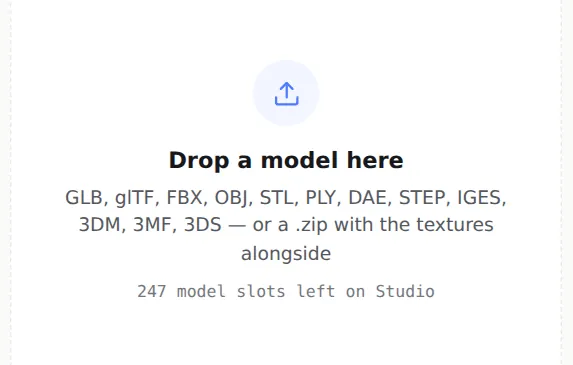
FBX, OBJ and zips are converted as they upload Share it for review
Open the model, check it, and click Share for review. The full walkthrough is in how to send a 3D model to a client for feedback.
Was this guide helpful?
Related guides
Get feedback on the model, not on a screenshot
Upload a model, send one link, and your client clicks the exact spot. Free to start — no card.