WORDPRESS PLUGIN · FREE
Show your products in 3D on WordPress
Upload a STEP, OBJ, STL or GLB file from your dashboard and put an interactive 3D model on any page or WooCommerce product. Shoppers turn it, zoom in and look from every side.
v1.0.0 · WordPress 6.2+ · PHP 7.4+ · WooCommerce ready
Footwear · Example product
Runner, knit upper
€129.00
Breathable knit upper, recycled foam sole.
COLOURWAY
Add to cartShoe model: Shopify, CC BY 4.0, via the Khronos glTF samples
How it works
From a CAD file to your product page in a minute
Everything happens in your WordPress dashboard. No other website to sign up to, no file hosting to set up.
 01
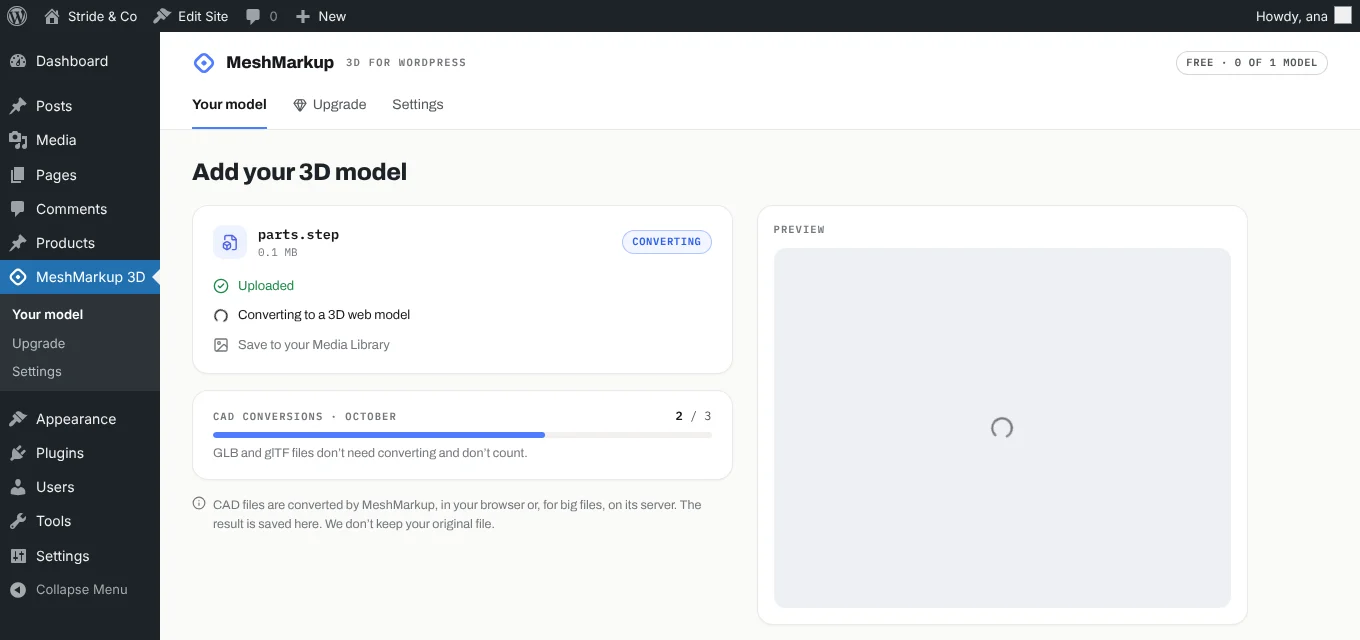
Upload the file
Drop a STEP, Rhino, OBJ or GLB in MeshMarkup 3D. CAD files are converted to a light web model and saved in your Media Library.
 02
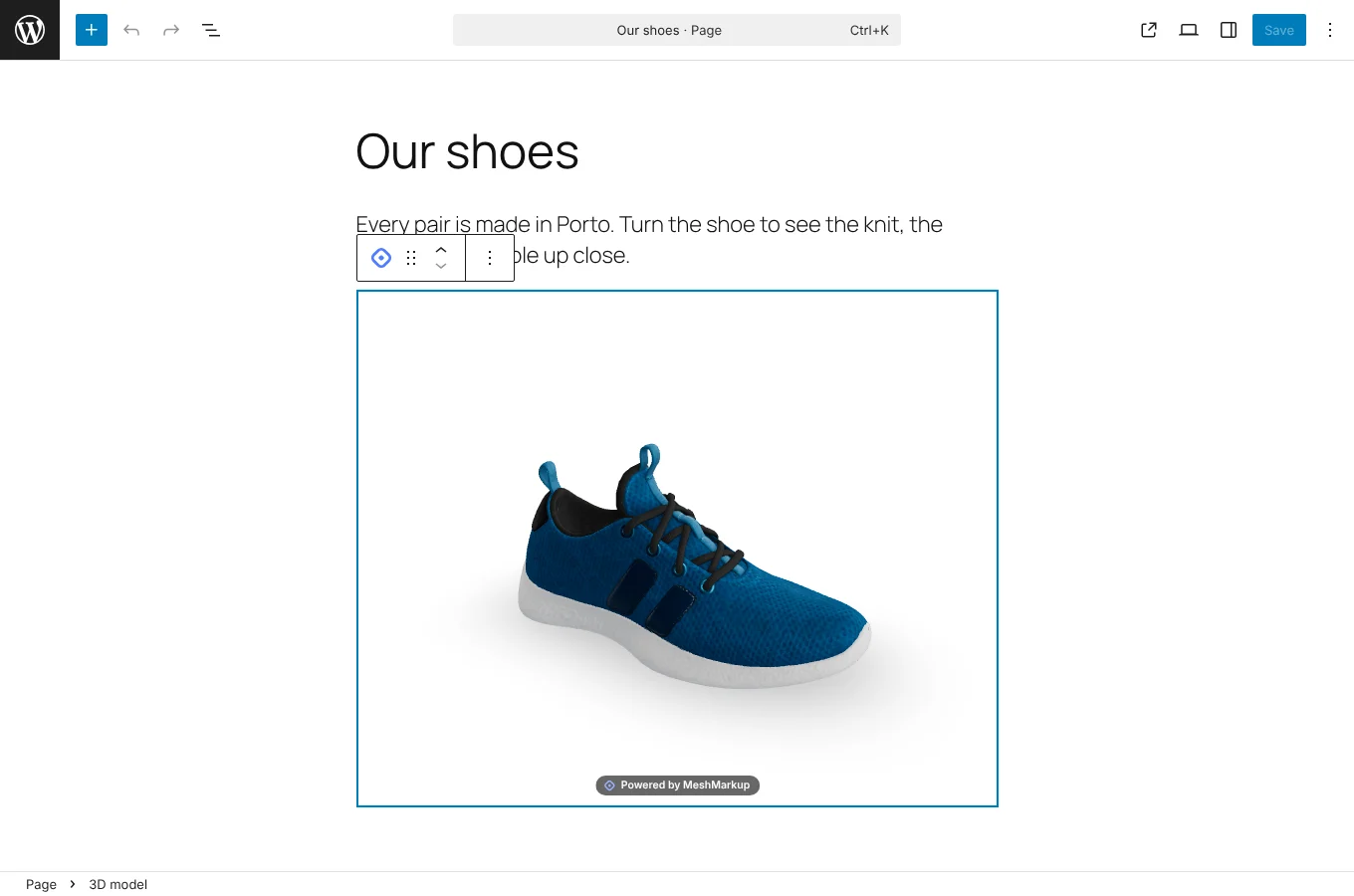
Place it
Add the 3D model block in the editor, paste the shortcode anywhere, or choose the model on a WooCommerce product.
 03
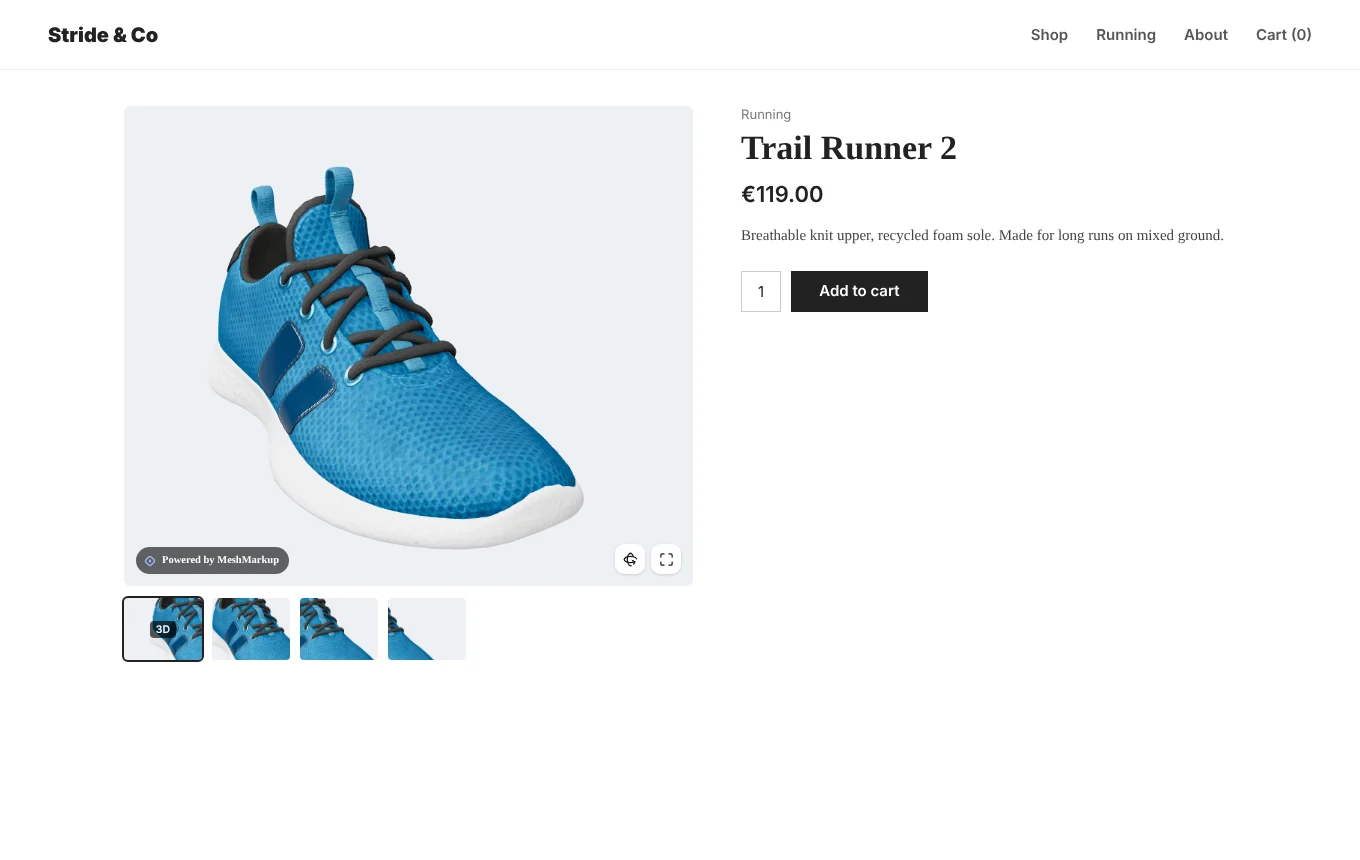
Shoppers turn it
The model loads with the page and works on phones too. Drag to turn, pinch to zoom, full screen in one tap.
Anywhere on your site
Three ways to put a model on a page
The same model can go on as many pages and products as you like. Replace the file once and it updates everywhere.
The 3D model block
The shortcode
[meshmarkup model="trail-runner" height="480"]On a WooCommerce product
WooCommerce
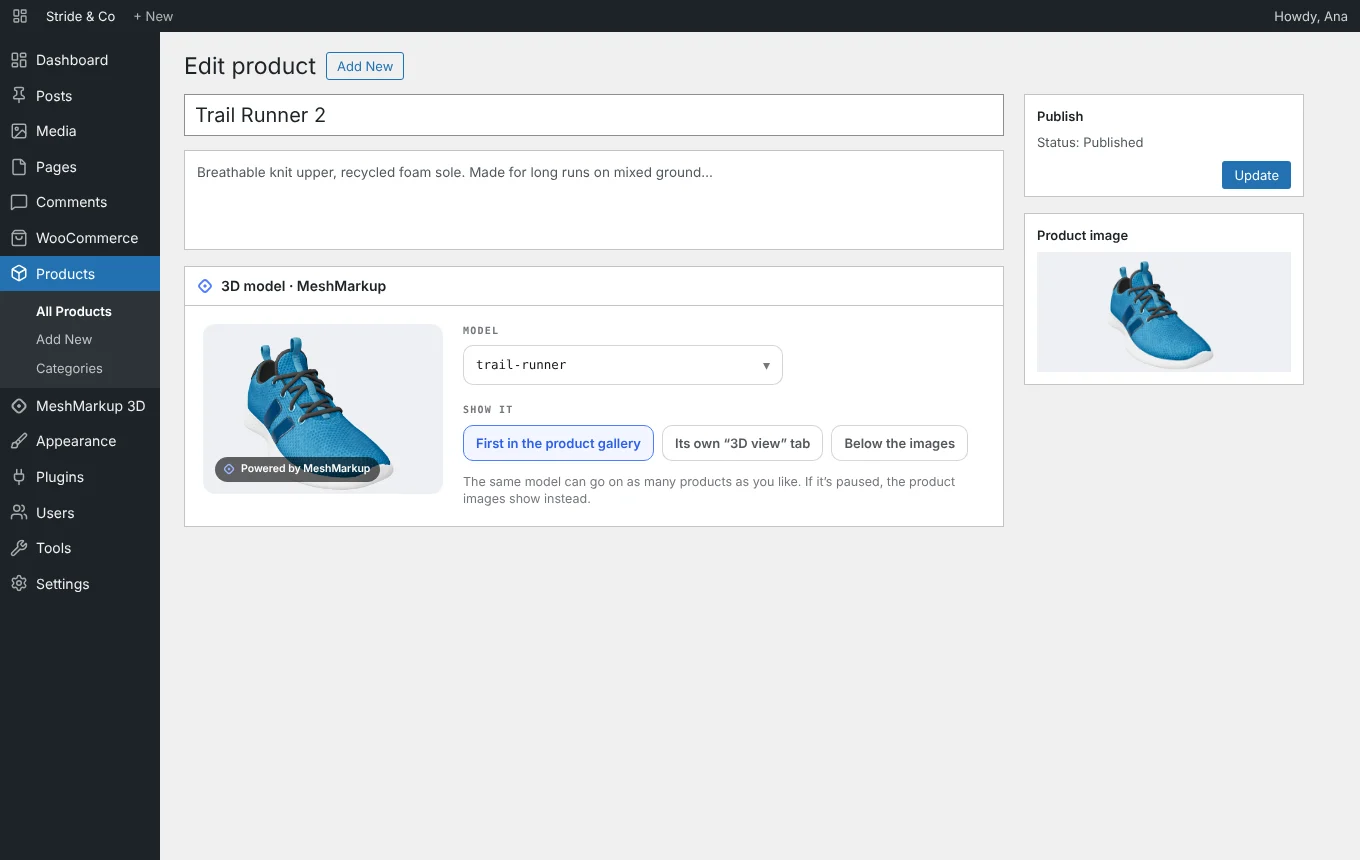
Built into the product editor
No extra page to manage. The 3D model sits next to the product image, and if the model is ever paused your normal product photos show instead, so the page never breaks.
- Works with any WooCommerce theme
- One model on many products, like the same design in different sizes
- Loads only when the shopper scrolls to it
SOLO PLAN
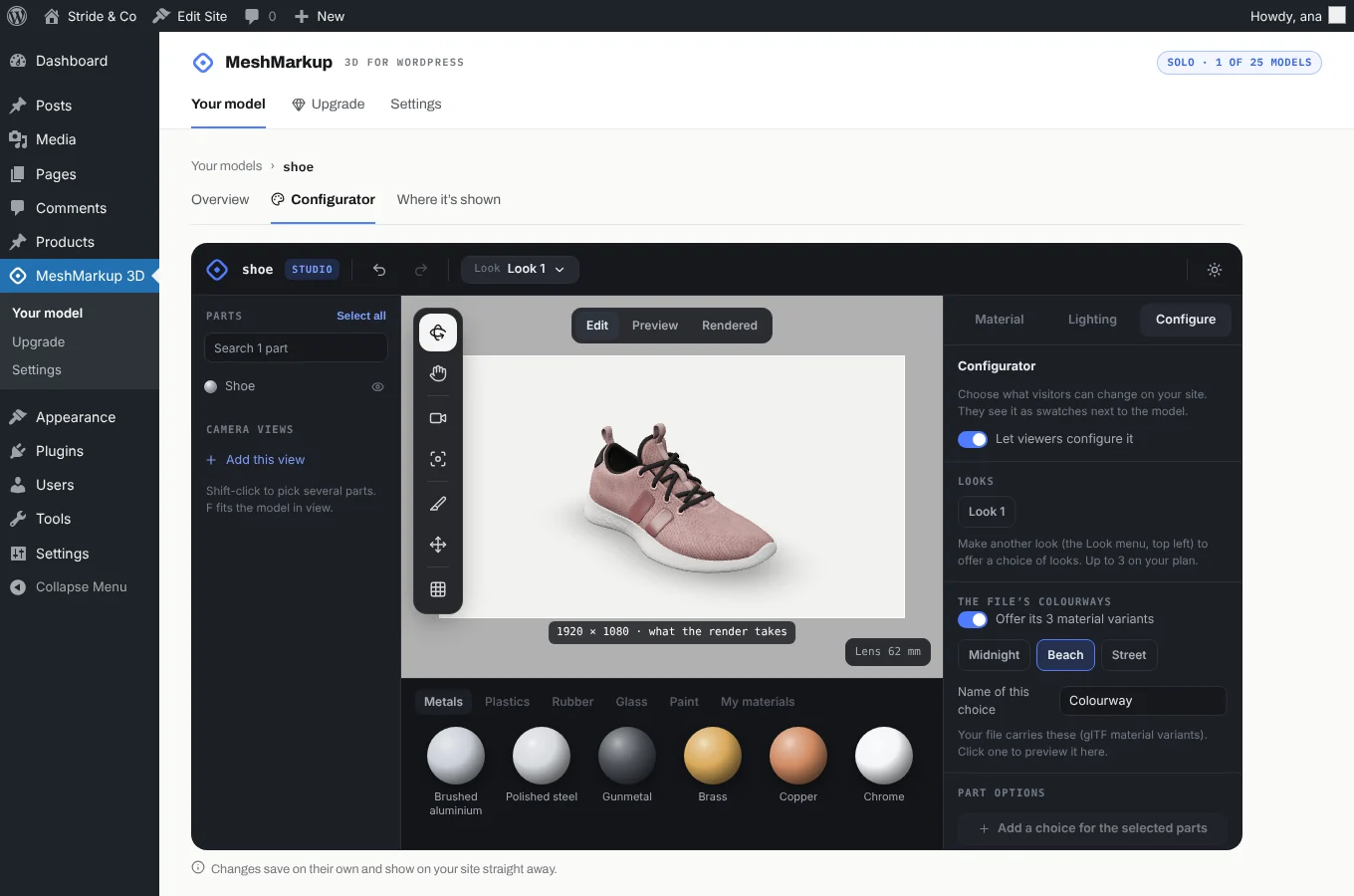
Let shoppers switch colours and materials
Set up colourways in the plugin’s Configurator tab: pick parts, choose materials, name each option. Visitors switch them right on your product page, on the 3D model itself.
Made for WordPress
Light on your site, easy on your hosting
Your files, your Media Library
The 3D model is stored with your other media. We don't keep your original CAD file.
No slower pages
The viewer loads in its own frame, only when it scrolls into view. Nothing heavy added to your theme.
CAD files converted for you
STEP, IGES and Rhino become web-ready models. Big files go to our converter, so your server does nothing.
No account to start
Install, click Get started, upload. You only give an email when you upgrade.
Private by design
No cookies and no tracking of your visitors. Views are counted; nobody is identified.
Never a broken page
If the free model reaches its monthly views, it hides until next month and your page looks as it did before.
Plans
Start free. Upgrade inside WordPress.
Upgrade from the plugin’s Upgrade tab without leaving your dashboard. 14-day money-back guarantee.
Free
One product in 3D, to try it on your shop.
$0 forever
- 1 model on your site
- 200 views a month
- 3 CAD conversions a month
- “Powered by MeshMarkup” badge
Plus
Your whole catalogue in 3D, with no badge.
$9 /month
- Up to 10 models
- Unlimited views, never paused
- No badge
- STEP, IGES and Rhino for every model
Solo
Your catalogue, plus a 3D configurator.
$29 /month
- Everything in Plus, up to 25 models
- Colour and material configurator
- Studio-quality materials and lighting
- The full MeshMarkup review app
Install
Installed in two minutes
- 1
In WordPress go to Plugins → Add New Plugin and search for MeshMarkup 3D.
- 2
Click Install Now, then Activate. (Or download the .zip here and use Upload Plugin.)
- 3
Open MeshMarkup 3D in the sidebar and click Get started.
- 4
Upload your file, then add it to a page with the 3D model block or the shortcode.
Want to see the viewer first? 3D for ecommerce shows it on a live product page.
Questions
The plugin, answered
Is the 3D viewer plugin free?
Yes. The plugin is free and GPL-licensed. The Free plan shows one model on your site with 200 views a month. Plus and Solo add more models, unlimited views and no badge, and you can upgrade from the plugin's Upgrade tab without leaving WordPress.
Which 3D file formats can I upload?
STEP and IGES (from SolidWorks, Fusion, Inventor, Onshape and other CAD tools), Rhino 3DM, OBJ, STL, FBX and GLB. Everything that isn't already a GLB is converted to one, the web's 3D format, and saved in your Media Library.
Does it work with WooCommerce and my theme?
Yes. On a WooCommerce product, the 3D model box lets you show the model first in the product gallery, in its own “3D view” tab, or below the images. It works with any theme, because the viewer sits in its own frame and doesn't depend on your theme's styles or scripts.
Will a 3D model slow down my pages?
No. The viewer loads lazily, only when the visitor scrolls to it, and in its own frame, so your page's own content loads exactly as before. Models are optimised for the web when they're converted.
Where are my 3D files stored?
In your own WordPress Media Library, like your images. MeshMarkup's viewer loads the model from your site each time it's shown. When a CAD file needs converting, MeshMarkup converts it and doesn't keep your original.
Can I use it with Elementor, Divi or a classic theme?
Yes. Paste the shortcode, for example [meshmarkup model="trail-runner" height="480"], into any text, HTML or shortcode element. In the block editor, use the 3D model block instead.
Do I need a MeshMarkup account?
Not to start. Click Get started in the plugin and upload: your site is connected without an account. You only give an email address when you upgrade to Plus or Solo, to receive a 6-digit code.
What happens after 200 views on the free plan?
The model is hidden until the next month starts, and your page shows as it did without it (on WooCommerce, your normal product images). Nothing breaks, and the views count starts again on the 1st.
Put your first product in 3D today
Free plugin, no account to start, and shoppers need nothing at all.
WordPress is a trademark of the WordPress Foundation, and WooCommerce a trademark of Automattic. MeshMarkup isn’t affiliated with or endorsed by either.